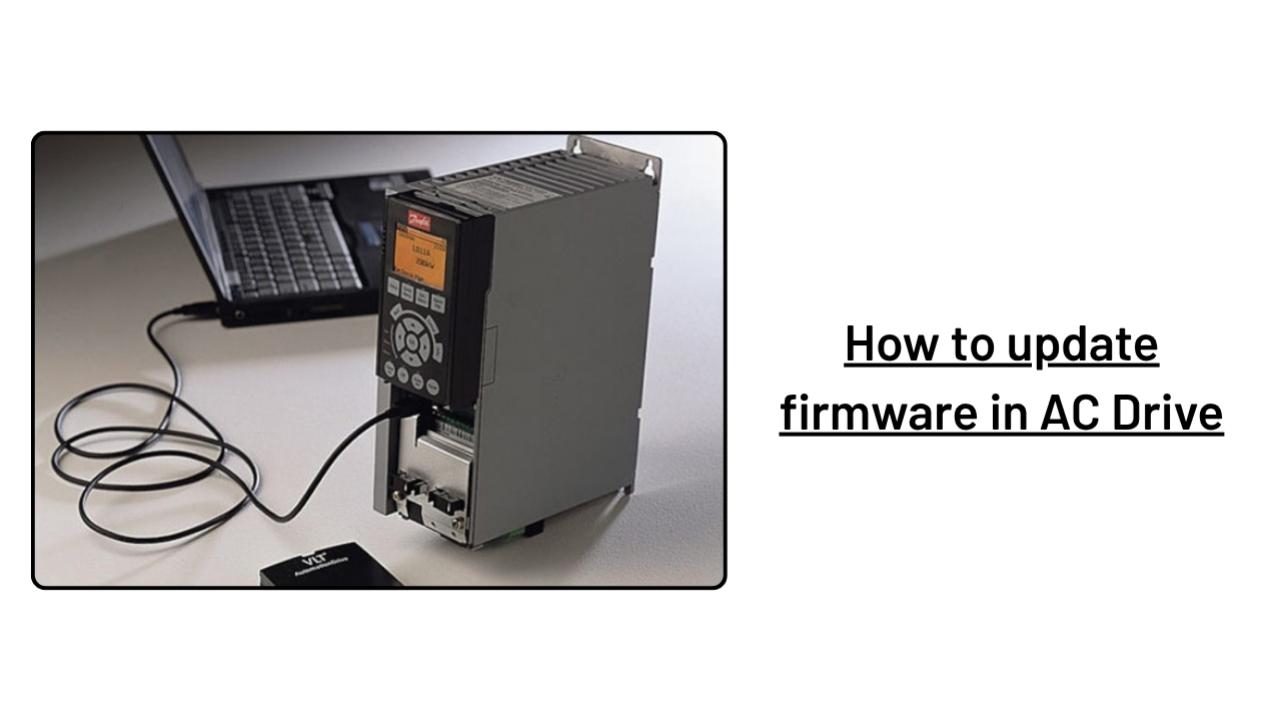
Maintaining
AC drives involves doing firmware upgrades to make sure the drive is using the
most recent software and that any known defects or issues have been fixed. Here
are various procedures for updating firmware:
1. Obtain the latest firmware:
For the
most recent firmware for your model of AC drive, visit the manufacturer's
website. Save the firmware to a USB flash disc after downloading it.
To get
the most recent firmware, discover the right firmware for your AC drive model
on the manufacturer's website. Download the correct firmware version to your
computer or another storage space, like a USB flash drive, as soon as you have
found it. To prevent any damage to the drive, it is crucial to ensure that you
have the appropriate firmware version for your AC drive model.
Read: Allen Bradley
PowerFlex 4M AC drives
2. Power off the AC drive:
Make
careful to turn off the AC drive before executing any firmware changes.
Simply
shut off the power supply to the drive or, if one is provided, use the power
switch to turn off the AC drive. Before beginning any maintenance or update
operations, it is crucial to wait for the drive to completely shut down and for
all indicators to turn off. In order to make sure the drive is completely shut
off, you can also unplug it from the power source if necessary.
3. Insert the USB flash drive:
Put the
USB flash drive containing the firmware update into the USB port of the AC
drive.
Find the
USB port on the AC drive or programming tool that will be used to update the
firmware, then insert the USB flash drive there. Make sure the USB flash drive
is securely inserted into the port by carefully inserting it. Ensure that the flash
drive is fully positioned in the port and that it is inserted correctly. Before
beginning the firmware update procedure, it is crucial to verify that the
proper firmware update file for the AC drive model is saved on the USB flash
drive and that it is the file that has to be updated.
4. Follow the manufacturer's instructions:
To update
the firmware, adhere to the manufacturer's instructions. This could entail
utilizing a software program made available by the manufacturer or hitting a
certain sequence of buttons on the AC drive.
Rockwell Automation
22F-A1P6N103 PowerFlex 4M AC Drive
The
manufacturer will offer detailed instructions on how to carry out the update,
including which firmware file to use, what tool or device to use, and how to
maneuver through the update procedure. It will be easier to guarantee that the
firmware update is completed correctly and that the AC drive continues to
function properly after the update if you follow the manufacturer's
recommendations. It's also crucial to adhere to the manufacturer's
recommendations to prevent voiding the AC drive's warranty.
Depending
on the precise make and type of the drive, there may be differences in the
manufacturer's instructions for updating the firmware on an AC drive. However,
the following general recommendations may be found in the manufacturer's
instructions:
- Verify that the AC drive and
the firmware update file you are using are compatible.
- Before beginning the upgrade
process, make a backup of all the current configurations and parameters.
- Before attaching the
programming device or USB flash drive, make sure the AC drive is turned
off.
- As directed by the
manufacturer, connect the USB flash drive or programming device.
- Turn on the AC drive, then
follow the firmware upgrade instructions.
- Wait for the firmware
upgrade procedure to finish before verifying its success.
- If necessary, restore any
setups and parameters you've stored.
- To ensure that the AC drive
is operating properly following the firmware upgrade, test it.
5. Wait for the update to complete:
It can
take a while for the firmware to update. Prior to turning on the AC drive, wait
for the update to be finished.
Yes, it
is crucial to wait until the firmware update is finished before unplugging any
electronics or turning on the AC drive. The AC drive may be harmed or the
firmware may contain problems if the update procedure is interrupted before it
is finished. It is preferable to wait the manufacturer's advised amount of time
for the firmware update to finish, check to make sure the update was
successful, and then resume using the AC drive. It is possible to guarantee
that the AC drive is using the most recent software version and performing at
its best by routinely checking for firmware upgrades and carrying them out as
necessary.
When you
need to update firmware in Rockwell Automation AC Drive, Asteam Techno
Solutions Pvt Ltd is here to help you. With an inventory of obsolete and
surplus spare parts and a team of qualified engineers, there’s no breakdown or
fault we cannot solve. Wherever you are in the world, Asteam Techno Solutions
Pvt Ltd is the best Industrial Automation parts supplier and solutions provider
in India as well as globally.
