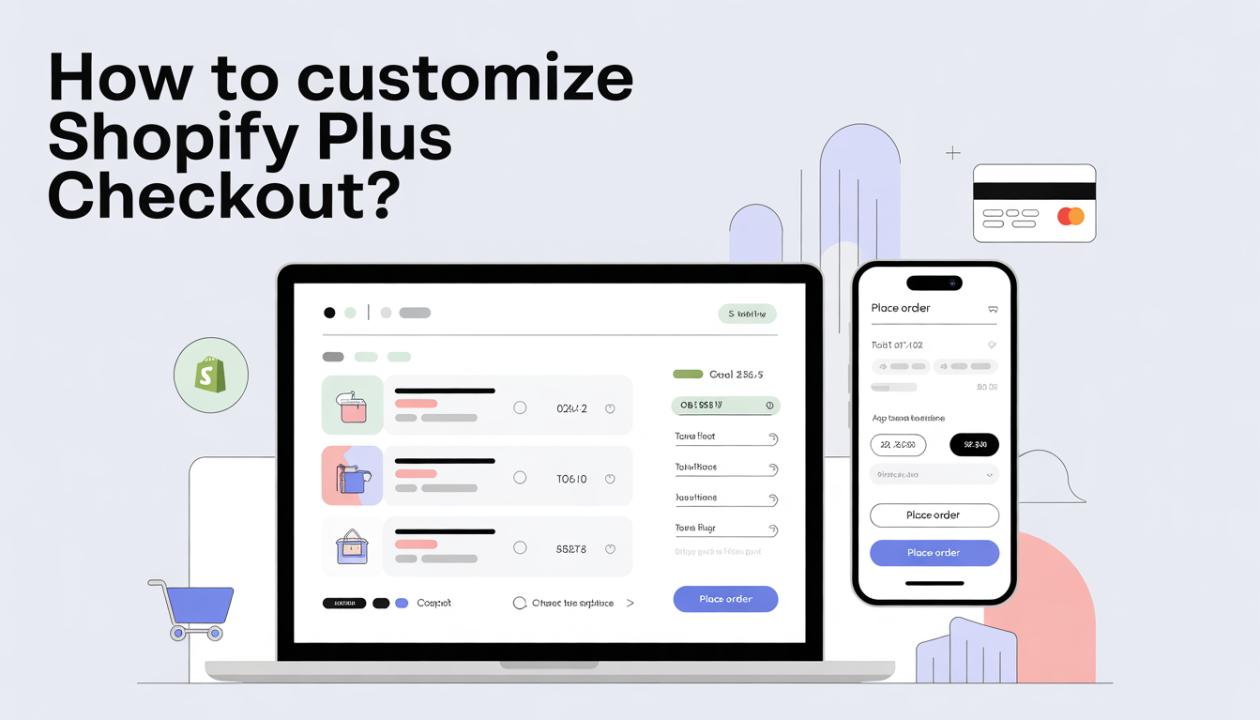
If you’ve ever tried to change your Shopify checkout, you probably know it’s not as easy as dragging and dropping elements like you would on your product pages. For many growing businesses, the default Shopify checkout works, but does it convert as well as it could? If you’re on Shopify Plus, you have access to a powerful tool: a highly customizable checkout experience that can boost conversions, lower cart abandonment, and highlight your brand.
Customizing Shopify Plus checkout is like tuning the engine of your online store. The question is how far can you go and what tools should you use? Let’s break it down.
Why Customize Your Shopify Plus Checkout?
Before diving into the “how,” it’s important to understand the “why.” Your checkout is the final step in the customer journey. Even small friction points, like confusing fields, lack of trust signals, or slow-loading pages, can make potential buyers abandon their carts.
Shopify Plus gives merchants a unique advantage with features like:
Checkout.liquid access: Full control over the HTML, CSS, and JavaScript of your checkout pages.
Dynamic checkout scripting: Apply personalized discounts, shipping rules, or custom messaging.
Enhanced brand experience: Seamlessly match your checkout design with your website, reinforcing trust.
The goal is simple. We want a checkout that works well and encourages customers to complete their purchases. This is designed with help from a reliable Shopify Plus development company to boost conversions and provide a smooth experience for customers.
Step 1: Use Checkout.liquid to Control Layout and Design
Shopify Plus lets you edit the checkout.liquid template, which is a powerful tool not available on regular Shopify plans.
Think of checkout.liquid as the canvas for your checkout page. You can:
Add custom banners or messages (e.g., free shipping thresholds).
Reorganize sections for better flow (e.g., move discount code entry to the top).
Modify buttons and typography to match your brand identity.
Tip: Always test changes in a staging environment. A small mistake in checkout.liquid can disrupt the payment flow.
Step 2: Implement Shopify Scripts for Personalized Checkout
With Shopify Plus, you can create custom scripts using the Script Editor. These scripts run in real-time during checkout and let you:
Apply automatic discounts based on cart contents.
Offer tiered pricing for VIP customers.
Customize shipping methods dynamically based on location or order size.
Scripts can make checkout feel personalized for your customer. This increases trust and conversion rates.
Step 3: Integrate Apps Strategically
Even with Shopify Plus’s built-in flexibility, third-party apps can improve checkout functionality. Look into apps for:
Upselling & cross-selling at checkout.
Email capture or exit-intent offers.
Local payment gateways for international buyers.
The key is balance; too many apps can slow down checkout, which can hurt conversions. Choose only the apps that directly enhance the buying experience.
Step 4: Optimize for Mobile
Mobile traffic dominates eCommerce. Shopify Plus checkout is responsive by default, but customizations must also work well on mobile.
Avoid large images or heavy scripts that slow down load time.
Test the checkout flow on different devices.
Simplify input fields and consider autofill for addresses.
A smooth mobile checkout can be the difference between a sale and an abandoned cart.
Step 5: Test, Analyze, and Iterate
Once you implement changes, the work isn’t finished. Use analytics and A/B testing to see what really works.
Track cart abandonment rates before and after customizations.
Analyze which scripts or design changes increase conversions.
Continuously refine the checkout experience for different customer segments.
Shopify Plus gives you the tools; your data tells you the story.
Conclusion
Customizing Shopify Plus checkout isn’t just about looks, it’s about creating a smooth, branded experience that converts. With access to checkout.liquid, Shopify Scripts, and smart app integrations, you can reduce friction, increase conversions, and provide customers with a checkout experience that feels personalized and trustworthy.
Remember, small tweaks like better discount placement, simpler mobile forms, or VIP messaging can make a big difference. Your checkout is the last impression of your store; make it count.
FAQs About Shopify Plus Checkout Customization
1. Can I customize Shopify Plus checkout without coding?
Yes, minor changes like colors, fonts, and logos can be done through the Shopify admin. Full customization requires editing checkout.liquid or using Shopify Scripts.
2. Are Shopify Scripts difficult to implement?
They require basic knowledge of Ruby programming. Many developers specialize in Shopify Plus scripts, or you can hire Shopify Plus experts.
3. Will customizing checkout affect my store speed?
It can if you add too many scripts or heavy images. Always test changes and optimize for performance.
4. Can I A/B test different checkout designs?
Yes! You can duplicate checkout flows in a staging environment and test changes using analytics to see which one performs best.
5. Are there apps that work specifically for Shopify Plus checkout?
Yes, some apps are designed to enhance Shopify Plus checkout with upsells, exit offers, and payment gateways while maintaining the Plus features.