Introduction
Getting hands-on practice is one of the most important parts of preparing for advanced networking skills. Many learners start their journey with structured learning paths like CCIE Wireless Taining, but real understanding comes when you build and configure lab environments on your own. A lab setup helps you connect theory with practical work, especially in wireless networking where real device behavior matters a lot.
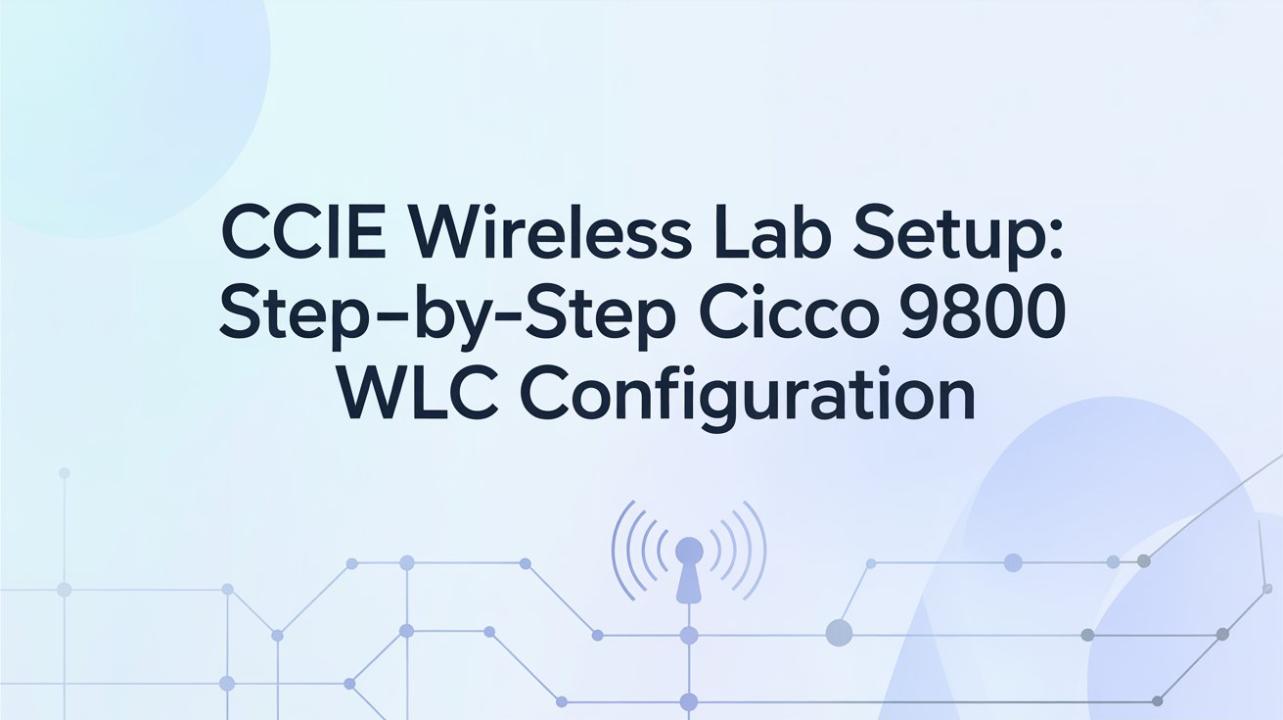
One of the most important parts of modern wireless lab practice is working with Cisco’s newer wireless controllers. The Cisco 9800 Wireless LAN Controller (WLC) is widely used in enterprise environments. Learning how to set it up step by step helps you understand how real networks are managed, from access points to SSID configuration and security policies.
Understanding CCIE Wireless Lab and Cisco 9800 WLC
A CCIE Wireless lab is a practice environment where learners simulate enterprise wireless networks. It includes controllers, access points, switches, and client devices. The goal is to understand how large-scale wireless systems are designed and maintained.
The Cisco 9800 WLC is a next-generation wireless controller built for modern enterprise networks. It supports advanced features like automation, high security, and seamless roaming. Unlike older controllers, it runs on IOS XE, making it more flexible and powerful.
In many lab environments, learners also explore ccie wireless concepts such as mobility, RF management, and controller-based architecture. This helps in building strong foundational knowledge for real-world networking roles.
Requirements for Setting Up a Lab
Before starting the configuration, you need a proper lab setup. You don’t always need physical hardware; virtual labs are also widely used.
Basic requirements include:
Cisco 9800 WLC image (virtual or physical)
Network simulator like EVE-NG or GNS3
Layer 2/Layer 3 switch configuration
Wireless access point (physical or simulated)
Basic understanding of VLANs and IP addressing
A well-planned lab environment makes the configuration process smoother and helps avoid errors during setup.
Step-by-Step Cisco 9800 WLC Configuration
Step 1: Planning the Network
Before configuration, design your network layout. Assign IP addresses for management, VLANs, and wireless networks. Proper planning avoids confusion later.
Step 2: Deploying Cisco 9800 WLC
Install the Cisco 9800 WLC image in your lab environment. If using EVE-NG, import the image and connect it to a virtual switch. Once deployed, start the device and access the console.
Step 3: Initial Setup Wizard
When the controller boots for the first time, it will ask for basic configuration:
Management IP address
Gateway information
Hostname
Admin username and password
This step is important because it establishes initial connectivity to the controller.
Step 4: Interface and VLAN Configuration
Next, configure interfaces for different VLANs. These VLANs help separate traffic such as management, guest users, and corporate users. Proper segmentation improves network security and performance.
Step 5: Access Point Join Process
Once the controller is ready, connect access points. The APs will discover the controller automatically using DHCP or DNS methods. After joining, they will appear in the controller dashboard.
Step 6: SSID Configuration
Create wireless networks (SSIDs) for users. For example:
Corporate Wi-Fi
Guest Wi-Fi
Each SSID can be mapped to a specific VLAN. This ensures proper traffic separation and control.
Step 7: Security Settings
Security is a key part of wireless configuration. You can configure:
WPA2 or WPA3 authentication
RADIUS server integration
Pre-shared keys (PSK)
Strong security settings help protect the wireless network from unauthorized access.
Step 8: Verification and Testing
After configuration, test the setup:
Check AP status
Connect a wireless client
Verify IP assignment
Test internet or internal access
If something does not work, check logs and interface configurations for troubleshooting.
Common Mistakes in Lab Setup
Many beginners face issues during setup. Some common mistakes include:
Wrong VLAN assignment
Incorrect IP configuration
AP not discovering controller
Missing DHCP configuration
Firewall blocking communication
Avoiding these mistakes makes the lab experience smoother and more effective.
Tips for Better Practice
To improve your lab learning experience:
Practice configuration multiple times
Break down each step instead of rushing
Use diagrams to understand network flow
Experiment with different SSID setups
Study logs to understand system behavior
Consistent practice helps build confidence in real-world wireless environments.
Conclusion
Setting up a CCIE Wireless lab with Cisco 9800 WLC gives learners a clear understanding of how modern enterprise wireless networks are designed and managed. It connects theoretical knowledge with real configuration steps like controller setup, VLAN mapping, SSID creation, and access point integration. Practicing these steps repeatedly helps build confidence and improves troubleshooting skills in real network environments.
For anyone aiming to grow in advanced wireless networking, structured learning and hands-on practice are both important. Preparing through CCIE Wireless Course not only strengthens technical knowledge but also helps in understanding real-world enterprise wireless challenges in a more practical and effective way.