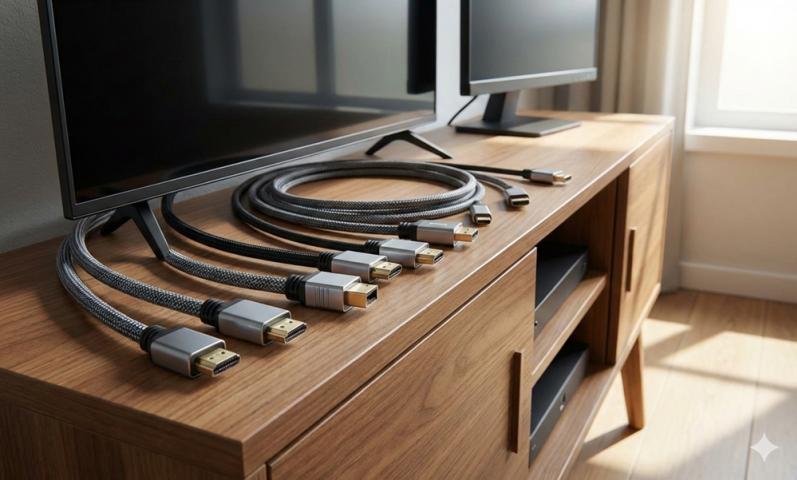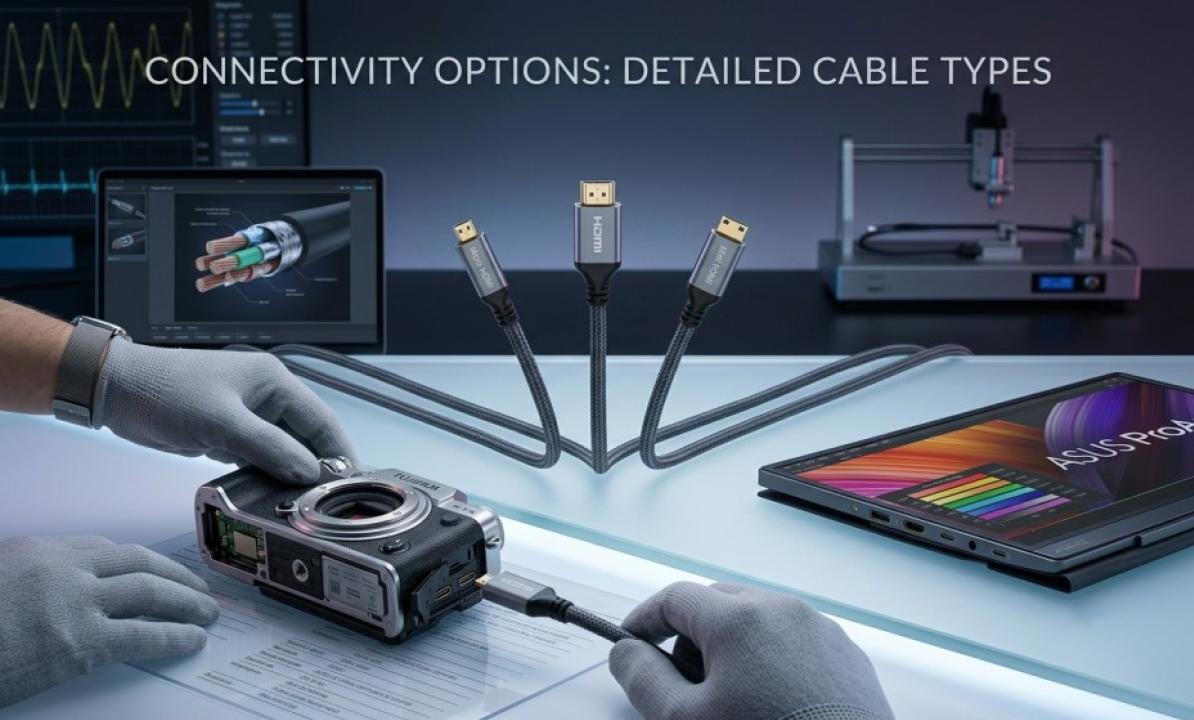
Small devices have a big problem: their screens are tiny. Tablets, action cameras, compact cameras, and some mini computers can all produce sharp video, but showing it on a TV or monitor requires the right cable. That is where a micro HDMI cable comes in. It is a simple part, but buyers often pick the wrong one because several small connectors look alike. This guide explains what a micro HDMI cable is, where it is used, how to check compatibility, and what to look for when buying.
What Is a Micro HDMI Cable?
A micro HDMI cable is a video and audio cable with a small connector on one end and a standard, full-size HDMI plug on the other. The small end is officially called a Type D connector. It is about the size of a fingernail, which makes it suitable for thin and compact devices. The full-size end, known as Type A, plugs into TVs, monitors, projectors, and AV receivers.
You will often see the cable sold as a micro HDMI cord, and the two names mean the same thing. Like other HDMI cables, it carries digital video and audio together, so a single connection can show a picture and play sound on the same screen.
Micro HDMI vs. Mini HDMI vs. Standard HDMI
HDMI connectors come in three common sizes, and the differences are easy to overlook. Standard HDMI (Type A) is the large plug found on TVs and game consoles. Mini HDMI (Type C) is a smaller version used on some cameras and older tablets. Micro HDMI (Type D) is the smallest of the three and appears on many modern compact devices.
The three types are not interchangeable. A mini plug will not fit a micro port, and the reverse is also true. Before buying, look closely at the port on your device or check its manual. Matching the connector is the most important step in choosing the right cable.
Micro HDMI vs. Micro USB: A Common Mix-Up
One of the most frequent mistakes is confusing micro HDMI with micro USB. Both are small, but they are different shapes and do different jobs. A micro USB port is used for charging and data transfer, and it is found on many older phones and accessories. A micro HDMI port is for video output.
This confusion also explains why people search for a micro usb to hdmi cable. Some phones can send video through a micro USB port, but only when the phone supports a special video standard, and these setups usually need a specific adapter rather than a basic cable. Many phones do not support video output through that port at all. If you are not sure, check your phone's specifications before buying anything.
Similarly, searches for hdmi to micro usb often come from a misunderstanding of direction. A micro USB port on a phone cannot simply receive an HDMI signal, so a plain cable will not turn a phone into a display for another device. If your goal is to show your phone screen on a TV, check whether the phone supports video output and which connector it uses. If your device has a micro HDMI port, a micro HDMI cord is the direct and simple choice.
It is also useful to understand the role of a micro USB OTG cable when choosing accessories for your devices. OTG, or On-The-Go, allows compatible smartphones and tablets to connect directly to USB peripherals such as flash drives, keyboards, and mice. An OTG cable typically connects a device with a micro USB port to a standard USB accessory, while a micro USB OTG adapter provides a similar connection in a compact adapter format. Unlike a micro HDMI cable, which carries video and audio to a compatible display, an OTG cable is primarily used for data transfer and connecting peripherals. Before purchasing, check whether your device supports USB OTG and confirm that the connector matches its port.
Understanding Resolution and HDMI Versions
Not every micro HDMI cord supports the same features. The HDMI version tells you what the cable can handle. An HDMI 1.4 cable supports 4K video at up to 30 frames per second, along with features such as 3D, an audio return channel, and an Ethernet channel. Its data rate is up to 10.2 gigabits per second, which is plenty for 1080p video and works for basic 4K use.
If you want smoother 4K at 60 frames per second, or high dynamic range, look for a cable rated for a newer HDMI version. These cables offer more bandwidth. Remember that the whole chain matters. The device, the cable, and the display all need to support the features you want, or the picture will fall back to the lowest common setting.
Also look at the cable's speed category, such as High Speed or a higher tier. It is a quick way to check whether the cable is designed for the resolution you plan to use.
Simple Troubleshooting
If nothing shows up on your screen, start with the basics. Make sure both ends are pushed in fully, and confirm the TV is set to the correct HDMI input. Try a different HDMI port on the display. Some devices need to be told to send video out, so check their settings or menu for an output or mirroring option.
If the picture flickers or drops out, the cable may be too long, damaged, or not rated for the resolution you are using. Try a shorter cord or lower the output resolution to test. Because the micro connector is small, avoid bending the cable sharply at the plug and never pull on the cord to unplug it. Hold the connector itself.
Final Thoughts
A micro HDMI cable is a small but useful accessory that turns a compact device into something you can enjoy on a bigger screen. The key steps are simple. Confirm that your device really has a micro HDMI port, avoid mixing it up with micro USB, match the cable's capabilities to your resolution needs, and choose a length and build quality that suit your setup. With those checks done, a micro HDMI cord will give you a clean and reliable connection for years.
Original article:- https://beforeitsnews.com/business/2026/09/what-is-a-micro-hdmi-cable-uses-compatibility-and-buying-tips-3803684.html