Email communication plays a vital role in organizations, and
Microsoft Outlook is one of the most widely used applications for this purpose.
Whether you’re a Mac or Windows user, Outlook is preferred for its scalability,
flexibility, and advanced features. However, Mac Outlook files (OLM) are not
directly accessible on Windows Outlook, which often leads users to export
Outlook for Mac data to PST format. If you’re looking to do the same, this blog
will guide you through the process, introducing a reliable OLM to PST Converter along with other effective solutions.
Outlook for Mac vs. Windows MS Outlook
Outlook for Mac and Windows Outlook offer similar
functionalities and features. The primary difference lies in their system
environments and the file formats they use to store data. Outlook for Mac saves
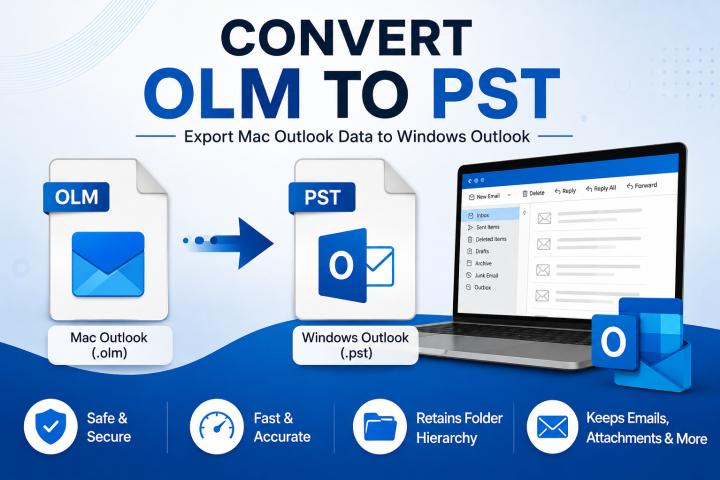
data in the OLM (.olm) file format, while Windows Outlook uses the PST (.pst)
format. Both formats support backup, archiving, and data migration, which is
why converting Outlook for Mac data (OLM) to PST is often necessary.
Why Export Outlook for Mac to PST?
There are several key reasons to convert Mac Outlook OLM
files to Windows Outlook PST format:
- To
transfer mailbox data from a Mac to a Windows system.
- To
free up space in Mac Outlook by splitting large files into smaller PST
files.
- To
access Mac Outlook data without risking corruption or errors.
- To
import Outlook data into a new device, account, or email client.
- To
create a backup of Mac Outlook emails to protect against accidental
deletion.
Possible
Solutions to Export Emails from Outlook for Mac to PST
There are two
primary ways to export Outlook for Mac emails to PST format: a manual method
and a professional tool-based solution. Both approaches are explained below to
help you choose the best way to complete your conversion smoothly.
Manual Method to
Export Outlook for Mac to PST
This process
involves several stages to transfer Mac OLM emails to PST format:
Stage 1: Export
Outlook for Mac (OLM) Files
- Launch Outlook for Mac and go to the File
tab, then click Export.
- In the Export to Archive File
dialog, select the items to export and click Continue.
- Specify a file name and save location,
then click Save.
- Once the export completes, click Finish
and close Outlook.
Stage 2:
Configure Gmail and Mac Outlook Account
- Ensure Gmail IMAP is enabled in your
Gmail settings.
- Open Mac Outlook, go to Preferences
> Accounts, then click Add Accounts.
- Enter your Gmail account credentials,
click Next, and allow Outlook to verify using IMAP.
- Click Done to finish the setup.
Stage 3: Upload
Mac Outlook OLM Data to Gmail
- In Mac Outlook’s left pane, right-click
on Gmail and choose New Folder.
- Name the folder and press Enter
to create it.
- Drag and drop the exported OLM files
into this new Gmail folder. Alternatively, you can copy the entire mailbox
content into this folder.
Stage 4: Export
PST from Mac Outlook Using Windows Outlook and Gmail
- On Windows Outlook, add and sync the
same Gmail account.
- Go to File > Open & Export
> Import/Export.
- Select Export to a file and
click Next.
- Choose Outlook Data File (.pst)
and click Next.
- Browse to select the Gmail folder
containing the imported OLM emails and click Next.
- Choose a destination folder for the PST
file and click Finish.
Drawbacks of the
Manual Method
- The process is lengthy, complex, and
time-consuming.
- Requires technical expertise to
configure accounts and manage data properly.
- Not ideal for bulk conversion of
Outlook Mac data to PST.
- Risk of data loss or corruption exists.
- Necessitates simultaneous access to
multiple email clients and a stable internet connection.
Dedicated Tool
to Export Outlook for Mac to PST
To overcome the
limitations of manual methods and ensure a smooth export of Mac OLM files to
PST format, you can use the MacArmy OLM Converter Tool. This efficient
software allows bulk conversion of OLM files without any size restrictions.
It’s designed for both technical and non-technical users, enabling easy export
of emails from Outlook for Mac to PST. Moreover, this powerful tool preserves
the original folder structure and keeps all data intact throughout the
conversion process.
Key Features:
- Converts OLM files to multiple formats
such as PST, MSG, MBOX, PDF, DOCX, CSV, and more.
- Supports importing OLM files directly
into various email clients like Gmail, Thunderbird, and Office 365.
- Offers a preview feature to view emails
and attachments, with options to include or exclude them as needed.
Steps to Export
PST from Mac Outlook Using the Tool
- Install and launch the OLM to PST Converter for Mac Tool on Mac PC.
- Select either a single OLM file or
multiple files/folders to add the desired OLM data.
- Click Next and preview the
folders in the tree structure.
- Choose the specific OLM files/folders
you want to export and click Next.
- From the dropdown menu, select PST
as the output format and configure any optional filters.
- Click Path to Save to specify
the destination folder for the converted PST files.
- Finally, click Convert to start
exporting Outlook for Mac data to PST format.
Conclusion
Converting files
from one system format to another may seem challenging but becomes
straightforward with the right tool. This guide covered essential reasons to
export Outlook for Mac to PST and explained both manual and professional
methods. While manual methods have inherent risks and complexities, the
recommended professional tool ensures a simple, hassle-free, and reliable
conversion process with minimal effort.