Replacing ink cartridges is part of owning a printer, but it does not have to be complicated or expensive. The HP Deskjet 2620 is a popular all-in-one printer for home and small office use. While it offers reliability and ease of use, many users find themselves spending more on ink than on the printer itself. Learning how to properly replace the cartridges and save money on them can make a big difference in your overall printing costs. In this guide, we will walk you through the replacement process step by step and share practical ways to cut down expenses on HP Deskjet 2620 ink without compromising print quality.
Understanding HP Deskjet 2620 Ink Cartridges
The HP Deskjet 2620 uses HP 65 or HP 65XL ink cartridges. The standard cartridge (HP 65) is suitable for light printing, while the XL version provides higher yield and is ideal for those who print more frequently. Both cartridges are available in black and tri-color options.
Knowing which cartridge your printer requires is the first step toward efficient replacement. The XL version might cost a little more upfront, but it lasts longer, making it more cost-effective in the long run. If you print often, choosing XL cartridges is one of the easiest ways to save money over time.
Step-by-Step Guide to Replacing HP Deskjet 2620 Ink Cartridges
Replacing cartridges in the HP Deskjet 2620 is simple, even for first-time users. Follow these steps to ensure a smooth replacement:
Turn on the printer – Make sure your printer is powered on before opening it.
Lift the ink access door – Raise the front cover, and the carriage will move to the center.
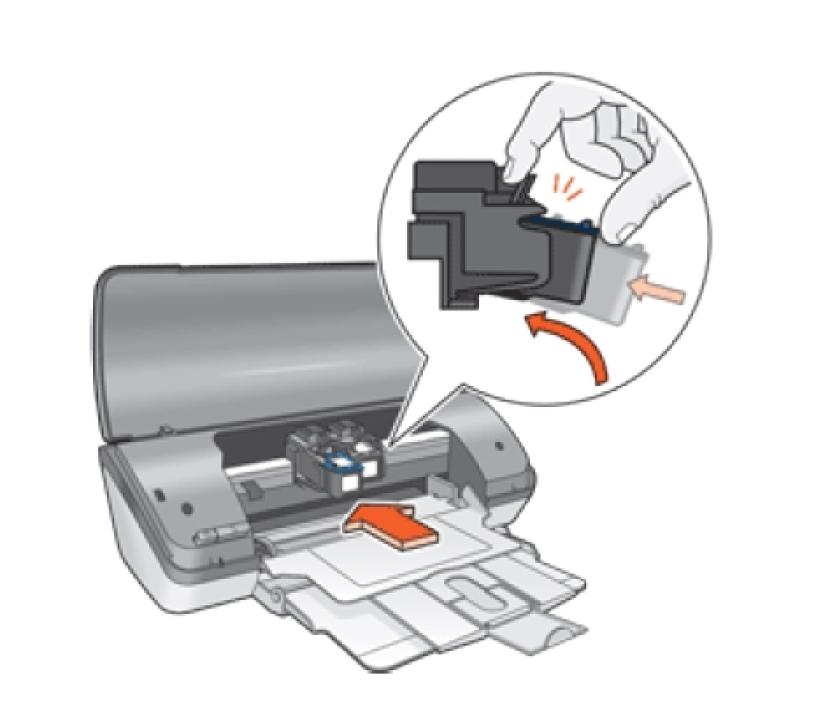
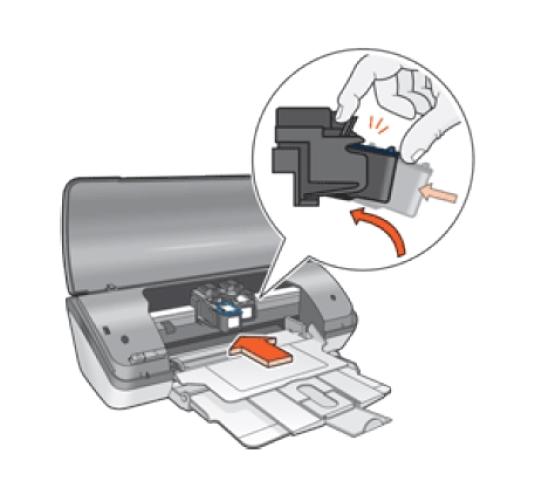
Remove the old cartridge – Gently press down on the used cartridge and pull it out.
Unpack the new cartridge – Take the new cartridge out of its packaging. Remove the plastic tape carefully without touching the copper contacts or nozzles.
Install the new cartridge – Insert the black cartridge into the right slot and the tri-color cartridge into the left slot. Push until it clicks securely.
Close the ink access door – Lower the cover and allow the printer to recognize the new cartridges.
After installation, the printer may prompt you to align the cartridges. Always complete the alignment process for optimal print quality.
Tips to Save Money on HP Deskjet 2620 Ink
Ink costs can add up quickly, but there are several smart ways to bring down expenses:
1. Choose XL Cartridges
As mentioned earlier, the XL versions last longer and provide more value for money. They may appear more expensive at first, but they cost less per page.
2. Buy from Reliable Online Stores
Instead of purchasing ink from retail outlets at premium prices, consider trusted online suppliers. Ordering HP Deskjet 2620 ink online often comes with discounts, bundle deals, and subscription services.
3. Refill and Reuse
Some people opt for ink refills as a cheaper alternative. While refilled cartridges may not always match the quality of new ones, they can be a cost-effective choice if purchased from reliable providers.
4. Print Smartly
Reduce waste by printing only what you need. Use the “draft mode” for documents that do not require high quality. Also, try printing in black and white whenever possible to save on color ink.
How to Maximize Cartridge Life
Apart from saving on purchases, extending the life of your cartridges helps reduce overall costs. Here are some useful practices:
Keep cartridges clean – Wipe the nozzles occasionally to prevent clogs.
Print regularly – If a printer sits idle for too long, the ink may dry out. Regular printing keeps ink flowing smoothly.
Store properly – Keep spare cartridges sealed in their packaging until needed and store them in a cool, dry place.
Avoid frequent switching – Constantly removing and reinstalling cartridges may damage them and reduce performance.
Genuine vs. Compatible Cartridges
Another way to save is by considering compatible or remanufactured cartridges. Genuine HP cartridges guarantee quality, but they are often more expensive. Compatible cartridges, when bought from reputable suppliers, provide nearly the same print quality at a fraction of the cost.
For those looking to cut expenses significantly, buying compatible HP Deskjet 2620 ink can be a smart choice. Just ensure you purchase from a trusted seller to avoid issues like leaks or poor print quality.
Why Buying Online Makes Sense
Shopping for ink cartridges online is one of the best ways to save money and time. Online suppliers often offer:
Lower prices compared to physical stores.
Discounts on bulk purchases.
Subscription options for regular deliveries.
A wide range of choices, including genuine, compatible, and XL cartridges.
For example, you can easily find reliable options for HP Deskjet 2620 ink through online platforms that specialize in printer supplies. This not only saves money but also ensures you never run out of ink when you need it most.
Common Mistakes to Avoid
To ensure smooth printing and avoid unnecessary costs, here are some mistakes you should avoid:
Touching the copper contacts on cartridges, which can damage them.
Mixing cartridges by placing them in the wrong slots.
Buying the wrong cartridge size due to overlooking the model number.
Using low-quality refills from unreliable sources.
Being mindful of these mistakes will help you save both money and time in the long run.
Final Thoughts
Replacing ink in the HP Deskjet 2620 is simple once you know the steps. The real challenge lies in managing ink costs. By choosing XL cartridges, shopping online, printing smartly, and considering compatible options, you can significantly reduce expenses without compromising quality. The next time you need to replace your ink, remember that saving is not just about finding the cheapest option, but about making informed and sustainable choices.