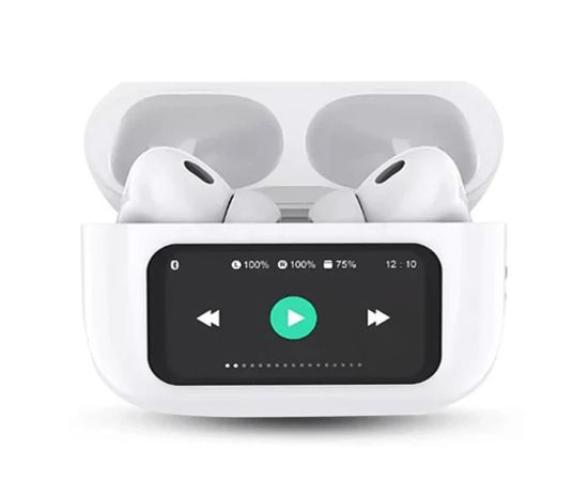
Apple’s AirPods are designed for a seamless connection with all Apple devices, but sometimes users face frustrating connection issues—especially when trying to pair AirPods with a MacBook or iMac. If your AirPods won’t connect to your Mac, don’t worry. This guide explains the common reasons behind the problem, step-by-step fixes, and how to properly reset your AirPods on a Mac to restore smooth functionality.
Common Reasons AirPods Won’t Connect to a Mac
There are several possible causes why your AirPods aren’t pairing with your Mac. Understanding these helps you pinpoint the problem quickly:
-
Bluetooth not enabled: AirPods connect via Bluetooth, so if it’s off, they won’t appear in the device list.
-
Outdated macOS: Older macOS versions may have Bluetooth compatibility issues.
-
Already paired with another device: If your AirPods are connected to your iPhone or iPad, they might not automatically switch to your Mac.
-
Dirty charging contacts or low battery: Dust or grime can interfere with connection signals.
-
Glitch in Bluetooth or system cache: Software bugs can occasionally disrupt the Bluetooth pairing process.
Step-by-Step Fix: Connect AirPods to Your Mac
If your AirPods aren’t connecting, follow these steps to troubleshoot:
1. Check Bluetooth Status
Click the Bluetooth icon in the top menu bar on your Mac. If Bluetooth is off, turn it on. Make sure your AirPods are nearby and inside the case with the lid open.
2. Ensure AirPods Are in Pairing Mode
If your AirPods don’t appear under Bluetooth devices, press and hold the button on the back of the case until the LED light starts flashing white. This means they’re ready to pair.
3. Remove Other Bluetooth Connections
Sometimes multiple Bluetooth devices interfere with pairing. Disconnect or remove other devices temporarily to make room for your AirPods connection.
4. Forget and Reconnect AirPods
Go to System Settings → Bluetooth, find your AirPods, and select Forget This Device. Then reconnect them by placing them in pairing mode again.
5. Restart Bluetooth and Your Mac
Turn off Bluetooth for 10 seconds, then turn it back on. Restart your Mac afterward—this simple reset can resolve many temporary connection issues.
6. Update macOS
Go to System Settings → General → Software Update. Install the latest macOS update to ensure full AirPods compatibility.
How to Reset AirPods on Mac
If your AirPods still don’t connect after trying the above fixes, resetting them is the best next step. Resetting clears any pairing memory or firmware errors.
Reset AirPods (All Models)
-
Place both AirPods in their charging case and close the lid for 30 seconds.
-
Open the lid, then press and hold the setup button on the back of the case for about 15 seconds until the LED flashes amber, then white.
-
Once the light flashes white, your AirPods are reset and ready to pair again.
-
Reconnect to your Mac by going to Bluetooth settings → Add Device → AirPods.
Reset AirPods Pro or AirPods (3rd Gen)
The same process applies, but for these models, ensure both earbuds are seated properly before holding the reset button.
Additional Fixes for Persistent Connection Issues
If your AirPods still refuse to connect even after resetting, try the following:
-
Reset your Mac’s Bluetooth module: Hold Shift + Option and click the Bluetooth icon, then select Reset the Bluetooth module.
-
Remove Bluetooth preference files: Open Finder → Go → Go to Folder, and type
~/Library/Preferences/. Delete files starting withcom.apple.Bluetooth.plist. Restart your Mac afterward. -
Check AirPods battery level: Open the case near your iPhone or iPad to confirm both buds and the case have charge. Low battery can prevent connection.
What to Do If AirPods Still Don’t Show Up
Sometimes, the problem lies with interference or corrupted Bluetooth settings. Try pairing your AirPods with another Apple device (like an iPhone) to confirm they work properly. If they connect elsewhere but not on your Mac, it’s likely a software issue that a system reset or SMC reset can fix.
Should You Use Third-Party Earbuds Instead?
If you consistently face Bluetooth issues or compatibility limitations, you might want to explore third-party wireless earbuds that offer stable connectivity across all devices. For example, some models like the m10 earbuds price in pakistan come with multi-device pairing support, fast Bluetooth 5.3 connectivity, and a reliable battery backup. Similarly, the air31 earbuds deliver excellent performance for users who want quality sound and easy pairing without the Apple ecosystem’s limitations.
Both options are ideal for users in Pakistan who prefer versatile earbuds compatible with Mac, Android, and iOS devices. You can find these and other audio gadgets at Delenzo Mart, a trusted online shopping store known for authentic products and fast delivery across Pakistan.
Preventing Future AirPods Connectivity Problems
Once you’ve fixed the issue, here are a few habits that can help prevent it from happening again:
-
Keep your macOS and AirPods firmware updated.
-
Regularly clean the AirPods and charging case with a soft, dry cloth.
-
Avoid placing AirPods near Wi-Fi routers or microwaves that can interfere with Bluetooth.
-
Disconnect AirPods from devices you don’t use frequently to avoid confusion when pairing.
Final Thoughts
When your AirPods won’t connect to your Mac, it’s usually a simple fix—checking Bluetooth, forgetting and re-pairing, or updating macOS can often resolve the issue. If problems persist, resetting your AirPods is an effective last resort. For users who want more flexibility and cross-device reliability, exploring wireless alternatives with stable connectivity and water resistance is a smart move.