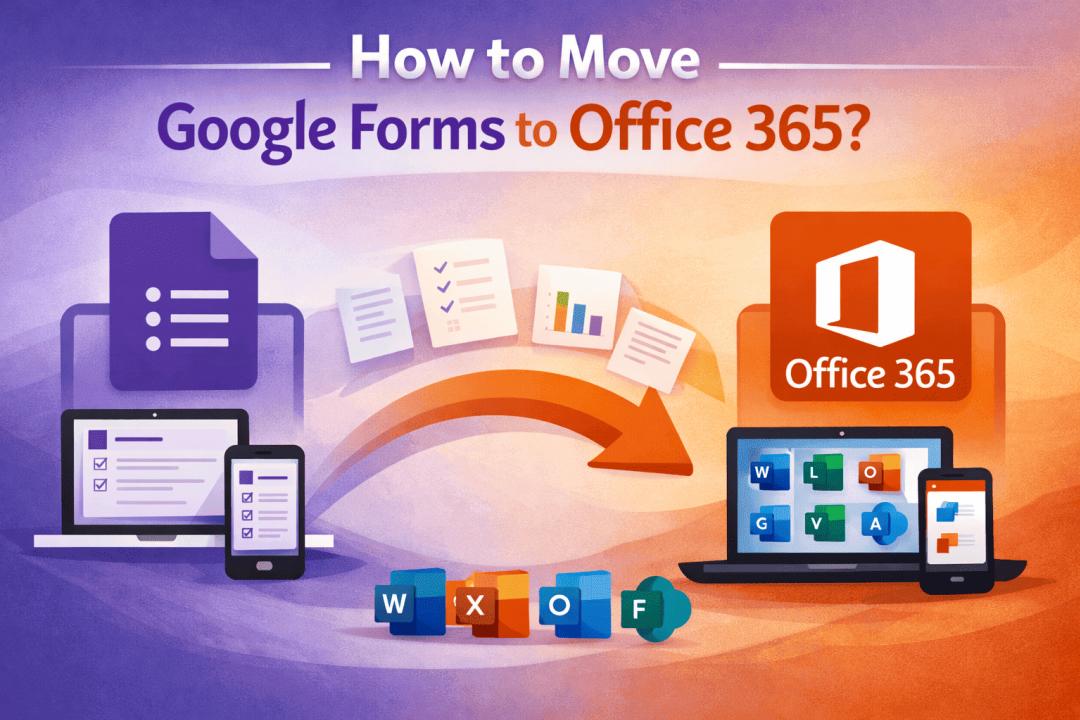
When an organization migrating their data from Google Workspace to Microsoft 365. They focus on emails, Drive files, and calendars. But many overlook Google Forms, one of Google's important programs. Most enterprises use Google Forms for surveys, quizzes, registrations, feedback collection, or internal workflows. Therefor you must also move Google Forms to Microsoft Forms.
In this guide, I will explain why you need to move your Google Forms, challenges you may face during the process, and the methods to securely transfer Google Forms to Office 365.
Why Migrate Google Forms to Office 365?
The reasons organizations are switching from Google Workspace to Microsoft 365 are for better integration with Microsoft Teams, SharePoint, Outlook, and enterprise-grade security. Similarly, the reasons for transferring Google Forms are.
- Forms contain important survey data.
- Quiz responses include grading records.
- Registration forms store customer or employee data.
- Business workflows depend on automated responses
If you don’t move the data, you risk losing historical responses, breaking workflows, and disrupting reporting systems, Compliance and audit issues. That’s why it’s important to understand how to transfer Google Forms to Office 365 correctly.
So, can you directly migrate Google Forms to Microsoft Forms? No, Microsoft does not provide a direct import option to move your Google Forms, but there are indirect options that you can use. But to do that, you need Manual recreation of forms, exporting responses, rebuilding logic and workflows, or using a professional migration solution.
Manual Way to Move Google Forms to Office 365
For small businesses, this method is great as it move limited number of forms. I am going to start with the
- Open your Google Form.
- Go to the Responses tab.
- Click the Google Sheets icon.
- Download the sheet as an Excel (.xlsx) file.
This allows you to preserve response data.
Step 2: Recreate the Form in Microsoft Forms
- Log in to Microsoft 365.
- Open Microsoft Forms.
- Click New Form.
- Manually recreate: Questions, Multiple choice options, Ratings, Dropdowns, Sections, Branching logic
Step 3: Upload or Store Response Data
You can:
- Store exported Excel files in SharePoint or OneDrive
- Import data into Excel Online for analysis
- Reconnect Power Automate workflows
Limitations of the Manual Method
While this approach works, it has serious drawbacks:
- No Automatic Form Conversion: You must recreate every form manually.
- Complex Logic Is Difficult to Replicate: Conditional branching and quizzes may not match exactly.
- Time-Consuming: Large organizations may have hundreds of forms.
- Risk of Human Error: Missing fields or incorrect configurations can cause issues.
- No Bulk Migration: Forms must be handled one by one.
For enterprise-level migration, this approach is not practical.
What About Google Workspace to Microsoft 365 Migration?
When companies migrate, they typically move:
- Gmail to Exchange Online
- Google Drive to OneDrive/SharePoint
- Google Calendar to Outlook
- Contacts to Microsoft 365
- Shared Drives to SharePoint
Google Forms are part of the Google Drive ecosystem. Therefore, if you are migrating Google Workspace data, you need a complete strategy - not just form recreation. This is where a professional solution becomes important.
Professional Solution: Google Workspace to Microsoft 365 Migration Tool
If your organization is planning a complete Google Workspace to Office 365 migration, using a specialized migration tool is the safest approach.
A professional solution like SysTools Google Workspace to Microsoft 365 Migration Tool allows you to:
- Migrate Gmail to Exchange Online
- Transfer Google Drive to OneDrive
- Move Shared Drives to SharePoint
- Migrate Contacts & Calendars
- Maintain folder hierarchy
- Perform bulk migration
- Apply date and category filters
- Ensure data integrity
Although Google Forms themselves must be recreated in Microsoft Forms, a professional tool ensures that:
- All associated Google Drive data is securely transferred
- Response sheets stored in Google Sheets are migrated
- Form-related files and attachments are preserved
- No business-critical data is lost
Why Use a Professional Migration Tool Instead of Manual Methods?
Here’s why enterprises prefer automated migration software:
- Secure Migration: Ensures complete data integrity during transfer.
- Bulk User Migration: Migrate multiple Google Workspace accounts simultaneously.
- Advanced Filters: Migrate data by date range or category.
- Admin-Level Control: Centralized dashboard for monitoring progress.
- No Downtime: Users can continue working during migration.
If your business relies on structured form data and connected Drive files, automation is the best route.
Final Thoughts
Migrating Google Forms to Office 365 is not a one-click process. There is no direct converter available to automatically transform Google Forms into Microsoft Forms. However, with proper planning and professional software, If your organization is planning to switch from Google Workspace to Microsoft 365, don’t treat Google Forms migration as an afterthought. Include it in your complete migration strategy. A structured approach combined with a reliable migration tool ensures your transition is secure, efficient, and business-ready.