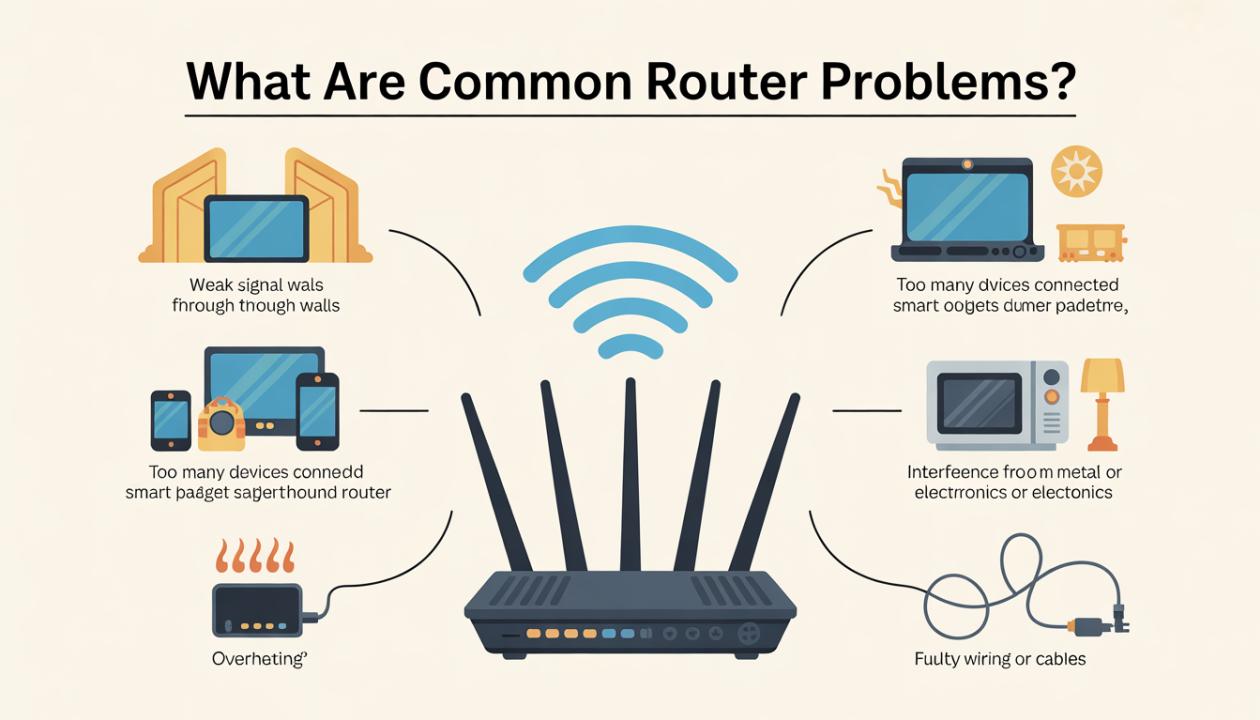
Tired of slow internet, random disconnects, or Wi-Fi dead zones?
You’re in the middle of a video call, streaming your favorite show, or trying to finish urgent work when your internet suddenly drops. It’s frustrating, isn’t it? If your Wi-Fi has ever seemed unreliable, slow, or inconsistent, you’re not alone. Many households and small businesses deal with common router problems that disrupt productivity and daily life.
The good news is that you don’t always need a tech expert to fix these issues. With a little understanding and the right steps, you can troubleshoot and solve many Wi-Fi router problems on your own.
Let’s break down the most common problems and how to fix them.
1. Slow Internet Speeds
The Problem: Your internet feels painfully slow. Webpages take ages to load, videos keep buffering, and downloads seem stuck in slow motion.
Possible Causes:
Too many devices are connected at once
Outdated or underpowered router hardware
Bandwidth-heavy apps running in the background
Poor router placement (hidden in corners or behind walls)
How to Fix It:
Restart your router (simple, but surprisingly effective!)
Disconnect devices you’re not actively using
Upgrade to a dual-band or tri-band router for better performance.
Place your router in a central, open space for stronger coverage.
Close or limit apps that consume heavy bandwidth (like downloads or streaming)
Pro Tip: Run a speed test to see if you are getting the internet speed you are paying for. This can help determine whether the slow connection is caused by problems with your router or issues from your ISP.
2. Wi-Fi Keeps Disconnecting
The Problem: Your Wi-Fi randomly drops and reconnects, which is super frustrating during video calls, meetings, or gaming sessions.
Possible Causes:
Interference from nearby networks or electronic devices
Outdated router firmware
Router overheating
Issues from your Internet Service Provider (ISP)
How to Fix It:
Update your router’s firmware to the latest version.
Keep your router away from sources of interference, such as microwaves or cordless phones.
Change your Wi-Fi channel in router settings to reduce congestion.
Ensure proper ventilation, don’t let your router overheat.
Pro Tip: If the issue happens frequently at specific times, it could be network congestion. Try switching to a less crowded Wi-Fi band, such as 5 GHz.
3. Weak Signal or Dead Zones
The Problem: Your Wi-Fi works perfectly in one room, but the moment you move to another, the signal drops or disappears entirely.
Possible Causes:
Thick walls, floors, or physical obstructions are blocking the signal.
A large home or office layout that the router can’t fully cover
A low-powered or outdated router
How to Fix It:
Place your router in a central location for even coverage.
Use a Wi-Fi extender or upgrade to a mesh network system.
Elevate the router (keep it off the floor for better signal spread)
Avoid hiding it inside cabinets or behind furniture.
Quick Tip: Wi-Fi signals spread outward and downward, so placing your router higher often improves coverage dramatically.
4. Router Not Connecting to the Internet
The Problem: Your devices show they’re connected to Wi-Fi, but there’s no internet access.
Possible Causes:
An outage from your Internet Service Provider (ISP)
Loose, unplugged, or damaged cables
Incorrect router or modem configuration
How to Fix It:
Check if your ISP is experiencing downtime.
Restart your modem first, then your router.
Inspect all cables and ensure they’re securely connected.
Reset your router to factory settings if the issue persists.
Quick Tip: If restarting fixes the issue temporarily but it keeps coming back, it might indicate a deeper problem, like overheating hardware or ISP instability.
5. Overheating Router
The Problem: Your router feels unusually hot and starts slowing down, disconnecting, or even shutting off unexpectedly.
Possible Causes:
Poor ventilation or placement in a closed space
Continuous heavy usage (streaming, gaming, downloads)
Dust buildup inside or around the device
How to Fix It:
Place your router in a cool, well-ventilated area (avoid cabinets or tight corners)
Clean dust regularly using a soft cloth or compressed air.
Avoid stacking other devices on top of the router.
Turn it off occasionally to let it cool down and reset performance.
Pro Tip: Think of your router like a mini computer; it needs airflow to perform at its best.
6. Devices Can’t Connect to Wi-Fi
The Problem: Some of your devices won’t connect to Wi-Fi while others work fine.
Possible Causes:
Incorrect Wi-Fi password
MAC address filtering blocks the device
Compatibility issues (older devices vs newer networks)
How to Fix It:
Double-check your Wi-Fi password (case-sensitive!)
Restart both the device and the router.
“Forget” the network on your device and reconnect from scratch.
Disable MAC address filtering in your router settings (if enabled)
Pro Tip: If only one device is having trouble, the issue is often with that device, not the router.
7. Outdated Router Firmware
The Problem: Your router may be running on outdated firmware, which can cause bugs, glitches, and reduced performance.
Why It Matters:
Ignoring firmware updates can cause:
Slower internet speeds and unstable connections
Security vulnerabilities that hackers can exploit
Compatibility issues with newer devices
How to Fix It:
Log into your router’s admin panel (usually via 192.168.1.1 or 192.168.0.1)
Navigate to the Firmware or System Update section.
Check for available updates.
Install updates regularly to keep your network secure and optimized.
Pro Tip: Enable auto-updates if your router supports it; this ensures you’re always using the latest version without manual checks.
8. Network Security Issues
The Problem: You notice unknown devices connected to your Wi-Fi or experience unexplained slowdowns.
Possible Causes:
Weak or easily guessable password
No encryption or outdated security protocol
Unauthorized users accessing your network
How to Fix It:
Change your Wi-Fi password to a strong, unique one.
Use WPA3 (or at least WPA2) encryption for better security
Hide your SSID (network name) if needed.
Enable built-in firewall and router security settings.
Regularly review connected devices and remove unknown ones.
Pro Tip: If you suspect someone has been using your network, restart your router after changing the password to disconnect all devices immediately.
9. Router Keeps Restarting
The Problem: Your router keeps rebooting on its own, interrupting your internet connection without warning.
Possible Causes:
Unstable or faulty power supply
Overheating or internal hardware failure
Outdated or buggy firmware
How to Fix It:
Check the power adapter and ensure all cables are securely connected.
Plug the router into a different power outlet or use a surge protector.
Update the router’s firmware from the admin settings.
Perform a factory reset to clear any corrupted configurations.
If the issue continues, consider replacing the router, as it may be nearing the end of its lifespan.
Quick Tip: Frequent restarts often signal hardware wear. If your router is over four to five years old, upgrading might save you a lot of frustration.
10. Limited Range and Capacity
The Problem: Your Wi-Fi slows down or drops when multiple devices are connected, or coverage doesn’t reach all areas of your space.
Possible Causes:
An older router that can’t handle modern device loads
Limited bandwidth distribution across users
Network congestion, especially during peak hours
How to Fix It:
Upgrade to a modern router that supports Wi-Fi 6 for better performance and device handling.
Enable Quality of Service (QoS) to prioritize important devices or activities, like video calls or gaming.
Reduce the number of active devices during peak usage.
Reposition your router to a central, elevated location for better coverage.
Consider adding a mesh Wi-Fi system for larger homes or offices.
Quick Tip: If your household has many smart devices, streaming services, or gamers, upgrading your router can significantly improve speed and stability.
When Should You Replace Your Router?
If your router is more than 4 to 5 years old, often crashes, or doesn’t support modern speeds, it may be time for an upgrade. Newer routers provide better range, faster speeds, and stronger security.
Conclusion
Dealing with internet problems can feel overwhelming. However, most common router issues have simple and effective solutions. From slow speeds and weak signals to disconnections and overheating, identifying the root cause is key to fixing them quickly.
By following these troubleshooting steps, you can enhance your Wi-Fi performance, reduce interruptions, and enjoy a smoother online experience, whether you're working, streaming, or gaming.
FAQs
1. Why is my router connected, but no internet?
This usually happens due to ISP outages, modem issues, or incorrect router settings. Restarting both the modem and router often resolves the issue.
2. How often should I restart my router?
Restarting your router once a week can help keep it running well and clear temporary glitches.
3. What is the best place to put a Wi-Fi router?
Place it in a central, elevated spot away from walls, metal objects, and electronic interference.
4. How do I know if my router is outdated?
If your router doesn’t support modern speeds, frequently drops connections, or hasn't received security updates, it may be outdated.
5. Can too many devices slow down my Wi-Fi?
Yes, multiple connected devices can use up bandwidth and reduce speed. Managing connections or upgrading your router can help.