Nowadays, technology is rapidly increasing, and many users store their contact data in MS Outlook. Managing contact information efficiently becomes essential, mainly when users need better visibility, organization, and accessibility to maintain their details outside the email client. In this situation user needs to export Outlook contacts to Excel format. It is because Excel file format is an ideal choice to handle multiple contacts. In this blog, we will explore different techniques to export Outlook contact list to Excel effortlessly. So, let’s begin with the discussion.
Why Export Contact List from Outlook into Excel?
Keeping your contact data organized is crucial for better communication, reporting, and business management. While MS Outlook is perfect for managing emails and contacts, exporting the contact list to Microsoft Excel provides more flexibility for editing, analyzing, and sharing information. Here are some reasons to export Outlook contact list to Excel:
- Create a Secure Backup – Maintain a separate copy of your important contact information.
- Easy Data Editing – Modify phone numbers, email addresses, and other fields in bulk.
- Sort and Filter Data – Organize contacts by company, city, designation, or any custom field.
- Remove Duplicate Entries – Use Excel features to clean and manage duplicate contacts.
- Data Analysis & Reporting – Generate reports, charts, and insights from contact information.
- Share with Teams – Distribute contact lists easily in a universally accepted spreadsheet format.
- Import into Other Platforms – Upload contacts to CRM systems, marketing tools, or other applications.
Common Issues While Exporting Outlook Contact List to Excel
Transferring contact data from Outlook to XLS/XLSX file is generally straightforward, but users may still encounter certain challenges during the process. These issues can affect data accuracy, formatting, and completeness if not handled properly.
- Missing Contact Fields – Some fields, like notes, custom attributes, or secondary email addresses, may not export correctly.
- Incorrect Field Mapping – Data may appear in the wrong columns due to improper mapping during export.
- Special Characters Display Errors – Symbols or non-English characters may show incorrectly because of encoding issues.
- Duplicate Contacts – Duplicate entries may appear after export, especially in large mailboxes.
- Incomplete Contact Export – Not selecting the correct Contacts folder can result in partial data export.
How to Export Contact List from Outlook to Excel? Quick Solutions
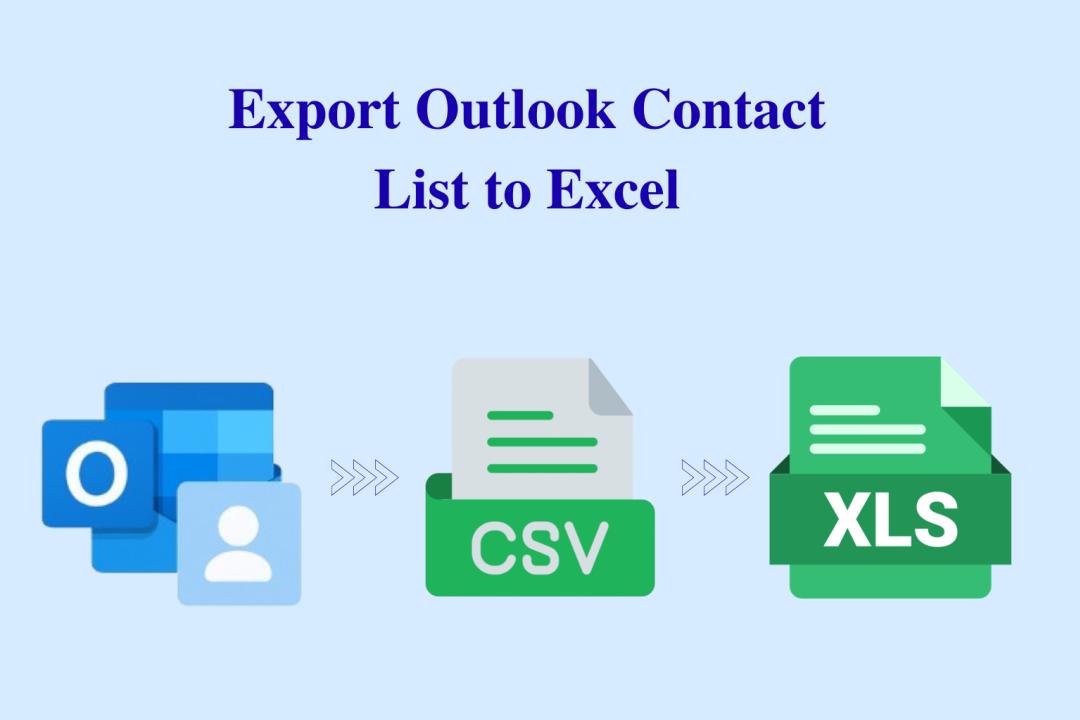
If you are wondering how to export contacts from MS Outlook to a spreadsheet, then in this section, we’ll cover all possible methods to make entire process seamless. It is important to know that you cannot export Outlook contacts to XLS/XLSX format directly. So, in this case, you need to first export Outlook contacts to CSV format and then open them in Excel sheet.
However, this doesn’t mean that the task is difficult or impossible. Using the right approach, you can export contact data quickly. We will provide both manual and automated solutions and explain these methods in an elaborated manner. Now, let’s dive into it.
#1 Export Outlook Contact List to Excel Format Manually
The manual method is a simple and built-in way to transfer contacts without using any third-party tool. Microsoft Outlook provides an export feature that allows users to save their contact list in CSV format, which can then be easily opened in Microsoft Excel. This approach is suitable for small contact lists and users who need a quick, cost-free solution. Follow the steps given below:
- Open Microsoft Outlook.
- Click on File → Open & Export.
- Select Import/Export.
- Choose Export to a file → Click Next.
- Select Comma Separated Values (CSV) → Click Next.
- Choose the Contacts folder.
- Click Browse and select a location to save the file.
- Click Finish.
PROS:
- Free and built-in option
- Quick for small contact lists
- No additional software required
CONS:
- Exports only one folder at a time
- Risk of field mapping issues
- May not export all custom contact fields
- Time-consuming for large mailboxes
#2 Export Outlook Contact List to Excel Sheet - An Ideal Way
When working with large or multiple contact folders, a professional tool offers better accuracy. Here, the SysTools Outlook Contacts Export Tool is designed to make the process effortless by allowing users to export contact data from Outlook to XLS & XLSX format in a hassle-free
way. It ensures that all contact fields are preserved without formatting issues. This is an ideal export method for bulk processing and reduces the risk of data loss. Follow the instructions below to run the software:
- Download and install the software on your machine.
- Click to Add File & Folder to upload Outlook contacts.
- Select CSV as file format to start export process.
- Set the destination path and hit the Export button.
- Finally, open the CSV file in MS Excel and save it.
Key Features of Using Advanced Solution
- Bulk Contact Export – Export multiple contact folders or entire PST files to Excel in a single process.
- Complete Field Mapping – Maintains all contact attributes, including name, phone number, email address, company, notes, and custom fields.
- Selective Export Option – Allows users to choose specific contact folders or items instead of exporting everything.
- Multiple Excel Formats Support – Save contacts in XLS or XLSX format for better compatibility and structured output.
- User-Friendly Interface – Simple steps and easy navigation make the process smooth for both technical and non-technical users.
Final Words!
In this comprehensive guide, we have explored two of the best techniques to export Outlook contact list to Excel Format effortlessly. Both manual and automated solutions provide results, but manual solution always comes with some limitations. So, we suggest you choose an advanced technique or professional tool to export contact list from Outlook into Excel with just a few clicks.