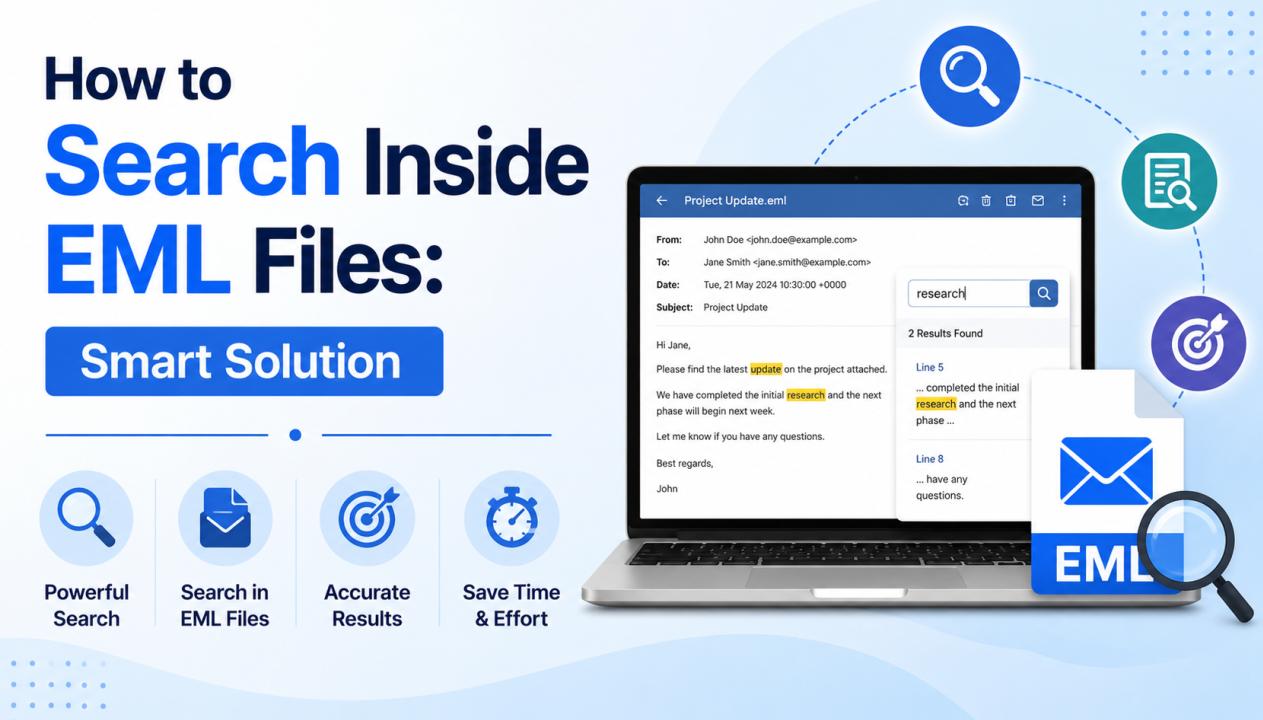
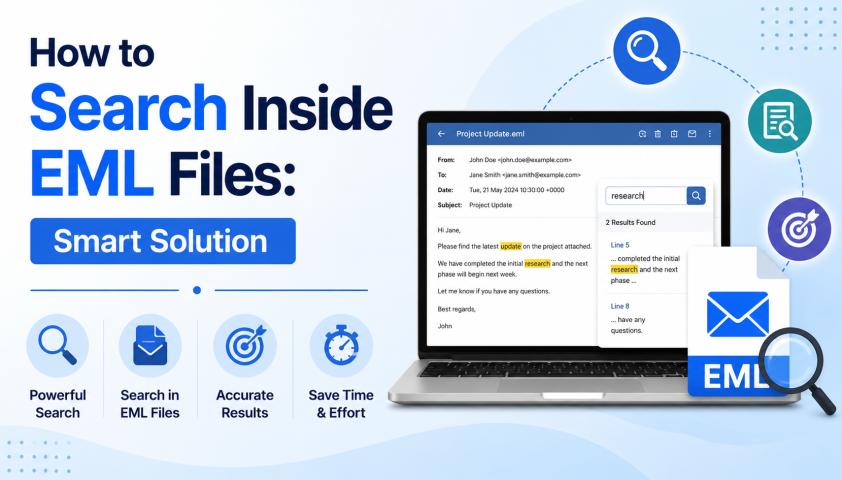
EML files are individual email message files created by various email clients such as Windows Live Mail, Outlook Express, Thunderbird, eM Client, and others. These files store email content along with attachments, sender details, recipient information, timestamps, and metadata.
When users have hundreds or thousands of EML files, locating a specific email becomes challenging. In such situations, searching inside EML files helps users quickly find important messages based on keywords, sender names, subject lines, dates, or attachment information.
This guide explains both manual and professional methods to search within multiple EML files efficiently.
Why Search Inside EML Files?
Searching within EML files is useful for:
- Finding important business emails.
- Locating emails from a specific sender.
- Searching for project-related keywords.
- Identifying emails containing attachments.
- Performing legal, compliance, or eDiscovery investigations.
- Managing large EML archives.
Manual Method to Search Inside EML Files
Windows provides a basic search mechanism that can help locate EML files containing specific text.
Step 1: Store EML Files in a Folder
Place all EML files in a dedicated folder on your computer.
Step 2: Enable File Content Indexing
Open the folder containing EML files.
Right-click the folder and select Properties.
Click Advanced.
Check Allow files in this folder to have contents indexed in addition to file properties.
Click OK.
Step 3: Rebuild Windows Search Index
Open Control Panel.
Select Indexing Options.
Click Advanced.
Choose Rebuild.
Step 4: Search Emails
Use the Windows Search box and enter:
Sender name
Subject keywords
Email address
Message content
Windows will display matching EML files.
Limitations of the Manual Method
Although Windows Search can help, it comes with several drawbacks:
Slow performance with large EML collections.
Search results may be incomplete.
No advanced filtering options.
Difficult to search attachments.
Cannot perform AND, OR, and NOT searches.
No email preview for detailed examination.
Indexing may take significant time.
For organizations and users managing thousands of EML files, a professional solution is often more effective.
Professional Method to Search Inside EML Files
SysTools Best Free EML Viewer Tool is a dedicated application designed to open, read, analyze, and search EML files without requiring any email client installation.
The software offers advanced search functionality that helps users quickly locate emails across large EML repositories.
Steps to Search EML Files
Step 1: Launch the Software
Install and open SysTools EML Reader on your system.
Step 2: Add EML Files
Use the Add Folder option to load single or multiple EML files.
Step 3: Open Advanced Search
Navigate to the Search feature within the software.
Step 4: Apply Search Criteria
Search emails based on:
Subject
Sender
Recipient
CC
BCC
Date Range
Attachment Name
Message Content
Step 5: Use Boolean Search Operators
The software supports advanced filtering such as:
AND – Find emails containing multiple keywords.
OR – Search emails containing either keyword.
NOT – Exclude unwanted results.
Step 6: Review Search Results
Instantly preview matching emails and verify the required information.
Key Features of SysTools EML Viewer
Advanced Email Search
Locate emails using multiple search parameters simultaneously.
Boolean Search Capability
Perform precise searches using AND, OR, and NOT operators.
Email Preview
View:
Email headers
Message body
HTML content
Attachments
Batch Processing
Search through thousands of EML files in a single operation.
Attachment Analysis
Identify emails containing specific attachments.
No Email Client Required
Open and search EML files independently without installing Thunderbird, Windows Live Mail, or Outlook.
Multiple View Modes
Analyze emails in:
Normal View
MIME View
Hex View
Message Header View
To Unlock More Features of same, then upgrade to SysTools EML Viewer Pro & Pro+.
When Should You Use a Professional Tool?
A dedicated solution is recommended when:
Managing thousands of EML files.
Performing legal investigations.
Conducting compliance audits.
Searching archived email repositories.
Looking for attachment-specific emails.
Requiring accurate and advanced search capabilities.
Conclusion
Searching inside EML files becomes increasingly difficult as email archives grow. While Windows Search offers a basic manual solution, it lacks advanced filtering, attachment search, and Boolean query support.
For users who need faster, more accurate, and professional email searching capabilities, SysTools EML Viewer provides advanced search options, email previews, attachment analysis, and powerful filtering features. It allows users to efficiently locate specific emails from large EML collections without relying on any email client.