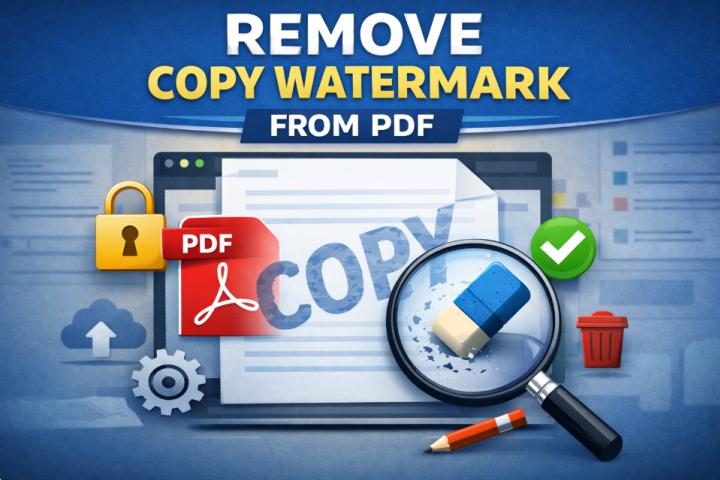
atermarks are commonly added to PDF documents to display ownership, branding, confidentiality notices, document status, or other information. While they can be useful for protecting and identifying documents, there are situations where you may need to remove any watermark from PDF files. For example, you may have an outdated company logo, an unnecessary “Draft” label, or a watermark that was accidentally added to a document.
The good news is that several methods are available to remove PDF watermarks. You can use Adobe Acrobat Pro, Microsoft Word, online PDF tools, or dedicated desktop PDF watermark remover software. However, the best method depends on how the watermark was added and whether the PDF is editable, scanned, protected, or flattened.
Important: Remove a watermark only when you own the document or have authorization to modify it.
What Is a Watermark in a PDF?
A PDF watermark is text, an image, logo, or other visual element placed over or behind the document content. It can appear on one page or across every page of a PDF.
Common types of PDF watermarks include:
- Text watermarks: Words such as “Draft,” “Confidential,” or “Sample.”
- Image watermarks: Company logos, signatures, or other graphics.
- Transparent watermarks: Semi-transparent text or images placed over the content.
- Background watermarks: Images or text positioned behind the main content.
- Header or footer watermarks: Repeated information placed at the top or bottom of pages.
- Flattened watermarks: Watermarks merged into the page content or image, making them more difficult to remove.
The way a watermark is stored in the PDF plays an important role in determining whether it can be removed easily.
Why Remove a Watermark from a PDF?
There are several legitimate reasons to remove a watermark from a PDF document.
- Remove Outdated Branding
Businesses may update their logos, names, or branding. If an old logo appears as a watermark in existing documents, removing it can help prepare the files for reuse.
- Improve Document Readability
Large or highly opaque watermarks can interfere with text, diagrams, images, and tables. Removing them can make the underlying information easier to read.
- Remove Draft or Sample Labels
A document may have been marked “Draft,” “Sample,” or “For Review” during preparation. Once the document is finalized, it becomes necessary to remove draft watermark from PDF file.
- Prepare a Clean Final Document
When creating a final version of an internally owned document, removing temporary watermarks can provide a more professional appearance.
Can You Remove Any Watermark from a PDF?
Not necessarily. The ability to remove a watermark depends largely on how it was added to the PDF.
If the watermark exists as a separate PDF object, it can often be selected and removed. However, if it has been flattened into the page or merged with a scanned image, removing it becomes considerably more complicated.
For example, consider two PDFs:
- In PDF A, the “CONFIDENTIAL” text exists as a separate watermark object.
- In PDF B, the same text has been permanently merged into a scanned page image.
PDF A may allow straightforward watermark removal, while PDF B may require image-based processing or editing of the original source document.
Password protection and PDF permissions can also affect editing.
How to Remove Any Watermark from PDF?
There are several ways to remove a watermark from a PDF. Here are four commonly used approaches.
Method 1: Remove Watermark Using Adobe Acrobat Pro
Adobe Acrobat Pro provides built-in PDF editing capabilities, including tools for managing watermarks when they were added using supported Acrobat functionality.
Steps to Remove a Watermark
- Open the PDF in Adobe Acrobat Pro.
- Go to the PDF editing or watermark-related tools.
- Locate the option for managing the watermark.
- Choose the option to remove the watermark.
- Review the document to make sure the watermark has been removed.
- Save the PDF as a new file.
This method is convenient when the PDF contains a conventional, editable watermark.
Limitations
Adobe Acrobat may not be the best choice in every situation. Some limitations include:
- A paid Acrobat plan may be required for relevant features.
- Flattened watermarks can be difficult to remove.
- Scanned PDFs may require a different workflow.
- Removing individual elements manually can become time-consuming.
- Batch processing requirements may call for specialized software.
Therefore, Acrobat works well for many standard PDF editing tasks, but it is not necessarily a universal solution for every watermark.
Method 2: Remove Watermark from PDF Using Microsoft Word
Microsoft Word can open and convert certain PDF documents into editable Word documents. This can provide an alternative when you do not have dedicated PDF editing software.
Steps
- Open Microsoft Word.
- Select Open and choose the PDF file.
- Allow Word to convert the PDF into an editable document.
- Locate the watermark or corresponding element.
- Remove the unwanted watermark.
- Review the document carefully.
- Export or save the document as a PDF.
Limitations
This approach is more suitable for relatively simple PDFs. PDF-to-Word conversion can change the original formatting.
You may encounter:
- Changed fonts
- Misaligned images
- Modified tables
- Altered page breaks
- Changed spacing
- Missing design elements
For documents with complex layouts, technical drawings, forms, or numerous graphics, converting the PDF to Word may create more work than it saves.
Method 3: Remove Watermark from PDF Online
Online PDF watermark remover tools provide a convenient way to process a document without installing desktop software.
The general process is simple:
- Open an online PDF service.
- Upload your PDF.
- Select or identify the watermark.
- Start the removal process.
- Download the resulting PDF.
- Open the file and verify the output.
This can be useful when working with a small, non-confidential PDF and you need a quick solution.
Limitations of Online Tools
However, online tools have several considerations.
Privacy is the biggest concern. To process a document, you generally need to upload it to a third-party service. This may not be appropriate for confidential business documents, financial records, contracts, legal files, or other sensitive information.
Other potential limitations include:
- File-size restrictions
- Page-count limitations
- Upload/download requirements
- Internet dependency
- Limited batch processing
- Restrictions on advanced watermark types
- Possible changes to document formatting
For sensitive documents, an offline PDF watermark remover can provide a more suitable workflow because processing can take place locally on your computer.
Method 4: Remove Any Watermark from PDF Using Dedicated Desktop Software
A dedicated tool is useful when you regularly need to remove watermarks from multiple PDF files or work with documents that are difficult to edit manually.
For example, SysTools PDF Watermark Remover is designed specifically for PDF watermark-removal tasks. A dedicated application can be particularly useful for users who need an offline workflow, batch processing, or more specialized PDF processing capabilities. Using this software, you can remove any type of watermark, such as text, image, logo, stamp, graphic, and semi-transparent watermarks in a single attempt.
Compared to other tools, this is a secure and reliable software for removing the watermarks from multiple PDF files while keeping the formatting in the original formatting. Besides this, it allows you to create a clean and distraction-free PDF document in seconds.
A typical workflow involves:
- Install and launch the above-mentioned software on your system.
- Add one or more PDF files.
- Look for Save and then, Change to set the path.
- Finally, hit the Remove to delete the PDF watermarks.
Conclusion
There is no single method that works identically for every PDF watermark. The right approach depends on whether the watermark is text, an image, transparent, separate from the page content, flattened, or embedded in a scanned document.
For a simple editable watermark, Adobe Acrobat Pro can be convenient. Microsoft Word can provide an alternative for relatively simple PDFs, while online tools may work for occasional, non-sensitive documents. If you need to remove any watermark from PDF files regularly, particularly in bulk or without uploading confidential documents, a dedicated software by SysTools. Using the solution, you can effortlessly delete the PDF watermark without affecting existing formatting.