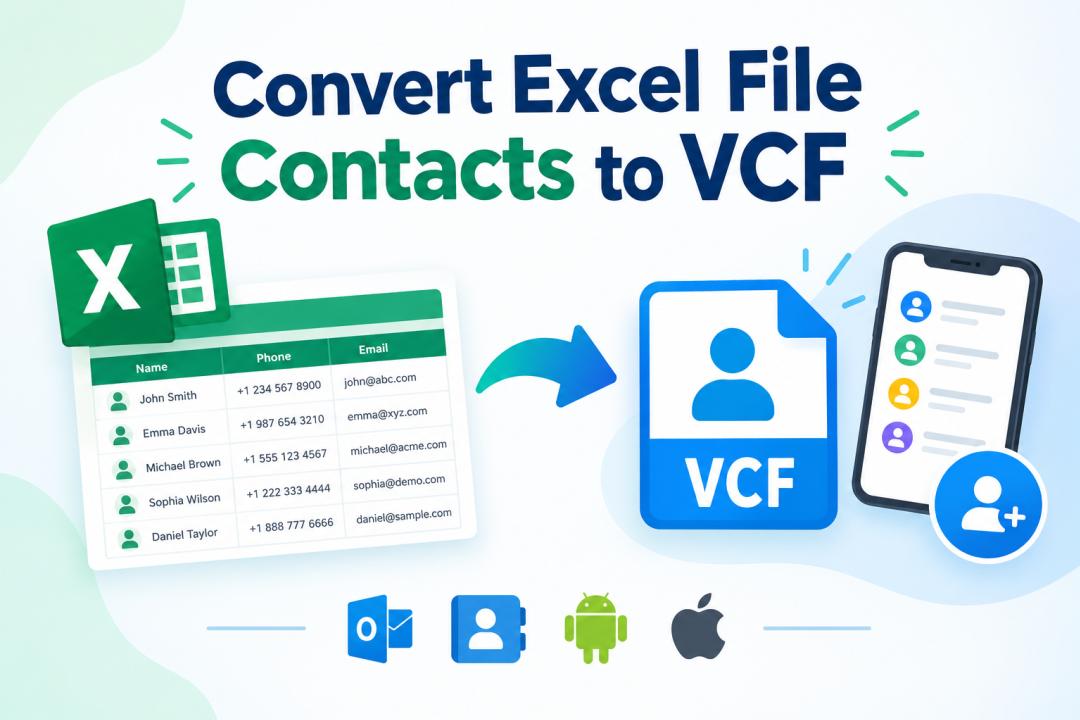
Excel files are commonly used to store contact details such as names, phone numbers, email addresses, company names, and other information. However, when you need to import these contacts into a smartphone, email account, or contact management application, the VCF (vCard) format is often more suitable.
Converting an Excel file to VCF makes contacts easier to transfer between platforms such as iPhone, Android, Gmail, iCloud, and other applications that support vCard files. This guide explains different ways to convert Excel file contacts to VCF, including manual and professional methods.
Why Convert Excel Contacts to VCF?
Excel is useful for managing contact lists, but it is not a standard contact format for many devices and applications. VCF files are specifically designed to store contact information and can be imported directly into many contact applications.
Some common reasons to convert Excel contacts to VCF include:
- Import Excel contacts into Android or iPhone.
- Transfer contacts from Excel to Gmail or Google Contacts.
- Import contact lists into iCloud.
- Share contacts with other users.
- Create individual VCF files for contacts.
- Move large contact lists between different platforms.
- Maintain contact information in a widely supported format.
Also Read: How to Convert Excel Contacts to CSV File Instantly?
Methods to Convert Excel File Contacts to VCF
There are several ways to convert Excel contacts into VCF files. The suitable method depends on the number of contacts, required vCard version, and destination platform.
Method 1: Convert Excel Contacts to VCF Using Google Contacts
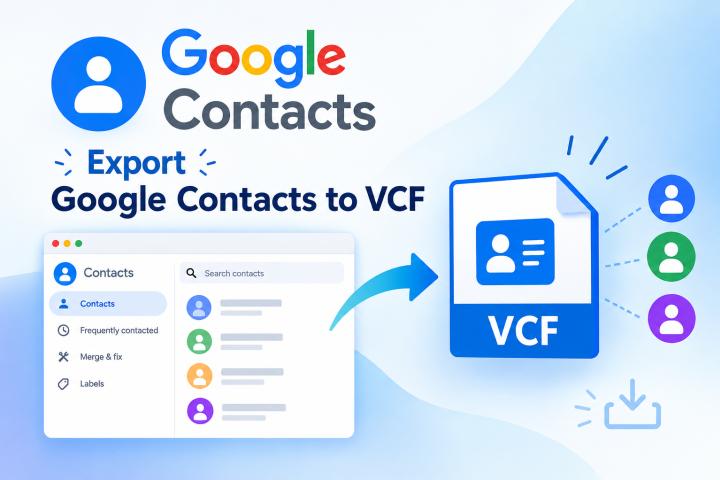
Google Contacts can be used to convert an Excel contact list into a vCard file. However, Excel files cannot always be imported directly, so you may first need to save the spreadsheet in CSV format.
Steps to follow:
- Open the Excel file containing your contacts.
- Select File > Save As.
- Choose CSV UTF-8 (Comma delimited) as the file type.
- Open Google Contacts and sign in to your account.
- Click Import and select the CSV file.
- Verify that the contact fields are mapped correctly.
- Select the imported contacts.
- Click Export.
- Choose vCard as the export format.
- Save the generated VCF file.
This method works well for smaller contact lists, but field mapping and large contact lists may require additional manual checking.
Method 2: Convert Excel Contacts to VCF Using Microsoft Outlook
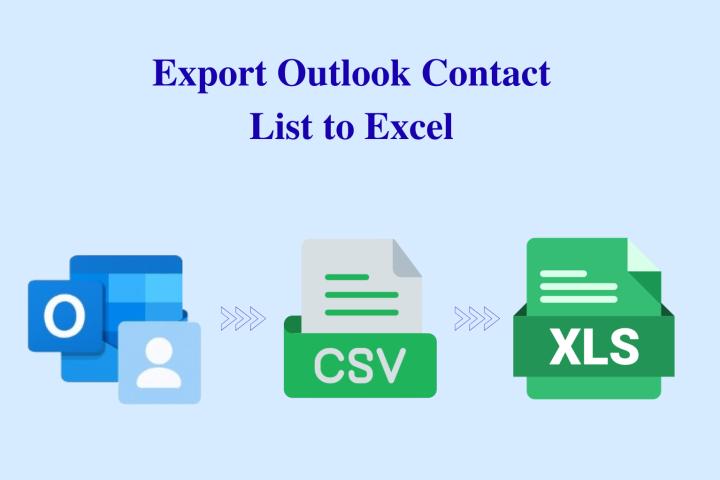
Microsoft Outlook can also help when contacts need to be transferred through an Outlook account. The process generally involves converting the Excel data into a format that Outlook can import and then exporting the contacts as vCard files.
Steps:
- Open the Excel spreadsheet.
- Save the contact list as a CSV file.
- Open Outlook and go to People/Contacts.
- Import the CSV contact list.
- Check the imported contact details.
- Select the required contacts.
- Export or save them in a vCard-compatible format where supported.
- Save the resulting VCF file.
The exact export options can vary depending on the Outlook version, so this approach may require additional steps.
Method 3: Convert Excel File Contacts to VCF Using Professional Software
When you need to convert a large Excel contact list or create individual VCF files, a dedicated Excel contacts converter can make the process easier. SysTools Excel to vCard Converter is designed to convert Excel and CSV contact files into VCF format without requiring manual entry of each contact.
The software supports XLS, XLSX, and CSV files and provides options to map contact fields before conversion. It can also create separate VCF files for individual contacts or combine contacts into a single VCF file, depending on the required output.
Steps to convert Excel contacts to VCF:
- Install and launch the Excel to vCard Converter.
- Add the XLS, XLSX, or CSV file containing contacts.
- Preview the contact information.
- Map Excel fields with the corresponding vCard fields.
- Select the required vCard version.
- Choose individual or combined VCF output.
- Select the destination folder.
- Start the conversion process.
- Open the output folder and verify the generated VCF files.
This approach is particularly useful when working with thousands of contacts or when the contact list contains multiple fields that need accurate mapping.
Important Things to Check Before Converting Excel to VCF
Before starting the conversion, prepare the Excel spreadsheet properly to reduce errors.
- Keep each contact in a separate row.
- Use clear column headings such as Name, Phone, Email, Company, and Address.
- Remove unnecessary blank rows and duplicate records.
- Check phone numbers for missing country codes.
- Make sure email addresses are correctly entered.
- Review special characters and formatting.
- Keep a backup of the original Excel file.
Properly organized data helps ensure that the converted VCF file contains accurate contact information.
Excel to VCF: Which Method Should You Choose?
| Factor | Google Contacts | Outlook | Professional Converter |
|---|---|---|---|
| Small contact lists | Yes | Yes | Yes |
| Large contact lists | Limited | Moderate | Yes |
| Field mapping | Basic | Available | Advanced |
| Batch conversion | Limited | Moderate | Yes |
| Individual VCF files | Limited | Limited | Yes |
| Manual work | More | Moderate | Less |
| Offline conversion | No | Depends | Yes |
For a small number of contacts, Google Contacts or Outlook may be sufficient. For large Excel contact lists, batch conversion, or individual VCF files, dedicated software provides greater control and reduces repetitive manual work.
How to Import the Converted VCF File
Once the Excel contacts have been converted to VCF, the resulting file can be imported into various contact management platforms.
For Android: Transfer the VCF file to the device and use the Contacts app's import option.
For iPhone: Import the VCF through iCloud Contacts or open the VCF file on the device, depending on the available setup.
For Gmail: Open Google Contacts and use the Import option to upload the VCF file.
For iCloud: Open iCloud Contacts and use the Import vCard option to add the contacts.
Always verify the imported contacts after migration, especially when transferring a large contact list.
Conclusion
Converting an Excel file containing contacts to VCF makes it easier to transfer contact information between phones, email platforms, and contact management applications. Google Contacts and Outlook can handle basic conversion workflows, while a dedicated Excel to vCard converter is more suitable for large contact lists, field mapping, batch processing, and creating individual or combined VCF files. Before conversion, organizing the Excel data and checking contact details can help ensure a smooth and accurate transfer.