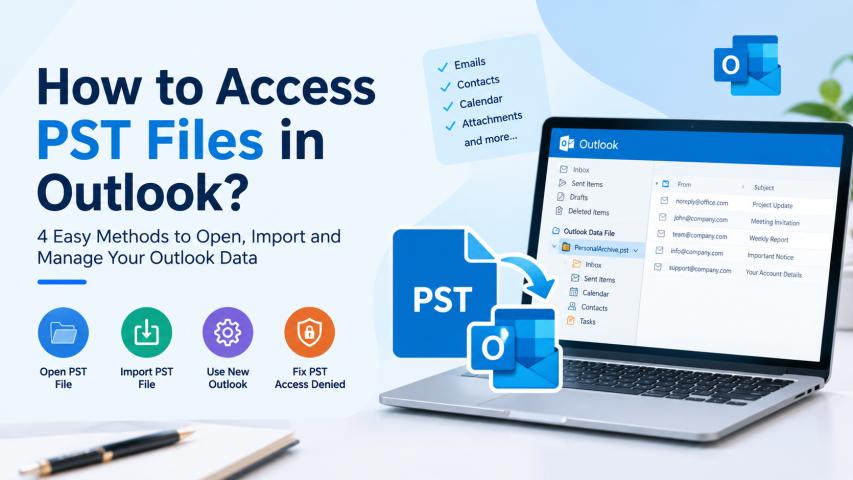
Outlook PST files store emails, attachments, contacts, calendar entries, and other mailbox data for backup and offline access. However, opening an archived PST file or accessing a password-protected data file can sometimes be difficult. If you encounter a PST access denied error or cannot remember your PST password, choosing the correct method can help you regain access to your Outlook data.
In this guide, we will explain how to access PST files in Outlook using manual methods, including opening an existing PST file, importing its contents, and accessing password-protected files with an automated solution.
Common Reasons You Cannot Access a PST File
Several issues can prevent Outlook from opening a data file:
Forgotten password: Outlook requests a password that you no longer remember.
PST access denied: Windows permissions or security restrictions prevent access to the file.
Incorrect file location: The PST file has been moved, renamed, or stored on a disconnected drive.
File corruption: Damage to the PST file can prevent Outlook from reading its contents.
Outlook compatibility issues: The feature you need may not be available in your current Outlook version.
First, verify the file location and permissions. If the problem is password-related, consider a compatible password recovery utility.
How to Access PST Files in Outlook? 4 Methods
There are several ways to access PST files, depending on the Outlook version and the condition of the data file. Follow the method that matches your requirements.
Method 1: Open a PST File in Classic Outlook
This method is useful when you want to read archived emails without importing them into your current mailbox.
Steps to open a PST file:
Open Microsoft Outlook (Classic) on your Windows computer.
Click File in the top-left corner.
Select Open & Export and then choose Open Outlook Data File.
Browse to the location where your PST file is saved.
Select the required PST file and click Open.
Return to the Outlook folder pane and locate the newly added data file.
Expand its folders to view emails, attachments, and other available items.
The PST file will appear as a separate folder group in Outlook. You can browse its contents and search for specific messages. If you want to move an email into your current mailbox, you can drag and drop the item into the appropriate folder.
Method 2: Import a PST File into Outlook
Importing is suitable when you want to transfer archived emails and other supported items into your existing mailbox instead of viewing them separately.
Steps to import a PST file:
Open Classic Outlook and select File.
Go to Open & Export > Import/Export.
Choose Import from another program or file and click Next.
Select Outlook Data File (.pst) and click Next.
Click Browse and locate the PST file you want to import.
Choose how Outlook should handle duplicate items.
Click Next and select the mailbox or folder where you want to import the data.
Click Finish to start the import process.
Wait for Outlook to complete the operation. The imported items should appear in the selected destination folder.
Note: If the PST file is password-protected, Outlook may ask you to enter its password during the process. Keep a backup of the original file before importing it.
Method 3: Access a PST File in New Outlook
New Outlook for Windows also supports opening PST files in supported configurations. Availability can depend on your Outlook version, installation, and account requirements.
Steps to add a PST file:
Open New Outlook for Windows.
Select Settings and navigate to Files > Outlook Data Files.
Click Add file.
Browse to the PST file saved on your computer.
Select the file and click Open.
Return to the folder pane and expand the added data file to browse its contents.
If this option is unavailable, check whether Classic Outlook is installed and whether both versions have matching 32-bit or 64-bit architectures. New Outlook's supported PST operations may also differ from those in Classic Outlook. Use Classic Outlook if you need a feature that your New Outlook installation does not provide.
Method 4: How to Access PST Files in Outlook Professionally?
If you cannot access a PST file because you have forgotten its password, the usual Outlook methods may not be sufficient. In this situation, using a SysTools PST Password Recovery Tool is an ideal choice as it is designed to recover, reset, or remove password protection from supported PST files. It is useful when you need to regain access to a password-protected data file without repeatedly attempting manual password entry.
Working Steps of the Tool
Download and install the software.
Launch the application on your Windows computer.
Use the available option to add the password-protected PST file. Depending on your needs, you can browse for individual files or select a folder.
Select the required PST file and proceed with the password recovery or removal operation offered by the software.
Follow the on-screen instructions to complete the process.
Afterward, use Outlook to open the PST file and check whether you can access its contents.
The software's published features include support for ANSI and Unicode PST files, multiple file-selection options, and compatibility with different Outlook versions. Review the current product documentation to confirm compatibility with your particular file and Windows setup.
Important: Use this method only for PST files you own or are authorized to access. Make a backup before changing password protection, and remember that password recovery software cannot guarantee successful access in every case.
How to Manage PST Files in Outlook?
Once you have accessed a PST file, proper management helps keep your archived data organized and reduces the risk of access problems.
Keep a backup: Store a separate copy of important PST files on a secure drive.
Use descriptive filenames: Names such as Work_Archive_2025.pst make files easier to identify.
Close files when not needed: In Classic Outlook, right-click the PST file in the folder pane and select Close Outlook Data File. This removes it from the pane without deleting the file from your computer.
Check file permissions: Make sure your Windows account can access the folder containing the PST file.
Avoid simultaneous access: Do not let multiple applications or processes modify the same PST file at the same time.
Keep Outlook updated: Updates can improve compatibility and help resolve application-related issues.
Conclusion
In this article, we have covered four practical methods explaining how to access PST files in Outlook, including opening a PST file in Classic Outlook, importing its contents, using supported PST features in New Outlook, and accessing password-protected files with an automated solution. The right approach depends on whether you need to view archived emails, move mailbox items, or resolve a password issue.
For routine access, Outlook's built-in options are usually sufficient. If you have forgotten the password for a PST file, the above mentioned Tool is an alternative worth considering. Always back up your original file before making changes to protect your Outlook data.