
Introduction
Imagine trying to click a "Submit" button, but your automation script fails again. Why? Because it couldn't find the button. This is where Selenium locators come into play.
Selenium locators are essential tools for identifying web elements on a page. Whether you're taking a Selenium certification online or diving into a Selenium course online, mastering locators is one of the first and most crucial steps in automation testing.
In this post, we’ll break down what locators are, how they work, and how to use them effectively to create robust, reliable test scripts. Whether you’re just starting with online Selenium training or deep into test automation training, this guide will give you practical insights and tools for immediate use.
What Are Selenium Locators?
Selenium locators are commands or methods used to find elements on a web page, such as buttons, text fields, and dropdowns. Selenium interacts with the DOM (Document Object Model) using these locators to perform actions like clicking, typing, or validating content.
Without locators, Selenium wouldn't know what to click or where to type. Think of them as addresses for different parts of a webpage. Just as you need a house number to deliver a letter, Selenium needs a locator to interact with a web element.
Why Are Locators Important in Test Automation?
If you’re going through test automation training or an online Selenium course, you’ll often hear this: “The success of your automation script heavily depends on how well your locators are written.”
Here's why:
Stability: Strong locators reduce script failures due to UI changes.
Speed: Accurate locators improve test execution time.
Maintainability: Clean, logical locators make scripts easier to update and scale.
Let’s now explore the different types of Selenium locators with real-world examples.
Types of Selenium Locators
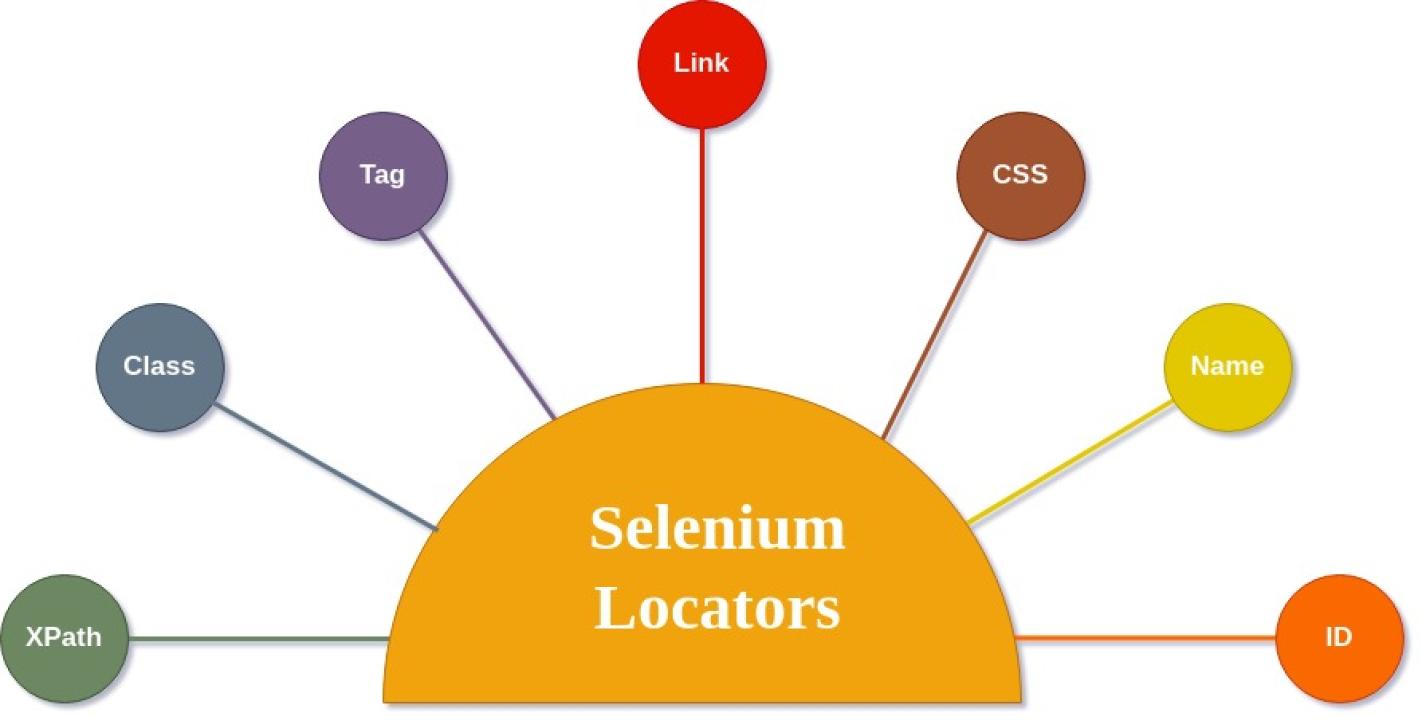
Selenium provides several locator strategies. Each serves a unique purpose, depending on the structure of the web page and the HTML attributes used.
1. ID Locator
What it does: Selects an element using its unique id attribute.
Example:
python
driver.find_element(By.ID, "loginButton")
Why use it: It's the fastest and most accurate method if the id is unique.
Tip: Always prefer the ID locator when available.
2. Name Locator
What it does: Identifies elements by their name attribute.
Example:
python
driver.find_element(By.NAME, "email")
Use case: Commonly used in forms where input fields have name attributes like "username" or "password".
Note: Avoid using it if multiple elements share the same name.
3. Class Name Locator
What it does: Locates an element using its class name.
Example:
python
driver.find_element(By.CLASS_NAME, "submit-btn")
Limitations: Many elements can share the same class. Use this when you know the class is unique or use it in combination with other strategies.
4. Tag Name Locator
What it does: Finds elements using HTML tag names like div, input, a.
Example:
python
driver.find_elements(By.TAG_NAME, "input")
Best use case: Useful when retrieving a list of similar elements like all images or links.
5. Link Text Locator
What it does: Identifies a link using its exact visible text.
Example:
python
driver.find_element(By.LINK_TEXT, "Contact Us")
Best use case: Ideal when the link text is static and uniquely identifies the link.
6. Partial Link Text Locator
What it does: Locates a link using a portion of its visible text.
Example:
python
driver.find_element(By.PARTIAL_LINK_TEXT, "About")
Why it's useful: Helps when link texts are long or contain dynamic values.
7. CSS Selector Locator
What it does: Uses CSS rules to locate elements.
Example:
python
driver.find_element(By.CSS_SELECTOR, "input[type='submit']")
Advantages: More flexible and often faster than XPath. Great for complex structures.
Use case: Ideal when elements don’t have IDs or names but can be pinpointed using attributes.
8. XPath Locator
What it does: Uses XML path to navigate and find elements.
Example:
python
driver.find_element(By.XPATH, "//input[@id='search']")
Powerful but complex: XPath lets you navigate up and down the DOM, use conditions, and find nested elements.
Hands-On Practice: Locating a Login Form
Let’s take a simple login page and locate its elements using different strategies.
HTML Sample:
html
<form>
<input type="text" id="username" name="user">
<input type="password" name="pass" class="password-field">
<button id="loginBtn">Login</button>
</form>
Locators in Action:
python
# ID
driver.find_element(By.ID, "username")
# Name
driver.find_element(By.NAME, "pass")
# Class Name
driver.find_element(By.CLASS_NAME, "password-field")
# Tag Name
driver.find_elements(By.TAG_NAME, "input")
# XPath
driver.find_element(By.XPATH, "//button[@id='loginBtn']")
# CSS
driver.find_element(By.CSS_SELECTOR, "#loginBtn")
Real-World Applications of Selenium Locators
Here’s how professionals in online Selenium training and Selenium certification online use locators:
E-commerce Testing
Use Case: Validating the "Add to Cart" button
Locator: XPath or CSS when ID is not available
Automation Benefit: Simulates real user buying behavior
Banking Applications
Use Case: Verifying login and transaction elements
Locator: ID and Name (highly structured apps)
Automation Benefit: Detects security and form validation issues
Travel Portals
Use Case: Selecting calendar dates
Locator: XPath for nested DOM elements
Automation Benefit: Reduces test maintenance as UI changes
Common Locator Challenges and Solutions
Challenge | Cause | Solution |
Element not found | Dynamic ID or class | Use relative XPath or CSS selectors |
Multiple matches | Common class name | Use indexing or hierarchical locators |
Slow scripts | Inefficient XPath | Use CSS selectors for performance |
Fragile tests | UI changes | Avoid hard-coded locators, use robust attributes |
Best Practices for Using Selenium Locators Effectively
Start with ID or Name
These are the fastest and most stable.
Use CSS over XPath for speed
Especially on modern browsers.
Keep Locators DRY (Don't Repeat Yourself)
Define locators as variables or constants.
Avoid Absolute XPath
They are fragile and break with minor UI changes.
Use Browser Developer Tools
Chrome DevTools and Firefox Inspector help test locators before using them in scripts.
Tips for Locator Maintenance in Larger Projects
Centralize Locators
Use a page object model to store all locators in one place.
Add Descriptive Names
Instead of btn1, name it submit_button.
Version Control
Track changes in locator structure when UI updates occur.
Locator Review Checklist
Unique? Fast? Easy to maintain? Test it before use.
Why Mastering Locators Is a Must for Testers
In any Selenium certification online or test automation training course, locators are the first thing you're taught and for good reason.
Here’s what mastering locators will do for you:
Improve test coverage
Boost execution speed
Increase script reliability
Enable better collaboration in test teams
Locators form the foundation of every test case. Without them, your automation strategy is like building a house with no blueprint.
Conclusion
Selenium locators are more than just syntax they’re your gateway to effective and robust test automation. Whether you're pursuing a Selenium course online, enrolling in online Selenium training, or working toward Selenium certification online, understanding and using locators effectively is critical for success.
Master your locators, and you’ll master Selenium.
Key Takeaways
Selenium locators are methods to find and interact with elements.
Use ID and Name when possible they're fast and reliable.
Prefer CSS over XPath for speed and simplicity.
Practice with real web pages to strengthen your skills.
Use best practices to ensure maintainable and scalable test scripts.
Looking to master Selenium automation from the ground up?
Start your Selenium certification online today and boost your testing career!