
Introduction
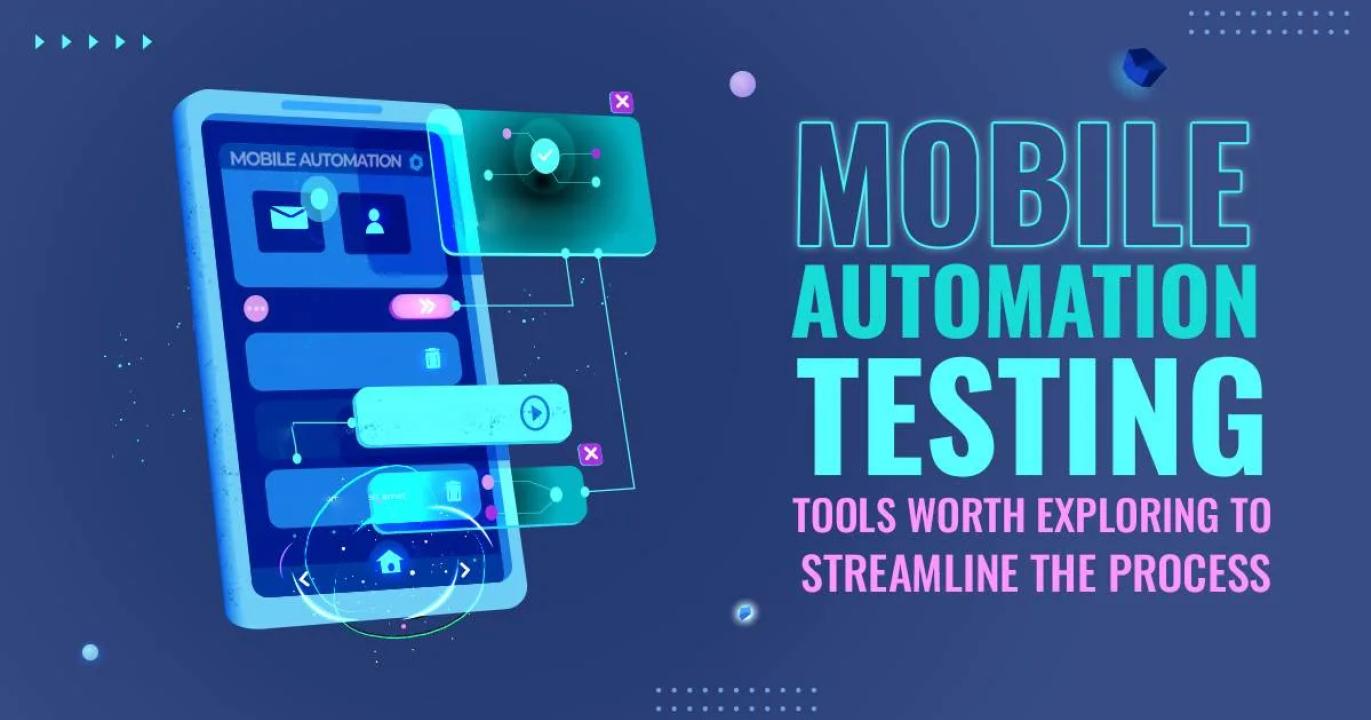
As mobile applications dominate digital engagement, companies are under constant pressure to deliver flawless mobile experiences. From banking apps to eCommerce platforms, users expect speed, reliability, and compatibility across all their devices.
Automated testing is crucial in meeting these expectations. Selenium, widely adopted for web test automation, is often considered for mobile testing too. However, its capabilities fall short when applied directly to mobile platforms.
In this blog, we’ll dive deep into the core challenges of mobile automation testing with Selenium, supported by real-world examples and practical solutions. Whether you're enrolled in a Selenium course online, seeking Selenium certification course, or undergoing online Selenium training, this post will prepare you to tackle mobile testing hurdles with confidence.
Device Fragmentation: Too Many Devices, Too Little Time
Why It’s a Challenge
The mobile market is highly fragmented. There are thousands of devices, each with different screen sizes, OS versions, and hardware specifications. A test case that passes on one device may fail on another due to subtle UI variations or OS behavior.
Example Scenario
Imagine a mobile web app that displays a sidebar menu. On one device, the menu appears as expected. On another, it overlaps with other elements due to resolution differences. Selenium's default browser automation cannot fully account for these discrepancies.
Practical Solutions
Prioritize Based on Usage Data: Focus testing on top devices used by your audience. Start broad, then optimize.
Use Emulators and Simulators Strategically: While Selenium can't test mobile apps natively, pairing it with mobile emulators (via Appium) can bridge the gap.
Adopt Responsive Design Testing: Ensure your web app adjusts across viewports using Selenium scripts that switch between different resolutions.
Selenium Is Not Built for Native Mobile Apps
Why It’s a Challenge
Selenium is designed for browser-based automation. It lacks support for native mobile features like GPS, camera, or gestures (swipe, tap, zoom). That makes it unsuitable for fully testing native or hybrid mobile apps.
Example Scenario
You’re testing an Android banking app that requires fingerprint authentication and camera access. Selenium cannot simulate these interactions because they aren’t part of the DOM or browser interface.
Practical Solutions
Use Appium for Mobile Automation: Appium extends Selenium WebDriver APIs for native apps. If you’ve taken a good online Selenium training, Appium is likely your next step.
Mock Device Features in Development: Enable developers to simulate native functionality so that Selenium-based tests can verify UI behavior without physical access to features.
Handling Dynamic Content and Delays
Why It’s a Challenge
Mobile apps often load data asynchronously. Elements may not be available when the test script runs. This causes Selenium tests to break or throw ElementNotFound exceptions.
Example Scenario
You're automating a flight booking app. After selecting a destination, it takes a few seconds to load available flights. Selenium attempts to click on a flight option before it appears — causing a failure.
Practical Solutions
Use Explicit Waits: Incorporate WebDriverWait and conditions like visibilityOfElementLocated to wait until the element is visible.
Avoid Hard-Coded Waits: Don’t use Thread.sleep(). They make tests slow and brittle.
Integrate Retry Logic: Re-check the presence of elements every few seconds to improve script stability.
Difficulty in Simulating Touch Gestures
Why It’s a Challenge
Mobile devices rely heavily on touch interactions. Selenium, which is focused on desktop browsers, cannot natively simulate gestures like swipe, drag-and-drop, or pinch-to-zoom.
Example Scenario
Consider an eCommerce app that uses horizontal swipe to showcase products. A Selenium script trying to click-and-drag won’t replicate the user behavior accurately.
Practical Solutions
Integrate Appium's TouchActions: With Appium, you can simulate real mobile gestures.
Combine Selenium for Web and Appium for Native Components: Use Selenium for browser-based flows and Appium for mobile-specific interactions.
Hands-On Tip: Use the TouchAction class to create custom gestures: swipes, taps, long-press, and scrolls.
Test Flakiness: The Inconsistent Nightmare
Why It’s a Challenge
Test flakiness is when a test passes sometimes and fails other times, without changes to the code. This is a major problem in mobile testing due to dynamic elements, network delays, and animations.
Example Scenario
An app loads a confirmation toast after form submission. Sometimes it appears quickly, sometimes after 5 seconds. Selenium clicks the “Next” button while the toast is still visible, causing errors.
Practical Solutions
Use Fluent Waits: Customize polling intervals and timeout durations for more flexible wait strategies.
Disable Animations During Testing: In Android, animations can be turned off to make app behavior more predictable.
Adopt the Page Object Model (POM): Organize test code better to isolate flaky behaviors and reduce maintenance.
Cross-Browser Mobile Testing is Still Tricky
Why It’s a Challenge
Although mobile apps often run in browsers, behavior can differ vastly between Chrome, Firefox, and Safari on mobile. Selenium’s WebDriver interacts with desktop browsers well, but mobile-specific behaviors may not translate.
Example Scenario
A mobile banking app behaves differently in Safari (iOS) vs Chrome (Android) due to subtle rendering engine differences.
Practical Solutions
Enable Mobile Emulation in ChromeDriver: You can use device emulation profiles in ChromeDriver to test mobile behaviors.
Test on Real Devices Periodically: Simulators help, but nothing beats testing on real hardware.
Include Cross-Browser Scenarios in Your Selenium Certification Projects: This gives real-world exposure for learners.
Limitations in Real-Time Notifications and Background Processing
Why It’s a Challenge
Selenium cannot validate push notifications, background tasks, or app behaviors triggered by real-time services like Firebase or device OS events.
Example Scenario
You're testing an app that shows a security notification when the SIM card is changed. Selenium can’t validate that behavior because it runs only in a browser context.
Practical Solutions
Use Firebase Test Lab or Custom Device Labs: For advanced scenarios, use labs that simulate background processes.
Mock Push Notifications in the Test Environment: Let backend teams provide dummy data to simulate notifications during test runs.
Complex Test Setup and Environment Configuration
Why It’s a Challenge
Setting up mobile automation with Selenium (typically via Appium) involves managing device drivers, emulators, SDKs, and environment variables. The configuration process can be overwhelming for beginners.
Example Scenario
You're new to automation. You follow a tutorial to set up Appium with Selenium, but encounter errors due to mismatched Java versions or missing Android SDK components.
Practical Solutions
Use Standardized Environments: Create scripts to automate environment setup. Docker containers can help.
Document Setup in Your Test Automation Training: Ensure reproducibility and consistency in team settings.
Take a Guided Selenium Course Online: Structured learning helps streamline setup with guided instructions.
Inadequate Reporting and Debugging Tools
Why It’s a Challenge
Selenium provides basic logs, but debugging failures in mobile testing can be difficult. Stack traces don’t always reflect the actual user journey on mobile.
Example Scenario
A test fails on a mobile browser, but logs show no clear error. The screen looked different due to auto-zoom on smaller resolutions something not visible from stack trace alone.
Practical Solutions
Integrate Screenshot Capture on Failure: Use WebDriver’s screenshot capabilities to capture state at test failure.
Record Test Runs: Recording the test session helps visualize the flow and identify UI mismatches.
Enhance Reports with TestNG or Allure: These reporting tools make it easier to track and debug issues.
Continuous Integration (CI) Complexity
Why It’s a Challenge
CI/CD pipelines must execute tests across environments, and mobile configurations are harder to automate than web. Different OS versions, dependencies, and emulator startup times add delays.
Example Scenario
Your Jenkins pipeline fails because the emulator takes longer to start, causing timeouts for Selenium test cases.
Practical Solutions
Optimize Emulator Startups: Use snapshots to reduce boot time.
Run Parallel Tests Across Devices: Use a grid-based setup to run tests on multiple emulators or devices at once.
Learn CI Integration in Selenium Certification Online Programs: Practical courses often cover how to integrate testing into DevOps workflows.
Conclusion
Mobile automation testing with Selenium is no walk in the park. While Selenium is a powerhouse for web automation, its limitations in native mobile environments, asynchronous behaviors, and device-specific quirks demand thoughtful strategies and tool integrations.
By understanding these challenges and pairing Selenium with tools like Appium you can build robust, scalable mobile automation solutions.
Key Takeaways
Selenium alone isn’t sufficient for comprehensive mobile testing use it with tools like Appium.
Device fragmentation, touch gestures, and flaky tests are major hurdles.
Adopt good practices: waits, POM, emulators, and real-device testing.
Join a structured Selenium course online to learn mobile testing strategies.
Look for Selenium certification online that includes Appium and CI/CD integration for real-world readiness.