Are you struggling with Office 365 not responding or failing to open after a Windows 10 update? You’re not alone. Many users encounter errors that prevent access to Outlook, Word, Excel, and other Microsoft 365 apps. This guide provides step-by-step solutions—both manual and automated Office 365 Backup Tool —to get your Office 365 working smoothly again while protecting your data.
Why Does Office 365 Stop Working on Windows 10?
Microsoft 365 (formerly Office 365) is a robust productivity suite, but it can occasionally run into problems. Here are the most common reasons:
Outdated software: Running an older version of Windows or Office 365 can cause compatibility issues.
Corrupt files: Damaged Office or system files may prevent apps from launching.
Outlook mailbox errors (.OST / .PST): Broken data files can block Outlook startup.
Add-in conflicts: Third-party add-ins or extensions can interfere with Office apps.
ClickToRunSvc service freezing: Background Office services can stop responding after sleep or hibernation.
Understanding the cause helps determine the best fix.
Quick Manual Fixes for Office 365 on Windows 10
1. Restart Your System and Check Internet Connection
Reboot your computer to clear temporary glitches.
Ensure a stable internet connection for Office updates.
Close unnecessary apps running in the background.
2. Update Windows 10 and Office 365
Update Windows 10:
Click Start → Settings → Update & Security → Windows Update.
Select Check for updates and install any pending updates.
Update Office 365:
Open Outlook → go to File → Office Account.
Click Update Options → Update Now.
Restart your computer after updates.
Keeping both your OS and Office up-to-date ensures smooth performance.
3. Repair Microsoft Office 365
Via Apps & Features:
Right-click Start Menu → Apps & Features.
Select Microsoft Office 365 → Advanced Options → Repair.
Via Control Panel (Online Repair):
Open Control Panel → Programs → Programs and Features.
Select Microsoft Office 365 → Change → Online Repair → Repair.
Restart your system.
Repairing Office can fix corrupted installation files and resolve startup issues.
4. Disable Problematic Add-Ins
Press Windows + R, type outlook.exe /safe, and hit Enter.
Navigate to File → Options → Add-ins → Go.
Uncheck unnecessary add-ins and click OK.
Restart Outlook normally.
Add-ins are a frequent cause of Office crashes, especially after updates.
5. Stop the ClickToRunSvc Service
Open Task Manager (Ctrl + Shift + Esc) → Services tab.
Find ClickToRunSvc, right-click → Stop.
Relaunch Office apps.
This is particularly helpful if Office freezes after resuming from sleep or hibernation.
Professional Solution: Backup & Repair with Office 365 Tool
If manual methods fail, a professional MacSonik Office 365 Backup & Repair Tool is the fastest, safest way to recover your apps and protect your data.
Benefits:
Backup Office 365 emails on Mac securely.
Restore corrupted OST and PST files.
Remove duplicate emails to free up space.
Supports multiple formats (PST, EML, MBOX, PDF).
Easy-to-use interface, no technical skills required.
How to Use the Tool:
Install and run the software as administrator.
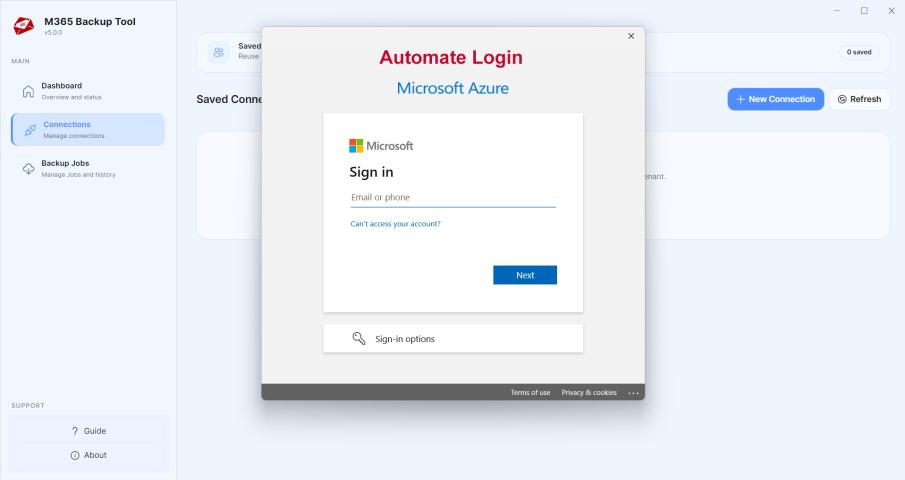
Sign in with your Office 365 credentials.
Choose mailbox items to back up.
Select the preferred format (e.g., PST) and destination folder.
Apply optional filters → click Start Backup/Convert.
This ensures your files remain safe while resolving Office issues.
FAQs (Snippet-Friendly for Google)
Q1: Why does Office 365 stop working after Windows 10 update?
A: Compatibility issues, outdated software, corrupted files, and add-in conflicts are common causes.
Q2: How can I repair Office 365 without reinstalling?
A: Use Windows Apps & Features → Repair or Control Panel Online Repair.
Q3: Can I restore Outlook emails if Office 365 crashes?
A: Yes, using an Office 365 Backup Tool, you can back up and restore OST/PST files securely.
Q4: Do I need technical expertise to fix Office 365?
A: Basic manual fixes require minimal knowledge, but using a backup tool is recommended for non-technical users for safe and fast recovery.
Also Read: Export Office 365 Email to EML
Conclusion
Microsoft Office 365 is essential for personal and professional productivity. If it stops working on Windows 10, it can disrupt your workflow and risk your data.
Start with manual troubleshooting: restart, update, repair, and manage add-ins.
For reliable and fast recovery, use a professional backup and repair tool to protect your emails and documents.
Following these steps will restore Office 365, safeguard your mailbox, and prevent future data loss.