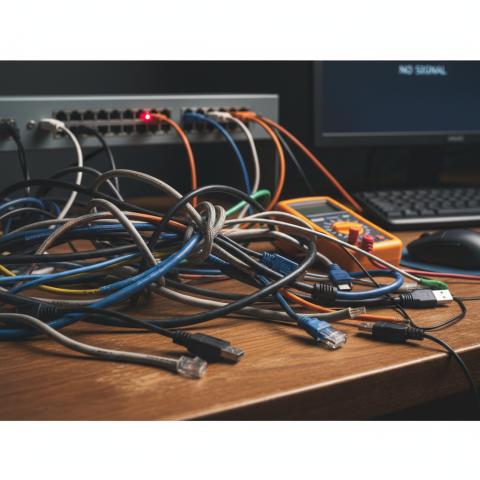
What Does "No Signal" Really Mean?
You sit down to watch your favorite show, grab the remote, and turn on your TV. But instead of your program, you see those dreaded words: "No Signal." This message pops up when your TV can't find any input from your cable box or streaming device.
Think of it like trying to listen to a radio station that's not broadcasting. Your TV is ready to show pictures, but it's not getting any information to display. The good news is that most "no signal" problems are easy to fix at home.
Check Your Cable Connections First
The most common reason for no signal is loose or disconnected cables. Start by looking at the back of your TV and cable box. You'll see various cables plugged into different ports.
Make sure every cable is pushed in firmly. Sometimes cables can work themselves loose over time, especially if you've moved your TV or cable box recently. Give each cable a gentle push to make sure it's seated properly.
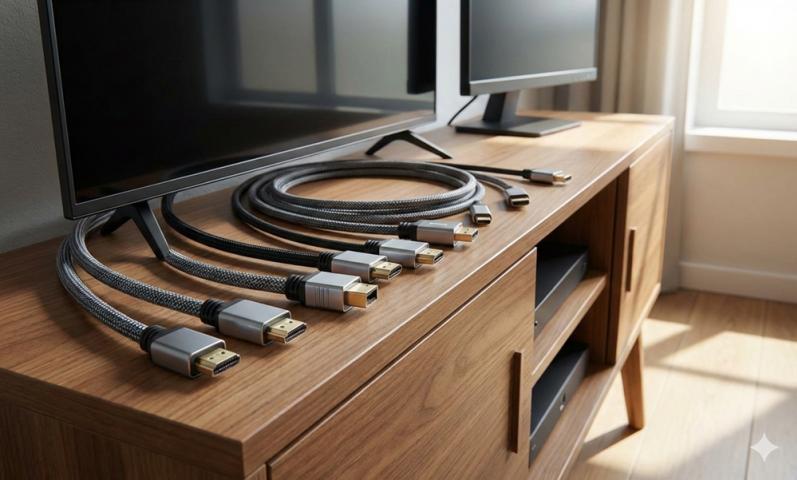
If you're using a high speed hdmi cable, check both ends. One end goes into your cable box, and the other plugs into your TV. These connections need to be tight for the signal to travel properly.
Look at Your Input Settings
Your TV might be set to the wrong input source. Modern TVs have multiple input options like HDMI1, HDMI2, Cable, or AV. If your TV is looking at the wrong input, you'll see "no signal" even when everything else works fine.
Grab your TV remote and look for a button labeled "Input," "Source," or "TV/Video." Press this button to cycle through your available inputs. Try each one until you find the right connection.
Most cable boxes connect through HDMI ports, so start with HDMI1 and HDMI2. If you're not sure which port your cable connects to, follow the cable from your box to your TV to see where it plugs in.
Power Problems Can Cause Signal Issues
Both your TV and cable box need power to work properly. Check that both devices are plugged in and turned on. Look for power lights on your cable box - most have a small LED that shows when they're getting electricity.
If your cable box doesn't have any lights, try unplugging it for 30 seconds, then plug it back in. This simple reset can fix many signal problems. Wait a few minutes for the box to fully restart before checking your TV again.
Sometimes power strips can cause problems too. If your equipment plugs into a power strip, make sure the strip is turned on and working properly.
Cable Box Problems and Solutions
Cable boxes are small computers, and like all computers, they sometimes need a restart. If checking cables and inputs doesn't help, try resetting your cable box.
Unplug your cable box from the wall for about one minute. This gives the internal components time to reset completely. Plug it back in and wait for all the lights to come back on. This process usually takes 2-3 minutes.
During the restart, you might see different messages on your TV screen. This is normal - just wait for the process to finish. Many signal problems disappear after a simple reset.
Weather and Outside Line Issues
Bad weather can affect your cable signal, especially if you have satellite TV. Heavy rain, snow, or strong winds can block the signal from reaching your house properly.
If the weather is bad and you're having signal problems, you might just need to wait for conditions to improve. Most weather-related outages fix themselves once storms pass.
Cable lines running to your house can also have problems. Tree branches, construction work, or damaged cables outside your home can cause signal loss. If you suspect outside line problems, you'll need to call your cable company for help.
Different Types of Cable Connections
Modern entertainment systems use several types of cables. The most common today is the high speed hdmi cable, which carries both picture and sound in one connection. These cables provide the best picture quality for most TVs and cable boxes.
Older systems might use coaxial cables (the thick round ones) or component cables (red, white, and yellow connectors). Each type needs to be connected properly to work. Make sure you're using the right cable for your equipment.
If you recently upgraded your TV or cable box, you might need to change your cable type. Newer equipment works best with HDMI connections, while older devices might require different cables.
When Multiple TVs Have Problems
If several TVs in your house show "no signal" at the same time, the problem likely affects your whole cable system. This usually means an issue with the main cable line coming into your house or with your cable company's service.
Check with neighbors to see if they're having similar problems. If multiple people in your area have no signal, your cable company probably knows about the outage and is working to fix it.
You can also check your cable company's website or social media pages for outage reports in your area. Many companies post updates about service problems and estimated repair times.
Simple Steps That Fix Most Problems
Here's the exact answer to why your cable shows no signal: Most "no signal" messages happen because of loose cable connections, wrong TV input settings, or cable box power problems that need a simple reset.
To fix these issues, first check all your cable connections and make sure they're tight. Then verify your TV is set to the correct input source. Finally, try unplugging your cable box for one minute and plugging it back in.
These three steps solve about 80% of all "no signal" problems. Most people can complete this troubleshooting in less than 10 minutes without any special tools or technical knowledge.
When to Call for Professional Help
Sometimes the problem is more complex than loose cables or wrong settings. If you've tried all the basic fixes and still see "no signal," it might be time to call your cable company.
Professional help is needed when cables are damaged, when outdoor equipment has problems, or when your cable box has internal failures. These issues require special tools and expertise to fix safely.
Don't feel bad about calling for help - cable technicians deal with these problems every day and can usually fix them quickly. Many cable companies don't charge for service calls if the problem is with their equipment.
Preventing Future Signal Problems
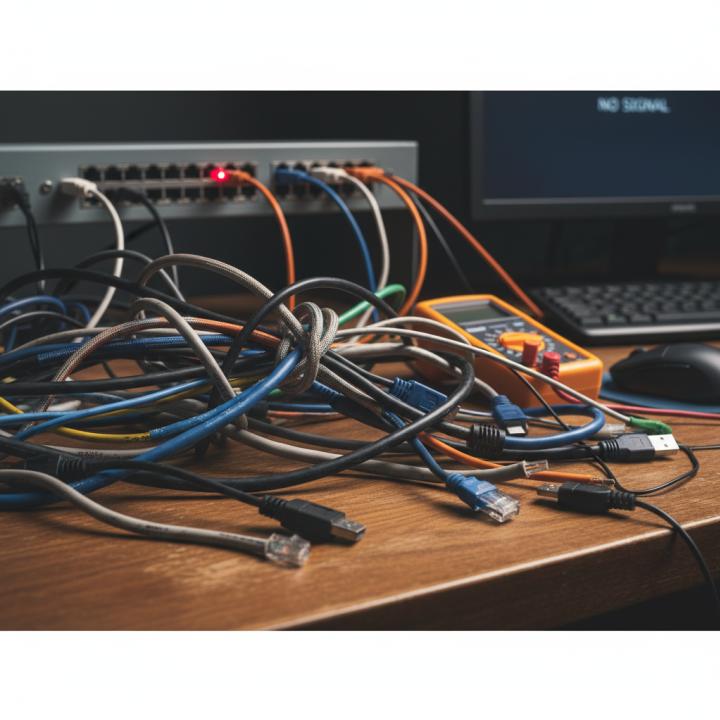
You can avoid many "no signal" issues by taking good care of your equipment. Keep cables organized and avoid bending them sharply or stepping on them. Dust your cable box regularly to prevent overheating.
When moving your TV or entertainment center, be gentle with cable connections. Mark which cable goes where before disconnecting anything - this makes reconnection much easier.
Consider upgrading old cables if you have connection problems frequently. A new high speed hdmi cable costs less than a service call and can improve both picture quality and connection reliability.
Getting Back to Your Shows
Most "no signal" problems are temporary and fixable at home. The key is working through the solutions step by step, starting with the simplest fixes first.
Remember that technology sometimes acts up for no apparent reason. A simple reset often fixes mysterious problems that seem complicated. Don't get frustrated - most people deal with these issues occasionally.
With these troubleshooting steps, you'll be back to enjoying your favorite programs in no time. Keep this guide handy for future reference, and you'll be prepared the next time you see that "no signal" message.