
In today's digital workplace, managing your payroll information, pay stubs, and tax documents has never been more convenient. Intuit Workforce is a comprehensive employee portal that allows workers to access their employment information anytime, anywhere. If you're looking to navigate the intuit workforce login process smoothly, this comprehensive guide will walk you through everything you need to know.
Understanding Intuit Workforce
Intuit Workforce is a free online portal designed for employees whose employers use QuickBooks Payroll or Intuit Online Payroll services. This powerful platform serves as your central hub for all payroll-related information, eliminating the need for paper pay stubs and making tax season significantly less stressful.
Through the intuit workforce login portal, employees can view their current and historical pay stubs, access W-2 forms, update personal information, and manage direct deposit details. The platform operates 24/7, giving you the flexibility to access your information whenever it's convenient for you.
Initial Setup and Registration
Before you can use the intuit workforce login feature, you'll need to complete a one-time registration process. Your employer will typically send you an invitation email to join Intuit Workforce. This email contains crucial information and a link to get started.
When you receive the invitation, click on the link provided in the email. You'll be directed to the Intuit Workforce registration page where you'll need to create your account. The registration process requires you to provide some basic information including your email address, which will serve as your username, and create a strong, secure password.
During registration, you'll be asked to verify your identity by providing information that matches your employer's records, such as your Social Security number or Employee ID. This security measure ensures that only authorized individuals can access sensitive payroll information.
Step-by-Step Login Process
Once your account is set up, accessing the intuit workforce login portal is straightforward. Open your preferred web browser and navigate to the Intuit Workforce website. You can do this by searching for "Intuit Workforce" in your search engine or typing the direct URL into your address bar.
On the homepage, you'll see a prominent login button or section. Click on this to proceed to the login screen. Enter the email address you used during registration as your username. Then, carefully type your password in the password field. Remember that passwords are case-sensitive, so ensure your caps lock is off and you're entering the correct combination of letters, numbers, and special characters.
After entering your credentials, click the "Sign In" button. If your information is correct, you'll be directed to your personal dashboard where you can access all your employment information.
Navigating the Dashboard
After completing the intuit workforce login, you'll land on your personalized dashboard. This interface is designed to be user-friendly and intuitive, with clear navigation options and organized sections.
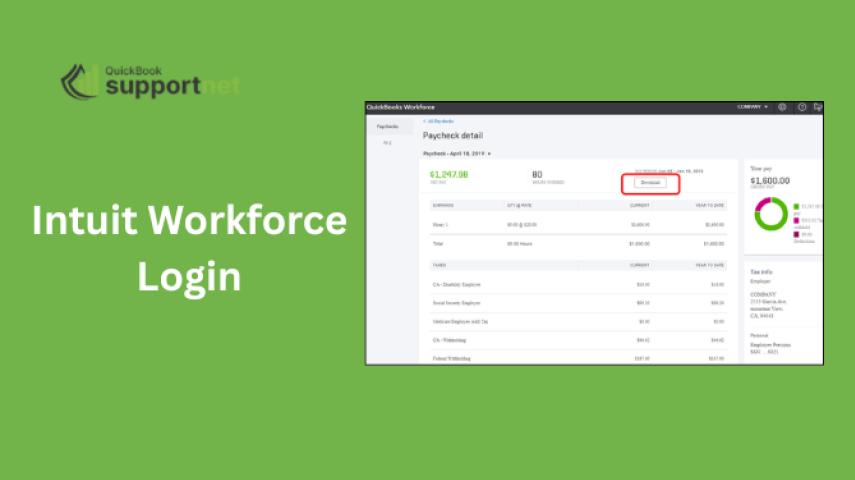
The dashboard typically displays your most recent pay stub at the top, along with your year-to-date earnings summary. You'll find menu options or tabs that allow you to view past pay stubs, access tax documents, update your personal information, and manage your account settings.
To view or download a pay stub, simply click on the pay period you're interested in. The system allows you to save these documents as PDF files, which is particularly useful for loan applications, rental agreements, or personal record-keeping.
Troubleshooting Common Login Issues
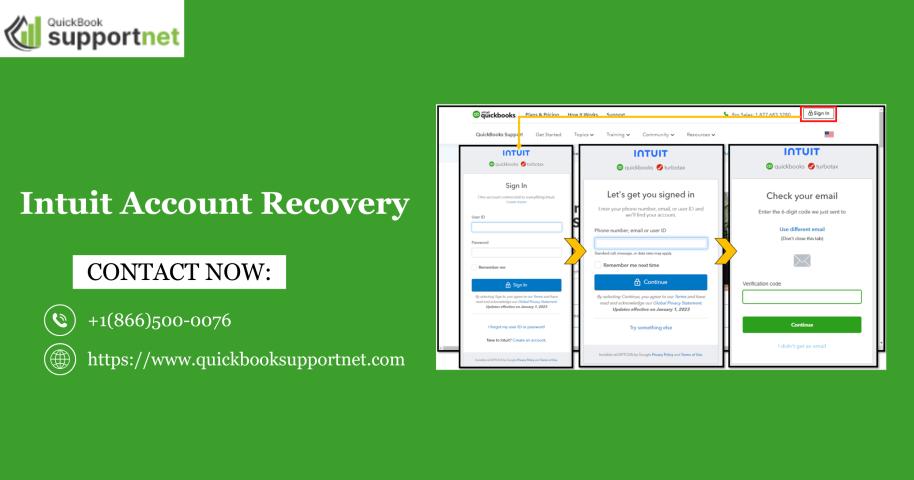
Sometimes, you might encounter difficulties with the intuit workforce login process. Forgotten passwords are among the most common issues. If you can't remember your password, click on the "Forgot Password" link on the login page. You'll receive an email with instructions to reset your password securely.
If you're not receiving the password reset email, check your spam or junk folder. Sometimes email filters mistakenly categorize legitimate emails as spam. Additionally, ensure you're using the correct email address associated with your account.
Browser compatibility can also affect your login experience. Intuit Workforce works best with updated versions of major browsers like Chrome, Firefox, Safari, or Edge. If you're experiencing technical difficulties, try clearing your browser cache and cookies, or switch to a different browser.
Mobile Access and Convenience
The intuit workforce login portal is mobile-responsive, meaning you can access your information from smartphones and tablets. While Intuit Workforce doesn't have a dedicated mobile app, the website is optimized for mobile browsers, providing a seamless experience across devices.
To access your account on mobile, simply open your mobile browser and navigate to the Intuit Workforce website. The login process remains the same, but the interface automatically adjusts to fit your screen size.
Security Best Practices
When using the intuit workforce login portal, maintaining security should be a top priority. Always use a strong, unique password that combines uppercase and lowercase letters, numbers, and special characters. Avoid using the same password across multiple platforms.
Never share your login credentials with anyone, even if they claim to be from your employer or Intuit support. Legitimate representatives will never ask for your password. Always log out of your account when you're finished, especially if you're using a shared or public computer.
Enable two-factor authentication if available, as this adds an extra layer of security to your account. Regularly review your account activity and notify your employer immediately if you notice any suspicious or unauthorized access.
Updating Your Information
The intuit workforce login portal allows you to update certain personal information directly. You can typically change your contact information, address, and direct deposit details without needing to contact your employer's HR department.
To update your information, log in to your account and navigate to the profile or settings section. Make the necessary changes and save them. Some changes may require employer approval before they take effect, particularly those related to direct deposit or tax withholdings.
Conclusion
Mastering the intuit workforce login process empowers you to take control of your employment information with ease and convenience. This digital solution eliminates the hassle of lost paper documents and provides instant access to critical payroll data whenever you need it.
If you encounter persistent issues with your Intuit Workforce account or need additional assistance with QuickBooks-related services, consider visiting QuickBooksupportnet for expert guidance and comprehensive support resources. Their team can help troubleshoot technical problems and ensure you're making the most of your payroll management tools.
By following the steps outlined in this guide, you'll be able to access your Intuit Workforce account confidently and efficiently, keeping your employment information organized and readily available at your fingertips.