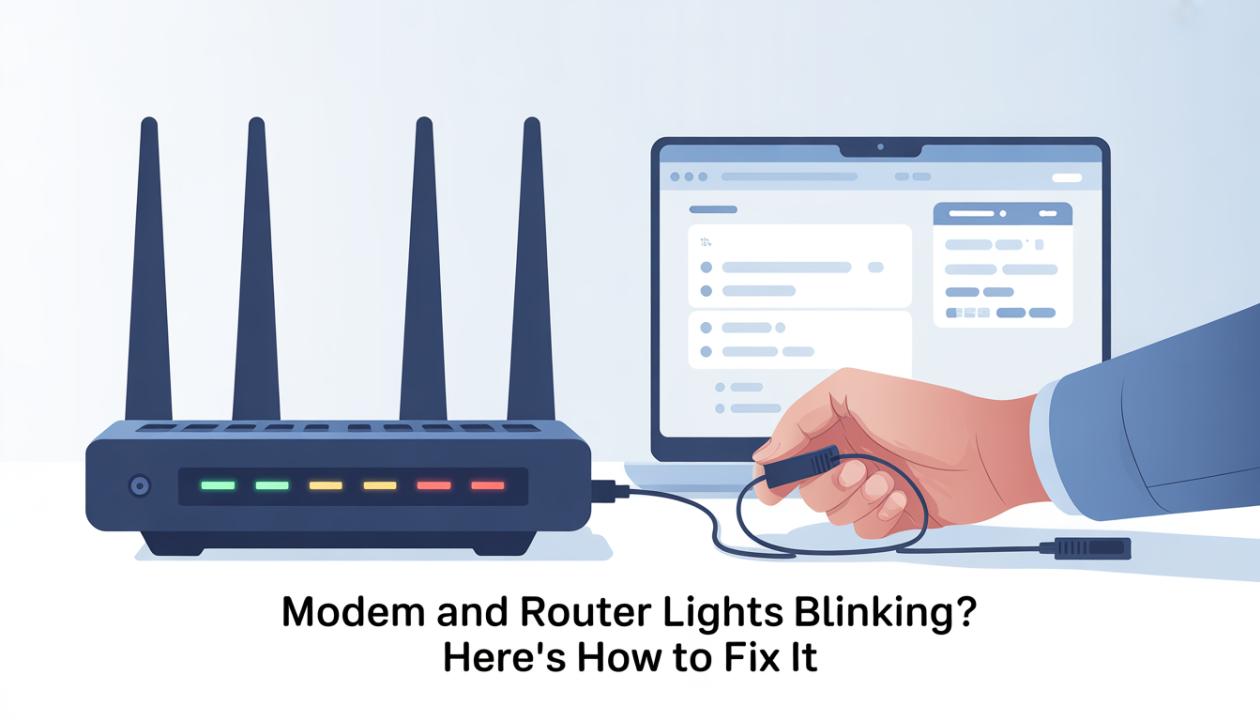
You’re in the middle of a Zoom call, watching your favorite show, or trying to send an urgent email when suddenly, the internet drops. You look at your modem or router and see blinking lights. Some flash rapidly, others change color, and now you wonder,
“Is my internet broken… or is this normal?”
You’re not alone. Blinking modem and router lights are a common and confusing internet problem people face at home or work. The good news is that in most cases, those blinking lights are trying to communicate something. Once you understand what they mean, fixing the problem is often easier than you think.
This guide explains everything clearly, including what different blinking lights indicate, what’s normal, what’s not, and how to fix the issue without feeling overwhelmed.
First Things First: Is Blinking Always a Bad Sign?
Short answer: No.
Some blinking lights are entirely standard. Others signal a problem that needs attention.
Blinking usually means:
Data is being transmitted.
The device is booting up.
The modem or router is trying to connect to your internet service.
There’s a connectivity or hardware issue.
Understanding which light is blinking, and how, is the key.
Common Modem and Router Lights (And What They Mean)
While models vary, most modems and routers use similar indicators. Let’s decode the most common ones.
1. Power Light Blinking
What it usually means:
The device is starting up.
A firmware update is in progress.
There’s a power issue.
What to do:
Wait 2–3 minutes after powering on
If it keeps blinking, unplug the device for 30 seconds, then plug it back in.
Try a different power outlet.
If the power light never turns solid, the device may be faulty.
2. Internet or Online Light Blinking
This is the big one.
What it usually means:
The modem can’t connect to your internet provider.
There’s an outage
The signal is weak or unstable.
How to fix it:
Restart your modem
Check for service outages in your area.
Make sure all cables are tightly connected.
Try reconnecting the coaxial or fiber cable.
If the light keeps blinking for more than 5–10 minutes, the issue is likely external.
3. Wi-Fi Light Blinking
What it usually means:
Devices are actively using Wi-Fi.
Data is being transmitted (this is normal)
When it’s a problem:
Wi-Fi light is blinking, but no devices can connect.
The light is off entirely.
Fixes to try:
Restart your router
Forget and reconnect the Wi-Fi network on your device.
Check if Wi-Fi is disabled in router settings.
4. DSL / WAN / Signal Light Blinking
What it means:
The modem is trying to lock onto a signal.
The line isn’t stable.
Possible causes:
Loose cable
Line interference
Provider-side issue
Fix:
Secure all line connections.
Remove unnecessary splitters
Restart the modem and wait patiently.
5. Ethernet Light Blinking
Totally normal behavior.
This light blinks when:
A device is connected via Ethernet.
Data is flowing between devices.
If it’s off and you’re using a wired connection, try a different Ethernet cable or port.
Blinking Light Colors: What Do They Mean?
Not all blinks are the same. Blinking lights on modem and router devices can signal different things based on their color and pattern. A steady green light often indicates a stable connection. In contrast, red, amber, or rapidly blinking lights typically point to connection or hardware issues.
Green Light
Usually, it means everything is working normally.
Blue Light
Often indicates an active or strong connection (common in newer routers).
Amber / Orange Light
May signal:
Slow connection
Partial connectivity
Firmware update
Red Light
This typically means:
No internet connection
Hardware issue
Authentication failure
Red blinking lights usually require immediate attention.
Step-by-Step: How to Fix Blinking Modem and Router Lights
Let’s walk through the most effective troubleshooting steps, from easiest to most advanced.
Step 1: Restart Everything (Yes, Really)
Power cycling fixes more issues than you’d expect.
How to do it properly:
Unplug the modem
Unplug the router
Wait 30–60 seconds
Plug in the modem first.
Wait until all modem lights stabilize.
Plug in the router
This resets the connection and clears temporary glitches.
Step 2: Check All Cables
Loose or damaged cables are a common culprit.
Look for:
Loose coaxial or fiber cables
Bent Ethernet connectors
Frayed wires
Tighten everything gently and replace damaged cables if needed.
Step 3: Check for Internet Outages
Sometimes the problem isn’t you.
If your modem’s “online” light keeps blinking:
Your provider may be experiencing an outage.
Maintenance could be underway.
Outages can cause blinking lights even when your equipment is delicate.
Step 4: Update Firmware (If Accessible)
Outdated firmware can cause instability.
If you can access your router’s admin panel:
Check for firmware updates.
Install updates if available.
Reboot after updating
This improves performance and security.
Step 5: Reduce Interference
Wi-Fi routers are sensitive to interference.
Try:
Moving the router away from microwaves and cordless phones
Placing it in a central, elevated location
Reducing the number of connected devices temporarily
This helps stabilize blinking Wi-Fi indicators.
Step 6: Factory Reset (Last Resort)
If nothing works:
Press and hold the reset button (usually 10–15 seconds)
This restores default settings.
Warning: You’ll need to reconfigure your network afterward.
When Blinking Lights Mean You Need Help
Call your internet provider if:
The “online” or “signal” light keeps blinking for hours.
Multiple restarts don’t help.
You see persistent red lights.
The modem never connects, even after a reset.
This may indicate:
Line issues
Account authentication problems
Faulty hardware
How to Prevent Blinking Light Issues in the Future
A little prevention goes a long way.
Keep firmware updated
Use quality cables
Avoid overloading the network.
Place routers in open, central areas.
Restart your modem/router once a month.
Healthy equipment equals fewer surprises.
Conclusion
Seeing blinking lights on your modem or router can be stressful. Most of the time, it’s not a disaster. Those lights are just showing what your network is doing.
By understanding what each light means and following a simple troubleshooting process, you can resolve most connectivity issues on your own, without panic or guesswork.
And when the problem isn’t something you can fix, you’ll know when to call for support. The next time your internet acts up, you’ll be prepared.
Frequently Asked Questions (FAQs)
1. Is it normal for the modem and router lights to blink?
Yes. Blinking often indicates that data is being transmitted or that the device is connecting.
2. Why is my internet light blinking but not connecting?
This usually indicates a signal issue or service outage from your provider.
3. How long should a modem blink while starting up?
Typically 2–5 minutes. Anything longer may signal a problem.
4. What does a red blinking light on my router mean?
A red light usually indicates a lack of internet connection or a hardware issue.
5. Should I reset my modem if the lights keep blinking?
Restart first. Use a factory reset only if other steps fail.
6. Can bad cables cause blinking router lights?
Absolutely. Loose or damaged cables are a prevalent cause.