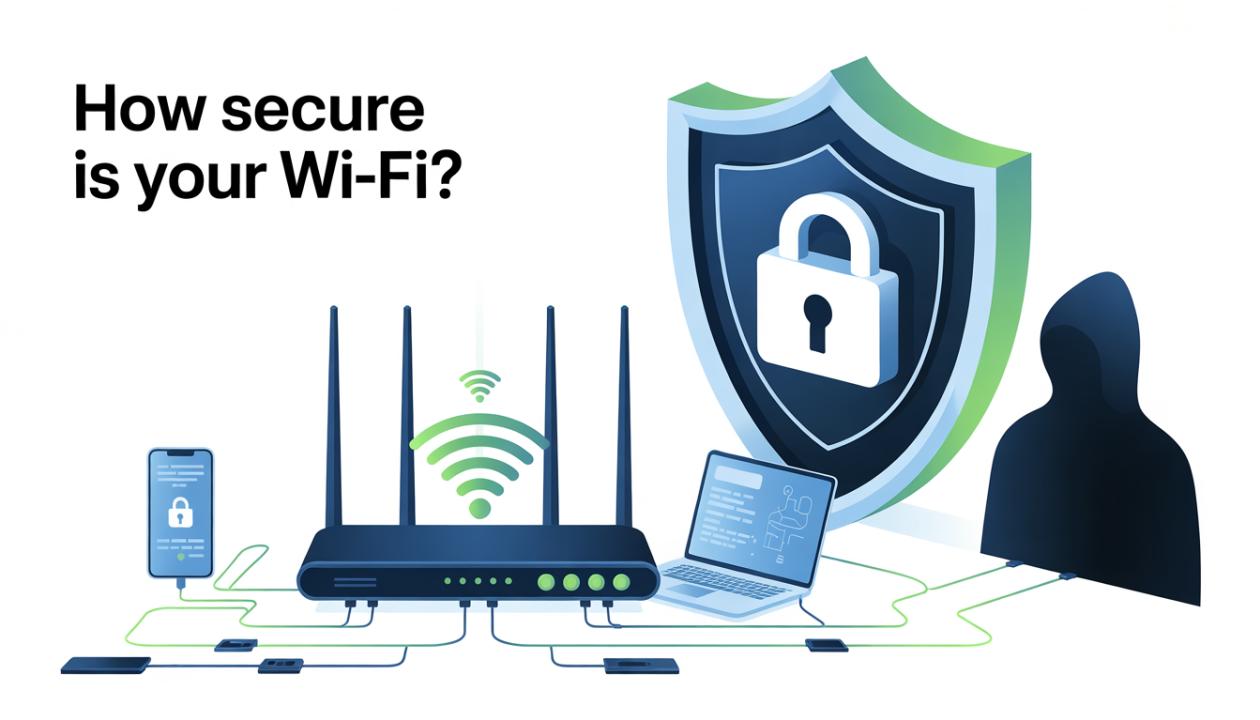
Is Your Wi-Fi Helping You, or Hacking You?
Quick question: when was the last time you checked your Wi-Fi security settings?
If your answer is “never” or “I don’t remember,” you’re not alone.
Most people think their Wi-Fi is safe just because it has a password. But here’s the uncomfortable truth: an unsecured or poorly set up Wi-Fi network can silently expose your personal data, banking information, work files, and even smart devices without you noticing.
Slow internet, random disconnections, and unknown devices showing up on your router can be warning signs, not just “tech glitches.” In this guide, we will explain how secure your Wi-Fi really is, how to check for weaknesses, and most importantly, simple, practical ways to fix them without needing to be a tech expert. Let’s lock that network down.
Why Wi-Fi Security Matters More Than Ever
Your Wi-Fi network is the digital front door to your life. Almost everything you do online runs through it, including:
Online banking and financial transactions
Work-from-home systems and business apps
Smart TVs, cameras, speakers, and other IoT devices
Personal messages, cloud storage, and sensitive data
If attackers gain access, it’s not just about stealing your bandwidth, they can:
Monitor your browsing activity and track sensitive information
Inject malware or ransomware into your devices
Access connected devices like cameras, printers, or smart speakers
Launch attacks using your IP address, potentially implicating you in illegal activity
With the rapid growth of remote work, IoT devices, and cloud-based apps, Wi-Fi security is no longer optional. It is critical for protecting your privacy, data, and digital life.
How to Check If Your Wi-Fi Is Secure
Before making any changes, it’s important to understand your current security status. Follow these steps to assess your Wi-Fi network.
1. Check Your Wi-Fi Encryption Type
Log in to your router’s admin panel and go to Wireless Security Settings. The encryption type decides how well your network is protected.
WPA3 → Best (most secure, recommended for all modern routers)
WPA2 → Good (acceptable but slightly less secure than WPA3)
WEP or Open → Dangerous (must change immediately)
If you’re still using WEP or no encryption, your network is essentially unlocked and highly vulnerable to attackers.
2. Review Connected Devices
Most routers provide a list of connected devices. Check for anything suspicious. Ask yourself:
Do I recognize every device connected to my network?
Are there duplicate or unknown device names?
Is my Wi-Fi unusually slow or inconsistent?
Unknown devices may indicate intruders accessing your network.
3. Test Your Wi-Fi Password Strength
Weak passwords are one of the easiest ways for hackers to break into your network. Avoid passwords like:
wifi123
password
admin123
A strong Wi-Fi password should:
Be 12–16+ characters long
Include uppercase, lowercase, numbers, and symbols
Avoid names, addresses, or common words
Strong passwords are a simple but critical first step in securing your Wi-Fi.
4. Check Router Firmware Updates
Outdated router firmware often has known vulnerabilities that hackers can exploit.
If you’ve never updated your router, you’re likely exposed
Hackers actively target older firmware versions
Most modern routers offer one-click updates in the admin panel
Regular firmware updates are essential to keeping your network secure.
5. Look for Open Network Features
Many routers include convenience features that can compromise security if left enabled unnecessarily:
WPS (Wi-Fi Protected Setup) – easy for attackers to exploit
Remote router access – can expose your network to the internet
Guest networks left open indefinitely – can give intruders a way in
Disable features you don’t use to reduce potential vulnerabilities.
Common Signs Your Wi-Fi Might Be Compromised
Watch out for these red flags that may indicate someone has accessed your network without permission:
Sudden internet slowdowns – Speeds drop unexpectedly even when your devices are idle.
Frequent disconnections – Devices repeatedly disconnect or fail to reconnect automatically.
Browser redirects to strange sites – You notice unusual pop-ups, ads, or redirects when browsing.
Security alerts from apps or browsers – Warnings about unsafe connections or compromised accounts.
Smart devices behave oddly – Lights, cameras, or other IoT devices act unpredictably.
While these signs don’t always mean someone has hacked your network, they are strong indicators that you need to take a closer look. Regular monitoring and security checks can help you catch potential issues early.
How to Fix and Secure Your Wi-Fi Network (Step-by-Step)
Here’s the good news: most Wi-Fi security issues are easy to fix with a few simple steps. Follow this guide to strengthen your network and protect your devices.
1. Change Your Wi-Fi Name (SSID)
Avoid using default names that reveal your router brand, such as:
TP-Link_123
Netgear_Default
Why it matters: Exposing your router brand makes it easier for hackers to identify vulnerabilities specific to your device.
Tip: Choose a neutral name that doesn’t identify you or your router, e.g., something generic like HomeNetwork123.
2. Upgrade to WPA3 or WPA2 Encryption
Encryption is your first line of defense.
Use WPA3 if your router supports it.
If not, set encryption to WPA2-AES.
Avoid mixed modes like WPA/WPA2, as they reduce security.
Strong encryption ensures that your network traffic is protected from eavesdropping and attacks.
3. Set a Strong, Unique Password
A secure password is essential. Make it:
Long (12+ characters)
Random (letters, numbers, symbols)
Unique (don’t reuse it elsewhere)
Pro tip: Use a password manager to generate and securely store complex passwords.
4. Update Router Firmware Regularly
Check for updates every few months, or enable auto-updates if your router supports it.
Why firmware updates matter:
Patch known vulnerabilities
Improve performance
Add new security features
Tip: Keeping your firmware up to date blocks many common attacks automatically.
5. Disable WPS (Wi-Fi Protected Setup)
While WPS is convenient for quick device connections, it poses a security risk.
Why WPS is risky:
Vulnerable to brute-force attacks
Can let attackers bypass strong passwords
Recommendation: Disable WPS unless you absolutely need it.
6. Enable a Guest Network
Instead of giving visitors your main Wi-Fi password:
Set up a guest network for them
Isolate it from your primary devices
Benefits:
Protects your personal files and smart devices
Limits risk if a guest device is infected
7. Add Firewall and Network Monitoring
Most routers come with built-in firewalls, make sure yours is enabled.
Advanced routers may also include:
Intrusion detection
Alerts for new device connections
Traffic monitoring
These tools give you visibility and control over who’s on your network and help prevent unauthorized access.
Extra Tips for Advanced Protection
Want to take your Wi-Fi security to the next level? These additional measures can help:
Use a VPN on public or shared Wi-Fi: Protects your data from prying eyes when using networks at cafes, hotels, or other public places.
Enable MAC address filtering: Restrict which devices can connect to your network for an extra layer of control.
Segment smart home devices on a separate network: Keeps IoT devices isolated, so if one is compromised, the rest of your network remains safe.
Replace routers older than 5–6 years: Older hardware often lacks modern security updates and cannot keep up with evolving threats.
Why Wi-Fi Security Is an Ongoing Process
Wi-Fi security is never a set-and-forget task. Threats evolve, devices change, and new weaknesses appear all the time. Regular checks, even quarterly, can save you from problems.
Identity theft
Data leaks
Network abuse
Privacy invasion
Think of it like locking your home: you don’t lock it once and forget about it. Routine monitoring ensures your digital life remains protected.
Conclusion
Ask yourself: How secure is your Wi-Fi right now? If it hasn’t been checked recently, there’s a good chance it's stronger.
The good news is that you don’t need to be a tech expert to protect your network. A few simple steps, such as enabling stronger encryption, creating stronger passwords, and keeping firmware updated, can greatly improve your security.
Your Wi-Fi connects everything in your digital life. Treat it with the care it deserves. Secure Wi-Fi isn’t about fear, it’s about:
Control over your network
Privacy for your data
Peace of mind in your daily digital activities
With a few smart changes, you can enjoy the freedom of connected devices without worrying about security risks.
Frequently Asked Questions (FAQs)
1. How can I tell if someone is using my Wi-Fi without permission?
Check your router’s list of connected devices. Look for unfamiliar devices, sudden slow speeds, or frequent disconnects. Regularly monitoring this list helps you spot unauthorized users early.
2. Is WPA2 still safe for Wi-Fi security?
Yes, WPA2 with AES encryption remains secure for most users. However, WPA3 offers stronger protection against modern attacks and is recommended if your router supports it.
3. How often should I change my Wi-Fi password?
Change it every 3 to 6 months, or immediately if you suspect unauthorized access. Pair this with strong encryption and firewall settings for maximum security.
4. Does hiding my Wi-Fi network name improve security?
Hiding your SSID offers minimal protection. Skilled attackers can still find hidden networks, so strong passwords and encryption are much more effective.
5. Can my smart devices make Wi-Fi less secure?
Yes. IoT devices like smart cameras, thermostats, or speakers can be entry points if not properly secured. Always update firmware, and if possible, place smart devices on a separate network from your main Wi-Fi.
6. Do I need a new router for better Wi-Fi security?
If your router is more than 5 years old or lacks WPA3 support and firmware updates, upgrading is highly recommended. Modern routers provide stronger encryption, better firewall features, and improved overall network security.