Managing payroll manually is one of the biggest time drains for small business owners — and one of the costliest mistakes when errors creep in. A QuickBooks Online Payroll Subscription puts payroll on autopilot: automated tax calculations, direct deposit, compliance filings, and employee management all in one place.
Whether you're setting up payroll for the first time, comparing plans, trying to renew an expired subscription, or troubleshooting a billing error, this guide covers everything you need to know about the QuickBooks Online Payroll Subscription — including plan pricing, step-by-step setup, renewal, upgrading, and fixing common errors.
- What QuickBooks Online Payroll Subscription is (and how it differs from Desktop)
- All three plans and pricing compared side by side
- Key features broken down by plan
- Complete step-by-step setup walkthrough
- How to verify, renew, upgrade, or cancel your subscription
- Fixing the most common payroll subscription errors
What Is QuickBooks Online Payroll Subscription?
QuickBooks Online Payroll Subscription is a cloud-based, subscription-based payroll service offered by Intuit as a separate add-on to QuickBooks Online. It allows small business owners, entrepreneurs, and accountants to automate payroll processing, calculate and file federal and state taxes, pay employees via direct deposit, and manage HR-related tasks — all within the QuickBooks ecosystem.
It is not the same as a standard QuickBooks Online subscription. You purchase it separately, on top of your existing QBO plan, and the monthly cost depends on which payroll tier you choose.
QuickBooks Online Payroll vs QuickBooks Desktop Payroll
It is important to understand the distinction between the two payroll environments before you subscribe.
QuickBooks Online Payroll is a cloud-based add-on that works within your QuickBooks Online account. It requires an active QBO subscription and is billed separately each month. There are three available plans: Core, Premium, and Elite.
QuickBooks Desktop Payroll, by contrast, is integrated directly into QuickBooks Desktop software. As of 2024, Intuit has discontinued standalone Desktop payroll editions. QuickBooks Desktop Enterprise is now the only Desktop version available, and it includes Enhanced or Assisted Payroll built in — no separate activation fee required. Intuit is actively encouraging Desktop users to migrate to QuickBooks Online.
If you are using QuickBooks Online — or planning to — this guide is specifically for you.
QuickBooks Online Payroll Subscription Plans & Pricing (2026)
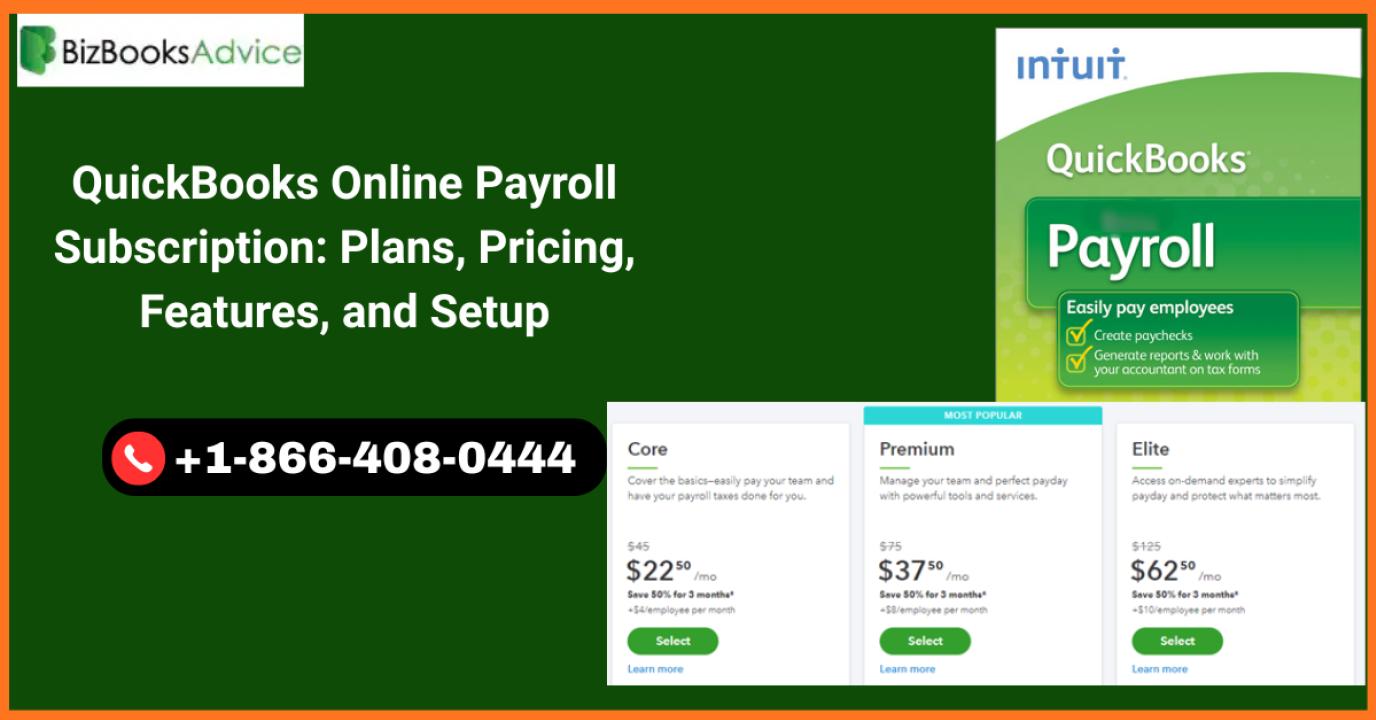
QuickBooks Online Payroll currently offers three subscription tiers: Payroll Core, Payroll Premium, and Payroll Elite. Each tier builds on the previous one, adding more features and a higher level of expert support.
Current promotion: Save 50% for the first 3 months on all plans (pricing below reflects full rates after the promotional period).
Payroll Core — $25/month + $6.50 per employee
The Core plan is designed for small businesses that need reliable, automated payroll without advanced HR or time-tracking features.
What you get with Payroll Core:
- Full-service payroll including automated tax calculations, filings, and payments
- Auto payroll — automatically run payroll for salaried employees without manual input each pay period
- Next-day direct deposit so employees get paid fast and reliably
- 1099 e-file and pay for independent contractors
- Employee portal through QuickBooks Workforce where staff can access their pay stubs and W-2s at any time
- Health benefits, 401(k) plans, and workers' comp administration
- Expert product support during business hours
- Intuit Assist — an AI-powered payroll agent that flags issues and guides payroll runs
Best for: Businesses with straightforward payroll needs, salaried or hourly employees, and no need for same-day deposits or built-in HR tools.
Payroll Premium — $44/month + $10 per employee
Payroll Premium adds time tracking, same-day direct deposit, and HR tools — making it the most popular choice for growing businesses.
What you get with Payroll Premium (everything in Core, plus):
- Same-day direct deposit for faster employee payments
- QuickBooks Time integration — track employee hours, manage timesheets, and approve time directly within payroll
- Expert payroll review — an Intuit expert reviews your setup to catch errors before your first payroll run
- 24/7 expert product support
- HR support center with customizable job descriptions, an employee handbook builder, and compliance tools
- Document e-signatures for offer letters, contracts, and onboarding paperwork
- Automated I-9 employment verification
Payroll Elite — $67/month + $12 per employee
Payroll Elite is the top-tier plan, adding tax penalty protection and a dedicated personal HR advisor — making it the right choice for businesses that want zero-tolerance for payroll errors.
What you get with Payroll Elite (everything in Premium, plus):
- Tax penalty protection up to $25,000 — if QuickBooks makes a payroll tax error that results in an IRS or state penalty, Intuit covers it
- Personal HR advisor — a dedicated HR professional you can call or message directly for guidance on hiring, terminations, compliance, and employee issues
- Expert payroll setup — an Intuit specialist sets up your entire payroll account for you
- QuickBooks Time Elite — advanced project tracking and job costing alongside time tracking
Which QuickBooks Online Payroll plan is right for your business?
| Core | Premium | Elite | |
|---|---|---|---|
| Monthly base price | $25/mo | $44/mo | $67/mo |
| Per employee | $6.50 | $10 | $12 |
| Automated taxes & filing | Yes | Yes | Yes |
| Direct deposit | Next-day | Same-day | Same-day |
| Time tracking | No | Yes | Yes (Elite) |
| HR support | No | Center | Personal advisor |
| Tax penalty protection | No | No | Up to $25,000 |
| Expert setup | No | No | Yes |
| 24/7 support | No | Yes | Yes |
Choose Core if you have fewer than 10 employees, all salaried or simple hourly, and no HR complexity.
Choose Premium if you have hourly employees who clock in and out, need same-day deposit, or want HR tools without a dedicated advisor.
Choose Elite if you have had payroll tax issues in the past, are scaling quickly, or want an expert to manage setup and give ongoing HR guidance.
Key Features of QuickBooks Online Payroll Subscription
Beyond the plan tiers, here is a detailed breakdown of the core features included across the QuickBooks Online Payroll Subscription and how they benefit your business operations.
Automated payroll tax calculation and filing
One of the most valuable features of any QuickBooks Online Payroll Subscription is full-service tax automation. QuickBooks calculates federal withholding, FICA taxes (Social Security and Medicare), federal unemployment (FUTA), state income tax, state unemployment insurance (SUI), and any applicable local taxes — automatically, every pay period.
It then files the required forms on your behalf: Form 941 (quarterly federal payroll tax), Form 940 (annual FUTA), W-2s for employees, and 1099s for contractors. This eliminates the risk of missed deadlines, incorrect withholding, or late deposit penalties.
Direct deposit and auto payroll
QuickBooks Online Payroll Subscription supports both next-day direct deposit (Core) and same-day direct deposit (Premium and Elite). Employees receive payment directly to their bank accounts on the scheduled date — no paper checks, no manual transfers.
For businesses with consistent salaried employees, auto payroll is a standout feature. Once configured, QuickBooks automatically runs payroll on your regular schedule without requiring you to manually approve it each time. You get an email notification before each run so you can review or override it if needed.
QuickBooks Workforce — employee self-service portal
All QuickBooks Online Payroll Subscription plans include access to QuickBooks Workforce, a free employee-facing portal where your team can:
- View and download their current and historical pay stubs
- Access their W-2 forms at year-end without requesting paper copies
- Update personal information and direct deposit details (with admin permissions)
This reduces the administrative load on your HR or accounting team significantly and gives employees transparency over their compensation.
1099 e-file and pay for contractors
If your business works with independent contractors, the QuickBooks Online Payroll Subscription includes 1099 e-file and payment processing. You can track contractor payments throughout the year, generate 1099-NEC or 1099-MISC forms at year-end, and electronically file directly with the IRS — all from within QuickBooks.
Health benefits, 401(k), and workers' comp
All three QuickBooks Online Payroll plans include access to employee benefits administration. Through QuickBooks, you can:
- Set up and manage group health insurance deductions
- Enroll employees in 401(k) retirement plans with automatic deduction processing
- Administer workers' compensation coverage directly within payroll
These integrations pull deduction amounts into payroll automatically, reducing the chance of manual entry errors.
How to Set Up QuickBooks Online Payroll Subscription (Step-by-Step)
Once you have subscribed to a QuickBooks Online Payroll plan, you will need to complete the payroll setup before running your first payroll. Here is a complete walkthrough of every step.
Step 1: Sign in and start payroll setup
- Sign in to your QuickBooks Online account as the Primary Admin. Only the primary admin can initiate payroll setup.
- Navigate to Payroll in the left menu and click Get started.
- You will be asked whether you or someone else in the business has already paid employees this calendar year. Your answer determines whether you need to enter prior pay history.
- Select the date you plan to start paying employees using QuickBooks.
Elite tip: If you are on the Payroll Elite plan, you have the option to have an Intuit payroll expert complete this setup for you. This is recommended if you have complex payroll history or multiple work locations.
Step 2: Enter your business and contact details
- Enter your business's physical address — not a P.O. Box. QuickBooks uses this to determine your state and local tax obligations.
- If you have employees working in multiple locations, you can add additional work addresses later when you add individual employees.
- Enter your main payroll contact — the person responsible for managing payroll. This contact will receive important notifications and tax reminders from Intuit.
Step 3: Add employees to QuickBooks Payroll
For each employee, gather and enter the following information:
- Completed Form W-4 (and any state equivalent tax withholding forms)
- Hire date and date of birth
- Pay type (salary or hourly) and pay rate
- Pay schedule (weekly, biweekly, semi-monthly, or monthly)
- Direct deposit banking details (routing and account number) or opt for paper check
- Benefit deductions — health insurance contributions, 401(k) elections, wage garnishments
- PTO and sick leave accrual rates, if your business offers them
You can also invite employees to enter their own information through QuickBooks Workforce, which speeds up onboarding significantly.
Step 4: Set up federal and state payroll taxes
This is the most critical step in the payroll setup. You will need the following:
- Federal Employer Identification Number (FEIN) — required for all federal payroll tax filings
- State withholding account number — obtained from your state's tax agency
- State unemployment insurance (SUI) account number — from your state's workforce agency
- Federal and state tax deposit frequencies — how often the IRS and your state require you to remit payroll taxes (monthly, semi-weekly, or quarterly)
- State-specific tax rates — SUI rate, state disability insurance rate, paid family leave rate (varies by state)
QuickBooks will use this information to calculate and file all required taxes automatically going forward. If you use Payroll Premium or Elite, you can also opt to have QuickBooks pay your taxes electronically on your behalf.
Step 5: Connect your bank account
- Navigate to the Banking setup section within payroll.
- Enter your business bank account's routing number and account number.
- QuickBooks may make two small test deposits to verify the account — confirm these amounts when prompted.
- Once verified, your account is connected and QuickBooks can process direct deposits and tax payments automatically.
Step 6: Enter prior pay history (if you have paid employees this year)
If you have already paid employees earlier in the current calendar year — even with a different payroll provider — you must enter that historical pay data into QuickBooks. This is essential to ensure your employees' year-end W-2 forms are accurate.
Gather the following:
- Pay stubs or payroll reports for every employee paid this year (including any who have since left)
- Quarterly federal and state payroll tax forms (Form 941, state SUI returns)
- Tax payment receipts and liability reports
Enter this data under the Payroll history section during setup. QuickBooks will review it for errors and flag discrepancies before allowing you to proceed.
Note: If you have not yet paid any employees this calendar year, you can skip this step entirely.
Step 7: Review your setup and run your first payroll
Before running your first payroll, QuickBooks will present a summary of your setup. Review:
- Employee profiles and pay rates
- Tax withholding settings for each employee
- Benefit deductions and PTO policies
- Your connected bank account
Once everything looks correct, you are ready to process your first payroll run. QuickBooks will calculate each employee's gross pay, apply all deductions and withholdings, and schedule the direct deposit or print checks — all in a few clicks.
How to Check or Verify Your QuickBooks Online Payroll Subscription Status
Before troubleshooting any payroll issues, it is worth confirming that your subscription is active and on the correct plan. Here is how to verify your QuickBooks Online Payroll Subscription status:
- Sign in to your QuickBooks Online account as the Primary Admin.
- Click the Settings gear icon in the top right corner.
- Select Subscriptions and billing.
- Scroll to the Payroll section.
- Your current plan (Core, Premium, or Elite) and subscription status will be displayed.
What each status means:
- Active — your subscription is current and payroll features are fully accessible.
- Inactive / Cancelled — your subscription has been cancelled and payroll features are unavailable. You can resubscribe from this screen.
- Expired / Lapsed — your payment failed or was not processed. Payroll features are suspended until billing is resolved, but your company file data is not affected.
If you need to confirm which plan you are on — particularly if someone else set up payroll for you — this screen shows the exact plan name and your next billing date.
How to Renew or Reactivate Your QuickBooks Online Payroll Subscription
If your QuickBooks Online Payroll Subscription has expired or lapsed — due to a failed payment, an expired card, or a deliberate cancellation — here is how to get it back up and running.
Important: A lapsed or expired payroll subscription does not delete or alter your company file data. All employee records, payroll history, and tax information remain intact. You simply lose access to payroll features until you reactivate.
Step-by-step: reactivate QuickBooks Online Payroll
- Sign in to your QuickBooks Online account as the Primary Admin.
- Click Settings and select Subscriptions and billing.
- Locate the Payroll section and click Resubscribe.
- Review the subscription summary — confirm the plan, monthly price, and per-employee fee.
- Enter or update your payment method (credit card or bank account).
- Click Resubscribe to confirm.
Note: Reactivation can take up to 24 hours to fully process. The subscription status will update to Active once complete. You will receive a confirmation email from Intuit.
Review your payroll data after reactivation
After your subscription is restored, run through a quick review to make sure everything is still configured correctly:
- Go to Payroll → Employees and review each employee's profile, including deductions, W-4 information, sick and vacation accruals, and pay rate.
- Go to Settings → Payroll Settings to verify your tax rates and deposit frequencies are still accurate.
- If a payroll run was missed during the lapsed period, process it promptly to avoid late payments to employees.
How to Upgrade or Downgrade Your QuickBooks Online Payroll Plan
This section is something neither of the major competitors in this space covers — and it is one of the most common questions QuickBooks users have as their business evolves.
How to switch plans in QuickBooks Online
Changing your payroll plan is straightforward:
- Sign in to QuickBooks Online as the Primary Admin.
- Click Settings and go to Subscriptions and billing.
- Under the Payroll section, click Upgrade or Change plan.
- Select the new plan (Core, Premium, or Elite).
- Review the updated pricing summary — QuickBooks will prorate any billing changes for the remainder of the current billing cycle.
- Confirm the change. Your new plan features activate immediately.
Downgrading: The same steps apply when moving to a lower plan. Be aware that you will lose access to features from your current plan immediately upon downgrade — for example, downgrading from Premium to Core will remove same-day direct deposit and time tracking access.
When should you upgrade from Core to Premium or Elite?
Upgrade from Core to Premium if:
- You have hourly employees and need to track time within payroll
- You need same-day direct deposit rather than next-day
- You want HR tools like an employee handbook builder, e-signatures, or automated I-9 verification
- You need 24/7 expert support rather than business-hours-only support
Upgrade from Premium to Elite if:
- You have received — or are at risk of — IRS or state payroll tax penalties
- You want a dedicated personal HR advisor for employee relations, compliance questions, or termination guidance
- You want Intuit to set up your entire payroll account for you rather than doing it yourself
- You manage complex payroll across multiple locations or with variable pay structures
Fixing Common QuickBooks Online Payroll Subscription Errors
Even after a successful setup, QuickBooks Online Payroll users sometimes encounter subscription-related errors. Below are the most common issues and how to resolve them.
Error: "Your QuickBooks subscription has lapsed" — causes
This error typically appears when:
- Your credit card has expired or the card on file has been declined
- Your billing information is incorrect — wrong billing address or card number
- The Intuit payment server experienced a temporary issue during your renewal attempt
- Your annual or monthly subscription was not renewed and the grace period has passed
The error does not affect your company file data — it only restricts access to payroll features until the billing issue is resolved.
Fix 1: Update your billing information
- Sign in to QuickBooks Online as the Primary Admin.
- Click Settings → Subscriptions and billing.
- Under the Payroll section, click Edit next to your payment method.
- Update your credit card number, expiration date, billing address, or switch to a bank account.
- Click Save and attempt to resubscribe.
If you manage multiple Intuit products, you may need to update billing through the Customer Account Management Portal (CAMPs) at camps.intuit.com instead.
Fix 2: Clear your browser cache or try incognito mode
Sometimes, a stored browser session causes QuickBooks Online to display an incorrect subscription status. Try the following:
- Clear your browser's cache and cookies, then sign back in to QBO.
- Alternatively, open a private/incognito browsing window and sign in fresh.
- Try a different browser entirely (Chrome, Firefox, Edge) if the issue persists.
This resolves the error in many cases where the billing itself is not actually the problem.
Fix 3: Contact Intuit support for billing discrepancies
If your billing information is correct and the browser fix did not help, contact Intuit support directly:
- Go to Help (the question mark icon) in QuickBooks Online.
- Select Contact Us and describe the issue.
- An Intuit representative can manually verify your subscription status and resolve backend billing conflicts that you cannot fix from the Settings screen.
Reassurance note: Your payroll data, employee records, tax history, and company file are never deleted due to a lapsed subscription. Resolving the billing issue restores full access immediately.
How to Cancel Your QuickBooks Online Payroll Subscription
If you decide to stop using QuickBooks Online Payroll — whether you are switching to another payroll provider or no longer have employees — here is how to cancel cleanly.
- Sign in to QuickBooks Online as the Primary Admin.
- Go to Settings → Account & Settings.
- Select Subscriptions and billing.
- Under the Payroll section, click Cancel.
- If any pending payroll tasks are past due, QuickBooks will display a warning. You can choose to complete them first or proceed with cancellation anyway.
- Complete the brief cancellation survey and click Cancel Payroll Service to confirm.
What happens to your payroll data after cancellation?
After cancellation, your payroll data is accessible in read-only mode for 12 months from the cancellation date. This means you can still view past payroll runs, generate reports, and access employee records — but you cannot process new payroll or make changes.
After the 12-month period, access to payroll data may be restricted. It is strongly recommended to export all payroll reports and employee records before cancelling if you intend to archive them externally.
Important: Cancelling your QuickBooks Online Payroll Subscription does not cancel your underlying QuickBooks Online subscription. Your QBO account remains active and fully functional. Only the payroll add-on is removed.
Frequently Asked Questions About QuickBooks Online Payroll Subscription
How much does QuickBooks Online Payroll cost per month?
QuickBooks Online Payroll costs $25/month for the Core plan ($6.50 per employee), $44/month for Premium ($10 per employee), and $67/month for Elite ($12 per employee). All plans currently offer 50% off for the first three months. These prices are in addition to your standard QuickBooks Online subscription fee.
Can I use QuickBooks Payroll without a QuickBooks Online subscription?
No. QuickBooks Online Payroll is an add-on service that requires an active QuickBooks Online subscription. You cannot purchase the payroll subscription as a standalone product. If you want payroll without QuickBooks Online, you would need to consider a different payroll provider entirely.
What is the difference between QuickBooks Payroll Core, Premium, and Elite?
The main differences come down to deposit speed, HR tools, and protection level. Core offers next-day direct deposit and basic payroll automation. Premium adds same-day direct deposit, time tracking via QuickBooks Time, and an HR support center. Elite adds tax penalty protection up to $25,000, a personal HR advisor, and expert-assisted setup.
Does QuickBooks Online Payroll automatically file federal and state taxes?
Yes. All three QuickBooks Online Payroll plans include full-service payroll, which means QuickBooks automatically calculates, files, and pays your federal and state payroll taxes. This includes Form 941, Form 940, state withholding, state unemployment insurance, and W-2 and 1099 generation at year-end.
What happens if I don't renew my QuickBooks payroll subscription?
If your QuickBooks Online Payroll Subscription lapses, you will lose access to all payroll features — you cannot process payroll, run direct deposits, or file taxes through QuickBooks. However, your employee records, payroll history, and company file data are not deleted. Renewing your subscription restores full access, typically within 24 hours of payment processing.
How do I switch from QuickBooks Payroll Core to Premium or Elite?
Sign in as Primary Admin, go to Settings → Subscriptions and billing, and click Upgrade under the Payroll section. Select your new plan, review the prorated billing summary, and confirm. Your new plan features — including same-day deposit, time tracking, or tax penalty protection — activate immediately upon upgrade.
Is QuickBooks Online Payroll worth it for small businesses?
For most small businesses with employees, yes. The cost of a single payroll error, missed tax filing, or IRS penalty typically far exceeds the monthly subscription fee. QuickBooks Online Payroll eliminates the time burden of manual payroll, reduces the risk of compliance errors, and integrates seamlessly with your existing QuickBooks Online accounting — making it one of the most efficient payroll solutions available for small business owners.
Conclusion
A QuickBooks Online Payroll Subscription is one of the most impactful tools a small business owner can add to their financial stack. Whether you choose Core for simple automation, Premium for time tracking and HR tools, or Elite for total peace of mind with tax penalty protection, each plan is built to take the complexity out of paying your team correctly and on time.
From setting up your first payroll run to renewing a lapsed subscription, switching plans as your business grows, or resolving a billing error, this guide has covered every scenario you are likely to encounter. Use the step-by-step instructions as a reference whenever you need them, and refer back to the plan comparison section any time your payroll needs evolve.
If you have further questions about your specific setup, Intuit's payroll support team is available 24/7 for Premium and Elite subscribers, and during business hours for Core plan users.