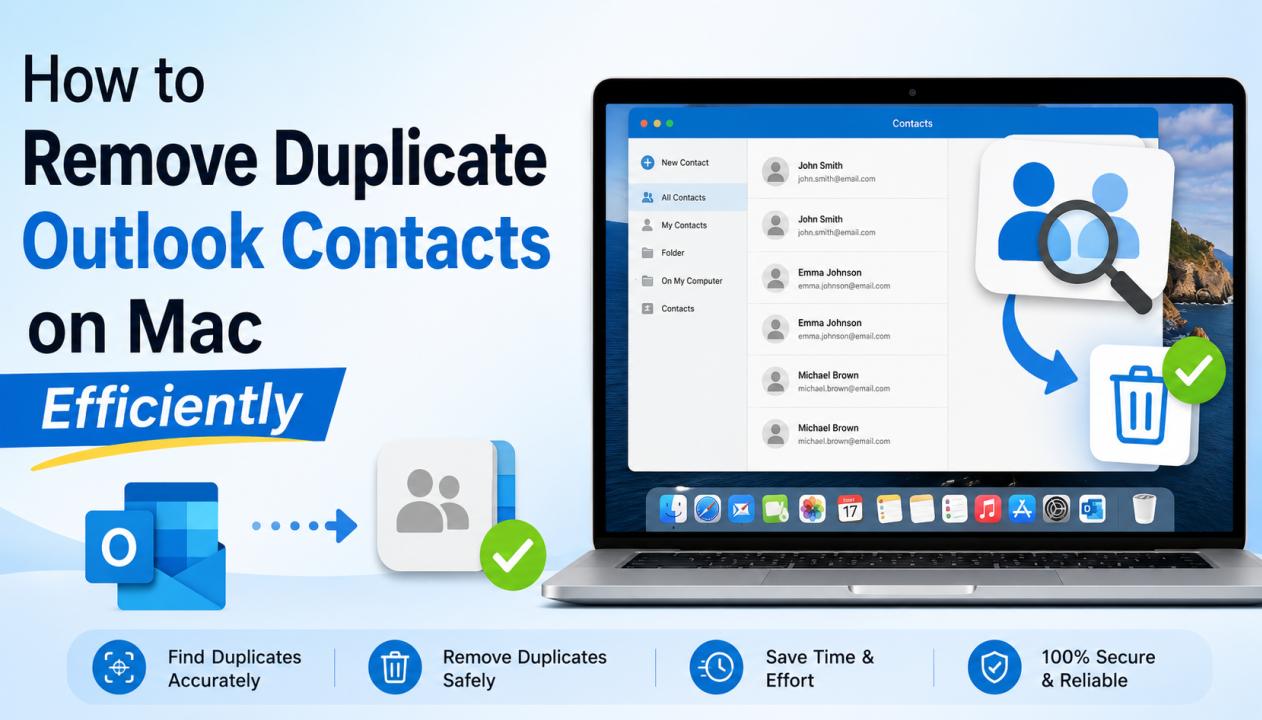
Managing contacts in Outlook for Mac becomes difficult when duplicate entries start appearing. Duplicate contacts can clutter your address book, create confusion while sending emails, and consume unnecessary mailbox space. Many Mac users face this issue due to repeated imports, account synchronization, iCloud syncing, or migrating data from different devices.
If you are searching for how to delete duplicate contacts in Outlook for Mac, this guide will help you with both manual and automated methods. We will also discuss the reasons behind duplicate contacts and tips to prevent them in the future.
Why Do Duplicate Contacts Appear in Outlook for Mac?
Before removing duplicates, it is important to understand why they occur. Here are some common reasons:
Importing contacts multiple times
Syncing Outlook with iCloud, Google, or Exchange accounts
Restoring old backups
Migrating Outlook profiles
Third-party applications creating duplicate entries
Manual addition of similar contacts
Duplicate contacts may contain the same name, email address, phone number, or other details.
How to Find Duplicate Contacts in Outlook for Mac
Outlook for Mac does not provide a dedicated “Remove Duplicate Contacts” option like some Windows tools. Therefore, users need to identify duplicates manually or use professional software.
Signs of Duplicate Contacts
You may notice:
Same contact name appearing multiple times
Multiple entries with identical email addresses
Repeated phone numbers
Duplicate suggestions while composing emails
Manual Method to Delete Duplicate Contacts in Outlook for Mac
Follow these steps carefully to remove duplicate contacts manually.
Step 1: Open Outlook for Mac
Launch Microsoft Outlook on your Mac system.
Step 2: Navigate to People Section
Click the People icon from the bottom navigation panel to open your contact list.
Step 3: Sort Contacts
To make duplicates easier to identify:
Click on View
Choose Sort By
Select First Name or Email Address
This groups similar contacts together.
Step 4: Identify Duplicate Contacts
Carefully review the list and locate repeated contact entries.
Step 5: Delete Duplicate Entries
Select the duplicate contact
Right-click on it
Choose Delete
Confirm the deletion
Repeat the process for all duplicate contacts.
Merge Duplicate Contacts in Outlook for Mac
Instead of deleting, you can also merge information manually.
Steps to Merge Contacts
Open both duplicate contacts
Compare the details
Copy missing information into one contact
Save the updated contact
Delete the unnecessary duplicate
This method helps preserve important information.
Limitations of Manual Methods
Although manual deletion works for small contact lists, it has several drawbacks:
Time-consuming process
Difficult for large contact databases
Risk of accidental deletion
No automatic duplicate detection
Requires manual comparison
If you have thousands of contacts, using a professional solution becomes more practical.
Automated Solution to Delete Duplicate Contacts in Outlook for Mac
Choose Professional SysTools Outlook Duplicate Contact Remover tools can automatically detect and remove duplicate contacts based on:
Name
Email address
Phone number
Company details
Complete contact information
These tools save time and reduce the chances of data loss.
Benefits of Automated Tools
Quick duplicate detection
Bulk contact processing
Safe removal process
Maintains data integrity
User-friendly interface
Reduces manual effort
Many users prefer automated software when managing large Outlook contact databases.
Tips to Prevent Duplicate Contacts in Outlook for Mac
After cleaning duplicates, follow these best practices to avoid the issue again.
1. Avoid Multiple Imports
Do not import the same CSV or PST file repeatedly.
2. Manage Sync Settings Carefully
Review synchronization settings for:
iCloud
Google Contacts
Exchange Accounts
Improper syncing often creates duplicates.
3. Clean Contacts Regularly
Periodically review your contact list and remove unnecessary entries.
4. Use a Single Contact Source
Maintain one primary contact source instead of syncing multiple address books.
5. Backup Before Major Changes
Always create a backup before importing or syncing contacts.
Frequently Asked Questions
Q.1 Can Outlook for Mac remove duplicate contacts automatically?
No, Outlook for Mac does not provide a built-in automatic duplicate contact remover.
Q.2 Will deleting duplicate contacts remove original data?
If done carefully, only duplicate entries are deleted. However, taking a backup is recommended.
Q.3 Can I merge duplicate contacts in Outlook for Mac?
Yes, but merging must be performed manually.
Q.4 Why do duplicate contacts keep returning?
This usually happens due to account synchronization or repeated imports.
Conclusion
Duplicate contacts in Outlook for Mac can create confusion and make contact management difficult. Although Outlook does not offer a built-in duplicate remover, users can still manually identify and delete duplicate contacts by sorting and reviewing entries carefully. For small contact lists, the manual method works well. However, for larger databases, automated duplicate remover tools provide a faster and safer solution. Additionally, managing synchronization settings and maintaining regular backups can help prevent duplicate contacts from appearing again.