Learn how to fix QuickBooks Error H202 on Windows 10 and 11 with step-by-step solutions covering firewall, hosting, and Database Server Manager.
Table of Contents
- Introduction
- What Is QuickBooks Error H202?
- Common Causes of QuickBooks Error H202
- How to Fix QuickBooks Error H202
- Solution 1: Use the QuickBooks Network Diagnostic Tool
- Solution 2: Check QuickBooks Database Server Manager
- Solution 3: Configure Firewall Settings
- Solution 4: Fix Hosting Configuration
- Solution 5: Restart QuickBooks Services
- Prevent H202 Error in the Future
- Conclusion
- Frequently Asked Questions (FAQs)
Introduction
QuickBooks Error H202 can bring your entire accounting workflow to a halt — especially when your team depends on multi-user access. This error blocks workstations from connecting to the company file hosted on the server. In this guide, you will learn exactly what causes this error, step-by-step solutions to fix it on Windows 10 and 11, and how to prevent it from coming back.
What Is QuickBooks Error H202?
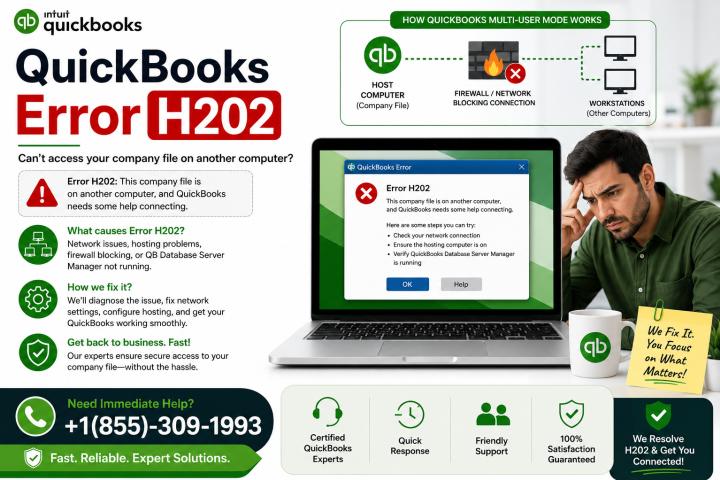
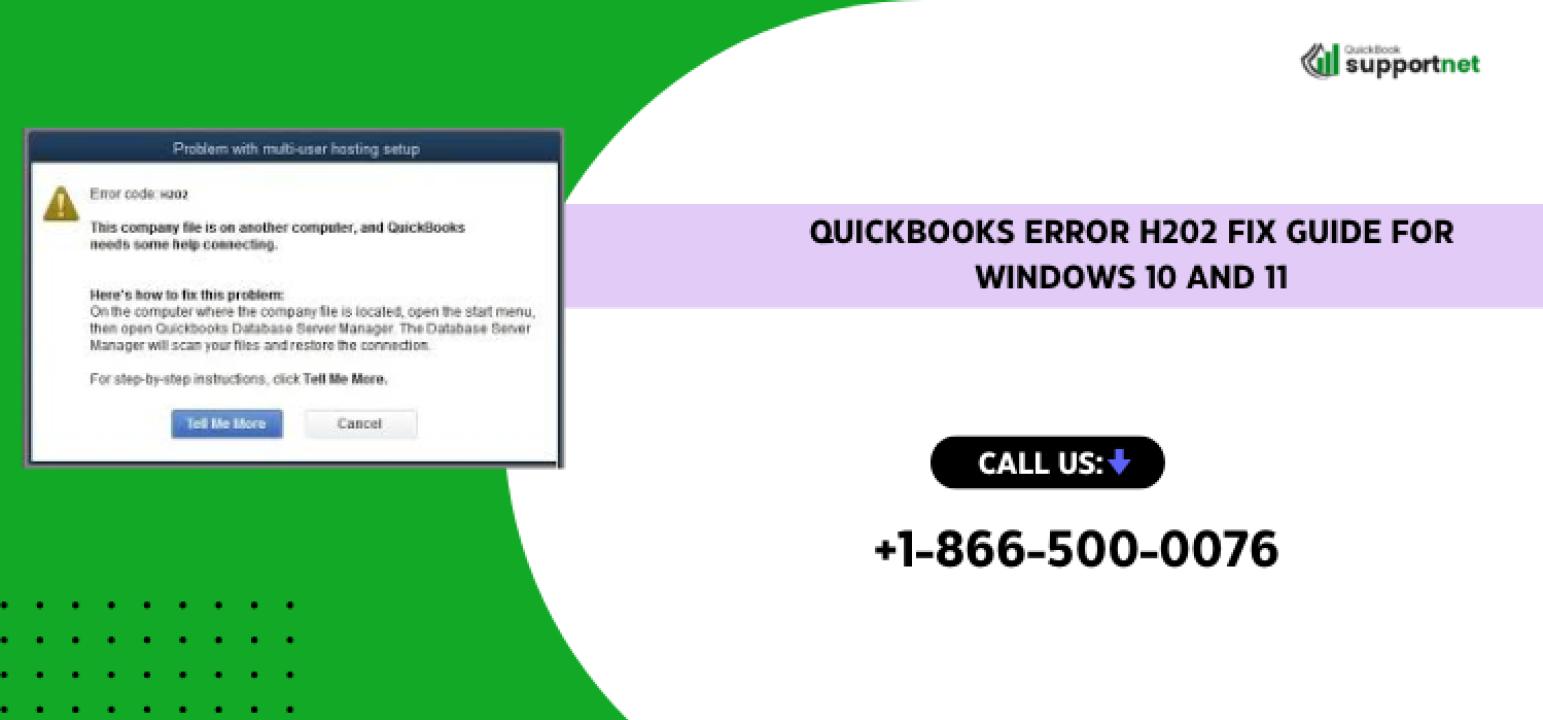
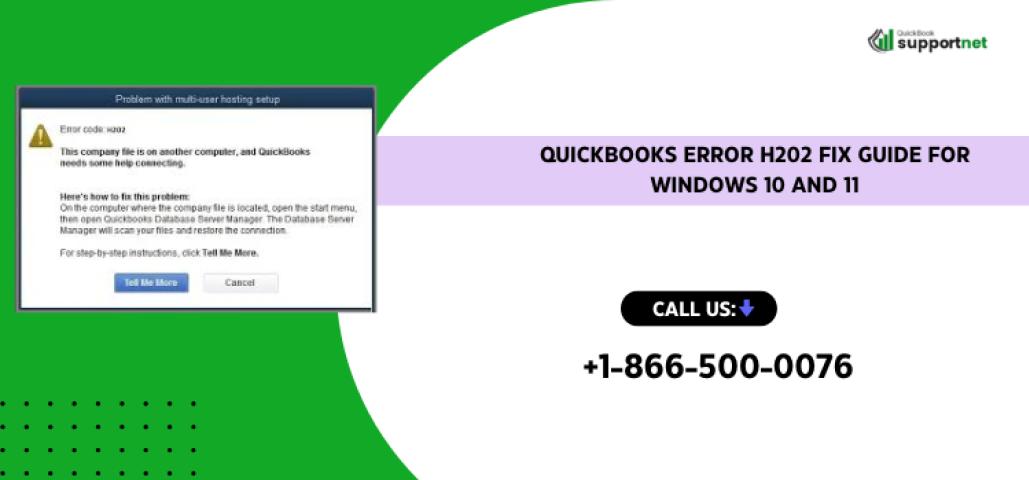
QuickBooks Error H202 is a QuickBooks multi-user mode error that appears when a workstation tries to open a QuickBooks company file stored on another computer but fails to establish a connection.
You will typically see this message:
"You are trying to work with a company file that is located on another computer, and this copy of QuickBooks cannot reach the server."
This error falls under the category of QuickBooks Desktop network errors and can affect one or multiple workstations on the same network.
Common Causes of QuickBooks Error H202
Understanding the root cause helps you apply the right fix faster. Here are the most frequent reasons behind the H202 error in QuickBooks Desktop:
- QBDBMgrN not running on the server computer
- Incorrect QuickBooks hosting configuration on one or more machines
- QuickBooks firewall blocking connection to the server
- DNS issues causing a QuickBooks network connectivity error
- The server computer is turned off or unreachable
- QuickBooks Database Server Manager is not installed or not scanning the file location
- Damaged or misconfigured .ND files linked to the QuickBooks company file on server
How to Fix QuickBooks Error H202
Follow these solutions in order. Most users resolve the issue within the first two or three steps.
Solution 1: Use the QuickBooks Network Diagnostic Tool
The QuickBooks network diagnostic tool (also called QuickBooks File Doctor) is the fastest way to start.
Steps:
- Download and install QuickBooks Tool Hub from Intuit's official website.
- Open Tool Hub and click on Company File Issues.
- Select Run QuickBooks File Doctor.
- Choose your company file from the list.
- Select Check your network and click Continue.
- Let the scan complete and apply any recommended fixes.
This tool automatically detects most QuickBooks workstation cannot connect issues and resolves them without manual changes.
Solution 2: Check QuickBooks Database Server Manager
If the QuickBooks Database Server Manager is not running properly, your workstations will not be able to reach the company file.
Steps:
- Go to the server computer (not the workstation).
- Open QuickBooks Database Server Manager from the Start menu.
- Click Scan Folders and add the folder where your company file is stored.
- Click Scan and wait for it to finish.
- Make sure the service QBDBMgrN is listed as running.
If QBDBMgrN not running is the issue, this step alone can resolve QuickBooks Error H202 completely.
Need help right now? Call at +1-866-500-0076 — our team can walk you through the fix remotely.
Solution 3: Configure Firewall Settings
QuickBooks firewall blocking connection is one of the top causes of this error, especially after a Windows update.
Steps:
- Open Windows Defender Firewall from the Control Panel.
- Click Allow an app or feature through Windows Defender Firewall.
- Make sure QuickBooks and QBDBMgrN are allowed on both Private and Public networks.
- Also add inbound and outbound rules for QuickBooks ports (8019, 56728, 55378-55382).
- Restart the server computer after making changes.
This step directly resolves the QuickBooks network connectivity error caused by blocked ports.
Solution 4: Fix Hosting Configuration
Wrong hosting settings cause a QuickBooks hosting configuration problem on the network. Only the server should host the multi-user session.
Steps:
- Open QuickBooks on each workstation (not the server).
- Go to File > Utilities.
- If you see Stop Hosting Multi-User Access, click it.
- On the server computer, go to File > Utilities.
- Make sure Host Multi-User Access is enabled here.
This corrects the multi-user hosting setup in QuickBooks and often resolves the QuickBooks cannot access company file error right away.
Solution 5: Restart QuickBooks Services
Sometimes, simply restarting the related Windows services fixes the QuickBooks server computer issue.
Steps:
- Press Windows + R, type services.msc, and hit Enter.
- Find QuickBooksDBXX (XX = your version year) and QBCFMonitorService.
- Right-click each and select Restart.
- Set the Startup type to Automatic for both.
After restarting, try opening the company file from the workstation again.
Prevent H202 Error in the Future
Once you resolve H202 in QuickBooks Desktop, take these steps to keep it from returning:
- Always keep QuickBooks Database Server Manager up to date
- Do not change firewall settings without updating QuickBooks port rules
- Keep the server computer running during business hours
- Regularly scan the company file folder using Database Server Manager
- Ensure only the server hosts the QuickBooks multi-user setup
Conclusion
QuickBooks Error H202 is a fixable network issue that usually comes down to hosting settings, firewall rules, or a stopped database service. By following the solutions above — from using the QuickBooks network diagnostic tool to fixing firewall and hosting configurations — you can restore your multi-user mode quickly. Do not let this error slow your business down. Contact today or call us at +1-866-500-0076 — we are here to help!
Frequently Asked Questions
Q1. What does QuickBooks Error H202 mean?
QuickBooks Error H202 means your workstation cannot connect to the QuickBooks company file hosted on the server. It is a QuickBooks multi-user mode error caused by network, firewall, or hosting issues. It does not mean your data is lost — it is a connectivity problem.
Q2. How do I fix the QuickBooks company file connection issue?
Start by running QuickBooks File Doctor from Tool Hub. Then check the QuickBooks Database Server Manager on the server, verify firewall settings, and ensure only the server has hosting enabled. These steps resolve most QuickBooks company file connection issues in under 30 minutes.
Q3. Why is QBDBMgrN not running on my server?
The QBDBMgrN not running issue usually happens after a Windows update or a system restart where the service did not launch automatically. Go to services.msc, find QuickBooksDBXX, and restart it. Set it to Automatic so it starts with Windows every time.
Q4. Can firewall settings cause H202 error in QuickBooks Desktop?
Yes. QuickBooks firewall blocking connection is a very common cause. Windows Firewall may block QuickBooks ports after updates. You need to manually allow QuickBooks and its services through the firewall and add the correct inbound and outbound port rules to fix the QuickBooks Desktop network error.
Q5. How do I set up multi-user hosting correctly in QuickBooks?
On every workstation, go to File > Utilities and click Stop Hosting Multi-User Access if it appears. On the server only, make sure Host Multi-User Access is enabled. This corrects the multi-user hosting setup in QuickBooks and prevents the QuickBooks hosting configuration problem.
Q6. Who can I contact if I cannot fix QuickBooks Error H202 myself?
If the steps above do not resolve the QuickBooks error code H202, reach out to a certified QuickBooks expert. Call at +1-866-500-0076 for hands-on guidance. Our team handles QuickBooks Error H202 troubleshooting for Windows 10 and 11 environments and can help you get back on track fast.