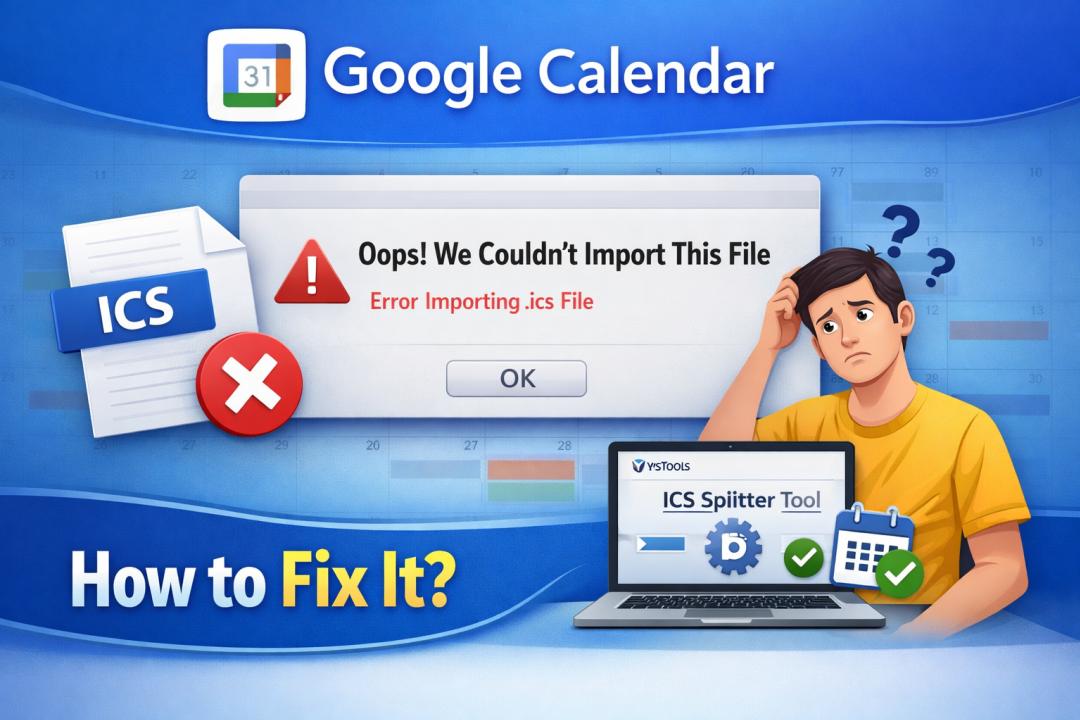

If you rely on Google Calendar for scheduling, encountering the error “Google Calendar oops we couldn't import this file” can be frustrating. This issue usually appears when importing ICS or CSV calendar files and prevents events from being added successfully. Many users also report related errors such as Google Calendar imported 0 out of 0 events Google Calendar not importing ics, or unable to process your ical/csv file.
This comprehensive guide explains why this happens and provides step-by-step solutions from manual fixes to automated tools so you can import your events without data loss.
What Does “Google Calendar Not Importing ICS” Means?
The error Google Calendar oops we couldn't import this file indicates that Google Calendar cannot process the uploaded calendar file. This usually happens due to formatting issues, file size limitations, unsupported data structures, or corrupted content. Some of the common related errors include:
Cannot import ICS to Google Calendar
Imported 0 out of 0 events, unable to process your ical/csv file
Google Calendar not importing ICS
Invalid calendar format
No events found in the file
Method 1: Fix Cannot Import ICS to Google Calendar Error by Verifying the File Format
Before trying an advanced solution to fix the " Google Calendar oops we couldn't import this file error, confirm that your file is valid. The steps are:
Check the file extension (.ics or .csv)
Ensure the file is exported correctly from the original calendar
Open the file using a text editor (for ICS)
Look for standard ICS headers:
BEGIN: VCALENDAR
VERSION:2.0
BEGIN: VEVENT
If these are missing, Google Calendar cannot read the file.
Method 2: Solve the Cannot import ICS to Google Calendar Re-Export the Calendar File
Sometimes the simplest solution is exporting again from the source application. Tips to export are given below:
Export only the required calendar
Avoid exporting attachments
Disable advanced formatting
Use standard iCalendar format
Re-exporting often resolves cannot import ICS to Google Calendar errors caused by export glitches.
Fix Google Calendar oops We Couldn't Import This File - Pro Way
Google Calendar struggles with very large files. Splitting them into smaller chunks is one of the most reliable fixes. For large or complex calendar files, an automated solution is far more reliable. The SysTools ICS Splitter Tool is designed to divide oversized ICS files into smaller, Google-compatible segments without damaging event data.
Why This Tool Works?
Splits large ICS files automatically
Maintains event integrity
Preserves recurring events
Eliminates formatting errors
Prevents “imported 0 out of 0 events” issues
Supports batch processing
Working Steps of the Robust Software
Install the above-mentioned tool
Choose the split ICS file from the tab
Click on the Add file or Add folder to upload the ICS file
Choose split criteria (size, date range, number of events)
Select the destination to save the output file
At last, click on the split option to start the process
Import each file into Google Calendar
This method is highly recommended when Google Calendar not importing ICS due to file size or complexity.
Best Practices to Prevent Future Errors
Follow these tips to avoid import failures:
Export using standard iCalendar format
Avoid extremely large calendar files
Remove attachments before exporting
Validate files before importing
Use reliable tools for splitting
Keep backups of the original data
Final Thoughts
The error Google Calendar oops we couldn't import this file is common but fixable. It usually occurs due to corrupted files, large size, invalid formatting, or unsupported elements. By identifying the root cause and applying the appropriate method, from re-exporting to splitting or cleaning the file, you can successfully import your events. For large or complex calendars, an automated tool provides the most dependable results