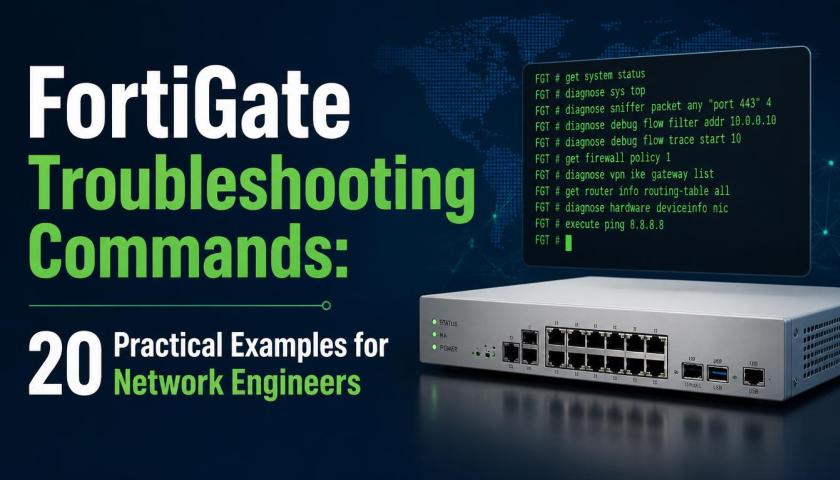
FortiGate firewalls help organizations manage network traffic, control access, and maintain secure communication between different networks. Static routing is an important networking feature that allows administrators to define how traffic should reach a specific destination.
Fortinet NSE 4 Training covers essential FortiGate administration concepts, including routing, firewall policies, and network troubleshooting. Understanding static routing helps network administrators configure traffic paths, manage connectivity, and troubleshoot common routing problems in enterprise environments.
What Is Static Routing in FortiGate?
Static routing is a method of directing network traffic through manually configured routes. A network administrator specifies the destination network, subnet mask, and next-hop address or outgoing interface.
Unlike dynamic routing protocols, static routing does not automatically discover network routes. Administrators must create or modify routes when network requirements change.
FortiGate uses its routing table to determine where packets should be forwarded. When traffic arrives at the firewall, the routing table helps identify the appropriate outgoing interface and next hop.
Key Components of a Static Route
A static route typically contains the following elements:
Destination network: The IP network that the traffic must reach.
Subnet mask or prefix length: Defines the size of the destination network.
Gateway address: The next-hop router used to forward traffic, when required.
Outgoing interface: The FortiGate interface through which packets leave.
Administrative distance: Helps determine route preference when multiple routes to the same destination are available.
Priority: Helps select between otherwise comparable routes with the same administrative distance.
How FortiGate Static Routing Works
Consider a company with an internal LAN connected to a FortiGate firewall. The firewall connects to an upstream router that provides access to other networks and the internet.
When a computer sends traffic to a remote network, FortiGate checks its routing table. If a matching route exists, the firewall forwards the packet through the selected interface toward the destination.
The most specific matching route is generally preferred. If multiple routes have the same destination prefix, administrative distance and other route-selection rules help determine the preferred path.
Example Network Topology
Suppose the network uses the following IP addresses:
Network component | IP address or network |
Internal LAN | 192.168.10.0/24 |
FortiGate LAN interface | 192.168.10.1 |
FortiGate WAN interface | 203.0.113.2 |
Upstream router | 203.0.113.1 |
Remote destination network | 10.20.30.0/24 |
In this example, FortiGate needs a route to reach the remote network 10.20.30.0/24 through the upstream router at 203.0.113.1.
The addresses in this example are illustrative; 203.0.113.0/24 is reserved for documentation.
How to Configure a Static Route on FortiGate
Administrators can configure static routes through the FortiGate graphical user interface (GUI) or command-line interface (CLI). The exact menu names may vary slightly depending on the FortiOS version.
Configure Static Routing Through the GUI
Follow these steps to create a static route:
Sign in to the FortiGate administrative interface.
Navigate to Network > Static Routes.
Select Create New.
Enter the destination network as 10.20.30.0/24.
Enter the gateway address as 203.0.113.1.
Select the outgoing interface connected to the upstream router.
Review the administrative distance and priority settings.
Save the configuration.
After saving, verify that the route appears in the routing table and is active. A configured route may not become active if its gateway or outgoing interface is unavailable or incorrectly configured.
Configure Static Routing Through the CLI
FortiGate also supports static route configuration through its command-line interface. The following example illustrates the configuration:
config router static
edit 10
set dst 10.20.30.0 255.255.255.0
set gateway 203.0.113.1
set device "wan1"
next
end
In this example, route ID 10 identifies the static route entry, the destination is 10.20.30.0/24, and the gateway is 203.0.113.1. The interface name wan1 is an example and must match the actual interface connected to the upstream router.
Before applying the configuration, verify the interface name, gateway reachability, and destination network. A static route determines the forwarding path but does not automatically create a firewall policy that permits the traffic.
Default Static Route Configuration
A default route is used when no more specific matching route exists in the routing table. It is commonly configured to send internet-bound traffic toward an upstream router.
Example of a Default Route
The following CLI configuration illustrates a default route:
config router static
edit 20
set dst 0.0.0.0 0.0.0.0
set gateway 203.0.113.1
set device "wan1"
next
end
The destination 0.0.0.0/0 represents all IPv4 destinations not covered by a more specific route. FortiGate forwards matching traffic toward the configured gateway, provided the route is active and selected.
For internet access, administrators must also verify the relevant firewall policy, NAT configuration where required, and upstream connectivity.
How to Verify FortiGate Static Routes
After configuring a route, administrators should confirm that FortiGate has installed it correctly and can reach the intended destination.
Useful Verification Commands
Use the following CLI commands to inspect routing and connectivity:
get router info routing-table all
This command displays the routing table and helps confirm whether the expected route is present.
get router info routing-table details 10.20.30.10
This command can help inspect route selection for a destination IP address. Command availability and output may vary by FortiOS version.
execute ping 10.20.30.10
This command tests reachability to a destination, subject to interface selection, firewall settings, and the remote device's response to ICMP traffic.
A successful ping does not necessarily prove that every application or service is reachable. Additional testing may be required.
Common FortiGate Static Routing Problems
Incorrect Gateway Address
An incorrect gateway can prevent packets from reaching the next-hop router. Confirm the gateway address and ensure it is reachable through the selected interface.
Wrong Outgoing Interface
Selecting an incorrect interface can cause the route to remain inactive or traffic to follow an unintended path. Check the interface configuration and network connectivity.
Missing Firewall Policy
A valid route does not automatically allow traffic through the firewall. Verify that the appropriate firewall policy permits the required source, destination, service, and direction.
Conflicting Routes
Multiple routes may exist for the same destination. Review prefix length, administrative distance, priority, and the active routing table to understand which route FortiGate selects.
Incorrect Return Route
Traffic may reach the destination but fail to return if the remote network lacks a route back to the source network. Check routing in both directions and review NAT requirements.
Static Routing Best Practices
For reliable FortiGate routing, document destination networks and next-hop addresses before implementing changes. Use clear route descriptions where supported, verify configurations after changes, and retain backups before modifying production firewalls.
Administrators should also monitor connectivity, review routing-table changes, and test both forward and return traffic. For larger networks with frequent topology changes, dynamic routing protocols may be more suitable than maintaining numerous static routes manually.
Conclusion
FortiGate static routing provides a straightforward way to control traffic paths between local networks, remote subnets, and upstream routers. By configuring destination networks, gateways, and outgoing interfaces correctly, administrators can establish predictable forwarding paths and troubleshoot connectivity issues more effectively.
Practical routing exercises also help reinforce firewall administration skills, including route verification, policy validation, and network troubleshooting. A structured Fortinet NSE 4 course can help learners develop these skills through configuration examples and hands-on FortiGate labs, preparing them to manage routing requirements in real-world network environments.