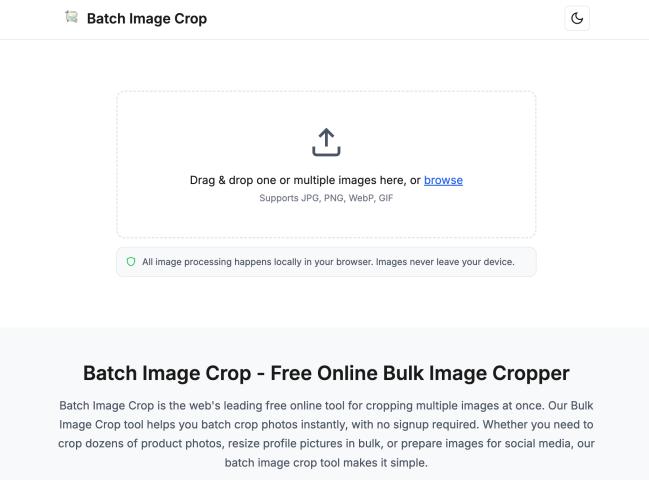
Crop one or multiple images at once with aspect ratios, pixel sizes, social media presets, and shape crop modes. All ima
| Founded year: | 2025 |
| Country: | United States of America |
| Funding rounds: | Not set |
| Total funding amount: | Not set |
Description
Batch Image Crop offers comprehensive batch image cropping capabilities with five distinct crop modes designed to meet various image processing needs. The Manual Crop mode provides complete control over the crop area, allowing users to freely drag and resize the crop box on each image. This mode supports multiple aspect ratio options including free-form cropping, 1:1 square, 4:3, 3:4, 16:9, and 9:16 ratios. Users can visually adjust the crop area by dragging the crop box or using the eight resize handles positioned at the corners and edges of the crop box.The Percentage Crop mode enables users to crop images by specifying width and height percentages. This mode automatically removes a proportional amount from the edges of images, making it ideal for batch processing images of different sizes while maintaining consistent cropping proportions. The percentage values can be adjusted using sliders or direct input fields, with real-time preview updates showing exactly how each image will be cropped.
The Pixels Crop mode allows precise control over output dimensions by specifying exact pixel width and height values. Users can set custom pixel dimensions like 800×600 or 1920×1080, and the tool will crop all images to these exact specifications. This mode is particularly useful for preparing images for specific display requirements, print materials, or web applications that need consistent pixel dimensions.
The Social Media Crop mode includes optimized presets for major social media platforms. The tool provides pre-configured dimensions for Instagram Square (1080×1080), Instagram Portrait (1080×1350), Instagram Story (1080×1920), Facebook Post (1200×630), Facebook Cover (820×312), Twitter Post (1200×675), Twitter Header (1500×500), YouTube Thumbnail (1280×720), LinkedIn Post (1200×627), and TikTok (1080×1920). When an uploaded image is smaller than the recommended dimensions for a selected preset, the crop box automatically adjusts to the maximum possible size within the image, and a warning message displays next to the filename indicating the recommended dimensions.
The Shape Crop mode offers advanced shape cropping capabilities with three shape options: rectangle, rounded rectangle, and circle. Users can select from various aspect ratios or choose free-form cropping. For rounded rectangles, an adjustable border radius control allows fine-tuning of corner roundness from 5 to 100 pixels. When using shape cropping with transparency, images are automatically saved in PNG format to preserve the transparent background.
The tool operates in two primary crop modes: Uniform Crop and Individual Crop. In Uniform Crop mode, all images use the same crop settings as the first image, ensuring perfect consistency across a batch. This mode is ideal for creating uniform product photos, consistent thumbnails, or matching profile pictures. When resizing the crop box on the first image in Uniform mode, all other images update in real-time to maintain consistency. The system intelligently handles images of different sizes by clamping crop dimensions to the smallest image's dimensions, preventing crop boxes from exceeding pixel limits.
Individual Crop mode allows users to customize the crop area for each image separately. This mode is perfect when images have different compositions or when specific areas of each image need to be preserved. Users can switch between Uniform and Individual modes at any time, and the tool remembers the crop settings for each image.
The tool features a comprehensive real-time preview system that displays crop overlays directly on each image. A crop size information overlay shows the exact pixel dimensions and aspect ratio of the crop area. Users can toggle this overlay on or off using the "Show Overlay" checkbox in the controls panel. The overlay displays information like "800 × 600px (4:3)" to help users understand the exact crop dimensions.
The preview system includes visual guides such as a rule of thirds grid that helps users compose better crops. The crop box is highlighted with a colored border, and when dragging or resizing, the active image's border remains highlighted to prevent confusion. The tool provides eight resize handles positioned at the corners and edges of the crop box, allowing precise control over crop dimensions. These handles are fully functional on both desktop and mobile devices, with touch gesture support for mobile users.
The tool supports multiple image formats including JPG, PNG, WebP, and GIF. When processing images, the tool maintains the original format unless shape cropping with transparency is used, in which case images are saved as PNG to preserve transparency. The tool processes images at their original resolution, ensuring high-quality output without compression artifacts.
All image processing happens entirely within the user's browser using the Canvas API. This means images never leave the user's device, ensuring complete privacy and security. The processing is performed locally, so there are no file size limits imposed by server upload restrictions. The only limitation is the device's available memory, and most users can comfortably process 50-100 images at once.
The tool features a responsive design that works seamlessly on desktop computers, tablets, and mobile devices. On mobile devices, the controls panel scrolls naturally with the page content to maximize image display space. Touch gestures are fully supported, allowing users to drag and resize crop boxes using touch interactions. The interface adapts to different screen sizes, ensuring optimal usability across all devices.
The batch processing workflow is streamlined for efficiency. Users can upload multiple images at once by dragging and dropping files or using the file browser. The tool displays all uploaded images in a grid layout with real-time crop previews. Users can add more images at any time using the "Add More" button, or clear all images and start over. When ready, users click the "Crop" button to process all images simultaneously.
After processing, all cropped images are automatically packaged into a single ZIP file for convenient download. The ZIP file contains all processed images with their original filenames, making it easy to organize and use the cropped images. The download begins automatically once processing is complete, and users can see a progress indicator showing how many images have been processed.
The tool includes intelligent crop synchronization features. In Uniform Crop mode with multiple images, the system ensures that crop boxes are consistent from the initial load, not just after dragging the first image. When resizing crop boxes, the tool uses anchor-based calculations to prevent drift when hitting size limits. If a crop box reaches the maximum size for one image, it remains fixed at that limit even if the user continues dragging, preventing unwanted movement.
For fixed aspect ratio cropping, the tool maintains the selected ratio during all resize operations. When a user selects a ratio like 3:4, the crop box can be dragged and resized, but the aspect ratio remains locked. The tool handles aspect ratio persistence across different crop modes, ensuring that switching between modes doesn't unexpectedly retain constraints from previous modes.
The tool provides visual feedback throughout the cropping process. Crop boxes are clearly outlined, resize handles are visible and positioned correctly, and mask overlays show the areas that will be cropped out. The size information overlay updates in real-time as users adjust crop areas, providing immediate feedback on dimensions and aspect ratios.
The interface includes helpful hints and tooltips that guide users through the cropping process. The crop mode hint text explains the current mode's behavior, and the tool automatically disables incompatible options. For example, Individual Crop mode is automatically disabled for Percentage, Pixels, and Social modes since these modes inherently apply uniform cropping.
The tool supports both light and dark themes, with an automatic theme toggle that remembers user preference. The interface is designed for accessibility, with proper contrast ratios, clear labels, and keyboard navigation support. Form elements include proper labels and ARIA attributes for screen reader compatibility.
The contact form feature allows users to provide feedback directly from the website. The form includes fields for name, email, and message, and submissions are processed through FormSpree integration. The form is accessible from a modal dialog that can be opened from the footer of any page.
The tool is completely free to use with no signup required. There are no watermarks added to processed images, no file size restrictions beyond device memory, and no limitations on the number of images that can be processed. The tool works entirely offline once the page is loaded, making it reliable even with unstable internet connections.