PDF files have become the standard for document sharing as they keep the formatting and layout the same no matter what device is used. On the other hand, there are various cases where the entire PDF file is not needed—you might just want to view one page, or perhaps two or three pages. In such cases, mastering the skill of transferring pages of a PDF into separate files becomes very important. In the following guide, we will share the best techniques on how to save separate pages of a PDF document. It includes both online and advanced tools for separating the PDF pages. So, let’s dive into it.
What Does “Saving Separate Pages of a PDF” Mean?
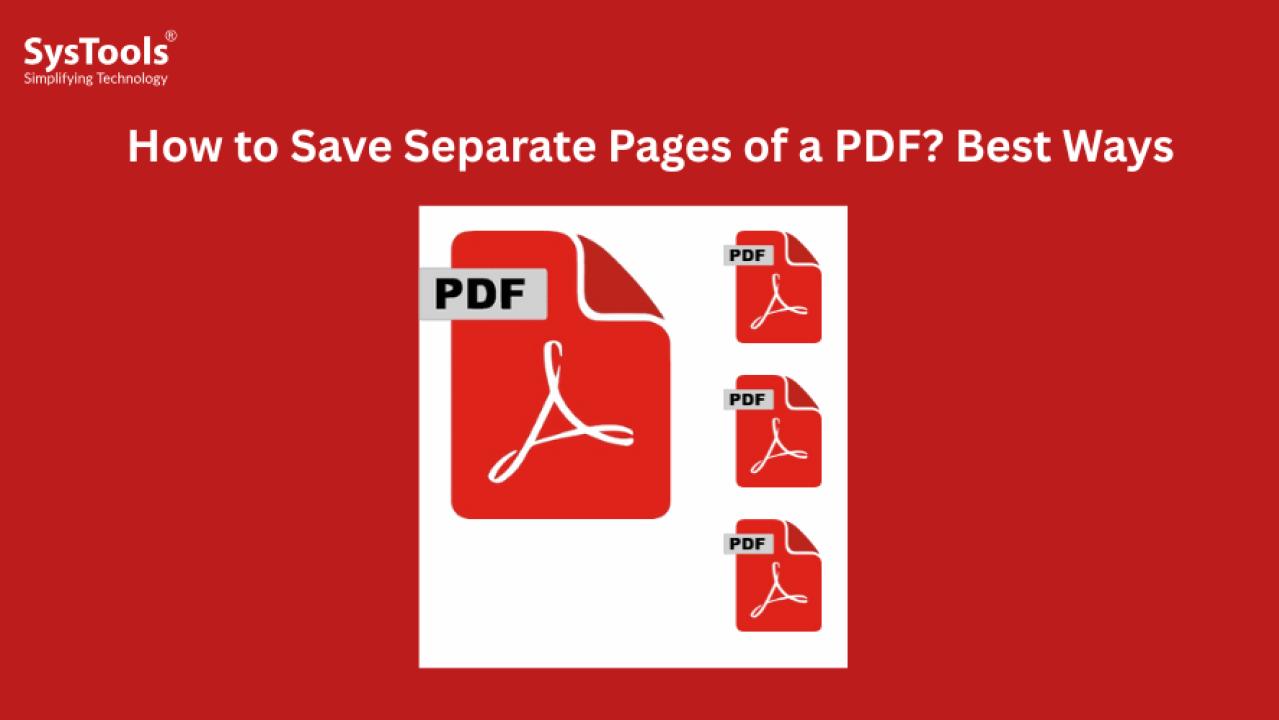
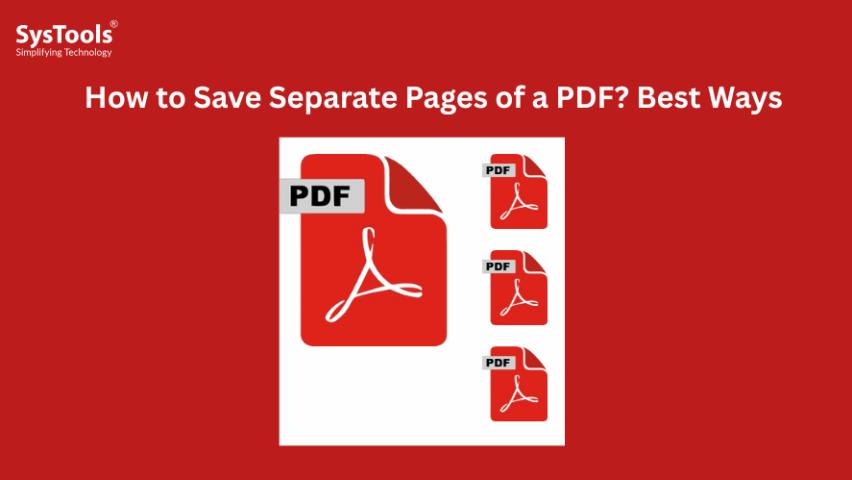
The process of saving separate pages from a PDF involves extracting pages from an existing PDF file and saving them as individual PDF documents. Each page turns into a single file that can be managed, edited, printed, or stored separately. This procedure has several other names:
Splitting PDF pages
Extracting PDF pages
Saving individual PDF pages
In summary, this is the most effective way to manage or streamline PDF documents. Hence, you won’t need to apply PDF restrictions; instead, share the single or specific pages to prevent leakage. Moreover, it allows you to distribute the required pages while preserving the entire document. Now, let’s understand the benefits of saving the separated pages from PDF file.
Why Do Users Need to Save Separate Pages of a PDF?
Users often have different practical reasons to split PDF pages apart, among which we can find:
The sharing of only particular information without giving access to the entire document
The reduction of the overall file size by keeping only the necessary pages
When users need to edit and share specific pages with other users.
Sometimes, filling out or distributing the fillable PDF is required.
The act of separating pages is one of the most important PDF features that can enhance overall productivity and efficiency, particularly for students, professionals, or businesses. Now, you might be wondering how to split PDF into separate pages. So, let’s discover the stepwise guide.
How to Save Pages of a PDF Separately Using Online Tools
If you’re wondering how to separate PDF pages online, try free online websites. There are many websites available for separating the PDF pages. Whether it’s a single or multiple-page document, online tools are capable of breaking it down in one go. Moreover, the interface is simple and easy to navigate for users. There is no need to install the third-party tools or software.
Most importantly, it won’t require sign-ups or other file size restrictions. Hence, you can easily share the separated PDF pages from the entire document. Here are the quick steps on how to save separate pages of a PDF using online tools:
Upload your PDF file to free online PDF tools.
Select pages to split or extract.
Hit Split or Extract.
Save the different PDF pages on your device.
Benefits of Online PDF Tools:
No installation is needed when using the tool. Moreover, it is a completely browser-based solution for separating the PDF pages.
Fast and simple for small tasks. In other words, there is no requirement for technical support or expertise. Hence, anyone can separate the PDF pages for free.
Disadvantages of Free PDF Websites:
Many tools offer restrictions on file size. In other words, you can’t upload large PDF files without upgrading the plan.
Possible data privacy issues. In other words, there is a high risk of data loss or formatting error.
Web-based tools are most appropriate for non-sensitive documents and infrequent use.
How to Save Separate Pages of a PDF Document - SysTools PDF Pro Software
If you’re seeking how to split PDF into separate pages, use SysTools PDF Splitter Software.
The tool is compatible with both Windows and macOS. Using this advanced software, you can separate the PDF pages by range, specific page, odd, or even numbers. Moreover, it allows managing the PDF document by separating the pages. In other words, it allows users to preserve the PDF pages during the process.
This tool is ideal for professionals, students, and businesses that frequently work with bulky PDF documents. It preserves the original layout, formatting, images, and text during the splitting process, ensuring complete data integrity. The software supports all major PDF versions and works smoothly on Windows or macOS systems.
With its intuitive interface, even non-technical users can split PDF files in just a few clicks. Additionally, the tool handles password-protected PDFs (with known passwords), making it a versatile choice for secure documents. Overall, it’s a fast, efficient, and trustworthy solution for splitting PDFs effortlessly.
Guide on Split PDF into Seperate Pages
Firstly, download and run the SysTools mentioned software.
“Add Files or Folders” feature to access the necessary PDFs.
From the Options > tab Split and then navigate to the Next button.
Under Split > go to Split by Page and then, Change feature.
Finally, use the Split button to save separate pages of a PDF.
Concluding Words
In the above guide, we have shared the best ways on how to save separate pages of a PDF. Using these methods, you can easily separate the necessary PDF pages from large documents. Compared to all the techniques, the SysTools mentioned tool is secure and highly recommended for separating the PDF pages in one go. Moreover, it enables users to manage PDF files without incurring data loss.