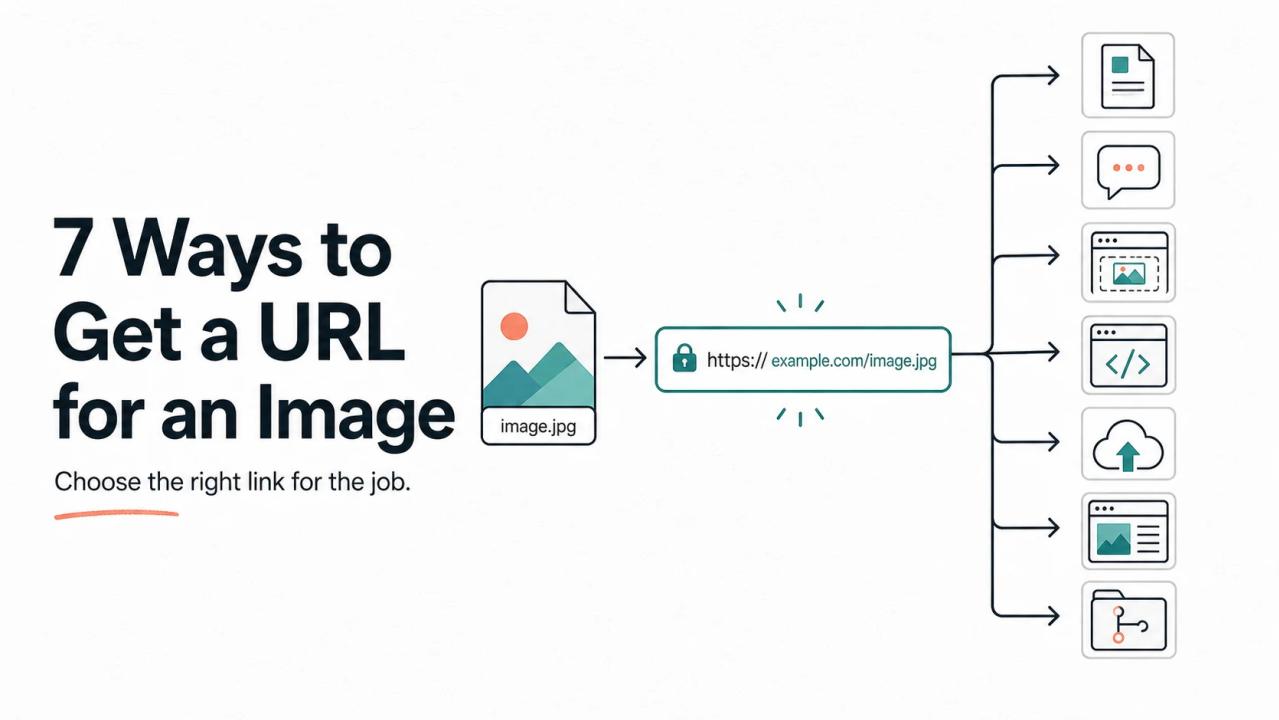
To get a URL for an image stored on your device, upload the file to an online host and copy the address it returns. If the image is already online, open the image itself and copy its address. The important part is choosing a direct image URL, not a link to a gallery, preview, or sign-in page.
For the quickest route from a local file to an embeddable link, start with the ImageToURL uploader. It accepts JPG, PNG, WebP, and GIF files, requires no account for guest uploads, and returns the same hosted image as a direct URL, Markdown, or HTML.
The seven methods at a glance
| Method | Best for | Direct image URL? | Setup | Main tradeoff |
|---|---|---|---|---|
| ImageToURL | Fast uploads, screenshots, docs, CMS fields | Yes | None for guest use | Public links only for guest uploads |
| Copy image address | Images already published on the web | Usually | None | You do not control the source |
| CMS media library | Images used on your own site | Usually | CMS access | Tied to that site's lifecycle |
| GitHub repository | Open-source docs and project assets | Yes, with the file URL | Repository access | Poor fit for general-purpose hosting |
| Object storage and CDN | Production websites and applications | Yes | Technical configuration | More setup and maintenance |
| Cloudinary-> | Transformations and responsive delivery | Yes | Account and asset workflow | More product surface than a simple link needs |
| Cloud drive sharing | Sending a viewable file to people | Often no | Cloud account | Share-page links may not embed |
The best method depends on two questions:
- Is the image on your device or already online?
- Does the destination need to display the image, or only let someone open it?
First, know which kind of URL you need
A direct image URL points to the file response. Open it in a browser and you should see the image itself, not a page built around it. The response normally uses an image content type such as image/jpeg, image/png, image/webp, or image/gif.
A share-page URL points to an HTML page. That page may contain the image alongside menus, comments, ads, permissions, or a download button. It can be fine for human viewing, but a CMS image field, Markdown renderer, or HTML img element may reject it because the link does not return image bytes.
Use this quick test:
- Need to embed the image? Get a direct image URL.
- Need to send a page with controls or context? A share-page URL may be enough.
- Need the image to remain under your control? Use a host or storage account you manage.
- Need privacy? Do not use a public image URL. Choose authenticated private storage instead.
1. Use ImageToURL for the fastest direct link
Best default for: a local image that needs to work in chat, documentation, a CMS field, Markdown, or HTML.
ImageToURL keeps the workflow focused on the file. Drop, paste, or select an image, wait for the upload, then copy the output your destination expects. Guest uploads support one JPG, PNG, WebP, or GIF up to 2 MB at a time, with up to five single-image uploads per day. A free account adds history, a 5 MB per-file limit, ten daily uploads, and batches of up to five images.
The result is a public HTTPS address made for browsers and embeds rather than a gallery page. The tool also prepares Markdown and HTML from the same URL, so you do not need to type wrapper syntax manually.
To create a link:
- Open the image URL generator.
- Drop an image, select a file, or paste a screenshot from the clipboard.
- Confirm that the selected file contains nothing confidential.
- Upload it and copy Direct URL, Markdown, or HTML.
- Keep the deletion credential if you uploaded as a guest.
ImageToURL stores the uploaded file without silently turning it into a different format. Guest links are public, so anyone who receives the URL can open them. That is useful for sharing and embedding, but it is the wrong model for private documents, customer records, or unreleased assets.
2. Copy the address of an image that is already online
Best for: reusing an image already published on a page you control or have permission to reference.
In a browser, right-click or press and hold the image, then choose Copy Image Address, Copy Image Link, or the equivalent command.
Before using the result, open it in a private browser tab. Some sites generate temporary signed addresses, block external embedding, or serve a small thumbnail instead of the original. The address may also stop working when the publisher reorganizes the site.
Do not treat discoverability as permission. An image being visible online does not grant you the right to republish or hotlink it.
3. Use your CMS media library
Best for: images that belong to your own blog, documentation site, store, or company website.
Most content management systems upload media to a managed directory and expose a file URL. Add the image to the media library, open its attachment details, and copy the file URL rather than the editor or attachment-page URL.
This keeps ownership and publishing in the same system. If the site changes domain, media path, access policy, or CDN configuration, external uses of that URL may break.
Use the CMS library when the image is part of that site's content. Do not use it as an informal public file host for unrelated projects.
4. Put project images in a GitHub repository
Best for: README files, open-source documentation, release notes, and small public project assets.
Add the image to the repository, commit it, and reference it with a repository-relative path whenever the Markdown lives in the same project. If another system needs a full URL, open the stored file or raw file view and copy the resulting address.
Repository-relative paths move with the code. A raw file URL can cross systems, but it depends on the repository, owner, branch, and file path. Renaming one can break the reference.
GitHub is a source collaboration platform, not a general image CDN. Keep this method for project documentation rather than marketing traffic or high-volume application delivery.
5. Publish the image from object storage and a CDN
Best for: production websites, applications, large asset libraries, and teams that need control over domains, cache rules, and lifecycle policies.
Object storage lets you upload an image under a chosen key and expose it through a public bucket or custom domain. You control headers, caching, retention, and deletion.
You must configure public access, set the correct content type, prevent accidental overwrites, and understand the cost and abuse model. Some providers also restrict public development URLs in production.
Choose object storage when image delivery is part of the product architecture. For a single screenshot or one-off link, it is unnecessary machinery.
6. Use a media platform when you need transformations
Best for: responsive websites, apps that generate several image sizes, automatic format selection, crops, quality controls, or asset workflows.
A media service can return delivery URLs that encode width, crop, format, or quality. One source image can then serve thumbnails, cards, and high-density displays.
You still need an asset naming scheme, transformation policy, and usage controls. Use this route when transformations remove real work. A focused uploader is simpler for the original file.
7. Use a cloud drive link only when viewing is enough
Best for: sending a file to a person who can open a share page.
Cloud drives are designed around documents, folders, permissions, previews, and collaboration. Their copied links usually lead to a viewing page rather than directly to the image file. That is often exactly right for review, but unreliable for an HTML image source, Markdown embed, forum avatar, or CMS image field.
Avoid unofficial rewrites that turn a drive share link into an apparent direct link. Provider routing can change. If the destination requires image bytes, use a host made for direct delivery.
Choose the output format by destination
The hosted file does not change when you choose URL, Markdown, or HTML. Only the wrapper copied to your clipboard changes.
| Destination | Copy this | Example |
|---|---|---|
| Chat, form, spreadsheet, or CMS URL field | Direct URL | https://example.com/photo.jpg |
| GitHub README, wiki, or Markdown document | Markdown |  |
| HTML page, email template, or prototype | HTML | <img src="https://example.com/photo.jpg" alt="Alt text"> |
| CSS background | Direct URL inside CSS | background-image: url("https://example.com/photo.jpg") |
Always replace generic alt text with a concise description of the image's purpose. Alt text belongs to the embedding markup, not to the file URL itself.
Four checks before you publish the link
Run these checks before placing an image URL somewhere important:
- Open it in a private tab. This catches links that only work while you are signed in.
- Inspect what loads. The browser should show the image alone when you need a direct URL.
- Confirm ownership and sensitivity. Make sure you may publish the file and that it contains no private information or embedded secrets.
- Know the deletion path. Keep a guest deletion credential or verify that the image appears in your account's upload history.
Also avoid these common failures:
- copying the browser address from a search-results page;
- using a temporary preview URL from an editor;
- embedding a thumbnail when the original is required;
- assuming a public-but-unguessable URL is private;
- deleting the source file without checking whether the published URL depends on it.
Which method should you choose?
Use ImageToURL first when the image is on your device and the immediate goal is a clean, public, embeddable link. It removes the account, storage, and syntax work from a small task while preserving a deletion path.
Use your CMS for site-owned editorial assets, GitHub for repository documentation, object storage for production infrastructure, and a transformation service when responsive delivery is an actual requirement. Use cloud-drive sharing only when a human-facing preview page is acceptable.
That is the durable rule: choose the hosting method based on where the image belongs, then choose the link format based on where the URL is going.
Frequently asked questions
Can I create an image URL without a website?
Yes. Upload the local file to an image hosting service such as ImageToURL. The host stores the file online and returns the public address.
Is an image URL the same as a link attached to an image?
No. An image URL identifies the image resource. A clickable image uses separate markup that displays the image and sends a click to another destination.
Why does my image URL open a webpage instead of the image?
You copied a share-page or attachment-page address. Look for a direct link, file URL, raw view, or image address that returns the image itself.
Can a direct image URL be private?
It can be protected by authentication or a time-limited signature, but a normal public direct URL is viewable by anyone who has it. Do not upload confidential material to public hosting.