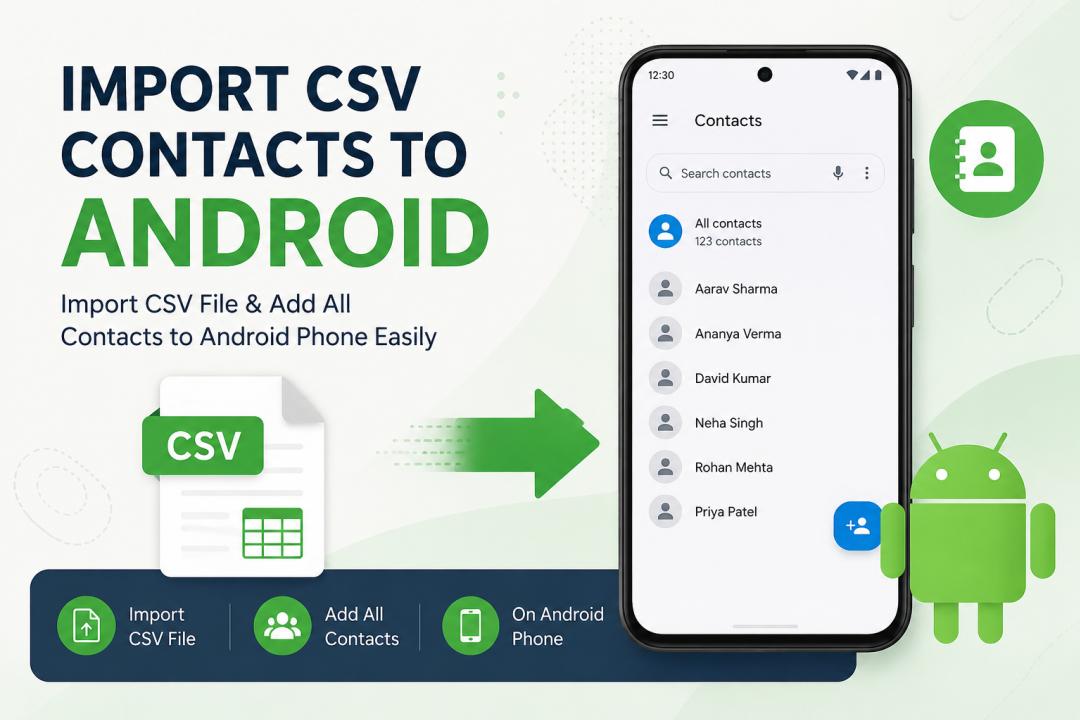
Import CSV contacts to Android when you have a contact list saved in Microsoft Excel, Google Sheets, or another spreadsheet and want those numbers available on your phone. CSV is useful for storing contact data in rows and columns, but Android contact apps generally work more directly with vCard files when importing contacts from local storage. Google provides a CSV import option through Google Contacts, while its Android app supports importing contacts from a VCF file.
So, if you have hundreds or thousands of contacts in a CSV file, you have two practical routes: import the CSV through Google Contacts and sync it to Android, or convert the CSV contact file to VCF first and then import the resulting file on your phone. Let’s look at both approaches.
Can You Import CSV Contacts Directly to an Android Phone?
A CSV file is a convenient way to store names, phone numbers, and email addresses, but Android Contacts does not generally offer a direct CSV import from phone storage. Google currently supports importing CSV files through Google Contacts on a computer, while Android supports importing contacts from a VCF file directly on the device.
Here are the practical options:
Import CSV through Google Contacts: Upload the CSV to Google Contacts from a computer, then sign in to the same Google Account on your Android phone. Google contacts automatically sync to Android devices.
Convert CSV to VCF: If you want a file that can be transferred directly to your phone, convert the CSV into VCF and use the Contacts app's Import from file option.
Use a contact converter for bulk lists: Offline tools can convert large CSV or Excel contact lists into VCF, making the transfer easier.
For WhatsApp: If your goal is to import CSV contacts to WhatsApp, first save the contacts to your Android phone or Google Contacts. WhatsApp can then use the contacts available in your phone's address book.
Before importing, clean your CSV and check that phone numbers include the correct country code, such as +91 for India. Also remove duplicate or blank records. A properly formatted contact file reduces errors when syncing contacts to Android and can also help when you later use those contacts for apps such as WhatsApp.
Method 1: Import CSV Contacts to Android - Google Contacts
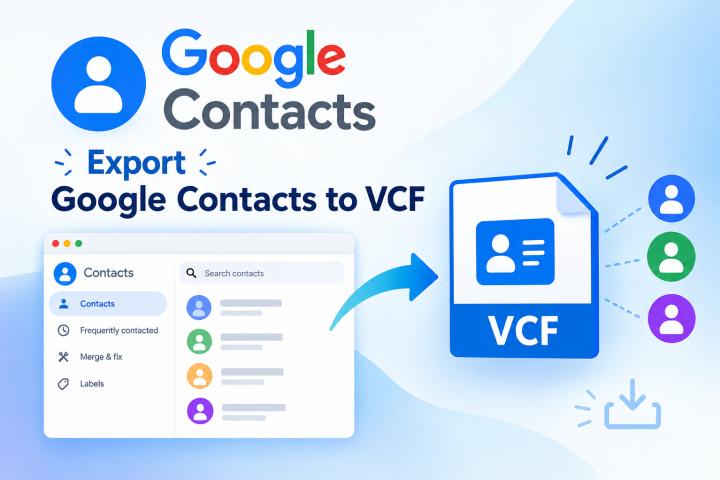
This is the simplest method if your CSV is already properly organized. Google lets you import an existing CSV file through Google Contacts on a computer. Afterward, those contacts can sync with your Android device when you sign in to the same Google Account. Follow the steps given below:
Open Google Contacts on your computer and sign in to the Google Account used on your Android phone.
Click Import from the left-side menu.
Select your CSV file from the computer.
Click Import and wait for the contacts to be added.
Open the Contacts app on your Android phone.
Make sure the same Google Account is signed in and contact sync is enabled.
Pull down on the Contacts list if you need to manually refresh the contacts.
Limitations of the Manual Method
Requires multiple steps to move CSV data into Android contacts.
Cannot directly import a CSV file through the Android Contacts app.
Manual field mapping can lead to incorrect contact details.
Large contact lists take more time to process manually.
Duplicate or missing contacts may require additional cleanup.
Contact formatting may change during conversion or import.
Repeating the process for multiple CSV files can become tedious.
Method 2: Import CSV Contacts to Android Phone - Try Expert Solution
If you have a large contact list, converting CSV contacts to vCard is a more convenient approach than handling contacts individually. Android supports importing contacts from a VCF file directly through the Contacts app. For bulk conversion, SysTools Excel to vCard Converter can convert CSV, XLS, and XLSX contact files into Android-compatible VCF files with field mapping and batch processing options.
Key Features of Using Automated Utility
Bulk Conversion: Convert multiple contacts from CSV or Excel files to VCF at once.
Field Mapping: Map CSV columns such as Name, Phone, Email, and Address to the correct vCard fields.
Preview Option: View contact rows and columns before starting the conversion.
Separate or Combined VCF: Create an individual VCF for each contact or one combined VCF file.
Multiple vCard Versions: Choose vCard 2.1, 3.0, or 4.0 according to your requirements.
Android Support: The generated VCF can be transferred to Android and imported through the Contacts app.
Steps to Convert CSV Contact Data to vCard Format
Download the advanced offline software on your machine.
Choose Browse option to upload CSV contact file.
Now, match the fields with vCard fields and tap on Add option.
Choose vCard version according to your choice. (2.1, 3.0, & 4.0).
Navigate to Change icon to set location path for output .vcf file.
Click on Convert button & CSV will converted into vCard contacts.
Finally, a pop-up will appear; tap on Yes to view resultant file.
Steps to Import vCard Contacts File to Android Smartphone
Open Contacts: Launch the Contacts app on your smartphone.
Select Import: Go to Organize > Import from file.
Choose VCF: Browse and select the transferred vCard file.
Select account: Choose where you want to save the imported contacts.
Complete import: Confirm the action and wait for the contacts to appear.
Final Thoughts!
Import CSV contacts to Android is easier when you choose the right transfer method. Google Contacts works well for simple CSV imports, while converting CSV to VCF is better for bulk contact transfers. A dedicated converter can simplify the process and help move large contact lists to Android with fewer manual steps.