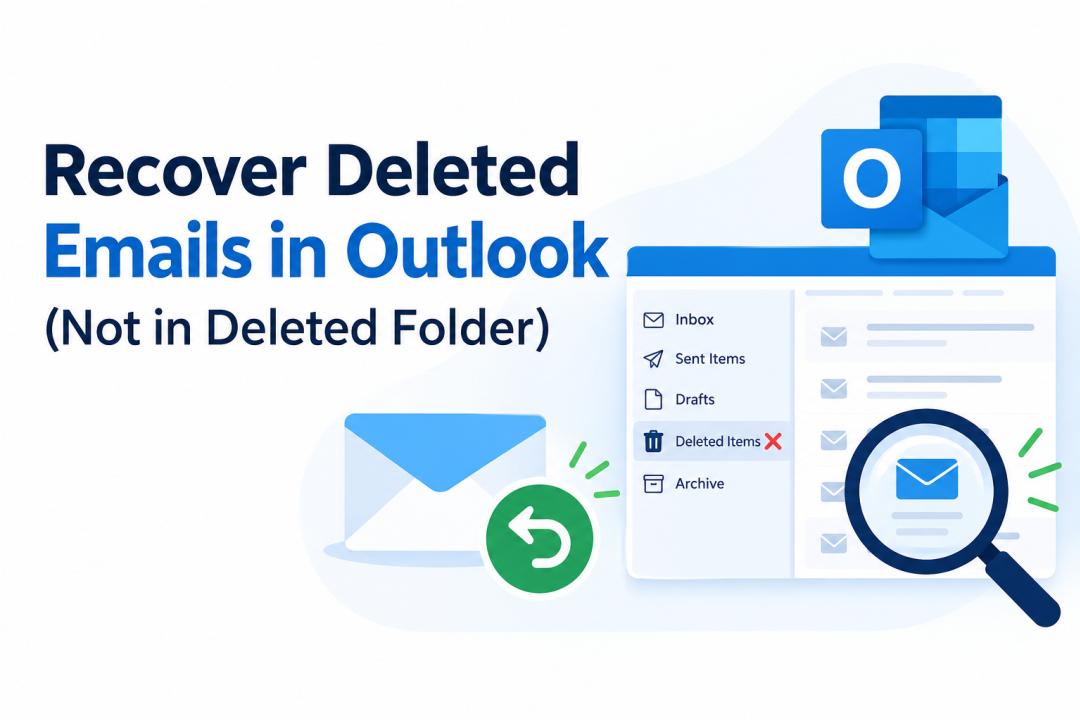

Deleted an important email from Outlook, but it is no longer available in the Deleted Items folder? This can happen when an email is permanently deleted, the Deleted Items folder is emptied, or Outlook automatically removes older deleted messages. Fortunately, Outlook provides additional recovery options that may help retrieve such emails.
In this guide, we will explain how to recover deleted emails in Outlook that are not in the Deleted Items folder, including Outlook's built-in recovery feature and professional recovery methods.
Why Are Deleted Emails Not in the Deleted Items Folder?
An email may not appear in the Deleted Items folder for several reasons:
- The Deleted Items folder was manually emptied.
- The email was permanently deleted using Shift + Delete.
- Outlook automatically removed older deleted messages.
- The message was deleted from a shared or synchronized mailbox.
- Retention or mailbox policies removed the email.
- The email was moved or deleted from another Outlook folder.
- Synchronization issues caused the message to disappear from the local mailbox view.
When an email is no longer visible in Deleted Items, check Outlook's recovery options before assuming that the message is permanently lost.
Method 1: Recover Emails Using Outlook's Recover Deleted Items
Microsoft Outlook provides a Recover Deleted Items feature for supported accounts. It can be useful when an email has been removed from the Deleted Items folder but is still available on the mail server.
Steps to Recover Deleted Emails in Outlook
- Open Outlook and select the relevant email account.
- Go to the Deleted Items folder.
- Look for the Recover items deleted from Outlook folder option.
- Select the emails you want to recover.
- Click Restore or Recover.
- Check the Deleted Items or original folder for the recovered emails.
The exact option can vary depending on the Outlook version and account type.
Important Note
The Recover Deleted Items feature does not guarantee recovery of every deleted message. Availability can depend on the mailbox type, retention settings, administrator policies, and how long ago the email was deleted.
Method 2: Check the Archive and Other Outlook Folders
Sometimes an email appears to be deleted when it has actually been moved to another folder. Before using advanced recovery methods, search the entire mailbox.
Use Outlook's search functionality and try searching by:
- Sender's email address
- Subject keywords
- Recipient's name
- Approximate date
- Specific words from the email
Also check Archive, Junk Email, Sent Items, and custom folders. If the email was accidentally moved instead of deleted, this can be the quickest way to find it.
Method 3: Use Professional Solution
When Outlook's built-in recovery options cannot find the required emails, a professional recovery solution can help scan the Outlook data file for recoverable mailbox items. The SysTools Outlook PST Recovery Tool designed to recover deleted or missing emails from Outlook PST files and allows users to preview the recovered mailbox data before saving it. It can be useful when emails are no longer available in the Deleted Items folder or when working with large Outlook data files.
To recover deleted Outlook emails using autoamted tool, add the Outlook PST file to the software, scan it to locate recoverable mailbox items, and preview the available emails. Select the required messages and export them to a suitable destination. This approach is particularly useful when dealing with permanently deleted emails, large PST files, or mailbox data that cannot be recovered through Outlook's standard options.
Tips to Improve the Chances of Recovery
- Stop unnecessary changes to the affected PST file.
- Avoid repeatedly compacting or modifying the Outlook data file.
- Do not overwrite the original PST with another file.
- Keep a backup copy of the original data file.
- Attempt recovery as soon as possible.
- Save recovered emails to a different location.
Conclusion
When deleted emails are not visible in Outlook's Deleted Items folder, they may still be recoverable. Start with Recover Deleted Items, search other Outlook folders, and check Outlook on the web or other synchronized devices. If the missing emails were stored in a PST file and Outlook's built-in recovery options cannot find them, a professional PST recovery solution can provide another recovery option. Acting quickly and working from a copy of the original PST can also help protect the chances of successful recovery.