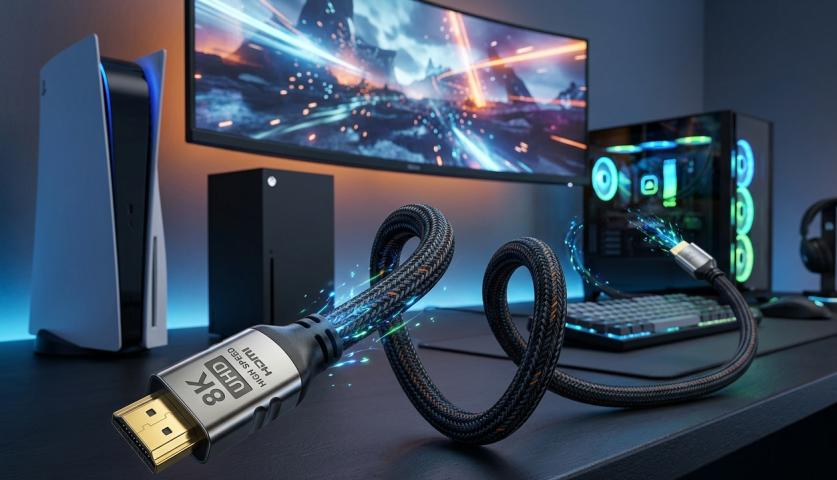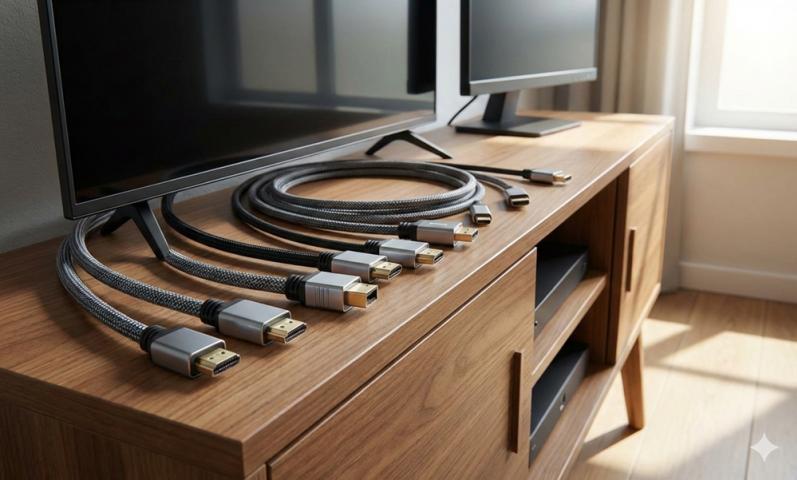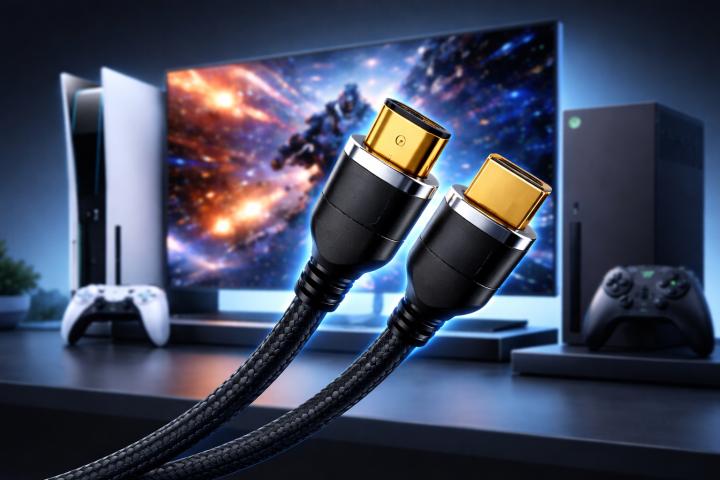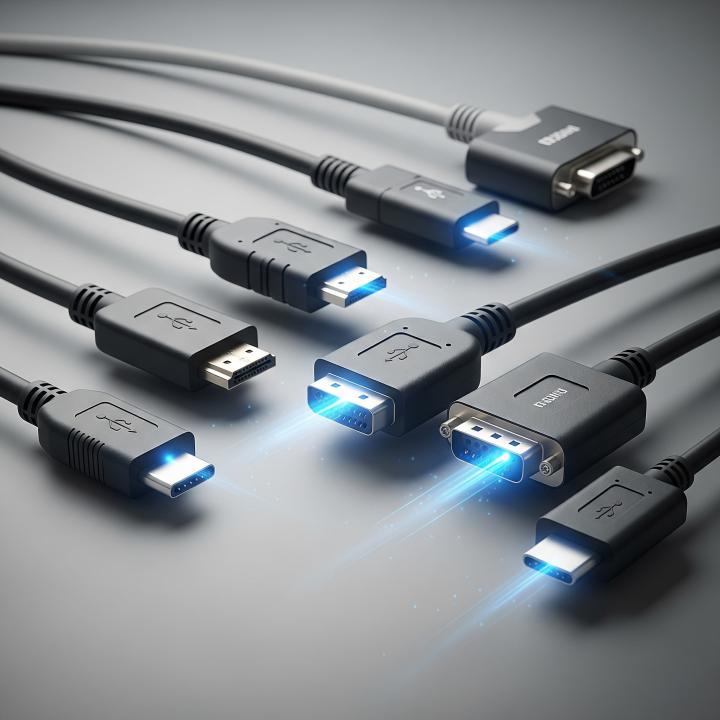

HDMI (High-Definition Multimedia Interface) is a common way to send video and sound from devices like laptops, game consoles, and streaming boxes to TVs and monitors. You’ve probably used an HDMI monitor cable before, plugging one end into your device’s HDMI plug and the other into your screen.
DisplayPort is another popular way to carry video and audio, but it is often found on newer computer monitors, professional monitors, and high-end graphics cards. Some laptops and desktops only have DisplayPort, while others have both HDMI and DisplayPort.
Why Would I Need to Convert HDMI to DisplayPort?
Sometimes, you buy a new PC monitor or want to set up a cool workstation, but your computer only has an HDMI plug and your monitor only has DisplayPort. Or, maybe you want to use a multi-monitor setup for school, work, or gaming. When the plugs don’t match, you need a way to connect them.
The Exact Answer: Can I Convert HDMI to DisplayPort?
Yes, you can convert HDMI to DisplayPort, but you need a special electronic adapter or converter to make it work. An HDMI monitor cable alone is not enough since HDMI and DisplayPort talk to each other in different “languages.” The converter changes the signal from HDMI to something your DisplayPort monitor understands.
How Does an HDMI-to-DisplayPort Converter Work?
These small adapters or boxes have an HDMI plug on one end and a DisplayPort connector on the other. You plug your HDMI monitor cable into the HDMI side, and then connect the DisplayPort side to your monitor. Inside, the adapter has tiny electronics that change the data so your video and sound arrive at the monitor without problems.
Many HDMI-to-DisplayPort converters also need extra power. They might come with a USB wire, which you plug into a USB port for extra energy. This helps the converter do its job without losing signal quality.
When Should You Use a Converter?
You need this converter when:
Your device only has HDMI plugs, but the monitor is only DisplayPort
You want to use a modern monitor with an older computer or laptop
You are creating a multi-screen setup with many kinds of devices
You need to connect a gaming console (with HDMI) to a DisplayPort-only screen
What to Look for in a Good HDMI-to-DisplayPort Adapter
Choosing a good converter matters! Look for these things:
Make sure it supports the resolution you need—like Full HD, 4K, or more
Double-check that it fits the refresh rate you want, especially for gaming
Find out if it needs extra power (many do; check for a USB cable)
Buy from a trusted brand with good reviews
A good adapter keeps your video smooth and your sound clear. If you use a weak or cheap converter, you might get flickering, no sound, or a blank screen.
Using Your HDMI Monitor Cable for the Connection
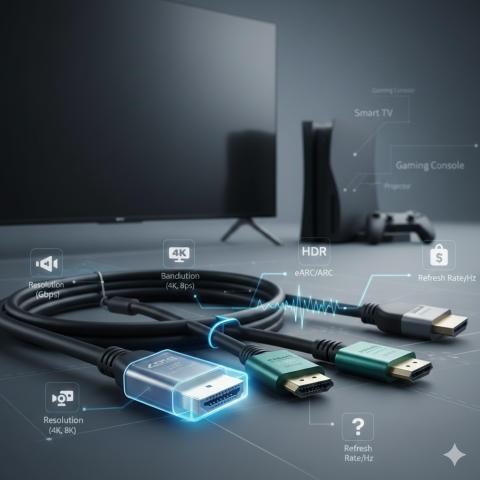
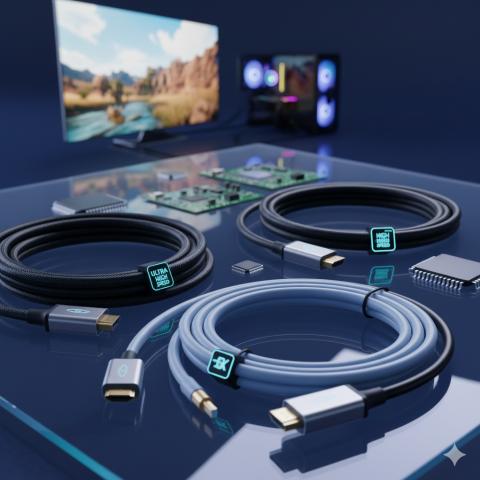
You will still need an HDMI monitor cable to connect your device (like your laptop or game box) to the adapter. Make sure your cable fits the HDMI plugs on your device and the adapter. For best results, use a cable that says “High Speed” if you want sharp, colorful pictures or fast-moving games.
Do All Converters Work the Same Way?
Not all adapters are equal! Some common types are:
Active adapters: These have electronics that change the signal and usually need extra power.
Passive adapters: These only work from DisplayPort to HDMI (not the other way!), and you cannot use a passive adapter for HDMI to DisplayPort.
You must use an active HDMI-to-DisplayPort converter—passive adapters will not work for this conversion. Always check the package or ask a helper at the store.
Can I Convert DisplayPort to HDMI Instead?
Yes! In fact, DisplayPort to HDMI is usually easier and sometimes only needs a simple passive cable because DisplayPort hardware is made to “talk” to HDMI displays. The tricky part is going from HDMI to DisplayPort, which is why you always need an active converter for this direction.
Will I Lose Quality When Converting?
A good adapter and a strong HDMI monitor cable should deliver sharp video and clear sound, up to the quality your device and monitor support. If you are gaming or watching 4K videos, buy an adapter that supports those features. Some very cheap converters may not work with high resolutions, or may introduce slight delay to sound or video.
Keep your HDMI monitor cable as short as possible—long cables can weaken the signal if they’re not “high speed” rated.
Step-by-Step: How to Connect HDMI to DisplayPort
Plug your high-speed HDMI monitor cable into your device’s HDMI plug
Connect the other end of the HDMI cable into the HDMI input on the converter
Plug the DisplayPort side of the adapter into your monitor’s DisplayPort input
If your adapter needs power, plug its USB cable into your device or a USB charger
Turn on your device and monitor, then select the right input channel on your monitor
Your screen should show your computer picture or gaming screen right away!
What About Sound?
Most good adapters also send sound through to your monitor if the monitor has speakers. If you have problems, check your device’s sound settings and make sure the HDMI audio output is turned on.
Troubleshooting Tips
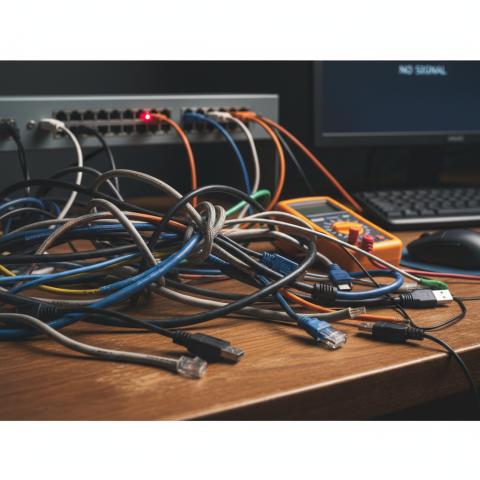
If the monitor says “no signal,” be sure the cables are plugged in tightly.
Check if your adapter needs external power from USB.
Make sure your computer’s display settings know to send video to the new monitor.
Switch HDMI monitor cables if the picture flickers or the sound crackles.
Best Uses for HDMI-to-DisplayPort Converters
Using a laptop with only HDMI plugs to connect to a professional monitor at school or work
Setting up two or three screens, even if each has different ports
Connecting a game console to a DisplayPort monitor for a wider or sharper view
Upgrading to a new monitor without replacing your whole computer
Future Proofing Your Setups
As screens and tech get better, always double-check the converter and HDMI monitor cable you buy. Make sure they can handle higher quality pictures or fast gaming features, so you stay ready for whatever new devices come next.
Final Thoughts
You can absolutely convert HDMI to DisplayPort! You just need a special active adapter and a good HDMI monitor cable to link up your devices. Remember to check for HDMI plugs that match, look for adapters that support your needs, and use the shortest, best cable you can find for the clearest results.
Now, you can connect almost any computer or game box to a DisplayPort-only monitor and keep your entertainment, games, and work flowing smoothly.
Sources: https://www.infoforeks.com/benefits-using-hdmi-cables-pc/
https://sharefolks.com/view/is-it-better-to-use-displayport-or-hdmi
https://newyorktimesnow.com/blog/what-hdmi-cable-should-i-buy