Summary
Microsoft 365 (formerly Office 365) stores your important emails, calendars, tasks, documents, notes and other business information in the cloud. Cloud access is convenient but users may still want a local backup for offline access, migration, archiving or protection against temporary server connectivity issues.
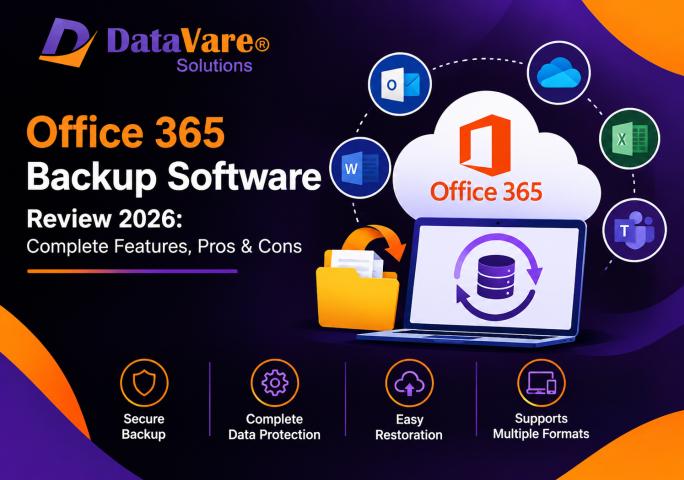
Office 365 Backup Software is helping you to export Office 365 account data in various popular formats like PST, MSG, EML, EMLX and MBOX. It also allows users to select specific folders and save the outcome of the backup to a local Windows location.
In this in-depth review, we look at the features, backup workflow, supported export formats, performance considerations, and the pros and cons.
What is DataVare Office 365 Backup Software ?
DataVare Office 365 Backup Software is a Windows based tool to backup and export data from the specified Office 365 account. To make the connection software needs the correct Office 365 account credentials and gives you the option to export the whole account or only selected folders.
The application supports a number of output formats:
PST – Helpful for Outlook users
MSG – Good for saving individual Outlook messages
EML – Compatible with many email applications
EMLX - Useful for Apple Mail related work
MBOX – Works with applications such as Thunderbird
The software can also save the data that is exported to a local folder of the user's choice.
Key Features Overview
Before starting with the hands-on test, here are the major features the application offers:
- Backup Office 365 Account Data
- Export specific folders
- Export Office 365 to PST, MSG file
- Export Office 365 to EML, EMLX and MBOX
- Backup data to local devices
- Restart the process interrupted
Connect to a specified Office 365 user account;
- Simple four-step backup flow
- Runs on Windows
- Application that does not require another application to perform the backup Standalone application
Hands-On Test: How to Backup Office 365 Data – Step-by-Step Guide
The software is sold as a simple 4 step answer. The Office 365 backup process is portrayed in the following workflow.
Step 1: Download and Run the Software
First, Download and install Office 365 Backup Software on your compatible Windows computer.
Open the application after installing. The software offers you an interface to link your Office 365 account and start the backup process.
System requirements: Windows 11, 10, 8.1, 8, 7 and other supported Windows versions; at least 512 MB memory and 100 MB free disk space for installation.
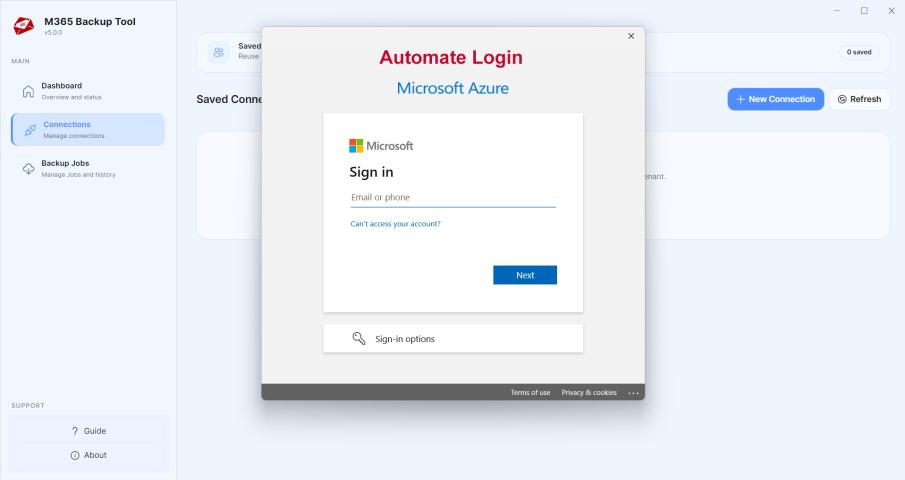
Step 2: Link your Office 365 account
Enter the credentials of the Office 365 account you want to backup.
To setup the account connection, the application needs the correct username and password. Once a successful connection is made, the software can access the account data that has been selected for export.
IMPORTANT: The software does not recover or extract an Office 365 account if the password is unknown. Require the correct account credentials.
Step 3: Choose Data or Folder
Select the Office 365 data you want to export, after you connect the account.
The users can take backup of the complete account or select the desired folders as per the need. This is handy when you don’t want to process unnecessary data and you only need certain mailbox content.
For example, users may wish to back up only certain email folders rather than a complete backup of the account.
Step 4: Select Output Format
One of the nice things about the software is all the export formats.
Users can choose depending on the target application:
Office 365 to PST
Best for exporting data that will be accessed using Outlook for Windows.
MSG to Office 365
Useful for saving individual messages in Outlook MSG format.
Office 365 to EML
Works with applications that support standard .EML email files.
Office 365 to EMLX
Apple Mail: Helps with email workflows.
Office 365 to MBOX
For email applications that are compatible with the MBOX format.
Step 5: Choose the Destination Folder
Select the local folder where you want to save the exported Office 365 data.
Users are allowed to select an existing folder or other suitable location on the Windows system. Saving data locally creates a copy that you can access outside the Office 365 cloud environment.
Step 6: Begin the Backup Process
Select the data to be backed up, the output format and location, then start the backup.
The application processes the selected office 365 data and exports it in the selected format.
For larger accounts, overall processing time can be affected by factors such as mailbox size, internet connection, Office 365 server response, selected folders, and the amount of data being processed.
Step 7. Resume a Stalled Backup
Another useful feature is ability to resume the backup in case of interruption of process due to server or connection problem.
DataVare states that users can continue the process once the connection is restored, and they do not have to start the entire operation from the beginning.
Performance Backup
Performance of backups is one of the important factors when evaluating a cloud backup application.
The performance of DataVare Office 365 Backup Software depends on the amount of Office 365 data selected, internet speed, account response time and the output format selected.
It’s a little easier for smaller mailboxes or specific folders since users don’t have to deal with data they don’t need. For larger accounts, users should allow sufficient time to complete the full export.
The resume option may also be useful in the event of connectivity or server interruptions during a longer backup operation.
Data Access After Backup
One of the key advantages of exporting Office 365 data to standard formats is enhanced accessibility.
Outlook-based workflows can work with PST and MSG files, while EML, EMLX and MBOX offer options for other supported email platforms. emphasizes accessibility with Outlook, Windows Live Mail, Thunderbird, Apple Mail, and other email clients.
Pros
- Pros Supports complete backup of Office 365 accounts
- Enables selective export of folders
- Supports PST, MSG, EML, EMLX and MBOX format
- Locally saved backup data
- Simple four step workflow
- Can resume a backup that was interrupted
- Support for multiple e-mail applications
- Does not need another application to do the backup
Cons
Who can use DataVare Office 365 Backup Tool?
This software may be useful for :
- For Office 365 users who want a local copy of their mailbox
- Companies archiving vital e-mail data
- Users moving Office 365 data to a different email app
- PST or MSG format for Office 365 data Outlook users
- MBOX data for Thunderbird users
- Apple Mail users working with .emlx files
- Users who want to backup only certain Office 365 folders, not the entire account
DataVare Office 365 Backup Tool Worth to Try?
DataVare Office 365 Backup Software provides a simple solution for exporting Office 365 data to local storage. The main strengths are the wide range of output formats it supports, selective folder backup, local storage options, and a straightforward workflow.
The utility is very useful for various email migration and management scenarios as it can export Office 365 to PST, MSG, EML, EMLX and MBOX. The resume feature is also useful when a backup job is interrupted because of connectivity or server issues.
Final Thought
Office 365 Backup Software makes Office 365 Backup and Email Export Easy & Simple without any complicated process. It supports multiple formats, selective folder export, local backup and resume and is flexible for users who need more control over their Office 365 data.
To achieve optimal outcomes, users should have a stable internet connection, utilize valid Office 365 credentials and select only the necessary folders or data if a full account backup isn't needed.