Summary
Microsoft 365 stores important business data including e-mail, calendars, tasks, notes, documents, and more in the cloud. While cloud access is convenient, users may still want to maintain an independent local copy for backup, migration, or offline access. Office 365 Backup Tool exports office 365 account data in the most common formats like PST, MSG, EML, EMLX, MBOX.
In this review, we review its major features, supported export formats, backup process, system requirements, and step-by-step procedure to backup Office 365 data.
What is DataVare Office 365 Backup Software ?
DataVare Office 365 Backup is a Windows based Utility that connects with a given Office 365 account and allows the user to extract and store the account data in the local system. According to the product information, users can export their emails and other data that is available, and they can choose specific folders if they don’t want to process the whole account.
The software is also prepared for accessing Office 365 data via various email clients by converting it into different formats like PST, MSG, EML, EMLX, and MBOX.
DataVare Office 365 Backup: Key Features
1. Connect to a Particular Office 365 Account
The software allows the users to associate the right account credentials with the required Office 365 account. Server connection successful for backup process.
2. Back up your Office 365 account data
Users can pull out available Office 365 data including emails, notes, tasks, documents and other information listed on the account. You can also choose specific folders for a more focused backup.
3. Export Office 365 to PST & MSG files
For Outlook users, the software offers PST and MSG export options. If you want to work with Office 365 data using Outlook for Windows, PST can be useful.
4. Export EML, EMLX & MBOX from Office 365
The added EML, EMLX and MBOX formats make the tool useful for accessing Office 365 data through various email clients like Apple Mail, Thunderbird and Windows Live Mail.
5. Backup selectively
Users can choose specific folders to process based on their needs rather than processing the entire mailbox all the time. This may help to eliminate unnecessary data processing.
6. Local Data Backup
The converted data can then be stored in a folder on the user's computer. This gives an independent copy of the exported Office 365 data.
Office 365 Backup – A Step-by-Step Manual
The product page says the operation is in 4 steps.
Step 1: Download and Install the Software
Download Office 365 Backup Software and install it on a Windows PC. The requirements list includes Windows 11, 10, 8.1, 8, 7 and other supported Windows editions, a minimum of 512 MB of RAM and 100 MB of free disk space for installation.
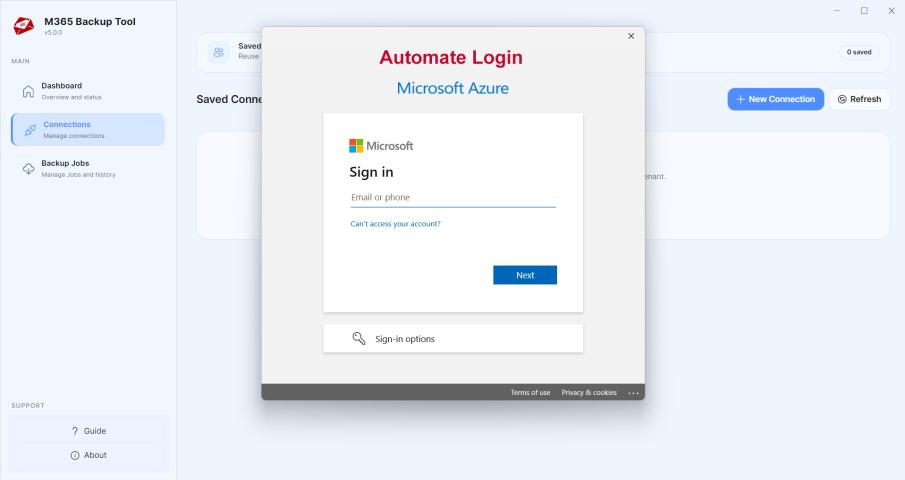
Step 2: Sign in to your Office 365 account
Run the application and enter the required credentials of the Office 365 account. The connection is only possible with the correct password for the account.
Step 3: Choose Data and Output Format
After linking the account, you can select which data or folders you want to back up. Choose the output format as PST, MSG, EML, EMLX, or MBOX depending on the way you will access the backup later.
Step 4. Choose Destination and Start Backup
Choose a local folder to save the backup and initiate the backup process. The software saves the resulting files in the location you have chosen. The product page also mentions that if the process is interrupted due to a server issue, it can be resumed after the connection has been restored.
Backup Performance and Ease of Use
Office 365 Backup’s major benefit is its simple workflow. The user can then connect an account, choose the data needed, pick an output format, and download the generated files to their computer. The many export formats also make it more flexible than a solution that is limited to a single backup format.
The product page shows a 4.8/5 average rating from 368 ratings, but that’s product-page feedback, not an independent performance benchmark.
Pros
- Simple four step backup workflow
- Supports selective folder backup.
- Office 365 Export Data to PST and MSG
- Supports EML, EMLX, MBOX formats
- Allows local backup data storage
- Supports Windows 11 and earlier listed Windows operating systems
- Can continue an interrupted process as per vendor
Cons
- The free demo has limited conversions and is for evaluation purposes.
Conclusion
Office 365 Backup Software is a good option for users who want to take a local copy of Office 365 data and use it in different email formats. Its selective backup feature, support for PST/MSG, conversion to EML/EMLX/MBOX and simple four-step workflow makes it suitable for personal backup, data portability and migration related needs.
offers a simple way to perform such a backup for users looking for a simple Office 365 backup solution with multiple export choices, without having to go through a complicated backup workflow.