A useful AI video needs to do something specific: show a product clearly, establish a location, or convey a moment in a story. The right model depends on which job the clip needs to do.
Topview T1 is an AI video generation model introduced by Topview. It supports text, image, and multiple-reference inputs, with 720p or 1080p output and clips up to 30 seconds. It can be used to create individual shots for social content, animation, and short narratives.
Start with a Shot You Can Judge
Consider a five-second vertical clip showing a camping lantern on a desk. Its purpose is to introduce the product before a caption explains the offer. The shot succeeds if the lantern remains recognizable, its handle and switch keep their shape, and the camera movement leaves room for the caption.
Use a clear product photograph for this assignment. Inventing the lantern from text would introduce an unnecessary question: does the generated object actually resemble the item being sold? If you only need a fictional campsite mood scene, text input is sufficient because an exact product match is not part of the assignment.
Use this sample brief to decide what an acceptable result would look like before paying for attempts.
How to Use the Generator for That First Clip
1. Choose the input and model option
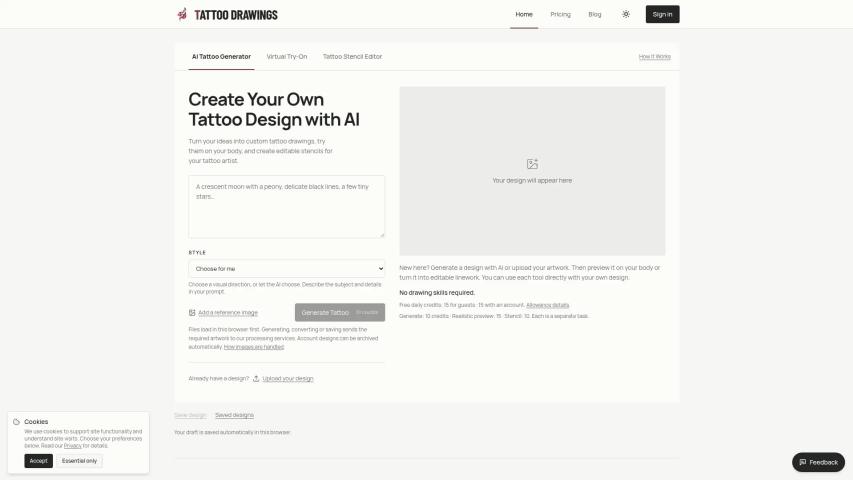
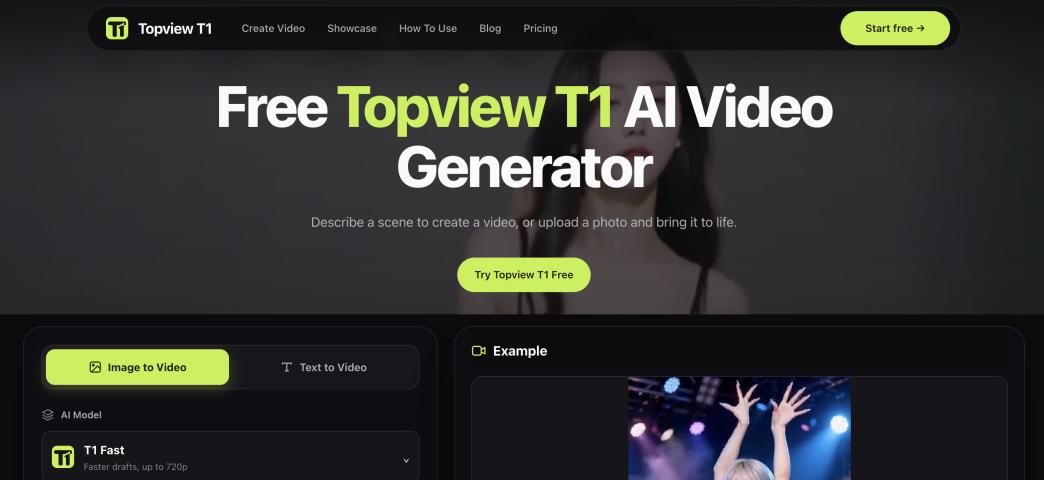
In the homepage generator, choose Image to Video and upload the lantern photograph. Text to Video is the alternative for a scene without an existing visual.
Open AI Model before proceeding. The available labels include T1 Pro, T1 Fast, T1 Mini, and T1. These are the service's options; do not infer the original model's specifications from the names. For the first composition check, choose a setting with a quoted cost you can afford to repeat.
Keep the first request to one image. A front-facing photograph that clearly shows the handle, body, and switch makes those details easy to compare later. Avoid a crop that already cuts off the top of the product.
2. Describe the movement separately from the object
Use the prompt to describe what should move and what should stay still. For example:
The camping lantern remains upright and still on the desk. Its light stays steady. The camera slowly moves closer from a medium view to a close-up. Keep the entire handle visible and preserve the lantern's shape and switch placement. No hands enter the frame. No captions.
This separates the stationary lantern from the moving camera. Adding spinning, flickering, smoke, and a hand lifting the product would create several different failure points in a five-second shot.
For a text-only version, add the missing visual description first: the lantern's color, the desk, the background, and the lighting. Use that version for a fictional concept rather than an exact representation of merchandise.
3. Set the delivery format and check the cost
Open the settings summary beneath the prompt. Choose 9:16 for this vertical clip and a short duration such as 5s where available. Resolution options depend on the selected tier; T1 Mini offers 480p and 720p settings. A low-resolution attempt can help assess framing, but it cannot demonstrate final detail quality.
Keep the output count at one while you are still deciding how the shot should move. Check the displayed charge and any account requirement before pressing Generate. The site's free offer does not mean every model or setting is unlimited.
The Topview T1 video generator puts the input, prompt, and output settings together. Keep the lantern brief consistent as you make those choices, so you can judge later variations against the same starting point.
4. Inspect the whole clip before accepting it
Once a result is available, watch it once at normal speed and then pause near the beginning, middle, and end. Check whether the handle changes shape, the switch moves, the light pulses unexpectedly, or the camera crops the product. Assess the sound too if the selected option produces audio.
If the camera gets too close, replace the final close-up with “a gentle forward movement, keeping the entire lantern in frame.” If the object rotates, make the camera stationary for the next attempt. Check each revision against the same product details; a clearer instruction still needs a careful review of the result.
Keep an accepted clip with its original image and prompt. Add exact prices, logos, and offer text during your editing stage, then check the finished vertical composition. If the product keeps changing across attempts, use real footage for that shot rather than accepting an inaccurate representation.
Topview T1 vs Seedance 2.5: What Actually Changes the Choice?
Both models support clips up to 30 seconds, so maximum clip length alone does not distinguish them. The more useful question is what control your project requires after the first generation.
| Requirement | Topview T1 | Seedance 2.5 |
|---|---|---|
| Starting from a brief or references | Text, image, and multi-reference modes, including image, video, and audio references | Multimodal input, including up to 30 images, 10 video clips, and 10 audio clips |
| Building a longer sequence | Up to 30 seconds per clip | Up to 30 seconds per clip, with two extensions supported |
| Revising a specific moment | Do not assume timestamp editing is available without a matching control | Timestamp-level audio/video editing is part of the model's capabilities |
| Complex production setup | Assess the controls exposed by the service | Includes green-screen editing and control using untextured 3D scene references |
Both models accept video references; that feature alone is not a reason to favor one. This comparison describes capabilities, not a ranking of visual quality. A service may expose only part of a model's functionality. For the lantern clip, one photograph and a restrained movement may be enough; extra reference slots add little to that brief. For a sequence requiring a specific action to change midway through, targeted editing could matter much more than the initial generation price.
Compare the Cost of Accepted Shots
Topview promotes T1 as a lower-cost alternative to Seedance 2.5, but a promotional percentage is not a quote for the independent website. Rates can also depend on the plan, resolution, duration, and input mode. Use the charge for the settings you will actually submit.
A practical comparison is:
Cost per accepted shot = total generation spend ÷ number of shots you can use.
For illustration, a $1 attempt that needs four tries costs $4 for one accepted shot. A $2 attempt that works in two tries also costs $4. Those are hypothetical figures, not prices or measured success rates for either model.
For a fair comparison, keep the source image, action, duration, framing, and acceptance criteria consistent. Count rejected attempts and note editing time separately. A cheaper generation can still be a useful choice, but only if its outputs meet the job's requirements often enough.
Which Should You Choose?
Choose T1 when your task is a self-contained shot, the available controls cover the brief, and the actual quote fits your iteration budget. Seedance 2.5 is a stronger candidate when the assignment specifically needs extensions or targeted editing, provided your service offers those controls. The choice depends on the workflow, rather than an assumption that one model always produces better footage.
For the first lantern clip, keep the decision small. Prepare one clear photo, define the camera movement, and set a spending limit for revisions. Use the Topview T1 image-to-video workflow to check the available settings for that brief, then judge the result against the product details and framing you decided to preserve.