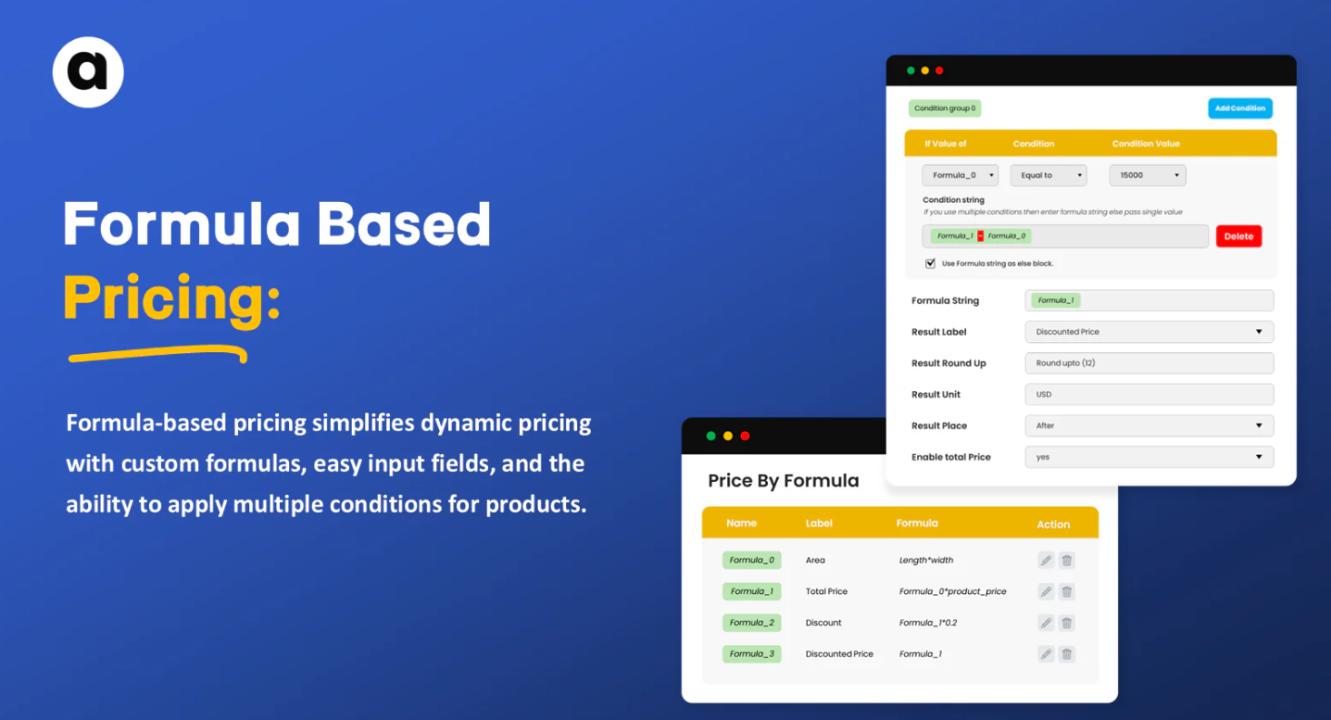

If you sell products that vary in size, weight, area, or volume such as fabric, wallpaper, tiles, blinds, flooring, or liquids a fixed price per unit won’t work. Instead, you need measurement-based pricing, where the final cost automatically adjusts according to a customer’s measurements or quantity. Shopify allows you to set this up using a cost calculator, ensuring accurate, transparent, and profitable pricing for every order.
Let’s break down how to add measurement-based pricing in Shopify, why it’s essential, and how a cost calculator can simplify the entire process.
What Is Measurement-Based Pricing?
Measurement-based pricing (also known as custom or variable pricing) means your product’s price is calculated according to the customer’s input dimensions — such as length × width, weight, or volume.
For example:
- A fabric store might charge by the meter.
- A wallpaper shop might calculate price by square foot.
- A paint supplier might base the price on volume (liters).
Instead of listing dozens of product variants for every size, measurement-based pricing dynamically calculates the total price using a formula.
Why You Need Measurement-Based Pricing
- Accuracy – You only charge customers for the exact amount they need, reducing overpricing or undercharging.
- Efficiency – It eliminates manual calculation errors and saves time on custom quotes.
- Scalability – You can sell flexible quantities without creating hundreds of product variants.
- Customer Experience – Shoppers can input their own measurements and see instant pricing updates, improving trust and satisfaction.
- Profitability – When paired with a cost calculator, you can ensure every custom order still covers your costs and maintains your margin.
How a Shopify Cost Calculator Helps
A Shopify cost calculator is a formula-based pricing tool. It takes your base cost (per unit of measurement), applies your markup or margin, and outputs a final selling price.
Let’s say you sell custom window blinds for $10 per square foot and want a 30% profit margin.
The formula is:
Selling Price = (Cost per unit × Total measurement) / (1 – Desired Margin)
If a customer enters 6 ft × 4 ft, the total area is 24 sq. ft.
So:
= (10 × 24) / (1 – 0.3)
= 240 / 0.7 = $342.85
Your Shopify store can automatically display this price to the customer once they enter their measurements.
Step-by-Step: Adding Measurement-Based Pricing in Shopify
1. Define Your Measurement Units
Decide how your products will be measured — by length (meters, feet), area (square feet/meters), volume (liters), or weight (kg, lbs). Ensure your product description clearly explains how customers should enter these values.
2. Calculate Base Cost per Unit
List all your costs:
- Material cost per unit
- Shipping or handling cost
- Packaging and labor
- Taxes and duties
Use a cost calculator to determine your cost per measurement unit. For example, if one square foot of wallpaper costs you $4 including shipping, that’s your base cost.
3. Choose a Shopify App for Measurement Pricing
Shopify doesn’t offer native measurement-based pricing out of the box, so you’ll need a third-party app. Popular choices include:
- Custom Price Calculator by Formula (Addify) – Ideal for setting custom formulas like area × cost + margin.
- Measurement Price Calculator (Extendons) – Lets customers input length, width, height, or weight and auto-calculates total cost.
- Dynamic Product Options – Good for multi-variable products that need flexible pricing.
These apps integrate directly with Shopify’s product pages and cart system.
4. Create Your Formula
Inside the app’s settings, define your formula. For example:
Price = (Length × Width × Cost per sq. ft) + (Handling Fee)
Or for bulk materials:
Price = (Weight × Cost per kg) × (1 + Markup %)
You can also add rounding rules — such as rounding to the nearest $1 or ending prices in “.99” for a cleaner customer experience.
5. Add Cost and Margin Rules
To stay profitable, use your cost calculator to automatically adjust prices if costs change. For instance, if your supplier increases raw material costs by 10%, the calculator updates your base cost and recalculates the final price accordingly.
This ensures every quote reflects true costs, even as expenses or exchange rates fluctuate.
6. Test Your Setup
Before launching, test several measurement combinations. For instance:
- 5×5 ft fabric
- 12×8 ft wallpaper roll
- 50 kg cement bag
Check whether prices calculate correctly and display clearly in the cart.
Best Practices for Measurement-Based Pricing
- Explain how to measure – Add tooltips or visuals showing customers how to input correct dimensions.
- Include a minimum order size – Avoid very small, unprofitable orders
- Display price per unit – Show “Price per sq. ft.” to keep pricing transparent.
- Round prices – Use neat figures (e.g., $299 instead of $298.67) to build trust.
- Regularly update cost data – Review costs quarterly to ensure accuracy.
Final Thoughts
Measurement-based pricing is a game-changer for Shopify merchants selling customizable or variable-sized products. By combining it with a cost calculator, you can automate complex calculations, maintain consistent profit margins, and provide an effortless shopping experience.
With the right setup, every customer sees a fair, accurate, and dynamic price — and you gain the confidence that every sale contributes to your bottom line.