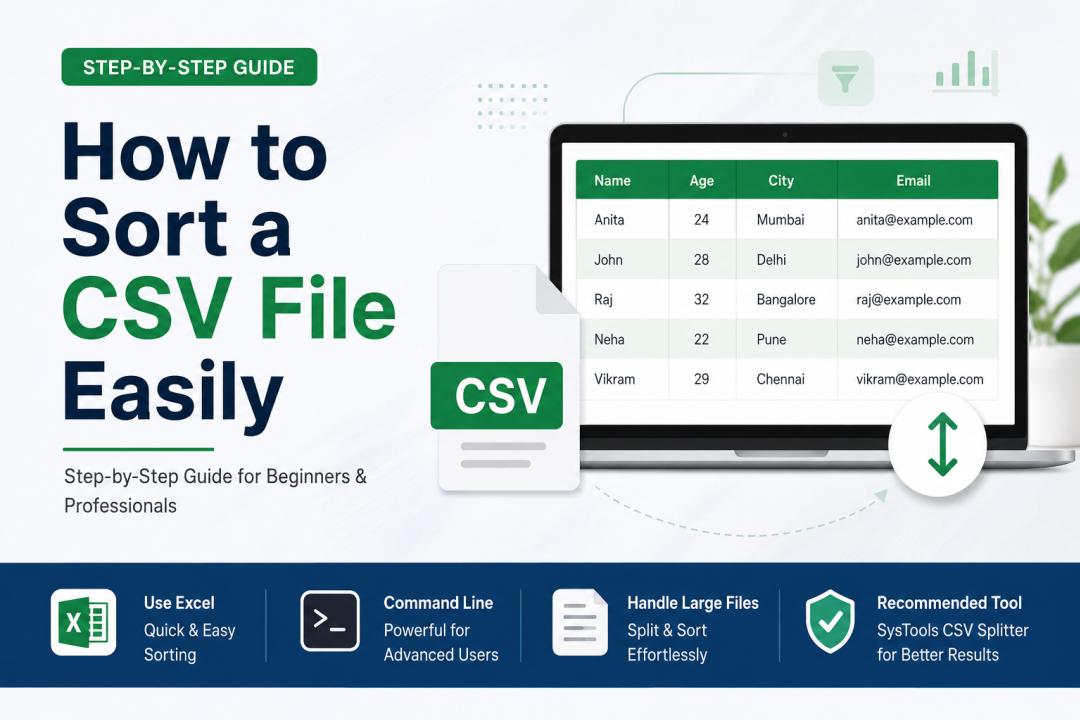
Sorting a CSV file is one of the most common tasks when working with structured data. Whether you're organizing customer records, cleaning datasets, or preparing reports, sorting helps you quickly find and analyze information.
In this guide, you’ll learn different ways to sort a CSV file—manually and automatically—along with a smarter approach using a professional tool.
What is a CSV File?
A CSV (Comma-Separated Values) file stores tabular data in plain text format. Each line represents a row, and values are separated by commas.
Example:
Name,Age,City
John,28,Delhi
Anita,24,Mumbai
Raj,32,Bangalore
Why Sorting a CSV File is Important
Sorting helps you:
Organize data alphabetically or numerically
Quickly locate specific records
Remove inconsistencies
Prepare datasets for analysis or reporting
Method 1: Sort a CSV File Using Excel
One of the easiest ways to sort CSV files is by using Microsoft Excel.
Steps:
Open Excel
Click File > Open and select your CSV file
Select the column you want to sort
Go to the Data tab
Click Sort A–Z (ascending) or Z–A (descending)
Pros:
Simple and user-friendly
No technical skills required
Cons:
Not suitable for very large files
May alter formatting or data types
Method 2: Sort CSV Using Notepad++ (Basic Way)
You can sort CSV content manually using plugins.
Steps:
Open CSV file in Notepad++
Install TextFX Plugin
Select data
Use Sort Lines option
Limitation:
Works only for simple sorting
Not efficient for structured multi-column sorting
Method 3: Sort CSV Using Command Line (Advanced Users)
For tech-savvy users, command-line tools can sort CSV files.
Example (Windows PowerShell):
Import-Csv file.csv | Sort-Object Name | Export-Csv sorted.csv -NoTypeInformation
Pros:
Fast and powerful
Handles large datasets
Cons:
Requires technical knowledge
Risk of errors in commands
Challenges While Sorting CSV Files
Users often face issues like:
Large file size limitations
Mixed or inconsistent columns
Data corruption risks
Manual errors during sorting
This is where a professional solution becomes useful.
Smarter Solution: Use SysTools CSV Splitter Tool
Instead of struggling with manual methods, you can use the SysTools CSV Splitter Tool to efficiently manage and organize CSV data.
Why Recommend This Tool?
While primarily designed to split large CSV files, this tool significantly improves how you handle and organize data before sorting.
Key Features:
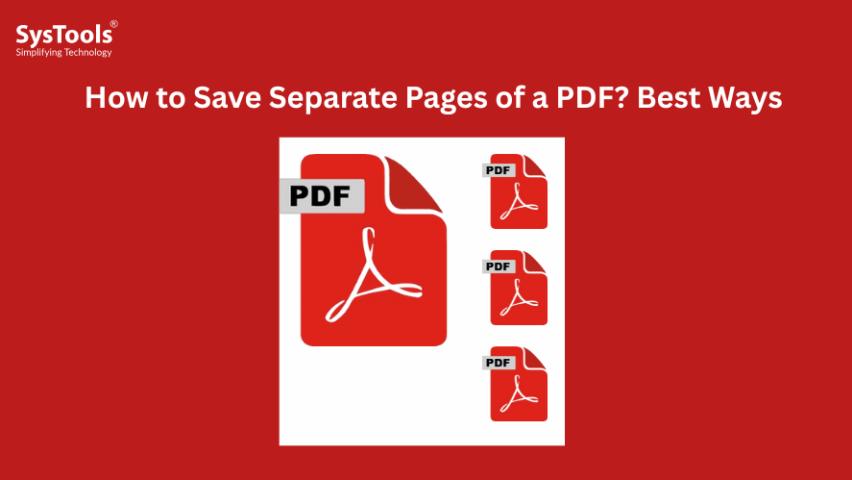
Split large CSV files into smaller parts for easy sorting
Maintain original data structure and formatting
Handle bulk CSV files without size limitations
User-friendly interface (no technical expertise needed)
Prevent data loss or corruption
How It Helps in Sorting CSV Files
Here’s the smart workflow:
Use the SysTools CSV Splitter Tool to divide large CSV files
Open smaller files in Excel or any editor
Apply sorting easily without performance issues
This approach saves time and ensures accuracy when working with massive datasets.
Conclusion
Sorting a CSV file can be done in multiple ways depending on your needs:
Use Excel for quick and simple sorting
Try command-line tools for advanced operations
Avoid manual errors by using a professional solution like SysTools CSV Splitter Tool
If you're dealing with large or complex CSV files, combining sorting with a reliable CSV management tool is the most efficient and secure approach.