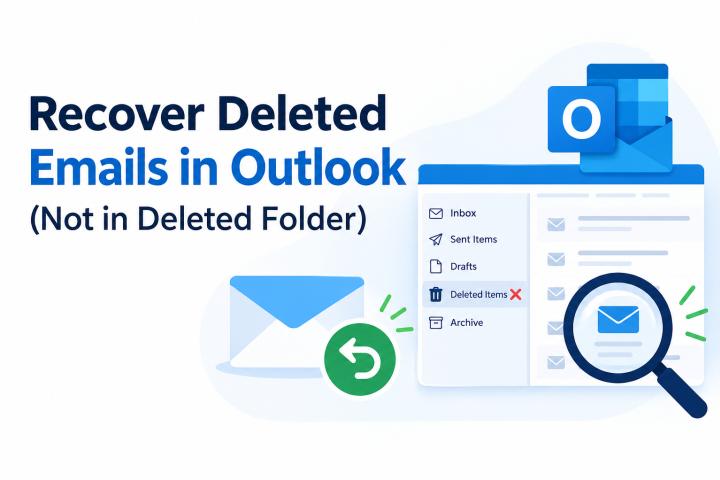
Accidentally deleted important emails from your Outlook mailbox? If you are wondering how to recover deleted emails from the Outlook server, there are several methods you can try before considering the messages permanently lost. Outlook and Microsoft Exchange provide built-in recovery features that may help restore deleted emails, even after you empty the Deleted Items folder.
However, the recovery process depends on your Outlook version, email account type, server retention settings, and how the messages were deleted. This guide explains five practical methods to recover deleted emails from the Outlook server, along with troubleshooting tips for messages that cannot be found.
Why Do Emails Get Deleted from the Outlook Server?
Before starting the recovery process, it helps to understand why emails may disappear from an Outlook mailbox.
Common reasons include:
- Accidental deletion: You may delete an important email while cleaning your inbox or selecting multiple messages.
- Permanently deleted emails: Using Shift + Delete or emptying the Deleted Items folder can move messages into the Recoverable Items area.
- Automatic deletion: Mailbox retention policies or cleanup settings may remove emails after a specified period.
- Synchronization issues: Changes made in Outlook may synchronize with the connected Exchange or IMAP server, causing messages to disappear from other devices.
- Mailbox rules: An inbox rule may automatically move or delete incoming messages.
- Server or administrator actions: An organization’s administrator may apply retention policies or perform mailbox maintenance.
Identifying the cause helps you choose the appropriate recovery method and avoid repeating the problem.
Method 1: Recover Deleted Emails Using Outlook's Recover Deleted Items Feature
The first method is to use Outlook's built-in server recovery feature. It is particularly useful when emails have been removed from the Deleted Items folder but are still available in the server's Recoverable Items area.
Steps to Recover Deleted Emails from the Outlook Server
- Open Microsoft Outlook on your Windows computer.
- Make sure Outlook is connected to your email server.
- Select the Deleted Items folder from the folder pane.
- Open the Home tab in classic Outlook.
- Click Recover Deleted Items From Server.
- Review the available messages and select the emails you want to restore.
- Click Restore Selected Items, then select OK.
After recovery, check your Deleted Items folder and move the restored emails to your Inbox or another suitable folder.
Important: The Recover Deleted Items From Server option is not available for every email account. It generally depends on the account type and server support. If you cannot find this option, try Outlook on the web or contact your email administrator.
Method 2: Restore Deleted Emails in Outlook on the Web
If you use Outlook through a browser, you can recover deleted messages directly from your mailbox without opening the desktop application.
Steps to Recover Emails in Outlook on the Web
- Open Outlook on the web and sign in to your email account.
- Navigate to the Deleted Items folder.
- Look for the missing email. If you find it, select the message.
- Click Move and choose Inbox or another destination folder.
- If the email is missing, select Recover items deleted from this folder.
- Select the messages you want to recover.
- Click Restore.
This method is useful for Microsoft 365 work or school accounts and supported Outlook.com accounts. The exact interface may vary depending on your account and Outlook version.
Method 3: Recover Emails from the Deleted Items Folder
Sometimes, an email has not been permanently deleted. It may simply be sitting in the Deleted Items folder.
Follow these steps:
- Launch Outlook.
- Select Deleted Items or Trash, depending on your account.
- Search for the missing email using its subject, sender, or keywords.
- Select the email you want to recover.
- Right-click the message and select Move.
- Choose Inbox or another folder where you want to keep the email.
- If you recover multiple messages, select them together before moving them.
This is the easiest option when emails were deleted normally and have not yet been removed from the Deleted Items folder.
Method 4: Ask Your Microsoft Exchange or Microsoft 365 Administrator for Help
If the built-in recovery options do not show the missing emails, your organization's administrator may be able to investigate further.
Exchange Server and Exchange Online maintain a Recoverable Items area that can retain deleted messages according to the mailbox's configured settings. Administrators with the appropriate permissions may be able to search for and restore items that users cannot recover themselves.
Ask your administrator to:
- Check the mailbox's deleted-item retention settings.
- Search the Recoverable Items area for the missing messages.
- Review any applicable retention policies or legal holds.
- Restore the messages if they remain available under the organization's recovery configuration.
This method is especially useful for business mailboxes where important emails were deleted permanently or removed by an automated process.
Note: Recovery is not guaranteed. If the retention period has expired and no applicable hold or backup exists, the messages may no longer be recoverable. Exchange administrators can follow Microsoft's official guide to recovering deleted mailbox messages.
Method 5: Recover Deleted Emails Using SysTools Outlook Recovery Tool
If you cannot recover deleted emails from the Outlook server using the built-in recovery options, you can try SysTools Outlook PST Repair Tool to recover emails from an available Outlook PST data file. This method is useful when you have an existing PST file containing deleted, missing, or inaccessible mailbox data.
Unlike server-side recovery methods, this approach focuses on recovering data from Outlook files. It does not directly restore emails that have been permanently deleted from the server without an available local copy or recoverable data source.
Steps to Recover Deleted Outlook Emails Using SysTools Outlook Recovery Tool
- Download and install the SysTools Outlook Recovery Tool on your Windows computer.
- Launch the software and select the Outlook PST file containing the mailbox data you want to recover.
- Browse to the location of the PST file and add it to the software.
- Start the scanning process to examine the selected file for recoverable mailbox items.
- Preview the scanned emails and identify the messages you want to recover.
- Select the required emails and choose an available export or saving option supported by the software.
- Save the recovered data to your preferred destination and verify that the emails are accessible.
Benefits of Using SysTools Outlook Recovery Tool
- PST file recovery: Helps recover accessible mailbox data from supported Outlook PST files.
- Email preview: Allows you to inspect available email items before saving them.
- Selective recovery: Helps you identify the specific messages you need.
- Convenient interface: Provides a guided process for loading, scanning, previewing, and saving Outlook data.
What If You Cannot Recover Deleted Emails from the Outlook Server?
If none of the methods above works, follow these troubleshooting steps before concluding that the messages are lost.
1. Check the Junk Email folder. Some messages may have been classified as junk instead of deleted.
2. Search the entire mailbox. Use Outlook's search bar to look for the sender, subject, or a distinctive phrase from the message.
3. Check the correct account. If multiple accounts are configured in Outlook, confirm that you are searching the mailbox from which the email was deleted.
4. Review retention settings. Contact your Microsoft 365 or Exchange administrator to confirm whether the messages are still within the applicable recovery period.
5. Check older backups. If you previously exported or archived your mailbox, search those files for the missing messages.
6. Avoid unnecessary changes. Do not empty additional folders or permanently delete more items while investigating the loss.
Conclusion
Recovering deleted emails from an Outlook server is possible in many situations, particularly when the messages are still present in Deleted Items or Recoverable Items. Start with Outlook's built-in recovery options, check Outlook on the web, and contact your Exchange administrator if the messages are no longer visible.
If server-side recovery is unsuccessful, search your existing PST backups or archives. The most important step is to act promptly because recovery options depend on retention settings and the availability of the original message data.