
Short-form video has become the default language of product demos, beauty campaigns, and social storytelling. The tooling, however, is still fragmented: one tab for text-to-video, another for image-to-video, a third for stills, and a spreadsheet for which model was used last week. aiMakeVideo is built around a simpler premise—one studio for AI video and AI images, with multi-model choice and credit estimates shown before you generate.
This article walks through what the product actually does, who it is for, and how a first session typically looks—without hype that cannot be verified on the live site.
What problem it solves
Creators rarely need “another model.” They need a reliable path from idea to publishable clip:
- Write a clear brief (or start from a still).
- Pick a model that fits speed vs. fidelity.
- Control duration, aspect ratio, and motion intent.
- Iterate without losing the workspace.
aiMakeVideo positions itself as that path. On the homepage it markets a free first run with no account required, then plans and credit packs for ongoing work. Video and image modes share the same Create workspace, so a still generated in-studio can move into Image to Video without exporting through a third tool.

Core workflows
Text to Video
Start from a written brief: subject, action, camera move, lighting, and mood in one paragraph. Shorter clips and lower resolutions generally cost fewer credits; longer or higher-resolution runs cost more. This is the fastest way to explore a story beat or ad concept before locking a look.
Image to Video
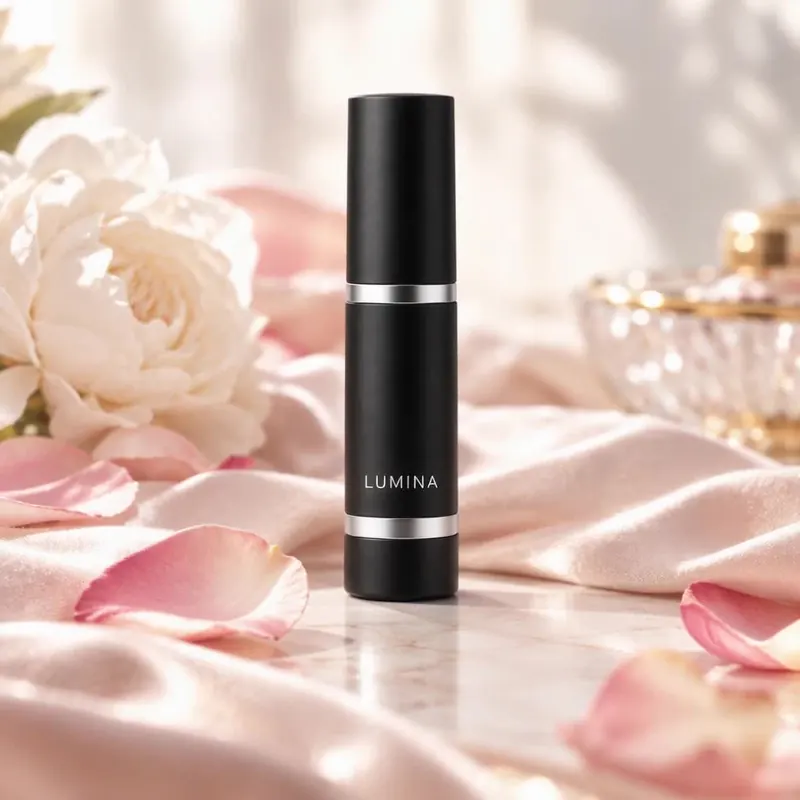
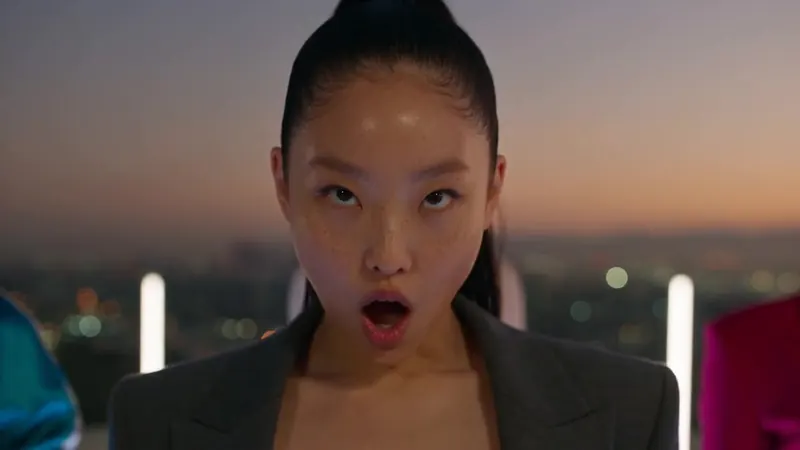
Upload or reuse a still, then describe how it should move. The reference frame keeps identity and composition more stable than pure text-to-video for product shots, portraits, and fashion frames. Showcase cards on the site demonstrate this path clearly—beauty commercials, cinematic portraits, and stylized action stills that become short motion clips.
 Text to Image and Image to Image
The same studio covers still generation and reference-based edits. That matters for teams who storyboard in images first, then animate only the frames that survive review. Image models in the catalogue include options such as Nano Banana, GPT Image, Seedream, and Z Image (availability depends on plan and region settings).
Multi-model stack, one interface
Rather than locking users into a single vendor, aiMakeVideo exposes a multi-model stack inside one UI. Public marketing lists video options such as Kling, Seedance, Veo, MiniMax H3, and Wan, alongside the image models above. The practical benefit is operational: you can match a shot to speed, cost, or cinematic motion without rebuilding the prompt in five different dashboards.
Credit estimates appear before a job runs, which reduces the “surprise bill” problem common in opaque token UIs. Plan pages also distinguish personal vs. commercial usage: higher tiers document commercial-use rights; Basic is described for personal, non-commercial work. Always confirm the current Pricing and Terms pages before client delivery.
A disciplined prompt method (that actually transfers)
Regardless of model, strong results on aiMakeVideo follow the same structure the product FAQ recommends:
- Subject — who or what is on screen
- Action — what changes over the clip
- Camera — push-in, orbit, handheld, locked tripod
- Lighting / mood — soft window light, neon night, studio softbox
- Constraints — keep face identity, no text overlays, dress silhouette clear
For Image to Video, describe motion relative to the still (“raise the sword with the right hand,” “spin once in place”) instead of rewriting the entire scene. The site’s Recreate control on showcase cards drops a ready-made brief into Create so you can edit wording, swap models, and regenerate a variation quickly.
Who it is for
- Solo creators testing hooks for TikTok / Reels / Shorts
- Beauty and fashion marketers turning stills into 5–8s product motion
- Founders who need demos without a full motion-graphics pipeline
- Teams that want image and video in one credit system and history
It is less ideal if you only need offline batch rendering with custom LoRAs on your own GPUs—aiMakeVideo is a hosted studio, not a local ComfyUI fork.
Getting started in practice
- Open https://aimakevideo.com.
- Enter Create, or go straight to Text to Video / Image to Video.
- Optionally tap Recreate on a showcase card to load a proven brief.
- Set aspect ratio (for example 16:9, 9:16, 1:1) and duration supported by the chosen model.
- Review the credit estimate, generate, then iterate.
Drafts stay in the browser until generation; signed-in history keeps completed jobs on the account. That split is worth knowing on shared machines.
Closing view
The AI video market will keep adding models. The durable advantage is workflow clarity: one brief, transparent credits, and a studio that does not force you to choose “video app” or “image app” on day one. aiMakeVideo is a concrete implementation of that idea—worth a free first clip if you are evaluating unified creative stacks for 2026.