Most people watch social video with the sound off. On a phone in a café, on a train, or late at night next to someone sleeping, the captions are the video. If your clips don't have them, a big share of viewers scroll past before they know what you're saying.
The good news: adding captions no longer takes an afternoon of typing timestamps. Here is a simple workflow that works for TikTok, Reels, Shorts, YouTube and course videos, plus the mistakes that make captions hard to read.
Why captions are worth the extra minute
- Sound-off viewing. Captions keep people watching when they can't turn the volume up.
- Accessibility. The World Health Organization estimates that hundreds of millions of people live with disabling hearing loss. Captions let them follow every word.
- Language learners and viewers abroad. Subtitles, or a translated second line, make your video easy to follow for people who don't speak your language natively.
- Search. A subtitle file (SRT or VTT) gives YouTube the full text of your video, which helps it understand what the video is about.
How to add captions to a video in 3 steps
I'll use Captions Generator, a browser-based AI caption tool, because it needs no install and the free plan exports without a watermark. The same steps apply to most modern caption tools.
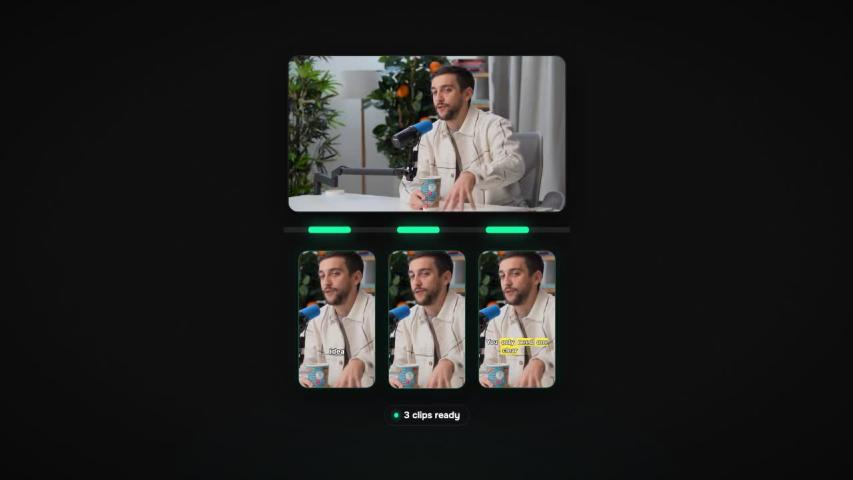
- Upload your video. Drop an MP4, MOV or MKV file (audio files and existing SRT files work too). The AI transcribes the speech, detects the language and times every word to the audio.
- Fix and > Read through the transcript and correct names or jargon. Then pick a caption >
- Export. Download a captioned MP4 with the subtitles burned in, or an SRT, VTT or TXT file to upload to YouTube, Premiere or CapCut.
If you only need the subtitle file, there are dedicated tools to convert a video to SRT and to turn audio into SRT for podcasts and voice-overs.
Burned-in captions or a subtitle file?
- Burned-in (open) captions are part of the picture. Use them for TikTok, Instagram Reels and YouTube Shorts, where you control the look and they show up everywhere, even when a platform's own captions are off.
- Subtitle files (closed captions) can be switched on and off by the viewer. Use them for YouTube long-form, online courses and anything you may want to translate later.
Many creators do both: a >
5 tips for captions people actually read
- Keep lines short. One or two short lines at a time. Long paragraphs on screen get skipped.
- Mind the safe zone. On vertical video, the app's buttons and the description cover the bottom and right edge. Captions placed there get hidden. A free Instagram Reels safe zone checker shows exactly where your text is covered.
- Use contrast. White text with an outline or a dark box stays readable on any background.
- Highlight, don't shout. Word-by-word highlights help on short clips; on a 20-minute tutorial they get tiring. Match the >
- Always proofread names. AI transcription is very accurate today, but brand names and people's names are where it slips.
Reach viewers in other languages
Once your captions are right, translating them is the cheapest way to open your video to a new audience. Captions Generator translates subtitles into 100+ languages, and Pro can show two languages at once, which is popular with language-learning channels.
Try it on your next video
Captions Generator has a free subtitle generator plan: no watermark, 1080p MP4 export, SRT/VTT/TXT downloads and free translation. Pro unlocks karaoke and word-highlight animations, bilingual captions and 4K export. Drop in your next clip and see how it looks with captions on.