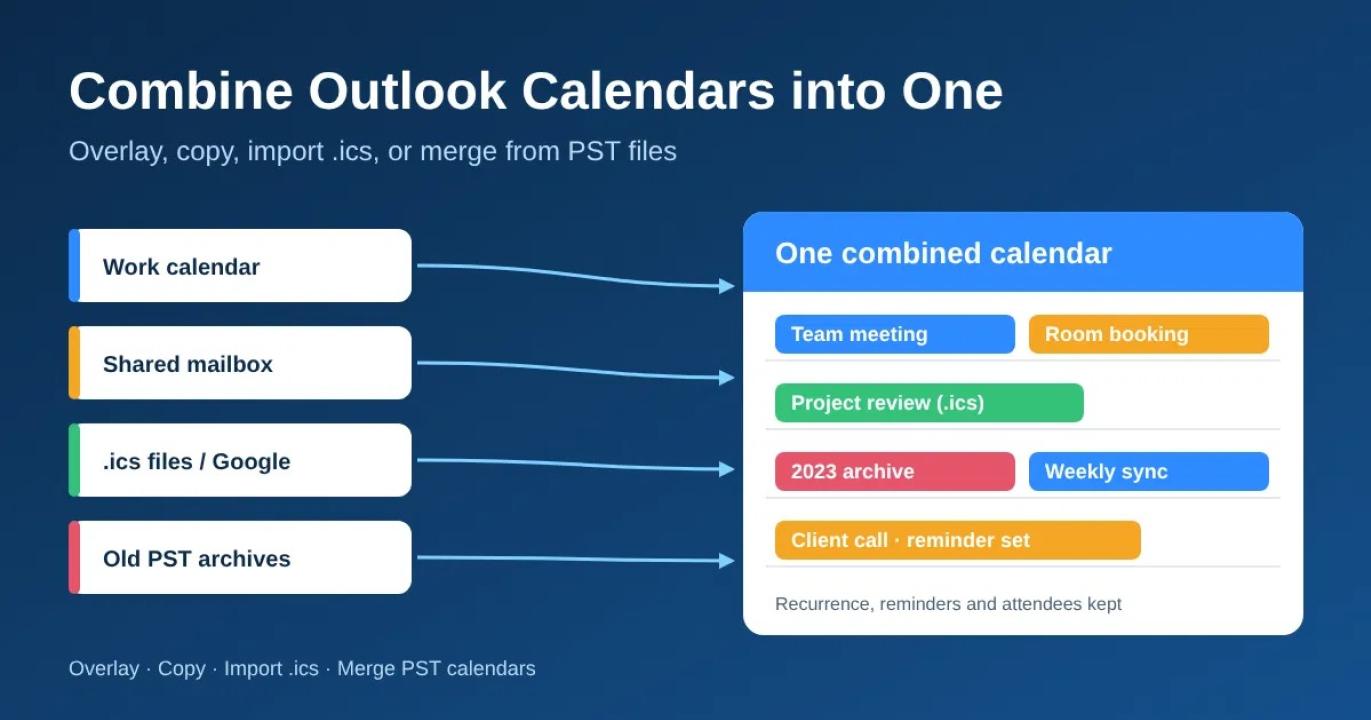
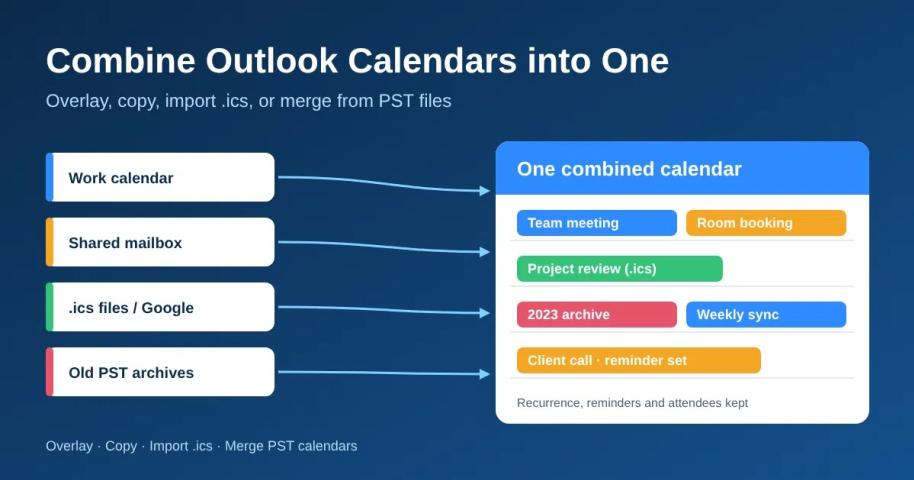
To combine Outlook calendars into one, you have two real options: overlay them so they display together, or copy their events into a single calendar so they are stored together. Overlay takes seconds and changes nothing. Merging takes an import or copy and gives you one calendar you can share, export or search.
Outlook has no built-in button that permanently merges two calendars, so the method you choose depends on where each calendar lives: a shared mailbox, an .ics file, Google Calendar, or a PST file on disk. This guide covers every case, the errors that come up, and a PST-based workflow with BitRecover PST Converter for calendars that are archived, orphaned or stuck in a damaged Outlook profile.
Which method should you use to combine Outlook calendars?
Your situation | Best method | Result | |
|---|---|---|---|
You just need to see two calendars together | Overlay or split view | Display only, nothing merged | |
Calendars are in the same Outlook profile | Copy or move events into one calendar | One real calendar | |
You have .ics files or a Google Calendar | Import or subscribe | Events added to one calendar | |
Calendars sit in several PST files, or the profile is damaged | PST Converter, then import | One clean calendar with filters | |
A team or tenant needs one shared view | Group calendar, delegate access, Power Automate | Shared, ongoing |
Overlay vs merge: which one do you need?
Use overlay if you only need to check availability across calendars. Merge if you need one calendar that you can share, export, back up or hand over. Microsoft describes overlay as a stacked view that helps you check availability, and it does not save the calendars together.
Overlay or split view | Merge into one calendar | |
|---|---|---|
What it does | Shows several calendars in one grid, each in its own colour | Copies events so they exist in a single calendar |
Changes your data | No | Yes, creates new items in the destination |
Stays up to date | Yes, it reads the live calendars | Only if you automate it or subscribe to a feed |
Duplicate risk | None | Yes, if you import the same source twice |
Works for sharing or export | No, each calendar is still separate | Yes |
Best for | Planning, scheduling around others | Consolidation, handover, archiving, a master calendar |
What Outlook cannot do natively. The Microsoft Q&A community confirms there is no built-in feature that automatically copies new entries from several calendars into a master calendar; the options are manual copying, a Microsoft 365 group calendar, or Power Automate. The classic Outlook To-Do Bar also shows only the default calendar, so an overlay in the main Calendar view will not appear there.
Create a central calendar or combine personal calendars? If several people must add events, create a central shared or group calendar and have everyone write to it. If you are one person with several calendars (work, a former employer, a shared mailbox), combine them once into your own calendar and keep the original sources as a backup.
How to combine calendars in each Outlook app
The steps differ by app, and Microsoft 365 uses the same apps, so the same steps apply to a Microsoft 365 subscription. If the steps below do not match your screen, check whether you are on new Outlook or classic Outlook first, because the two interfaces differ.
Combine Outlook calendars in new Outlook for Windows
- Select Calendar on the navigation bar.
- In the calendar list, tick the calendars you want to see with your default calendar.
- In the Arrange group, select Split view for side-by-side columns, or clear Split view to get the overlay, where events from other calendars appear on the default calendar in their assigned colours.
This is a display view only. To store the events in one calendar, copy them using the steps in the next section or import them as described below.
Combine Outlook calendars in classic Outlook for Windows
To overlay, tick the calendars under My Calendars, then select Overlay on a calendar tab. To merge:
- Open the calendar you want to copy from and switch to List view (View > Change View > List), so every event appears as a row.
- Press Ctrl+A to select all items. Optionally filter first so you copy only the dates you need.
- Press Ctrl+Shift+Y (Copy to Folder) and choose the destination calendar, or hold Ctrl and drag the selection onto the destination calendar in the navigation pane.
- Open a few copied meetings and confirm the time, recurrence pattern and attendees look right.
To copy from a calendar someone shared with you, you need at least the Can view all details permission. With less, the copied items show only "Busy".
Combine calendars in Outlook on the web (OWA)
Outlook on the web can overlay calendars by ticking them in the left pane, and it can add events from a file through Add calendar > Upload from file. We found no bulk copy command for moving all events between calendars in the web app, so for a true merge, import an .ics file (next section) or use the desktop app. Also note that Outlook on the web no longer offers an export-to-PST option, so if your calendar exists only in the web mailbox and you need a PST, you must export from an installed desktop Outlook or use a different route.
Merge calendars in Outlook for Mac
On Mac, tick more than one calendar in the sidebar to show them together. To merge, import an .ics file through File > Import or copy events from one calendar to another. Microsoft documents the Mac overlay steps in a separate article, so follow it if your version of Outlook for Mac shows a different layout. If your old calendar is trapped in a PST file, BitRecover also offers a Mac edition of its PST Converter (see the PST section below).
Combine calendars in the Outlook mobile app (iOS and Android)
The Outlook mobile app lets you choose which calendars are shown together in the Calendar tab, but it does not offer a merge or bulk copy function. Do the merge on desktop or on the web; the combined calendar then syncs to your phone.
How to import .ics files and Google Calendar into one Outlook calendar
An .ics file is a portable snapshot of a calendar, so importing several .ics files into one destination calendar is the simplest way to build a single calendar from many sources.
Import multiple .ics files into one Outlook calendar
- Export or download each source calendar as an .ics file.
- In Outlook on the web, choose Add calendar > Upload from file, select the file, and pick the destination calendar. In classic Outlook, use File > Open & Export > Import/Export > Import an iCalendar (.ics) or vCalendar file, then choose Import (not Open as New) so the events land in your current calendar.
- Repeat for each file, choosing the same destination calendar every time. One reader reports that in Outlook 2016 the files had to be imported one at a time, with Outlook closed between imports, or the same calendar was imported repeatedly.
- Check the destination for duplicates before you delete the source files.
An import is a one-time snapshot. Changes made later in the source calendar will not appear unless you import a newer file.
Sync Google Calendar with Outlook to combine events
If you want Google events to stay current, subscribe instead of importing. In Google Calendar, open Settings and sharing for the calendar and copy the secret iCal address under Integrate calendar. In new Outlook, choose Add calendar > Subscribe from web, paste the address and confirm. The subscription is read-only, so edits must be made in Google, and Microsoft does not state a refresh interval, so new Google events may take time to appear.
Copy events from one Outlook calendar to another
Use the classic Outlook steps above (List view, select all, Copy to Folder). For a single event in any version, open it and change the calendar it belongs to, or copy it into the destination calendar. Avoid forwarding events to a master calendar: forwarding can send email invitations to attendees, and it is a manual process.
Publish or share the combined calendar
Once the events live in one calendar, share it from Outlook and choose a permission level: busy only, titles and locations, all details, or edit. Publishing instead generates an .ics link, which is useful for people outside your organization but is read-only and should be treated as visible to anyone who holds the link.
How to combine calendars from multiple PST files with BitRecover PST Converter
If your calendars are stored in PST files rather than live mailboxes, the manual methods above stop working, because Outlook cannot copy events out of a profile that will not open. This is common when an employee has left and only their archive remains, when an old laptop's profile is damaged, or when several years of archives sit in separate PST files. BitRecover PST Converter reads the PST files directly, lets you pull out only the Calendar folders, and writes them to ICS so you can load every calendar into one destination in Outlook.
What to look for in a PST calendar tool
When the goal is a single combined calendar, these are the capabilities that decide whether the result is trustworthy:
What you need | Why it matters | How BitRecover PST Converter handles it |
|---|---|---|
Several PST files in one run | Merging means loading many sources, not converting one at a time | Add files individually or scan folders recursively, including subfolders |
Calendar folders only | Avoids pulling in mail, contacts and tasks you do not want in the merged calendar | Preview each PST's folder tree and tick only the Calendar folders; empty and system folders can be skipped |
Corrupt or unopenable PST files | An archive that fails in Outlook is often the one you most need | Recovery Mode converts corrupt, damaged or inaccessible PST files |
Configured or damaged Outlook profiles | Lets you work even when the profile will not open cleanly | Loads data from a configured Outlook profile on the same machine with auto-detection of accounts, or reads the underlying PST files directly |
Date range filtering | Keeps old, irrelevant events out of the merged calendar and keeps the file small | Filter by date range before converting |
Duplicate control | The same meeting often exists in two archives | Incremental conversion skips items that were already converted, so re-running the tool does not produce the same events twice |
ICS output | ICS is the format Outlook imports into any calendar | ICS export is supported on Windows and Mac |
A record of what was converted | Lets you prove nothing was lost | A SavingLog.txt session report and an exception log for items that fail |
No dependency on Outlook | Works on a machine without Outlook installed | Outlook is not required; ANSI and Unicode PST files from Outlook 97 to Outlook 2024 are supported |
Steps to combine calendars from several PST files into one Outlook calendar
- Install the tool. Download BitRecover PST Converter for Windows or Mac and open it.
- Add every source. Choose Select Files for individual PSTs or Select Folders to scan a directory. If the data is still in a working profile, load the configured Outlook profile instead.
- Pick only the calendars. In the preview pane, tick the Calendar folder in each PST and clear everything else.
- Choose ICS as the saving format.
- Set filters. Apply a date range, for example only events from the past two years onward. Turn on incremental conversion if you will run the tool again on the same PSTs.
- Choose a destination folder and click Convert. Open SavingLog.txt afterwards and compare the number of items converted per PST with what you expected.
- Import into one calendar. In Outlook, import each ICS file into the same destination calendar. In classic Outlook, choose Import (not Open as New) when the prompt appears, and import each file only once.
- Spot-check. Open five or six events from each source and confirm the start time, recurrence, reminder and attendees. Pay special attention to meetings that were created in a different time zone, because an event that lands an hour or more off is the clearest sign of a time zone mismatch.
Read More: Convert OLM to PST
What the free version and paid editions do
The free demo converts the first 25 emails and lets you test every output format before you buy. BitRecover lists the Pro edition at $29 for all items, and a 30-day money-back policy applies. The tool runs on Windows 7 through Windows 11 and Windows Server 2012 through 2025, and a separate edition runs on macOS. Prices and editions can change, so confirm them on the product page before purchase.
Why combine calendars from PST files instead of re-creating them by hand
Copying events manually works for a few dozen items. It fails once you have recurring series, meetings with attendee lists, and several years of history, because every manual copy is another chance to lose a recurrence rule or a reminder. Converting from the source file once, filtering by date, and importing into a single destination is repeatable, leaves a log, and does not touch the original PST files, which stay intact as your fallback.
How to combine calendars for a team or Microsoft 365 tenant
For a team, the question changes from "how do I copy these events" to "who owns the combined calendar, and who may read or edit it." Decide that first, then pick the method.
Which permissions allow calendar merging in Exchange?
To copy events out of someone else's calendar you need read access to the full details. In Exchange Online, the Reviewer role gives that, and Editor is needed only for the calendar you write into. Grant the lowest role that works, because merged copies expose every detail the reader could see.
Goal | Permission needed on the source calendar | Permission needed on the destination |
|---|---|---|
Overlay only | Can view when busy or higher | None |
Copy events with full details | Can view all details (Reviewer) | Owner of the destination |
Let others add events to the shared calendar | n/a | Can edit (Editor) |
An administrator can set this with Exchange Online PowerShell, for example Add-MailboxFolderPermission -Identity "user@contoso.com:\Calendar" -User "admin@contoso.com" -AccessRights Reviewer, and check it with Get-MailboxFolderPermission. If the calendar folder has a localized name, find the real name first with Get-MailboxFolderStatistics -FolderScope Calendar. PowerShell manages access; it does not include a cmdlet that merges the events of two calendars.
How to get permission to add someone else's Outlook calendar
Ask the owner to open Share on their calendar and add you with the level you need, or ask your Microsoft 365 administrator to grant it. Once you accept the invitation, the calendar appears in your list and can be ticked for overlay.
How to merge team calendars in Microsoft Teams and Outlook
Teams displays your Outlook calendar, so combine in Outlook and Teams reflects the result. For a team that needs one calendar everyone writes to, a Microsoft 365 group calendar or a shared calendar is a better answer than merging personal calendars, because new events go straight into one place instead of needing to be copied there later.
Can Power Automate combine Outlook calendars automatically?
Yes, with caveats. A Power Automate flow can copy an event into a master calendar each time one is added to another calendar, using the Office 365 Outlook connector's event trigger and its create-event action. It needs technical setup and is not a one-click feature. Plan for three problems: changed and deleted events do not update the copy unless you build for it, copies of meetings can send duplicate notifications, and a flow that watches the destination as well as the source can loop. Test it on a spare calendar first.
When are paid tools, services or a consultant worth it?
Situation | What fits |
|---|---|
One person, a few calendars, live mailboxes | Built-in copy or .ics import; no tool needed |
Calendars locked in PST files, orphaned or damaged profiles, many files to process | A PST tool such as BitRecover PST Converter |
Continuous two-way sync across accounts | A calendar sync service or Power Automate, tested on sample data |
Hundreds of mailboxes, a tenant move, or compliance retention rules | A migration consultant or your Microsoft partner, with a PST tool for the archive part |
Before paying for anything, ask whether you need a one-time consolidation or a permanent sync. Most "merge" requests are one-time, and a one-time job rarely justifies a subscription.
Why is my Outlook calendar merge not working? Fixes for the most common problems
Most failed merges come from one of six causes: the wrong view, missing permissions, an import done twice, filters that hid events, a time zone mismatch, or a read-only source.
Symptom | Likely cause | Fix |
|---|---|---|
Merge not working: calendars still look separate | You used overlay or split view, which only displays calendars | Copy or import the events into one calendar, as described above |
Only one event was copied | You selected in the calendar grid, not in List view | Switch to List view, press Ctrl+A, then copy |
Events are missing after combining | The source was filtered by date, events are marked private, or you lack full-detail access | Remove the filter, ask the owner for Can view all details, and check the converter's log for items that failed |
Permission error when adding a shared calendar | The owner has not shared it with you, you have not accepted the invitation, or your organization blocks external sharing | Ask the owner to share it again, accept the invitation, or ask your administrator to allow the sharing |
Duplicate events after merging | The same file or calendar was imported more than once, or two sources contain the same meeting | Delete the imported items, then import each source once; for PST sources, use incremental conversion |
Overlay is not showing | Only one calendar is ticked, you are in the To-Do Bar, or the steps for classic Outlook were used in new Outlook | Tick two or more calendars in the main Calendar view and use the steps that match your Outlook version |
Events are an hour or more off | The source and destination use different time zones, or the file stores times without a zone | Check the time zone in Outlook settings, re-import a test file, and compare a few events before importing the rest |
Google events do not update | A one-time import is a snapshot | Subscribe from the web instead of importing |
How to fix duplicate events after merging Outlook calendars
Take a backup of the destination calendar first. If the duplicates are many, the safest fix is to delete the imported batch and import each source once, rather than deleting items one at a time. If you must clean up by hand, switch to List view, sort by subject and start time, and delete the second copy of each pair. Identical rows next to each other are the duplicates.
How to avoid time shifts when combining calendars
A time shift happens when the same clock time is read in two different zones. Before a large import, import a small test file that contains one event from each time zone you work with, and compare it with the original. This takes a few minutes and avoids correcting hundreds of events afterwards.
Best practices for managing multiple Outlook calendars
- Decide the destination before you start. One named calendar that you will keep, not "whichever is easiest".
- Back up first. Keep the original PST or .ics files untouched until you have verified the merged result.
- Filter by date. Most people do not need events from a decade ago in a working calendar, and a smaller import has fewer duplicates to find.
- Import each source once. Write down which files you have imported.
- Test with a sample. Import one small calendar first and check recurrence, reminders, attendees and time zones.
- Use overlay for daily viewing and merge for consolidation. They solve different problems.
- Grant the lowest permission that works. Reviewer for reading, Editor only where people must add events.
FAQ: Combining Outlook calendars into one
Can you merge two Outlook calendars permanently?
Yes. Copy the events into one calendar or import them from an .ics file. Overlay does not merge; it only displays calendars together.
Does Outlook have a built-in merge calendars button?
No. Outlook offers overlay and split views, copying, and .ics import, but no single command that permanently merges two calendars.
How do I combine calendars from several PST files?
Convert the Calendar folder of each PST to ICS with a tool such as BitRecover PST Converter, then import every ICS file into the same Outlook calendar. The tool can also read PST files from a damaged profile using Recovery Mode.
Will I lose recurring events, reminders or attendees?
Not if the source is converted and imported correctly, but verify. Open a few events of each type after import and check the recurrence pattern, reminder and attendee list.
Can I combine Outlook and Google calendars?
Yes. Subscribe to the Google Calendar's secret iCal address for a live, read-only feed, or import an .ics export for a one-time copy.
Can I combine calendars in the Outlook mobile app?
You can show several calendars together, but the app does not merge them. Merge on desktop or the web and the result syncs to your phone.
What is the difference between an overlay and a merge?
An overlay shows several calendars in one view and leaves each unchanged. A merge creates copies of the events in one destination calendar.