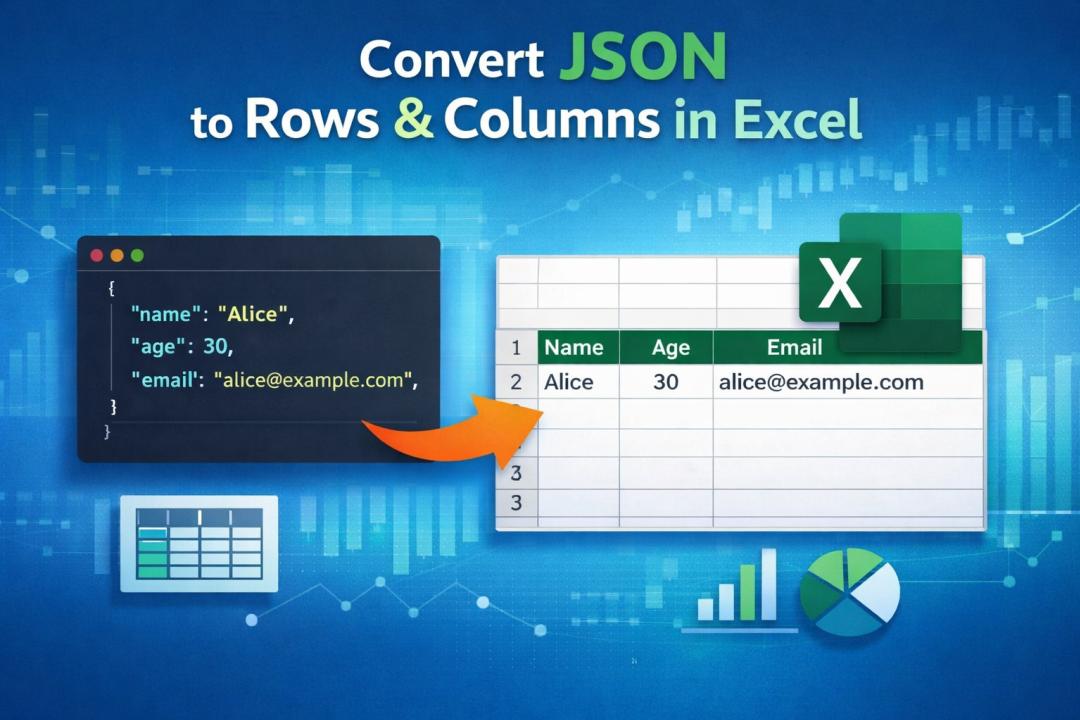
In today’s emerging world, JSON has become a standard format for managing and exchanging data across web applications or APIs. However, this is compatible with machines to process, and not always a practical solution for users who need to visualize or interpret large datasets in their complex format. Now, when you convert JSON to Excel, it allows users to organize nested data into a structured and tabular format that is suitable for analysis, reporting, and sharing. Excel represents the data in rows and columns, which is more accessible for non-technical users. In this guide, we’ll explore the different solutions to convert JSON data to rows and columns in Excel and simplify the process of handling complex files effortlessly.
Common Issues and Troubleshooting Tips
When converting JSON file into rows and columns, users often face some hurdles that affect content accuracy, readability, or performance. These problems mainly arise from the structure of the JSON file, large datasets, or improper handling of formats. Finding these common issues early and understanding how to fix them can prevent data loss during conversion. Below are some issues and tips:
- Missing Fields or Values
Improper JSON keys across records can lead to missing columns or rows in Excel. Flatten the JSON structure, always maintain data alignment efficiently.
- Formatting Issues
Many raw files contain various data formats that Excel doesn’t interpret properly. To fix this, standardise formats before converting JSON data to rows and columns in Excel.
- Corrupt JSON Files
Even a small mistake or error can make your file unreadable, so use a JSON validator to verify and correct the error before conversion.
- Nested Structure
Most of the time, deeply nested objects can result in complex Excel tables. So use advanced tools to automatically convert JSON into Excel table easily.
- Large JSON Files
Handling large datasets can be frustrating and slow down Excel when done manually. In such cases, split the file and use a desired solution that instantly processes bulk data without lag.
How to Convert JSON Data to Rows and Columns in Excel? Overview
There are mainly two ways to convert complex data into a tabular format. One is an automated tool, and the other is a manual approach. So, in the next session, we will explain both methods most thoroughly. Now, let’s dive into it to understand the solutions in detail
Method 1: Using an Advanced Tool
Many users need a quick and reliable solution for converting JSON file into tabular format, especially for bulk or nested data. Using automated tools is the best choice for every user.. They provide special advanced features like multiple format options and maintain accuracy during conversion.
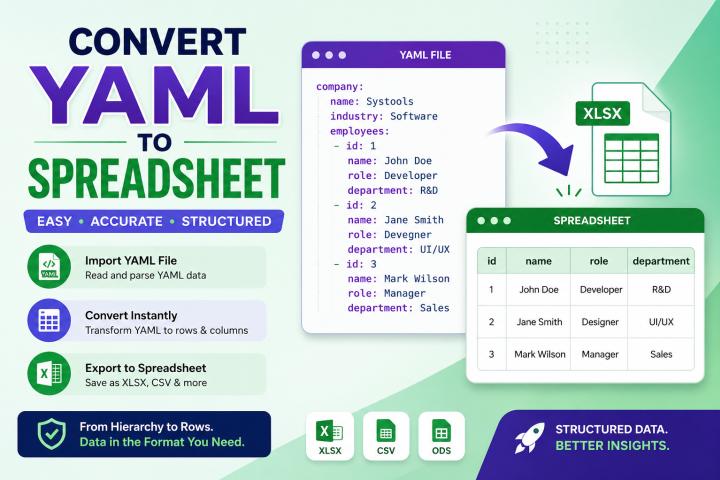
One of the most trusted and proficient solutions is SysTools JSON File Converter Tool, which allows users to convert JSON files into different formats, including Excel, CSV, PDF, and more. This tool ensures the hierarchy of data and offers a simple interface that is suitable for both technical and non-technical users.
Stepwise Guide to Convert JSON Data to Rows and Columns in Excel
- Download and run the software mentioned above on your system.
- Browse and upload the complex JSON file.
- Choose .xls or .xlsx as the file format.
- Set the desired location to save the resultant Excel file.
- Tap on the Export button to start the conversion process.
- Finally, click on View Report to view the resultant output.
PROS:
- Supports bulk conversion and convert JSON data into multiple formats.
- Always maintain the folder hierarchy and structure of crucial JSON data.
- It is an offline solution that does not require a stable internet connection.
- Provide complete security or privacy for the sensitive information of users.
- This tool offers a user-friendly interface that makes the conversion process effortless.
Method 2: Using MS Excel Feature
MS Excel provides an in-built feature to directly import JSON data into rows and columns in Excel. It is useful for small-sized JSON files without using additional software. Follow the steps given below:
- Open MS Excel on your system and go to the Data tab.
- Tap on the Get Data > From File> From JSON option.
- Browse and upload the raw JSON file.
- Now, Excel will display the data in Power Query Editor.
- Hit on Load to convert JSON data to Excel table format.
- Save the file in .xlsx format.
PROS:
- Provide a built-in feature, and no need to install any software.
- Easy to use for small-sized JSON files.
- This can be used in a graphical interface.
CONS:
- It is time-consuming and consists of multiple steps.
- Always struggles with large and complex JSON files.
- It is a slow process and does not support bulk processing.
Final Thoughts
In this guide, we understand that how to convert JSON data to rows and columns in Excel can bridge the gap between raw, structured data and user-friendly analysis. Using the right approach can transform nested JSON files into organized tables for visualizing, reporting, and insights. Always remember that manual methods come with some limitations, so choose the technique that suits your needs and preferences.