Summary
Microsoft Outlook stores emails, contacts, calendars, notes and other mailbox data in PST files. As Outlook mailboxes grow over time, PST files may become difficult to handle. Large PST files can also affect Outlook performance and complicate mailbox management.
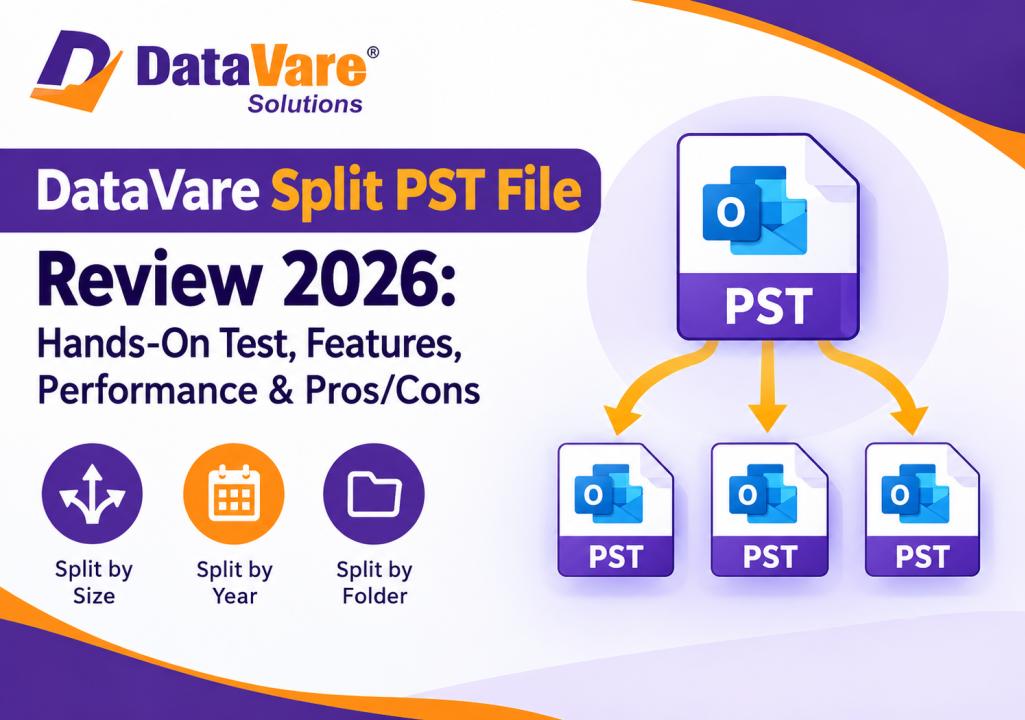
DataVare Outlook PST Split software to split large Outlook PST files into smaller PST files. The software offers multiple splitting options such as Split by Size, Split by Year, Split by Folder. It supports ANSI and Unicode PST files and works independently without installation of Microsoft Outlook.
In this review, we will review its key features, usability, splitting capabilities, pros, cons, and a full step-by-step guide to split an Outlook PST file.
What Is Outlook PST Split Expert?
Outlook PST Split Expert is a PST management utility that helps you split large Outlook PST files into smaller manageable files.
The user can choose any splitting method according to their needs instead of manually dragging and dropping email between multiple PST files. You can split a PST by size or split data by year or extract selected folders into separate PST files.
It can be useful when users want to organize large Outlook archives, reduce the size of single PST files, or split mailbox data into multiple files.
Why Need To Split Large PST File?
A PST file that keeps on growing can be hard to manage. Older versions of Outlook had low PST size limits, whereas newer Unicode PST files support much larger capacities.
DataVare suggests to split large PST file before facing size issues for mailbox management.
Below are some common reasons for splitting PST files:
- Managing a large mailbox in Outlook
- Working with old email archives
- Yearly data breakdown
- Select specific folders
- Dividing PST files into smaller parts for better manageability
- Reducing the size of a large mailbox
- Separate PST files for different periods of time
Deleting data is not the same as splitting a PST. The purpose is to divide the mailbox information into several PST files, but to keep the original information.
Major Features of Split PST Software
1. Divide PST by Size
The Split by Size option gives you an option to split a huge PST file into smaller pieces of a selected size in MB or GB. This can be handy when you need to split a mailbox into several smaller PST files.
The users can select the source PST, choose the desired size and leave the application to create the resultant PST files based on the selected limit.
2. Separate PST by Year
Another feature of the software is Split by Year. The user can specify the start and end years that are pertinent to the period. The mailbox data can be split based on the selected period.
This is particularly helpful for businesses that have long-term email archives.
3. Split PST by Folder
You can select a particular Outlook folder and extract it from a larger PST file with the Split by Folder function.
The product page shows some examples of selectable folders such as Inbox, Outbox, Notes and Messages.
This provides additional control for users who only want to separate some mailbox categories.
4. ANSI and Unicode PST Support
The software supports ANSI as well as Unicode PST files. This makes it compatible to work with PST files created by different versions of Microsoft Outlook.
Users still need to check that the source PST is available and supported before starting the operation.
5. No need to install Outlook
Another nice feature of the software is that it is standalone, and does not require Microsoft Outlook to be installed on the computer.
This can be useful if there is no installation of Outlook available or simply if users want to manage an archived PST file by themselves.
6. Store Resultant PST Files Locally
After splitting the files, users can select any local location to save the created PST files. It also says in the product info that the users can specify their own file names and save the resulting files to a location of their choice.
Performance Review in Action
Performance is a significant factor when splitting large PST files. Processing times may vary based on a number of factors, including:
- Size of PST file
- Number of e-mails
- Folders count
- Attachment size
- Selected split technique
- Performance of Storage Drives
- System resources available
But one should not expect the same processing time for all PST files. A small PST with a few messages may process much faster than a large archive with years worth of emails and large attachments.
For an important mailbox it is recommended to test the software on a representative copy before processing the original archive.
Step-by-Step Instructions to Split Outlook PST File
The process is meant to be simple. The published material of DataVare also describes a simple workflow of installation, selecting PST, splitting criteria, destination selection and execution.
Step 1: Download and Install Software
Download Outlook PST Split Expert on your Windows machine and install it.
The product documentation mentions support for Windows 11, 10, 8.1, 8, 7 and other Windows environments.
Ensure that there is sufficient disk space available before you install.
Step 2: Run PST Split Expert
Once installed, launch the software.
From the main interface, the user can select the PST file that is to be split.
Step 3: Browse and Choose the PST File
Click the Browse option and find the PST files that are stored in your computer.
Choose the PST file you want to split.
Make sure you’ve got the right file before you move on. It is also suggested to keep a backup of the original PST.
Step 4. Select the Splitting Method
Load the PST file and choose the method that best suits your requirement.
Normally you can choose between:
- Split by Size
- Split By Year Split By Folder
- Each method has a different purpose.
Step 5: Divide PST by Size
If you select Split by Size, please provide the PST size in MB or GB.
For instance, you may have a large PST but want smaller archive files. You can choose how large, based on your storage and Outlook management needs.
Software will Split the Source PST as per the selected size.
6. Split PST By Year
If you choose Split by Year, enter the beginning and ending years for the split.
If you want to sort email archives chronologically, this is a useful option.
For example, an organization that keeps several years of email correspondence might find it easier to manage if the data is split by year, rather than moving individual messages manually.
Step 7: Split PST by Folder
Select Split by Folder if you want to split off particular folders.
Select the folder that you want to split, for example Inbox, Outbox, Notes or any other available mailbox folder.
If you want to create a separate PST with specific mailbox information, this option is useful.
Step 8: Choose Output Location
Select the local folder where you want to save the resulting PST files.
Ensure the destination drive has sufficient free storage space, especially when splitting a large PST with many attachments.
If possible, utilize a location that differs from its original source.
Step 9: Initiate the PST Splitting Process
Review the selected PST file, split method, criteria and destination location.
Click the command shown in the app to begin the splitting process.
The software will work on the source PST and generate the output PST files as per the selected settings.
Step 10: Check the Resultant PST Files
Once the process is complete, open the destination folder and confirm the new PST files have been created.
Verify:
- Names of files
- File size
- File structure
- Number of Emails Attachments
- Significant messages
- Calendar or contact info, as appropriate
Don’t delete the original PST file immediately. Make sure that the resulting files have the data you need.
Pros
- Breaks down large PST files into smaller PST files.
- 3 ways to split : size, year, folder. Gives you
- Supports ANSI and Unicode PST files.
- No installation of Microsoft Outlook.
- Allow the user to choose a local destination for the resulting PST files.
- Great for managing large Outlook archives.
- Supports older and newer Windows OS versions as per vendor’s listing
- Simple PST management workflow.
Cons
- The software is for accessible PST files and does not repair all types of PST corruption problems.
Questions Frequently asked
1. What is Split PST Program?
Outlook PST Split Expert is a tool to split large Outlook PST files into multiple small PST files with options to split by size, year or folder.
2. how to split PST file by size
Yes. The software has a Split by Size option, and users can indicate the desired size in MB or GB.
3. Can PST be split by year?
Yes. The Split by Year feature allows the user to enter the beginning and ending year to sort PST data by the specified period.
4. Do I need MS Outlook to use PST Split Expert?
No, the product specifications from DataVare says that the application is independent and there is no need to install Outlook.
The Final Verdict
DataVare Outlook PST Split Expert is a useful PST management tool for the users who want to split large Outlook PST files into smaller and manageable files. Split by Size, Split by Year and Split by Folder options can give flexibility for different mailbox organization needs.
The stepwise workflow is very simple Select PST, choose the splitting method, specify the required criteria, choose an output location and start the process.