
To convert ICS to Excel, you can import calendar data into a spreadsheet using a CSV file or use a professional ICS converter to simplify the process. Excel makes it easier to organize calendar events, filter meeting schedules, analyze dates, and maintain records in rows and columns.
An ICS file stores calendar information, including event titles, dates, times, locations, and descriptions. However, Excel does not directly support every ICS file structure. In this guide, we will explain manual methods to convert ICS to Excel and an automated solution
Why Convert ICS File to Excel? Common Reasons Explained
An ICS file is commonly used by Google Calendar, Apple Calendar, Microsoft Outlook, and other calendar applications. Although it is useful for sharing events, reviewing multiple calendar entries in a spreadsheet can be difficult. Here are some common reasons to convert ICS files into Excel:
Organize events: Arrange appointments, meetings, and reminders in a structured spreadsheet.
Analyze schedules: Sort and filter events according to dates, subjects, and other available details.
Maintain records: Keep an offline record of calendar activities for reporting and documentation.
Manage multiple calendars: Consolidate calendar information for easier review and planning.
Share information: Distribute calendar records in an Excel-compatible format to colleagues or team members.
How to Convert ICS to Excel Manually?
There are different ways to access ICS calendar information in Excel. The suitable method depends on your file size, the number of events, and whether you need to preserve all calendar details.
Method 1: Convert ICS to CSV and Open It in Excel
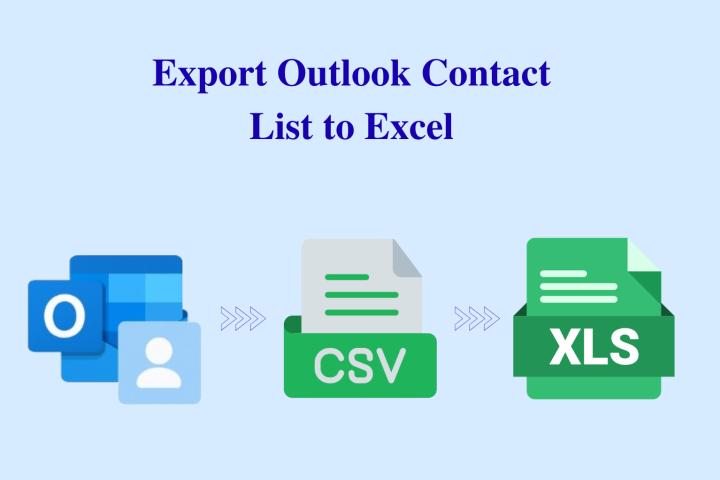
CSV is a spreadsheet-compatible format that Microsoft Excel can open. You can convert ICS to CSV and then save the resulting file as an Excel workbook. Follow these steps:
Locate the ICS file on your computer.
Open it using a calendar application or a suitable text editor to inspect the event information.
If your calendar application supports exporting events as CSV, use that option to create a CSV file.
Open Microsoft Excel.
Click File > Open and select the exported CSV file.
Check whether the event details appear in separate columns.
If required, adjust the column formatting for dates, times, and descriptions.
Select File > Save As and choose Excel Workbook (*.xlsx).
Limitation: An ICS file contains structured calendar data, so simply renaming its extension to CSV will not convert it. A proper export or conversion step is necessary. Depending on the application, some fields may also require manual adjustment.
Method 2: Use a Calendar Application to Export Events
Another option is to import the ICS file into a compatible calendar application and export the events in a spreadsheet-friendly format, if supported.
Open a calendar application that supports ICS imports.
Import the ICS file into a separate calendar or folder, where possible.
Verify that the expected events are displayed correctly.
Check whether the application provides a CSV export option.
Export the calendar data as CSV.
Open the exported file in Excel and save it as XLSX.
This method is useful when you need to review calendar events before exporting them.
Limitation: Not every calendar application offers direct CSV export. Some applications may require additional steps, and importing an ICS file into an existing calendar can create duplicate events if the same entries already exist.
How to Convert ICS to Excel Professionally?
When you need to process multiple ICS files or want a more convenient way to extract calendar information, a dedicated converter can reduce manual effort. The SysTools ICS File Converter Tool provides an automated approach to converting ICS calendar data into supported output formats, including CSV for use in Excel. Instead of manually arranging individual event records, you can process the calendar data through a conversion workflow.
Working Steps of the Tool
Step 1: Download and Install the Tool:
Download the tool from the official website and install it on your computer. Launch the software after installation.
Step 2: Add the ICS Files:
Browse to the location of your ICS files and add the calendar data you want to convert. If you have multiple files, check the software's file-selection options to process them together.
Step 3: Preview the Calendar Data:
Review the available calendar information before conversion. Check event subjects, dates, start and end times, and other displayed details to confirm that the correct files have been selected.
Step 4: Select CSV as the Output Format:
Choose CSV from the supported output formats. CSV is compatible with Microsoft Excel and allows calendar records to be arranged in a tabular structure.
Step 5: Start the Conversion:
Choose the destination location and start the conversion process. Once completed, navigate to the output folder and locate the generated CSV file.
Step 6: Open the File in Excel:
Launch Microsoft Excel and open the converted CSV file. Review the event data and adjust the column widths or date formatting if necessary. Finally, save the file as an XLSX workbook.
Note: Available output formats and conversion options may depend on the software version. Check the current product documentation before proceeding.
Why Choose an Automated Solution Over Manual Methods?
Manual methods can work for a small calendar containing only a few events. However, they may become time-consuming when dealing with several ICS files or larger calendars. The tool offers a more streamlined workflow for supported conversion tasks.
Bulk processing: Useful when you need to process multiple calendar files, subject to the available software options.
Structured output: Convert calendar data into CSV for easier viewing and organization in Excel.
Less manual effort: Reduce the need to copy individual event details into spreadsheet cells.
Convenient workflow: Process calendar files through a dedicated conversion interface.
Multiple output choices: Review the available export formats when you need calendar data for purposes other than spreadsheets.
For recurring calendar exports or large collections of ICS files, an automated converter can be more convenient than repeatedly performing manual steps.
Conclusion
To convert ICS to Excel, you can export calendar events to CSV through a compatible application and then open the resulting file in Microsoft Excel. This approach works well for small calendars, although export availability and data formatting can vary.
For larger collections or repeated conversion tasks, the above suggested tool provides a dedicated way to convert supported ICS data into CSV for spreadsheet use. After opening the converted file in Excel, you can organize events, filter records, and save the information as an XLSX workbook.
Choose the method that best matches your calendar data and conversion requirements.