# How to Fix Event Promo Graphics When the Details Change at the Last Minute
A speaker cancels. A venue room changes. The early-bird deadline gets extended. For event teams, these small text updates can create an awkward problem when the only file on hand is a finished JPG, PNG, or WebP image.
Instead of rebuilding the entire graphic from scratch, a focused editing workflow can help you correct the visible wording, review the result, and publish with more confidence.
## The real-world scenario: a finished image with one wrong detail
Imagine a community workshop has already promoted a social post that says:
> Saturday, 10:00 AM, Room B
Then the venue moves the session to Room D. The designer is unavailable, the layered source file is missing, and the post needs to be corrected before the next email campaign goes out.
This is exactly the kind of situation where an image text editor is useful: the design is mostly right, but one embedded text area needs careful replacement.
## Start by deciding whether the image is worth editing
Before touching the graphic, check whether a text replacement is likely to look clean.
Ask three quick questions:
- Is the background behind the text simple or lightly textured?
- Is the replacement wording similar in length to the original?
- Will the image be used in a high-visibility place, such as a paid ad or homepage banner?
If the answer to the first two is yes, editing the text directly may be faster than recreating the asset. If the image will appear in a critical campaign, plan extra review time before publishing.
## Use a trusted tool for the text replacement step
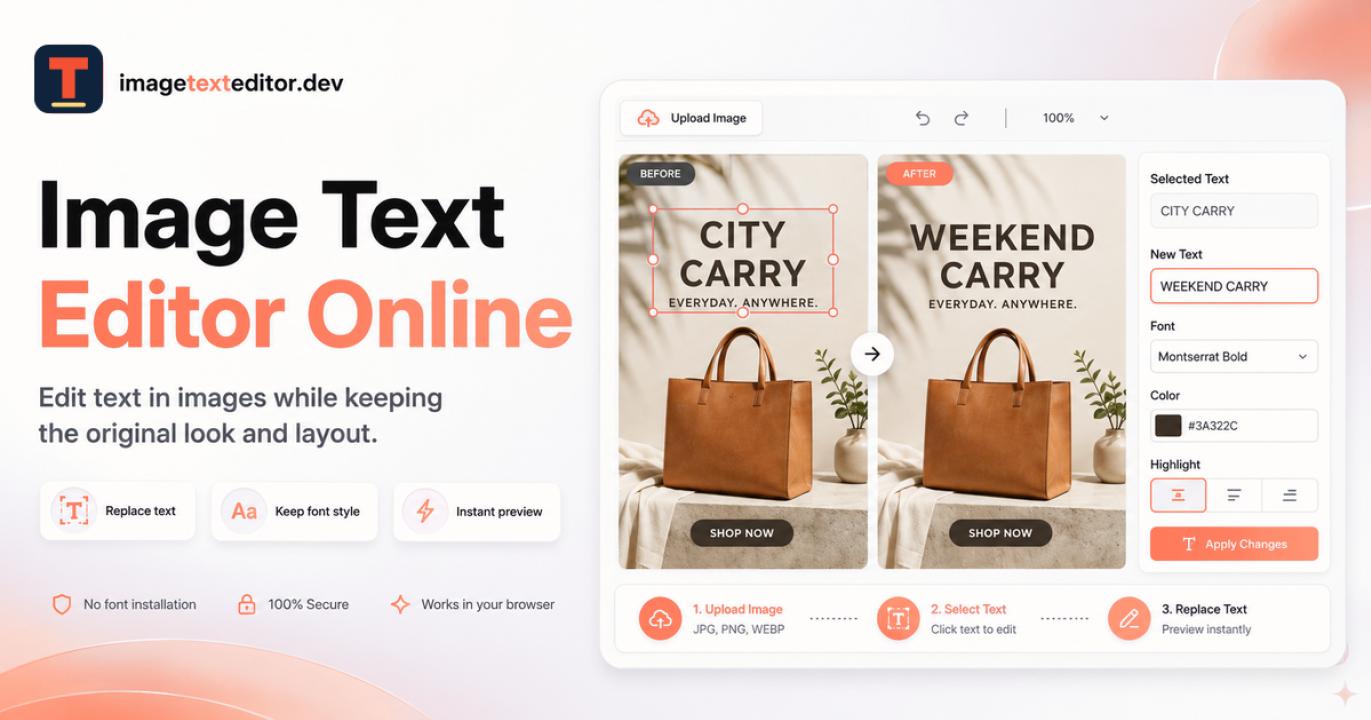
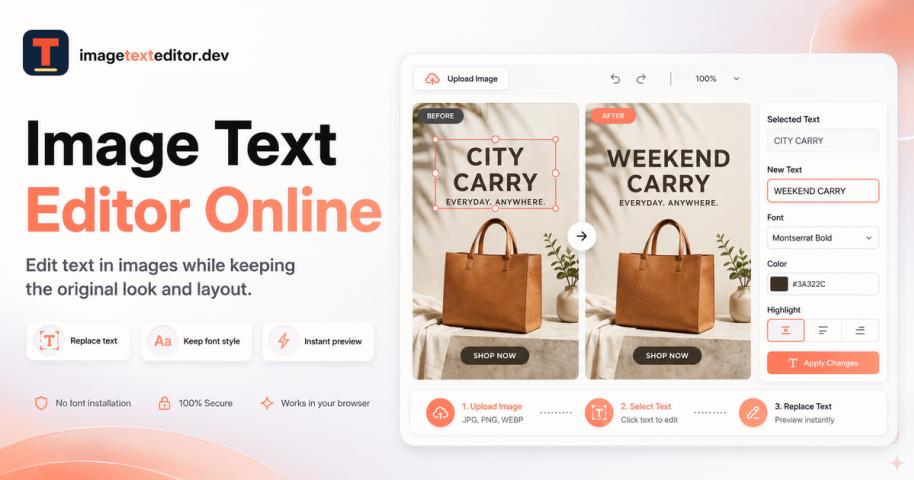
For teams that need to adjust wording inside a completed image, Image Text Editor online provides a focused way to upload an image, select embedded text, replace it, compare the result, and download the corrected version.
That kind of narrow workflow is helpful because the goal is not to redesign the entire asset. It is to correct a specific visible detail while keeping the rest of the image intact.
## Keep the replacement text close to the original
The cleanest edits usually happen when the new phrase fits the old space.
For the event example, these replacements are realistic:
- “Room B” to “Room D”
- “10:00 AM” to “10:30 AM”
- “Early bird ends May 4” to “Early bird ends May 7”
More difficult changes include replacing a short label with a long sentence, changing a single-line heading into two lines, or editing text that overlaps faces, logos, or complex background patterns.
When possible, shorten the new wording before editing. A concise correction often looks more natural than forcing a long update into a tight design.
## Review the corrected graphic like a publisher
After editing, do not only check whether the new words are readable. Review the whole image as if it were ready to go live.
Look for:
- Uneven spacing around the updated text
- Blurry edges or mismatched sharpness
- Background patches that look repeated or smudged
- Text that no longer aligns with nearby elements
- Old details still appearing in smaller areas of the image
It helps to zoom out to social-feed size, then zoom in again. Some issues are obvious only at thumbnail scale, while others appear only on close inspection.
## Save a simple record for future updates
Last-minute event changes tend to happen more than once. After fixing the image, save a short note beside the final file:
- What text was changed
- When the corrected version was created
- Where the updated image was published
- Whether the source design file still needs to be recovered
This small habit prevents confusion later, especially when multiple volunteers, marketers, or coordinators are sharing graphics across email, social media, and registration pages.
## When rebuilding is still the better choice
Text editing is not always the right fix. Rebuild the graphic if the update changes the layout, if the original text is heavily stylized, or if the image is part of a major brand campaign where pixel-level consistency matters.
A quick edit is best for practical corrections: dates, times, room names, short labels, prices, deadlines, and other contained text changes.
## Final takeaway
When an event graphic contains one outdated detail, the fastest solution is not always a full redesign. A careful image text replacement workflow can help teams correct the visible mistake, review the result, and keep communication moving without unnecessary delays.