
Have you ever turned on your TV or monitor and seen the words “No Signal” on the screen, even though your device is plugged in with an HDMI cable? This can be really annoying, especially when you just want to watch a movie or play a game. Don’t worry! You can fix most HDMI no signal problems with a few simple steps. Let’s learn how together.
What Does HDMI No Signal Mean?
When you see “No Signal,” it means your TV, monitor, or projector is not getting any information from the device you connected. This could be your computer, game console, DVD player, or streaming box. The problem is usually with the HDMI cable, the device, or the settings.
Why Does HDMI No Signal Happen?
There are several reasons why this might happen:
The HDMI cable is loose or not plugged in right
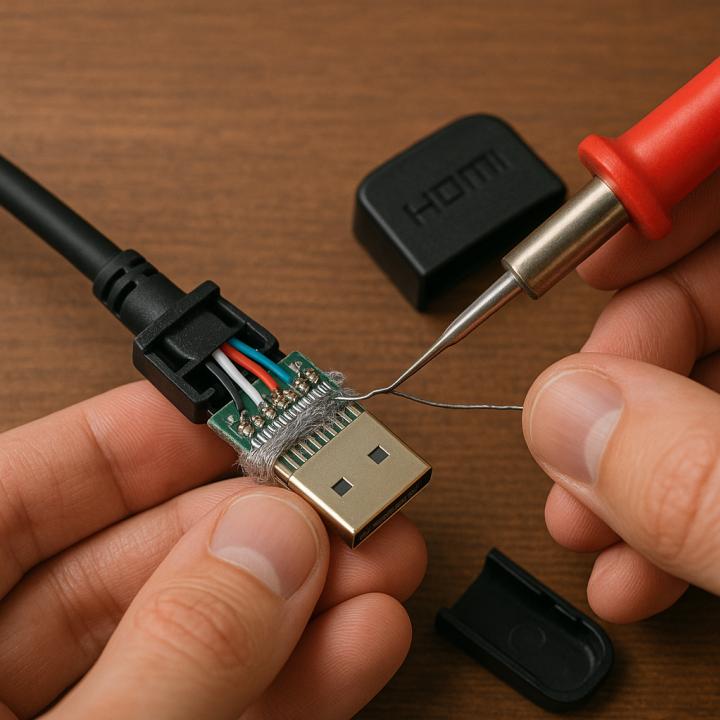
The HDMI cable is damaged or too old
The TV or monitor is set to the wrong input
The device is not turned on or is asleep
The HDMI port is broken or dirty
The settings on your device are not correct
Quick Steps to Fix HDMI No Signal
Let’s go through some easy steps that can fix the problem. Try these one by one.
1. Check the HDMI Cable Connection
Make sure the HDMI cable is plugged in tightly on both ends. Sometimes, it looks plugged in but isn’t all the way. Push it in gently until it feels secure.
2. Try a Different HDMI Port
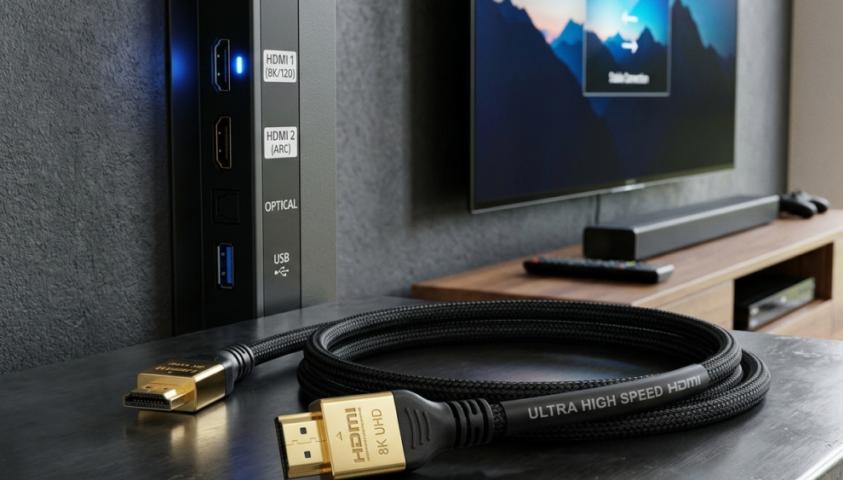
Most TVs and monitors have more than one HDMI port. Unplug your HDMI cable and try another port. Sometimes, one port stops working, but the others are fine.
3. Switch the Input Source
Use your remote or the buttons on your TV or monitor to pick the right HDMI input. If your cable is in HDMI 2, make sure you select HDMI 2. Sometimes, switching to another input and back again helps your device recognize the signal.
4. Restart Your Devices
Turn off your TV, monitor, and the device you are connecting. Unplug them from the power for about 30 seconds. Then plug them back in and turn them on. This can reset the connection and fix the no signal problem.
5. Try a Different HDMI Cable
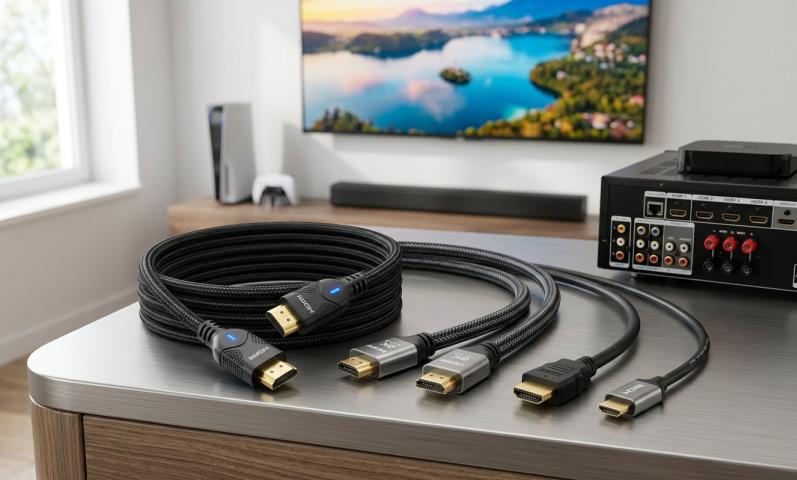
Your HDMI cable might be the problem. Try using another HDMI cable if you have one. Top HDMI cables are more reliable and last longer, so if your old cable is worn out, a new one could solve the issue.
6. Clean the HDMI Ports
Dust or dirt can block the connection. Blow gently into the HDMI port or use a soft brush to clean it. Then plug the HDMI cable back in.
7. Check the Device Settings
Sometimes, your computer or game console needs to be set to send video through the HDMI cable. On a computer, press the right keys to switch the display to the TV or monitor. On a game console, make sure it is set to the right output.
8. Test with Another Device
Try connecting a different device to your TV or monitor using the same HDMI cable. If it works, the problem might be with the original device. If it doesn’t, the HDMI cable or port could be the problem.
9. Remove Extra Devices
If you are using an HDMI splitter or switch, remove it and connect your device directly with an HDMI cable. Sometimes, extra devices can cause problems.
10. Update Your Devices
Check if your TV, monitor, or connected device needs a software update. Updates can fix bugs and make your HDMI connection work better.
Exact Answer: How to Fix HDMI No Signal
To fix HDMI no signal, first check that your HDMI cable is plugged in tightly on both ends. Try switching to another HDMI port and make sure your TV or monitor is set to the correct input. Restart all your devices and, if the problem continues, use a different HDMI cable. These simple steps fix most HDMI no signal problems.
Tips for Using Top HDMI Cables
Using a good quality HDMI cable can make a big difference. Top HDMI cables are strong, last longer, and give you a clearer picture and sound. If you notice your cable is old, frayed, or bent, it’s time to get a new one. Always pick a cable that is the right length for your setup—too long or too short can cause problems.
How to Prevent HDMI No Signal Problems
Use top HDMI cables that are not too long or too short
Keep your cables organized and untangled
Don’t bend or twist the HDMI cable too much
Clean the HDMI ports gently every few months
Update your devices when updates are available
When to Get Help
If you have tried all these steps and still see “No Signal,” there might be a bigger problem. The HDMI port could be broken, or your device might need repairs. Ask an adult or a technician for help if you can’t fix it yourself.
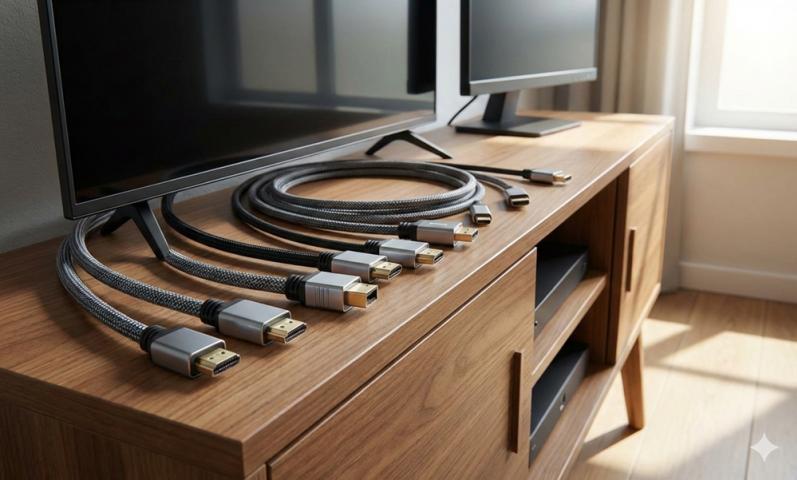
Keeping Your HDMI Cables Organized
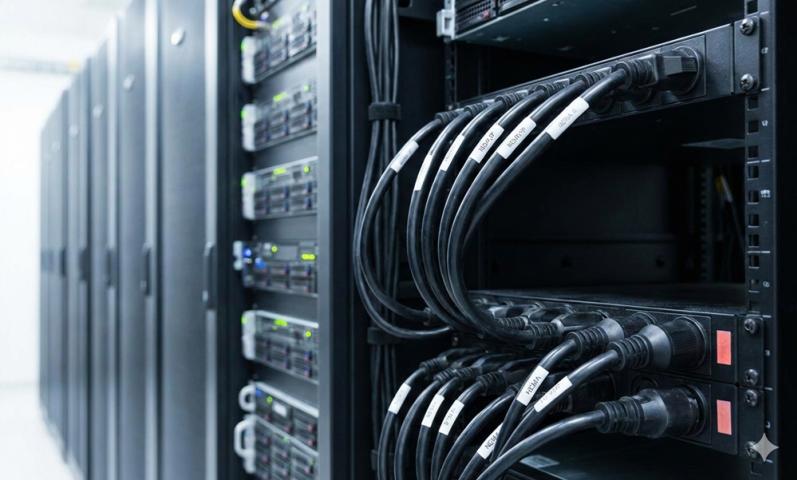
It’s easy for cables to get messy behind your TV or computer. Use cable ties or clips to keep your HDMI cables neat. This makes it easier to find the right cable and keeps your space tidy.
Conclusion
HDMI no signal problems can be frustrating, but they are usually easy to fix. Start by checking your HDMI cable and making sure everything is plugged in right. Try another port, restart your devices, or use a new HDMI cable if needed. Most of the time, these simple steps will get your TV, monitor, or projector working again. Remember, you don’t need to be a tech expert—just follow these steps and you’ll be back to watching, playing, or working in no time!
Sources: https://www.techonent.com/2025/06/how-to-troubleshoot-hdmi-extension-cable-issues.html
https://sharefolks.com/view/how-to-fix-hdmi-handshake-issues
https://newyorktimesnow.com/blog/who-makes-the-best-hdmi-cables