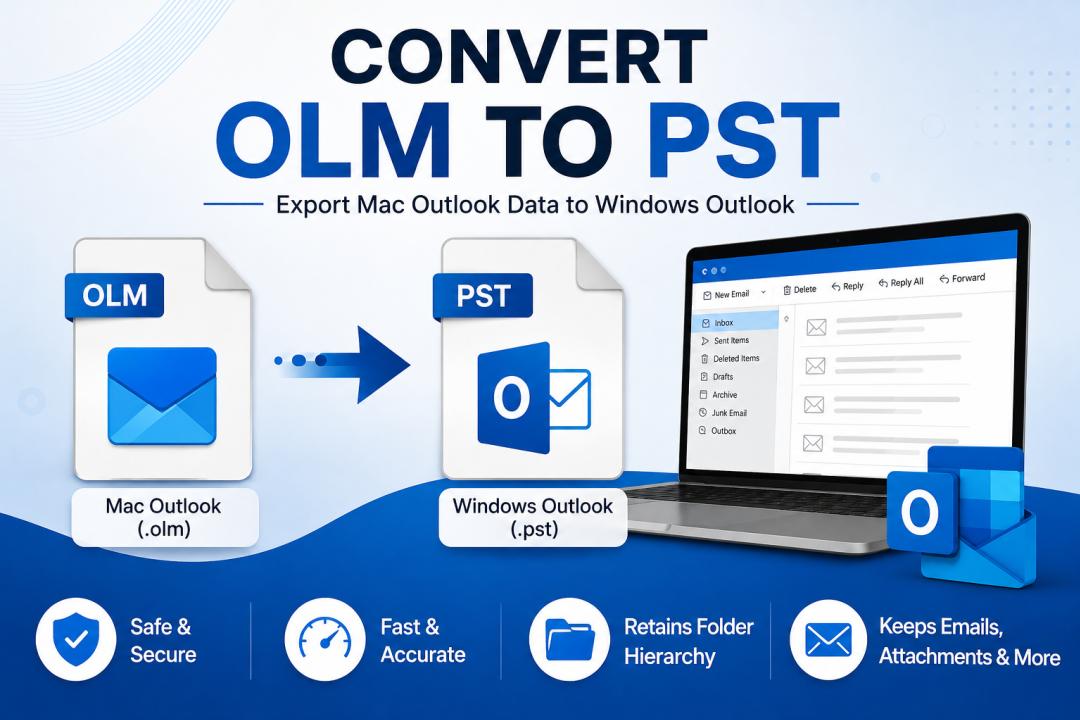
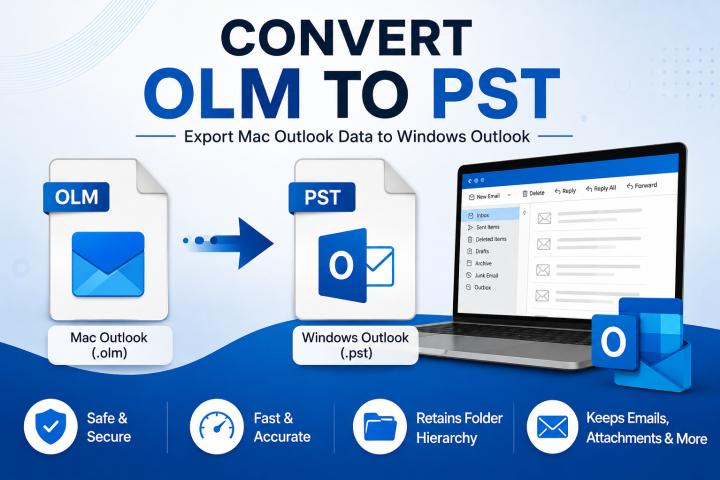
If you have an Outlook for Mac .olm archive and need to use the data in a Windows-based Outlook environment, converting it to PST is often the most practical approach. OLM and PST are both Outlook data-file formats, but they are designed for different Outlook platforms and workflows.
Microsoft documents OLM as the archive format used by Outlook for Mac, while PST is the standard Outlook data file associated with Outlook for Windows. Outlook for Mac can import PST files created by Outlook for Windows, but its native archive workflow is centered around OLM.
So, how to convert OLM file into PST file without losing important mailbox information? There are several approaches, but they differ significantly in terms of effort, compatibility, and how much data they can preserve.
Why Convert OLM to PST? Common Reasons
An OLM file may contain emails, contacts, calendars, tasks, notes, and attachments exported from Outlook for Mac. Converting the archive to PST can be useful when:
You are moving from Outlook for Mac to Outlook for Windows.
You need to access Mac Outlook data in a Windows environment.
You want to migrate archived emails to a Windows-based Outlook profile.
You need a PST file for an organization or migration workflow.
You want to preserve mailbox folders and attachments in a more widely used Outlook data format.
The important point is that renaming .olm to .pst does not convert the file. The internal data structure remains different, so an actual conversion process is required.
Can I Convert OLM File to PST Directly?
Yes, you can convert an OLM file to PST on Mac, but Outlook for Mac does not provide a direct built-in OLM-to-PST conversion option. OLM is the archive format used by Outlook for Mac, while PST is mainly used for Outlook on Windows. A direct conversion generally requires a dedicated solution. Before choosing a method, consider the following:
No direct Outlook option: Outlook for Mac exports mailbox data as OLM rather than PST.
Third-party converter: A Mac-compatible OLM converter can create PST directly from the OLM file.
Data preservation: Choose a method that can retain emails, attachments, folders, and other mailbox items you need.
Large OLM files: For bigger archives, look for batch processing, filtering, and PST-splitting options.
Backup first: Keep the original OLM file safe until you have verified the converted PST.
If you do not want to use dedicated conversion software, there are also alternative approaches involving IMAP or Outlook for Windows. Let’s look at the different methods to convert OLM to PST and understand which one works best for your requirements.
Method 1: Convert OLM to PST Using an IMAP Account Manually
If you prefer a manual approach, you can use an IMAP email account as an intermediate platform. The basic idea is to move emails from the OLM archive to an IMAP mailbox, synchronize them with Outlook on Windows, and then export the synchronized data as a PST file. This method can work without dedicated conversion software, but it involves several stages.
Steps to Convert OLM to PST via IMAP:
Set up an IMAP account.
Add the IMAP account to Outlook for Mac.
Import the OLM archive and wait for synchronization.
Configure the same account in Outlook for Windows.
Verify the migrated emails and export the mailbox to PST.
Limitations of the IMAP Method
Although this method provides a way to convert OLM to PST, it is not a direct conversion process. Here are some disadvantages:
Requires an IMAP-enabled email account.
Needs sufficient server storage.
Requires both Mac and Windows environments.
Involves multiple synchronization steps.
Can be time-consuming for large OLM files.
Non-email items may require separate migration.
Internet connectivity is required throughout the synchronization process.
If you want to avoid these manual steps and need a more direct way to convert OLM to PST on Mac, a dedicated solution is a more convenient option.
Method 2: Convert OLM File to PST Using an Offline Desktop Tool
For users who want to perform the conversion directly, use a powerful solution such as MacXTools OLM Converter for Mac, which is considered an offline desktop approach. Instead of uploading mailbox data to an IMAP server, the conversion is performed from the locally stored OLM file.
This approach is particularly useful when you want to maintain better control over the source archive and avoid the lengthy upload-download synchronization process involved in the manual method.
Steps to Convert OLM to PST on Mac Using Advanced Utility
Download and install the tool on your Mac.
Browse to select the required OLM archive.
Let the software scan the OLM file and load its mailbox data.
Select PST as the destination format and choose a location to save the file.
Click the conversion option to convert the selected OLM data into PST.
Open the converted PST in Outlook and check emails, folders, attachments, etc.
Key Features of Using Robust Software Solution
Direct OLM to PST conversion: Converts OLM mailbox data into PST without using an intermediate email account.
Offline processing: Works with locally stored OLM files rather than requiring mailbox data to be uploaded to an online service.
Bulk conversion: Allows users to process multiple OLM files when handling several Outlook archives.
Selective conversion: Allows users to choose specific folders or mailbox data for conversion instead of processing everything.
Preview option: Lets users review available OLM data before starting the export.
Mac compatibility: Designed for users who need to perform the conversion within a Mac environment.
Concluding Words!
To convert OLM to PST file, you can use either the manual IMAP method or a dedicated offline converter. The IMAP approach works as an alternative but requires multiple migration and synchronization steps. An offline desktop tool provides a more direct and convenient way to convert OLM data into PST while retaining important mailbox content. Choose the method that best fits your data size, requirements, and available resources.