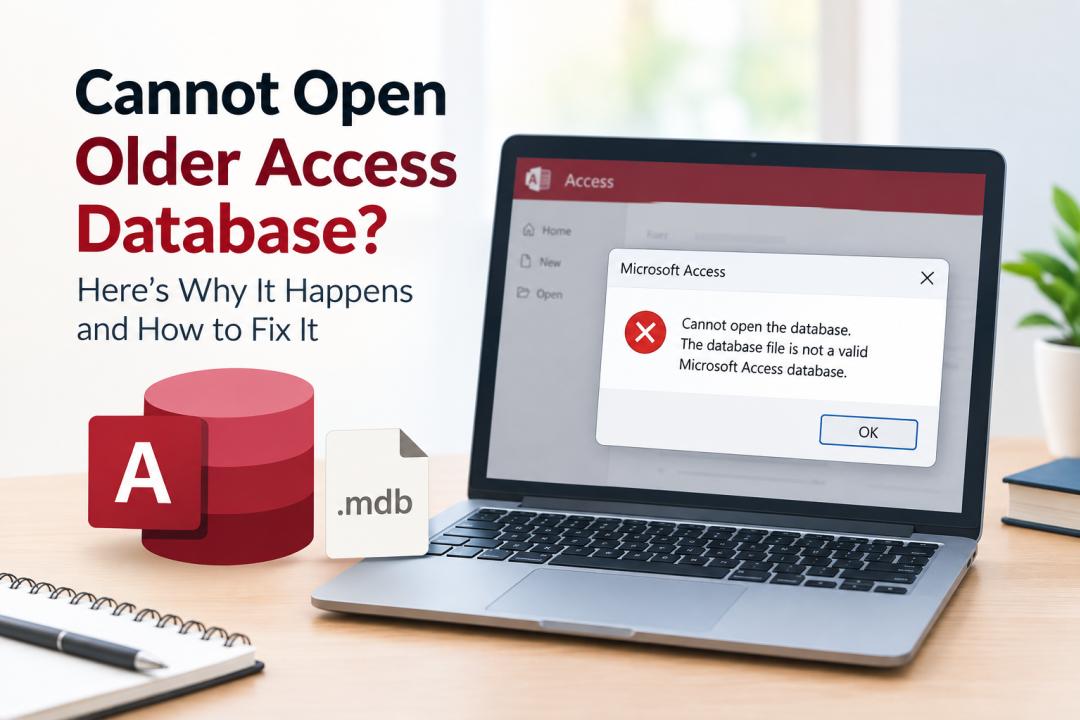
Have you tried opening an older Microsoft Access database, only to encounter an error message or find that the file will not open? This problem can occur when working with legacy MDB files, outdated Access versions, missing database components, or files protected with a password.
Older Access databases may contain important business records, customer information, financial reports, and other data that organizations still need. Fortunately, you may be able to access these files by checking compatibility, installing the appropriate database components, repairing the database, or resolving file permission issues.
In this guide, we will explain why you cannot open an older Access database and explore practical ways to troubleshoot the problem and unlock Access database file without unnecessarily risking your data.
Quick Answer: Why Can't I Open an Older Access Database?
You may be unable to open an older Microsoft Access database because your current Access version does not support its format, the required database engine is missing, the file is damaged, or you do not have the necessary permissions or password.
To resolve the issue, identify the database format, check compatibility with your installed Access version, verify file permissions, install the required components, and try opening a backup copy. If the database is password-protected, you must also resolve the authentication issue before accessing its contents.
What Is an Older Microsoft Access Database?
Microsoft Access is a desktop database management system used to store and manage structured information. Older versions commonly use the MDB file extension, while newer versions generally use ACCDB.
MDB files were widely used in earlier releases of Microsoft Access, including Access 2000, Access 2002–2003, and Access 97. Although modern Access versions can open many older MDB databases, compatibility depends on the database's format, features, and condition.
Some older databases may also rely on legacy drivers, workgroup security files, or applications that are no longer installed on the computer. These dependencies can make it difficult to open a database even when the file itself is intact.
How to Fix the Cannot Open Older Access Database Problem
Try the following methods in order. Before repairing or converting a database, create a backup of the original file.
Method 1: Check the Access Database File Format
First, determine whether the file uses the MDB or ACCDB format. This information helps you identify potential compatibility problems.
Steps to follow:
Open File Explorer and navigate to the database location.
Enable file extensions if they are hidden.
Check whether the filename ends in
.mdbor.accdb.Identify which version of Microsoft Access originally created the database, if possible.
Check whether your installed Access version supports that format.
If you are working with an MDB file created by an older Access release, try opening a copy in a compatible modern version of Microsoft Access.
Important: Do not simply rename an MDB file to ACCDB. Changing the extension does not convert the database format.
Method 2: Open the Database Using a Compatible Access Version
An older database may contain features that behave differently in newer releases. In some cases, the database also depends on a legacy application that expects a particular Access version.
Steps to follow:
Open Microsoft Access.
Select File > Open > Browse.
Navigate to the older database file.
Select the file and attempt to open it.
If Access displays a compatibility or conversion message, review the available options before proceeding.
If the database opens successfully, you may be able to convert a copy into a newer format using Access's Save As or database conversion options, depending on the version.
Keep the original MDB file unchanged until you have verified that the converted database works correctly. Some legacy features, user-level security arrangements, and application dependencies may not transfer directly.
Method 3: Install the Required Access Database Engine
Some applications use Microsoft Access Database Engine components to read MDB or ACCDB files. If these components are missing or incompatible, the application may fail to open the database.
This problem can occur when using reporting software, business applications, or programs that import Access data.
Steps to follow:
Identify the application that is attempting to open the database.
Check which Access Database Engine or ODBC driver it requires.
Download the appropriate component from an official Microsoft source.
Confirm that its architecture is compatible with the application, such as 32-bit or 64-bit.
Restart the application and try opening the database again.
Note: Installing a driver will not repair a damaged database or remove its password. Also, avoid installing database components randomly, because incompatible Office and database-engine installations can create additional problems.
Method 4: Check File Permissions and Location
An older Access database may be stored in a restricted folder, an external drive, or a shared network location. Windows permissions or synchronization issues can prevent Access from reading the file.
Steps to follow:
Close Microsoft Access and any application using the database.
Create a backup of the database.
Copy the database to a local folder where you have appropriate access, such as a folder under Documents.
Right-click the copied file and select Properties.
Check whether the file is blocked or marked as read-only.
Review the relevant Windows security permissions and ensure your account has the access required.
If the database is on a network share, confirm that you have permission to access the folder and that the network connection is working.
Access may also need to create a locking file while the database is open. Make sure the folder permissions allow the necessary operations. Do not delete a locking file while another user may still be working with the database.
Bonus Tip: Recover a Lost Password from an Older Access Database
Sometimes, you cannot open an older Access database because it is protected with a password that you no longer remember. If you have already checked the file format and compatibility settings but still cannot access the database, password recovery may be the next step.
In such cases, SysTools Access Password Recovery can help recover passwords from supported password-protected MDB and ACCDB files. It supports complex and multilingual passwords and offers options to add individual database files or folders for processing multiple files. The tool is designed for Windows and suport both MDB & ACCDB database file formats.
To get started, visit the software page, review its supported database formats and requirements, and try the available demo before purchasing.
Important: This tool addresses password-related access problems. If your older database is corrupted, uses an incompatible format, or depends on missing drivers, you will need a different troubleshooting method. Use password recovery only on databases you own or are authorized to access.
How to Prevent Older Access Database Opening Errors
You can reduce the risk of future access problems by following a few practical precautions:
Maintain backups: Keep an untouched copy before repairing, converting, or modifying a database.
Preserve legacy dependencies: Document the drivers, workgroup files, and external data sources required by older applications.
Use compatible software: Verify the database format and required components before migrating to another computer.
Avoid unsafe conversions: Convert a copy and test important tables, forms, queries, reports, and macros.
Store databases appropriately: Use reliable storage and ensure that authorized users have the required permissions.
Document passwords securely: Keep database credentials in an approved password manager or organizational vault.
Test restored files: Confirm that the database opens and that its important records are available after restoring a backup.
These precautions are particularly useful for organizations that continue to rely on older Access databases for daily operations.
Frequently Asked Questions
1. Can I open an MDB file in a newer version of Microsoft Access?
Yes. Many older MDB databases can be opened in newer versions of Access. However, compatibility depends on the original database format, its features, and any external dependencies it uses.
2. Why does Access say the database is in an unrecognized format?
This message can indicate an unsupported format, an invalid or incomplete file, or database damage. Verify the file extension, obtain a fresh copy if possible, and try opening a backup before attempting repair.
3. Can I convert an older MDB file to ACCDB?
In many cases, yes. Open the MDB database in a compatible version of Access and use the available database conversion or Save As options. Always convert a copy and check whether legacy security settings or application features need special attention.
4. Will Compact and Repair fix every older Access database?
No. Compact and Repair can resolve certain database problems, but it may not work if the file is severely damaged, unsupported, or inaccessible for other reasons. Keep an original backup before attempting it.
5. What should I do if I cannot open a password-protected MDB file?
Confirm that you are using the correct credentials and identify the type of security applied to the database. If you are authorized to access it but have lost the required database password, a compatible password recovery solution may help with supported protection types.
6. Is it safe to convert an old Access database to a newer format?
It can be safe when you work on a copy and verify the result. However, some legacy features and security configurations may behave differently after conversion. Test the database thoroughly before replacing the original.
Conclusion
If you cannot open an older Access database, start by checking its MDB or ACCDB format, the installed Access version, file permissions, and any required database components. If you suspect corruption, use Compact and Repair on a backup copy. If the problem is password-related, identify the security mechanism before choosing a recovery method.
A systematic approach can help you regain access to legacy database records while reducing the risk of losing important information.