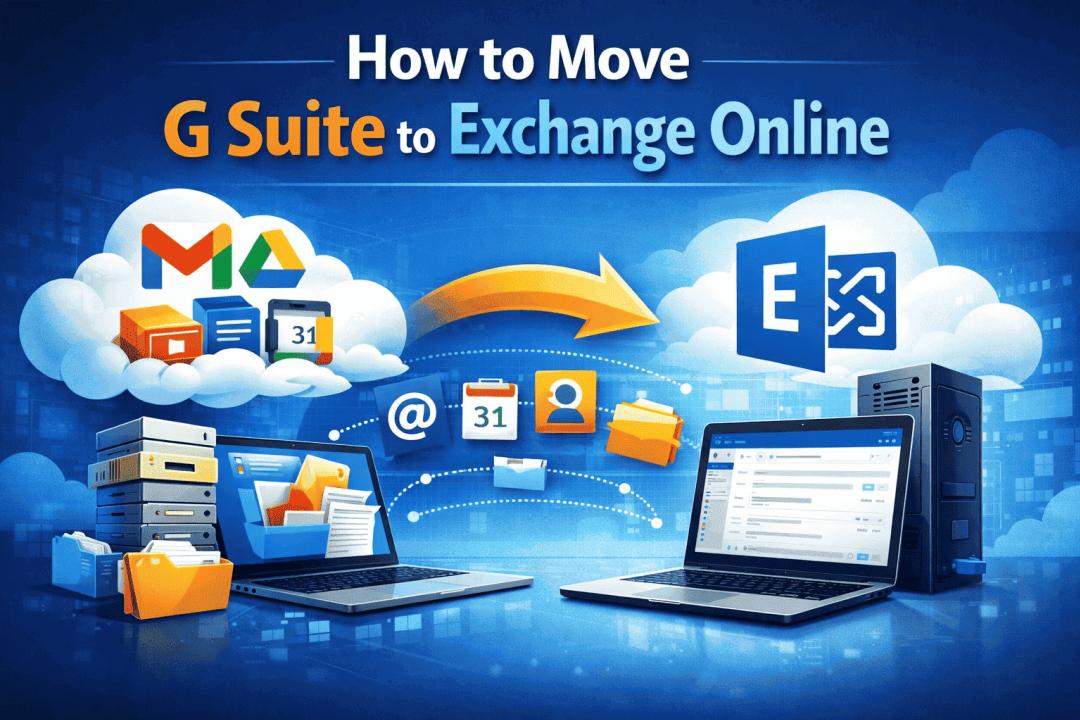
Many IT administrators and businesses look for ways to move G Suite to Exchange Online to improve collaboration, security, and enterprise-level productivity. In this guide, we will explain why organizations migrate from Google Workspace to Exchange Online. Preparations required before migration, and methods to move emails.
Why Move G Suite to Exchange Online?
Organizations are increasingly adopting Microsoft 365 and Exchange Online for better integration with Microsoft’s ecosystem. Here are the main reasons businesses switch from Google Workspace to Exchange Online:
- Exchange Online works seamlessly with Microsoft Outlook, Microsoft Teams, SharePoint Online, OneDrive for Business, and Microsoft Defender. This integration improves productivity and communication across teams.
- Exchange Online provides powerful features like: Email retention policies, Litigation hold, Advanced mailbox rules, and Centralized admin controls. These features make email management easier for IT administrators.
- Microsoft 365 offers security features such as: Multi-Factor Authentication, Advanced Threat Protection, Anti-phishing policies, and Data Loss Prevention (DLP). These tools help protect organizational data from cyber threats.
- Many organizations prefer Microsoft Outlook over Gmail because it provides:
Because of these advantages, many companies decide to move G Suite mailboxes to Exchange Online.
What Data Can Be Moved from G Suite to Exchange Online?
When migrating from Google Workspace to Exchange Online, the following data can be transferred:
- Gmail emails
- Attachments
- Labels and folders
- Calendar data
- Contacts
- Metadata (To, From, Subject, Date)
However, the method you choose determines how much data can be migrated successfully.
Preparations Before Moving G Suite to Exchange Online
Before starting the migration process, there are several things administrators should prepare.
- You must add and verify your domain in the Microsoft 365 Admin Center.
- Create mailboxes for all users who will receive migrated emails.
- To migrate Gmail emails, IMAP must be enabled.
- Generate App Passwords (If Using MFA). If Multi-Factor Authentication is enabled in Google Workspace, you must create App Passwords for migration tools or email clients.
IMAP Migration to Exchange Online
Follow these steps carefully.
- Prepare Gmail Accounts, IMAP is enabled
- Login credentials are available and User mailboxes exist in Microsoft 365
- Create a Migration CSV File. Create a CSV file containing Gmail login details.
- Open Exchange Admin Center. Microsoft 365 Admin Center >> Exchange Admin Center
- Then: Recipients >> Migration
- Create a Migration Batch. Click: Add Migration >> IMAP Migration
- Upload the CSV file containing Gmail account details.
- Configure Migration Endpoint. Enter Gmail IMAP settings:
- Server: imap.gmail.com
- Port: 993
- Encryption: SSL
- Start Migration
Once finished, Gmail emails will appear in Exchange Online mailboxes.
Limitations of Manual G Suite to Exchange Online Migration
Although manual methods are available, they have several major limitations.
- IMAP migration transfers only: Emails and Basic folders. It does not migrate: Contacts, Calendars, and Google Drive files
- Risk of Data Loss
- For organizations with hundreds of users, manual migration can take days or weeks.
- Administrators must monitor the process continuously.
- Requires Technical Expertise.
- Small businesses may find it difficult to perform.
- Large attachments may fail to migrate through IMAP.
- Manual migration does not allow data filtering, such as:
Professional Solution to Move G Suite to Exchange Online
To overcome manual migration limitations, organizations often choose a professional G Suite to Office 365 Migration Tool by SysTools. A dedicated migration solution allows businesses to securely transfer Gmail mailboxes to Exchange Online without data loss.
Steps to Move G Suite to Exchange Online Using the Tool
Follow these steps:
- Install and launch the G Suite to Office 365 Migration Tool.
- Select G Suite as Source Platform
- Choose Office 365 as Destination
- Provide account details of G Suite and Microsoft 365
- Map users using CSV file
- Click Start Migration
The tool will begin transferring Gmail mailboxes to Exchange Online automatically.
Conclusion
Moving from G Suite to Exchange Online can provide organizations with better email management, improved security, and seamless integration with Microsoft services.
While manual methods like IMAP migration are available, they come with several limitations such as email-only migration, technical complexity, and risk of data loss.For organizations planning a smooth and efficient transition, using a professional tool is the most reliable approach. It allows administrators to migrate multiple Gmail mailboxes to Exchange Online securely while maintaining folder structure and email integrity.