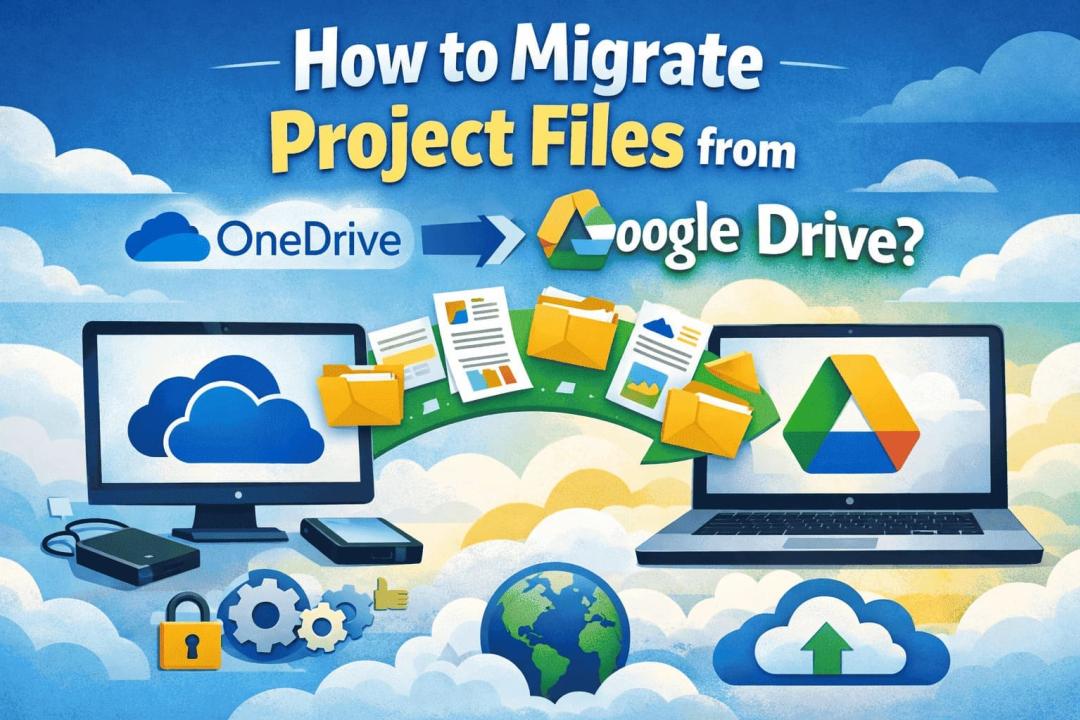
Transferring important project data, such as documents, spreadsheets, design files, and presentations from OneDrive to Google Drive requires a structured migration process. Without the right approach, teams may face problems like file corruption, missing folder hierarchy, version loss, or permission errors. So, in this guide, I will explain how to migrate project files from OneDrive to Google Drive.
Why Teams Move Project Files from OneDrive to Google Drive?
Organizations migrate project files for several operational and collaboration reasons. Some of the most common ones include:
- Google Drive integrates directly with Docs, Sheets, and Slides, allowing multiple team members to work simultaneously on project documents.
- Unlike traditional file editing systems, Google Workspace enables live editing, commenting, and version tracking, which improves project productivity.
- Many teams use tools like: Google Meet, Google Chat, Google Docs, Google Sheets, and Google Calendar
- Migrating project files to Google Drive ensures seamless integration across the entire Google ecosystem.
- Google Drive offers flexible sharing options such as: Public links, Domain-based sharing, and Team collaboration permissions
- This helps project managers control access while maintaining transparency among stakeholders.
- Instead of storing project files across different platforms, teams prefer to centralize project data within a single cloud storage system, improving accessibility and reducing confusion.
Challenges When Migrating Project Files from OneDrive
Although moving files may sound simple, project migrations often involve complex folder structures and large volumes of data. Here are some common issues organizations encounter:
- Project files are usually organized in multiple folders such as: Project Planning, Documentation, Resources, and Client Deliverables
- During manual migration, these structures may break or flatten.
- Project files often go through multiple revisions. Manual downloads may result in losing file versions and revision history.
- Projects can contain hundreds of GBs of files, including: CAD files, Videos, Design assets, and Documentation
- Uploading these manually is time-consuming and inefficient.
- Projects involve multiple stakeholders. Improper migration can cause permission mismatches, restricting team access to critical files.
Best Practices Before Migrating Project Files
Before starting the migration, organizations should follow several preparation steps.
- Audit Existing Project Data: Review: Total file size, Folder hierarchy, Number of project folders, and File formats. This helps estimate migration time.
- Remove Redundant Files: Delete outdated files such as: Temporary documents, Duplicate project files, and Old revisions. This reduces migration complexity.
- Prepare Google Drive Structure: Create corresponding folders in Google Drive to maintain the same project organization after migration.
How to Migrate Project Files from OneDrive to Google Drive?
There are several ways to move files between cloud platforms. However, manual methods are often inefficient for project data migration.
For teams and organizations handling large volumes of project files, using a professional migration solution is the most reliable approach.
Automated Method to Migrate Project Files from OneDrive to Google Drive
One of the most efficient ways to perform this migration is by using a professional OneDrive to Google Drive Migration Tool recommended by SysTools. This solution is designed specifically for organizations that want to transfer project files securely without data loss or manual work. Key Benefits of Using a Migration Tool
- Direct cloud-to-cloud migration
- Maintains original folder hierarchy
- Supports large project files
- Preserves file metadata
- Eliminates manual downloads and uploads
This ensures that project files remain organized and accessible after migration.
Steps to Transfer Project Files Using the Migration Tool
Follow these simple steps to migrate project data:
- Install and open the software on your system.
- Choose Microsoft 365 and G Suite options.
- Select the Documents option and then apply the date filter option.
- Enter your Microsoft credentials and authenticate access by clicking the Validate button.
- Add users by fetching, importing, and then clicking the Start Migration button.
Features of the OneDrive to Google Drive Migration Tool
This migration solution offers several advanced features designed for businesses and IT professionals.
- The tool ensures secure authentication and encrypted data transfer, preventing unauthorized access.
- Project files are migrated without disturbing the original folder structure, making it easy for teams to locate files after migration.
- Users can choose specific folders or project files instead of migrating the entire account.
- The software can handle large project repositories and enterprise-level migrations efficiently.
- Even non-technical users can migrate project files with simple step-by-step instructions.
Best Practices After Migration
Once the migration process is completed, follow these steps to ensure everything works properly.
- Check whether: All project files are transferred, Folder hierarchy is preserved, and files open correctly in Google Drive
- Reassign access permissions to ensure team members can access project files.
- Notify team members about the new project storage location so they can start collaborating using Google Drive.
Conclusion
Migrating project files from OneDrive to Google Drive is a strategic step for organizations adopting Google Workspace for collaboration. However, manual migration methods can create challenges such as data loss, broken folder structures, and time-consuming transfers.
Using a professional Tool simplifies the process. With the right migration approach, teams can move their project data smoothly and continue collaborating without disruption.